> ## Documentation Index
> Fetch the complete documentation index at: https://docs.upsolve.ai/llms.txt
> Use this file to discover all available pages before exploring further.
# Agents
> Build AI chat experiences that understand your data.
## What is an Agent?
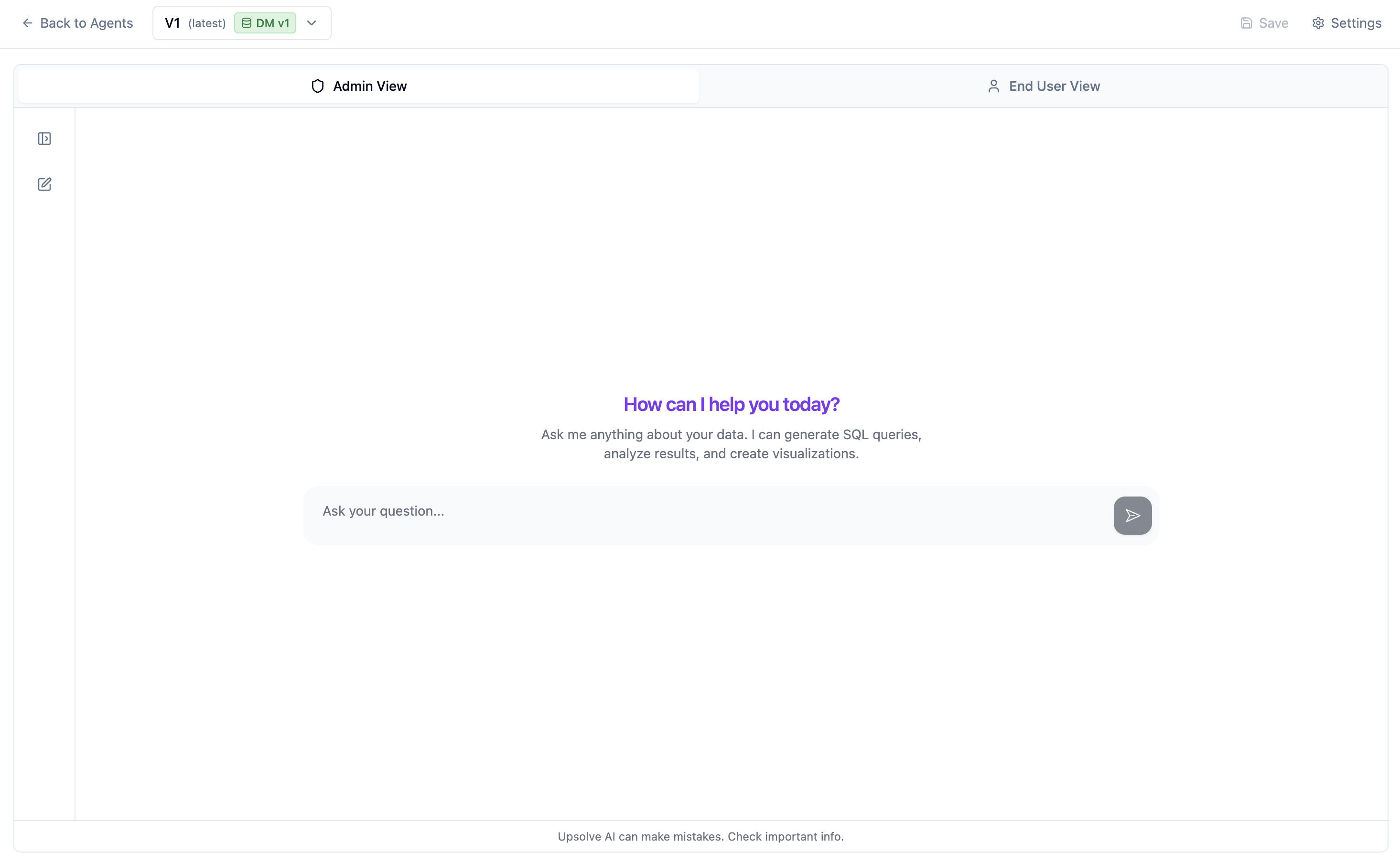
An Agent is an AI-powered chat interface that:
* Converts natural language questions into SQL
* Analyzes results and provides insights
* Creates visualizations from query results
* Learns from examples (Golden Assets)
 ## Agent Components
### Data Model Link
Every agent is linked to a specific data model version. This ensures:
* The agent knows what tables and columns exist
* Changes to the data model don't break the agent
* You can test with different data model versions
### System Prompt
A custom prompt that shapes how the agent responds:
* Company context and terminology
* Response style preferences
* Special instructions
### Golden Assets
Example queries and charts that teach the agent:
* How to write SQL for common questions
* What visualizations to create
* Correct terminology and calculations
### Evaluations (Evals)
Test sets to verify agent accuracy:
* Known question-answer pairs
* SQL validation
* Result comparison
## Creating an Agent
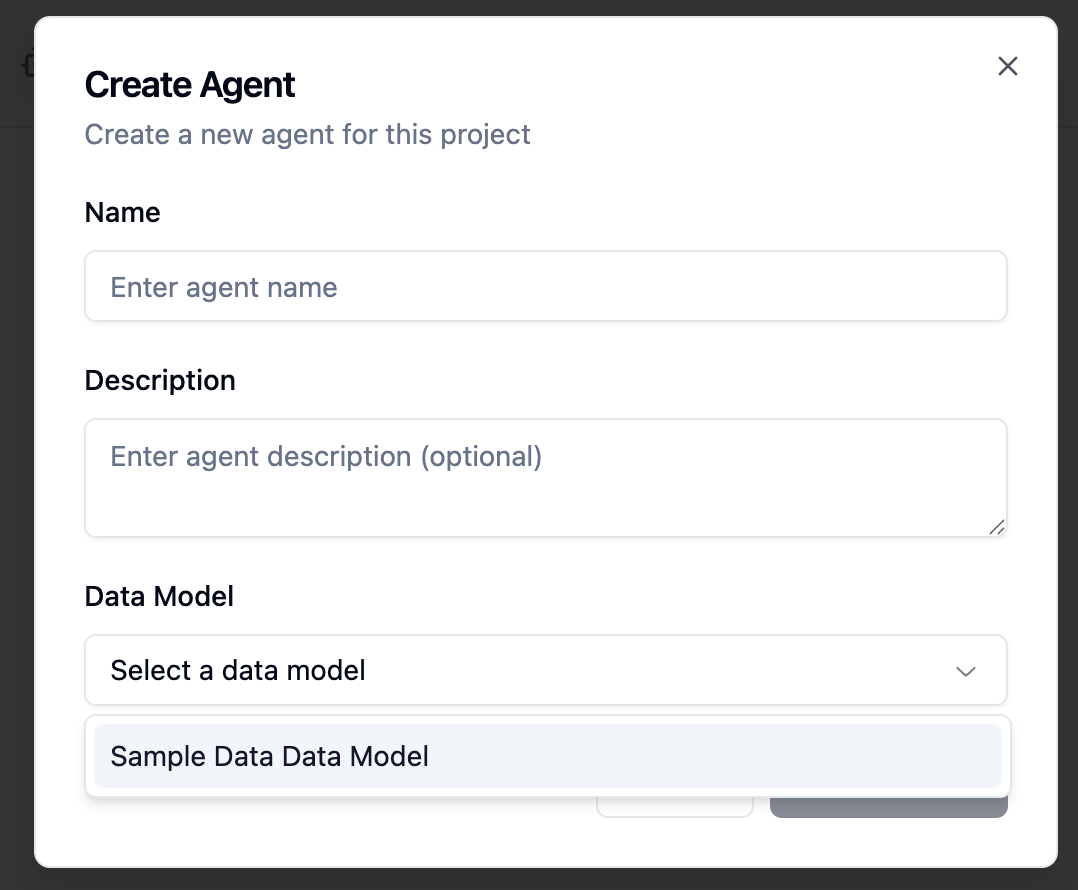
1. Navigate to your project's **Agents** tab
2. Click **Create Agent**
3. Enter a name and description
4. Select the data model to use
5. Click **Create**
## Agent Components
### Data Model Link
Every agent is linked to a specific data model version. This ensures:
* The agent knows what tables and columns exist
* Changes to the data model don't break the agent
* You can test with different data model versions
### System Prompt
A custom prompt that shapes how the agent responds:
* Company context and terminology
* Response style preferences
* Special instructions
### Golden Assets
Example queries and charts that teach the agent:
* How to write SQL for common questions
* What visualizations to create
* Correct terminology and calculations
### Evaluations (Evals)
Test sets to verify agent accuracy:
* Known question-answer pairs
* SQL validation
* Result comparison
## Creating an Agent
1. Navigate to your project's **Agents** tab
2. Click **Create Agent**
3. Enter a name and description
4. Select the data model to use
5. Click **Create**
 ## Configuring Your Agent
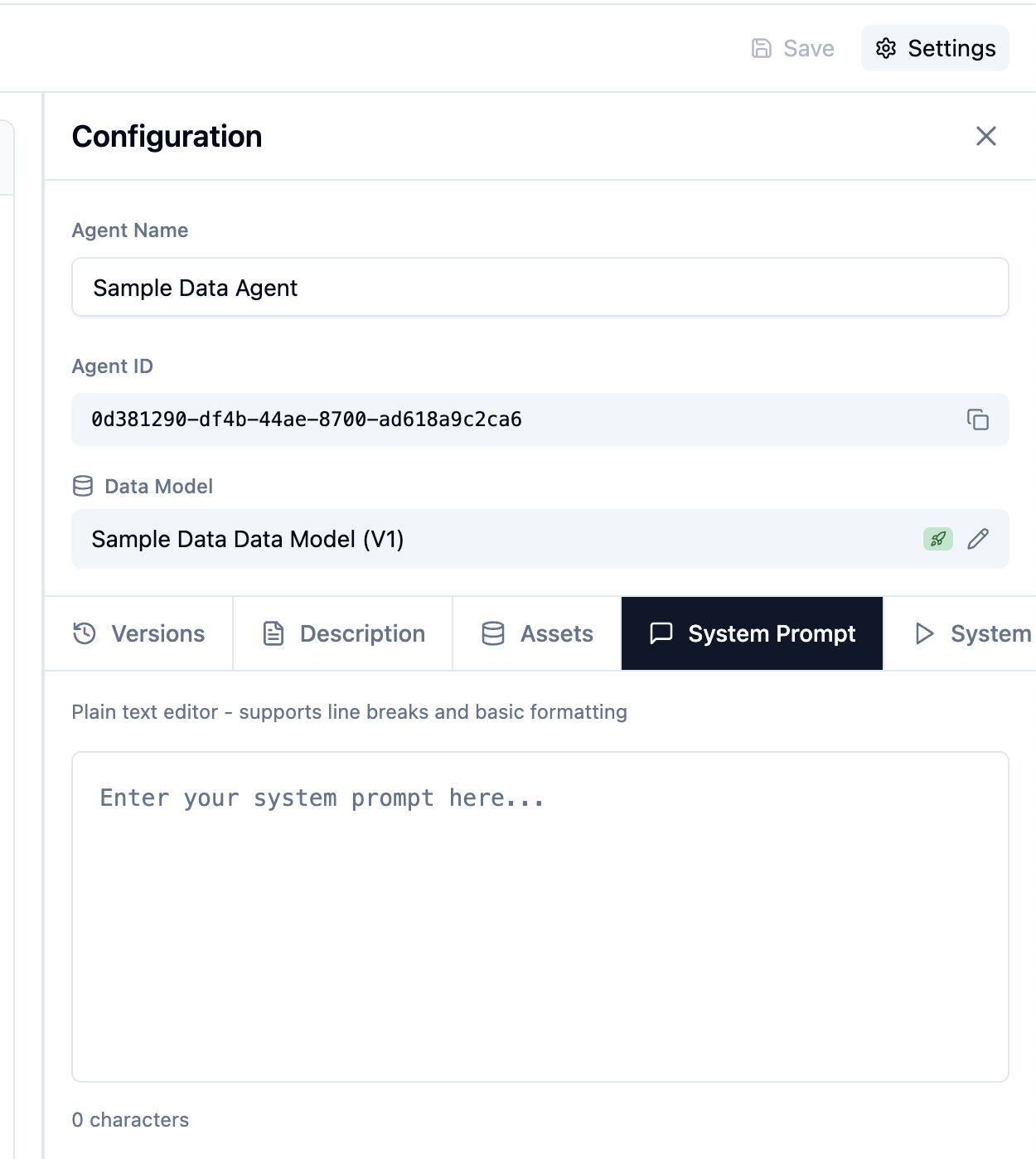
### Setting the System Prompt
1. Open your agent
2. Go to the **System Prompt** tab in the sidebar
3. Write instructions for the agent
4. Click **Save**
Example system prompt:
```
You are a data analyst for an e-commerce company.
Use clear, business-friendly language.
When users ask about "revenue," they mean gross_sales minus refunds.
Always include date ranges in your analysis.
```
## Configuring Your Agent
### Setting the System Prompt
1. Open your agent
2. Go to the **System Prompt** tab in the sidebar
3. Write instructions for the agent
4. Click **Save**
Example system prompt:
```
You are a data analyst for an e-commerce company.
Use clear, business-friendly language.
When users ask about "revenue," they mean gross_sales minus refunds.
Always include date ranges in your analysis.
```
 ### Adding Golden Assets
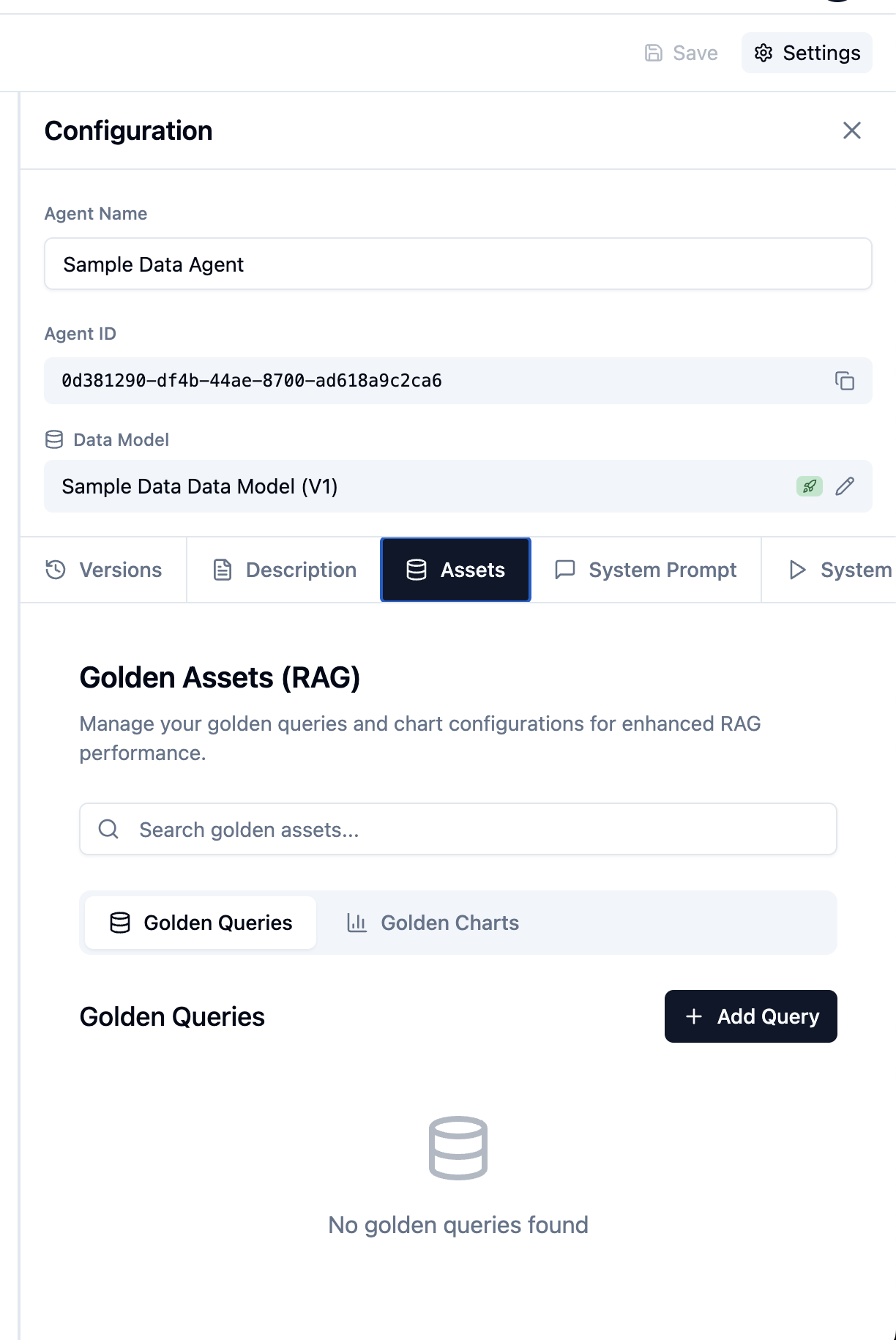
Golden Assets are example queries that improve accuracy:
1. Go to the **Assets** tab
2. Click **Add Asset**
3. Enter the question and corresponding SQL
4. Optionally add a chart configuration
5. Click **Save**
### Adding Golden Assets
Golden Assets are example queries that improve accuracy:
1. Go to the **Assets** tab
2. Click **Add Asset**
3. Enter the question and corresponding SQL
4. Optionally add a chart configuration
5. Click **Save**
 **Tip:** The more golden assets you add for common questions, the more consistent your agent becomes.
### Creating Evaluations
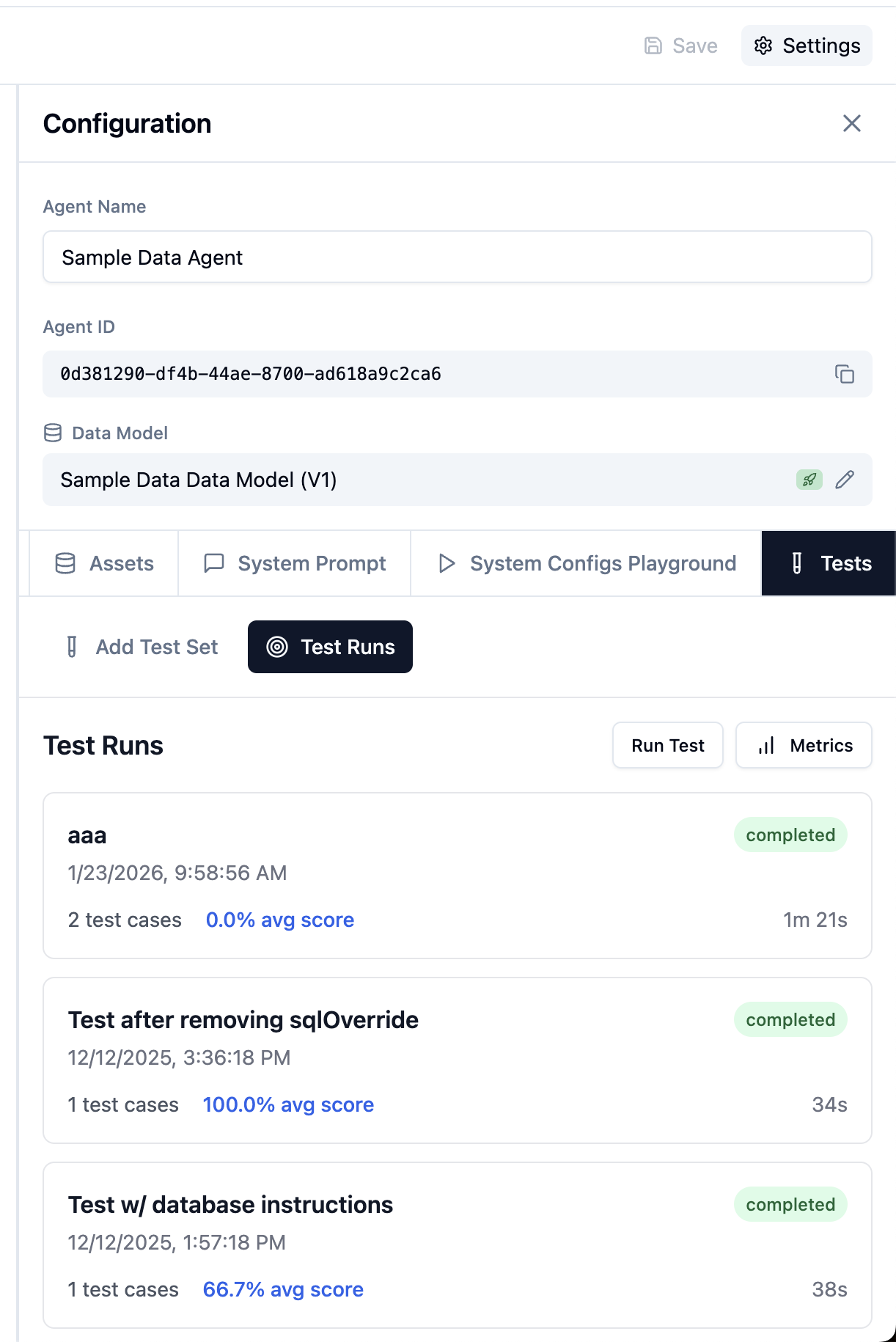
1. Go to the **Tests** tab
2. Click **Add Test**
3. Enter a question
4. Enter the expected SQL or answer
5. Save and run the test
**Tip:** The more golden assets you add for common questions, the more consistent your agent becomes.
### Creating Evaluations
1. Go to the **Tests** tab
2. Click **Add Test**
3. Enter a question
4. Enter the expected SQL or answer
5. Save and run the test
 ## Admin View vs User View
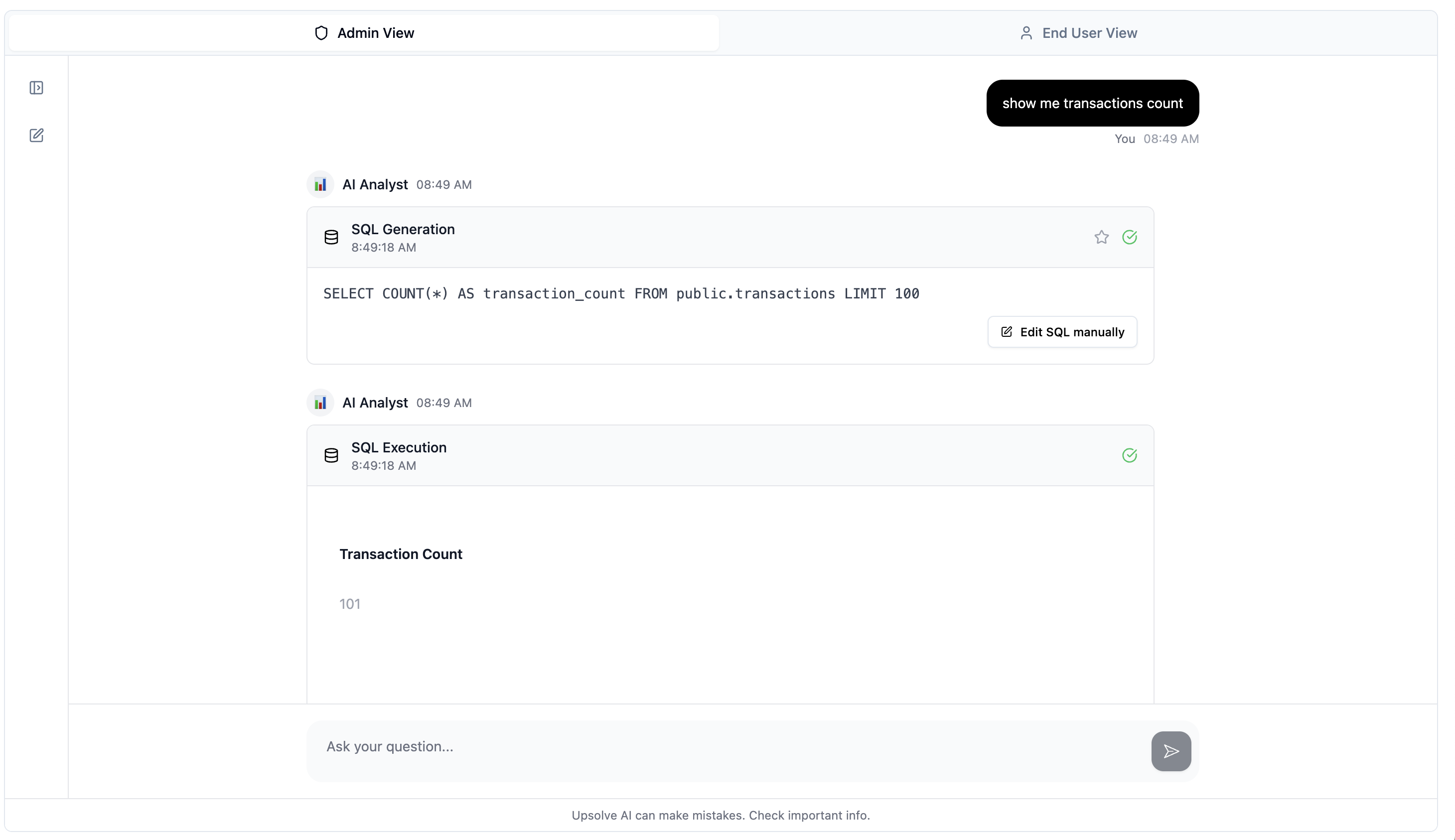
### Admin View
As an admin, you see full details:
* Every tool call the AI makes
* SQL queries generated
* Step-by-step reasoning
* Token usage and timing
## Admin View vs User View
### Admin View
As an admin, you see full details:
* Every tool call the AI makes
* SQL queries generated
* Step-by-step reasoning
* Token usage and timing
 ### User View
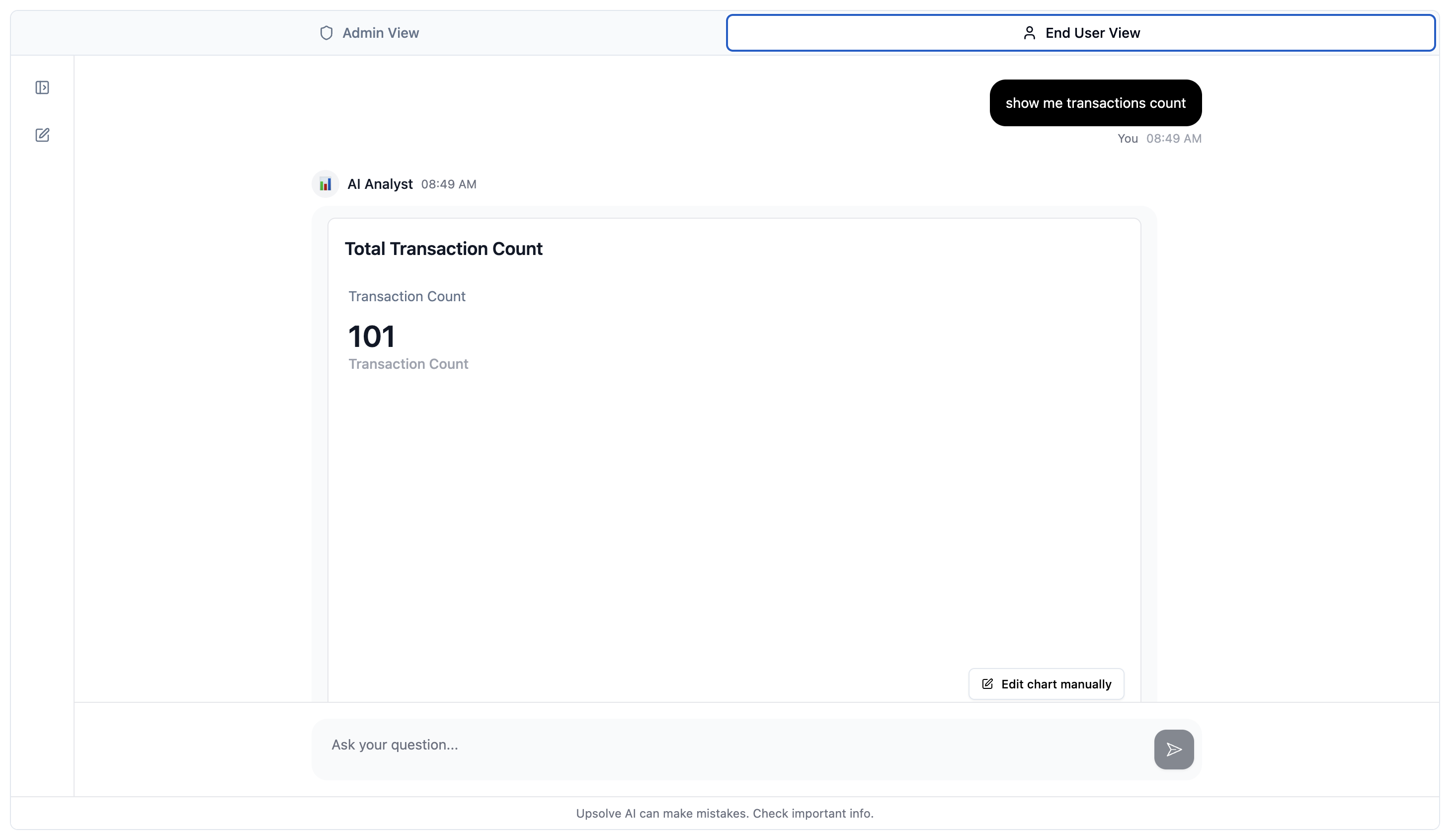
End users see a clean interface:
* Just the question and answer
* Charts and insights
* No technical details
### User View
End users see a clean interface:
* Just the question and answer
* Charts and insights
* No technical details
 ## Versioning
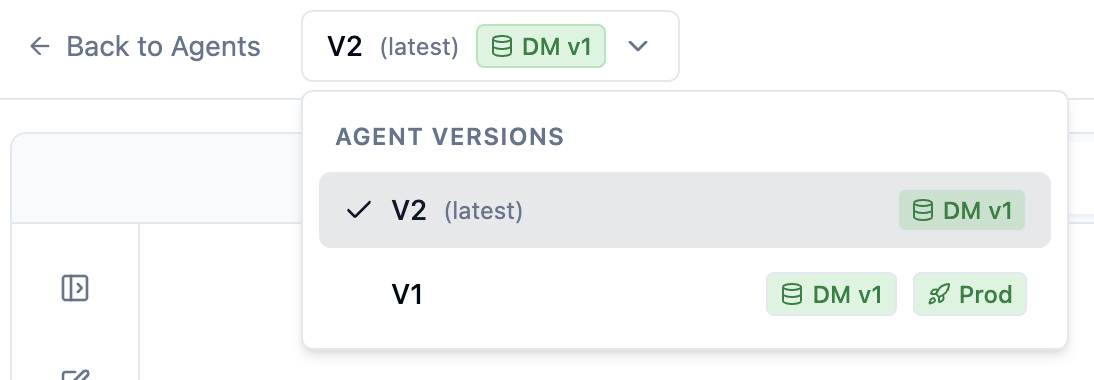
Like data models, agents are versioned:
1. Go to the **Versions** tab
2. See all versions with timestamps
3. Each version tracks: assets, prompt, data model link
## Versioning
Like data models, agents are versioned:
1. Go to the **Versions** tab
2. See all versions with timestamps
3. Each version tracks: assets, prompt, data model link
 ## Setting Production
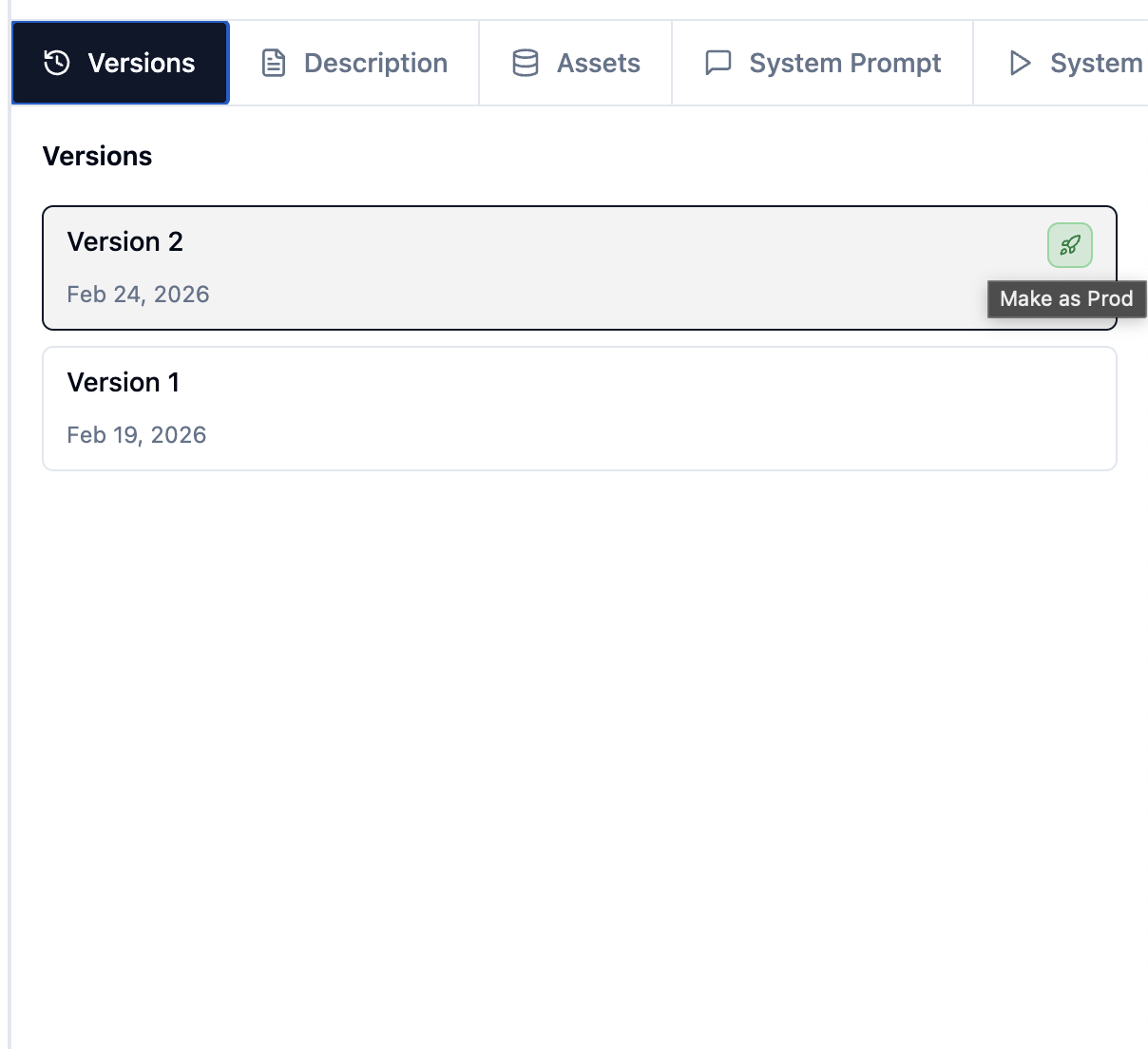
Before users can access your agent, you must set a version as production.
### Requirements
1. The agent must be linked to a data model
2. That data model version must already be production
3. The agent's schema requirements must fit within the data model
### Steps
1. Open your agent
2. Go to the **Versions** tab
3. Click **Set as Production** on the version you want
4. The system validates everything
5. If successful, users can now access this version
## Setting Production
Before users can access your agent, you must set a version as production.
### Requirements
1. The agent must be linked to a data model
2. That data model version must already be production
3. The agent's schema requirements must fit within the data model
### Steps
1. Open your agent
2. Go to the **Versions** tab
3. Click **Set as Production** on the version you want
4. The system validates everything
5. If successful, users can now access this version
 ### Validation Errors
If validation fails, you'll see specific errors:
* "Data model version is not production" - Set the data model production first
* "Missing tables/columns" - The agent uses data not in the data model
## Changing Data Model Version
To link your agent to a different data model version:
1. Go to the **Data Model** tab in the sidebar
2. Select the data model
3. Choose a version (production versions recommended)
4. Click **Save**
This creates a new agent version with the new data model link.
### Validation Errors
If validation fails, you'll see specific errors:
* "Data model version is not production" - Set the data model production first
* "Missing tables/columns" - The agent uses data not in the data model
## Changing Data Model Version
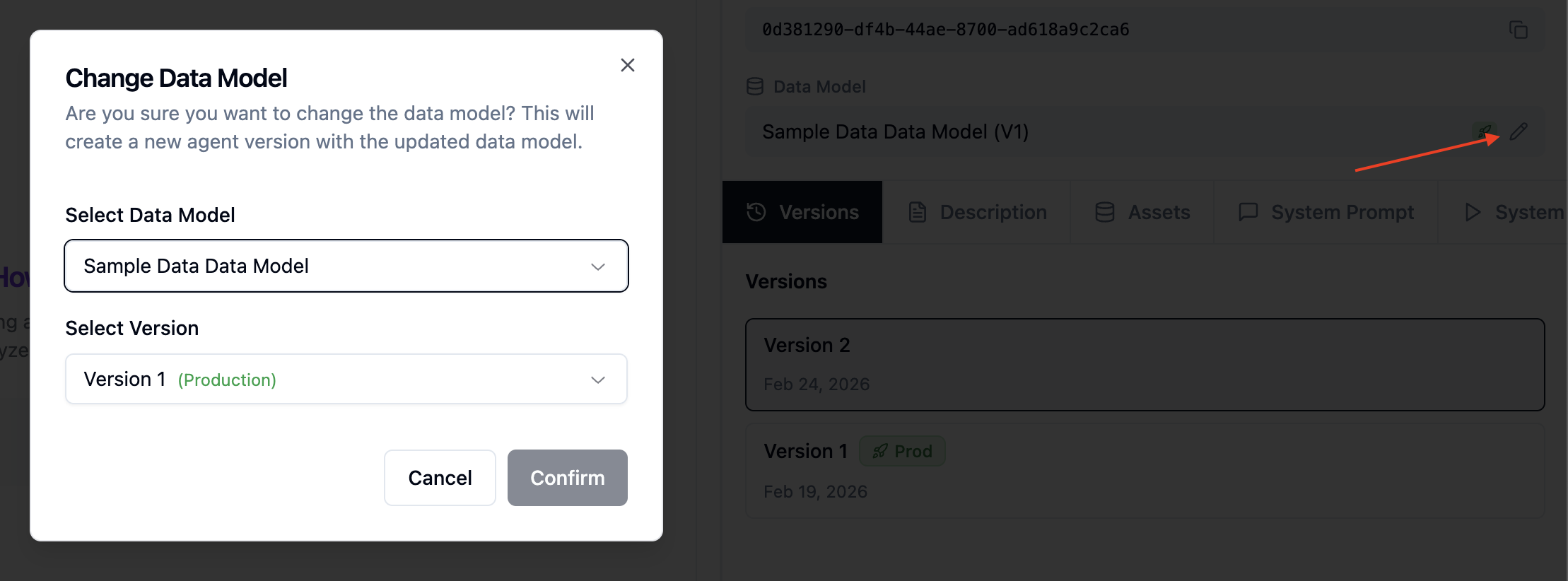
To link your agent to a different data model version:
1. Go to the **Data Model** tab in the sidebar
2. Select the data model
3. Choose a version (production versions recommended)
4. Click **Save**
This creates a new agent version with the new data model link.
 ## Best Practices
### 1. Start with Golden Assets
Add 10-20 golden assets covering common questions before going live.
### 2. Use Descriptive Data Models
Column descriptions in your data model help the agent understand your schema.
### 3. Run Evals Regularly
Create a test suite and run it whenever you update the agent.
### 4. Monitor in Admin View
Periodically check admin view to see how the agent handles real questions.
## Next Steps
* [Build an Application](/ai-agent-builder/applications) to combine agents with dashboards
* [Set up the complete flow](/ai-agent-builder/setup-guide) from project to production
## Best Practices
### 1. Start with Golden Assets
Add 10-20 golden assets covering common questions before going live.
### 2. Use Descriptive Data Models
Column descriptions in your data model help the agent understand your schema.
### 3. Run Evals Regularly
Create a test suite and run it whenever you update the agent.
### 4. Monitor in Admin View
Periodically check admin view to see how the agent handles real questions.
## Next Steps
* [Build an Application](/ai-agent-builder/applications) to combine agents with dashboards
* [Set up the complete flow](/ai-agent-builder/setup-guide) from project to production