> ## Documentation Index
> Fetch the complete documentation index at: https://docs.upsolve.ai/llms.txt
> Use this file to discover all available pages before exploring further.
# Backend Setup
> Set up user authorization in the backend for agent deployment
## User Authorization
The purpose of user authorization set up in the backend is for Upsolve AI to provide appropriate data access based on your user permissioning set up.
In your product's authentication flow, you register users with Upsolve using the [project user registration flow](/embedded-bi/data-permissioning/project-user-registration-flow): register an [organization](/api-reference/endpoint/register-project-organization) once per customer entity, register a [user](/api-reference/endpoint/register-project-user) once per account, then fetch a short-lived [user token](/api-reference/endpoint/get-project-user-token) on every login. The token tells Upsolve AI who the authorized user is and what data they can access, and is used to provide the appropriate access to the agent and underlying data.
To generate your API Key please go to the deploy page.
## Project User Token
When embedding an Application Space (via the `https://ai-hub.upsolve.ai/share/application/:applicationId` iFrame), you need a **project user token**. This token identifies a specific user within a project organisation and is used by the embed to load their personalised Space.
### Endpoint
```
POST https://api.upsolve.ai/v1/api/projects/user-token
```
### Request
| Field | Type | Required | Description |
| ---------------- | ------------- | -------- | --------------------------------------------------------------------- |
| `userId` | string (UUID) | Yes | The project user's ID (found in your project's user list) |
| `organizationId` | string (UUID) | Yes | The organisation ID the user belongs to |
| `apiKey` | string | No | Your Upsolve embed API key (if not passed via `Authorization` header) |
| `expiration` | number | No | Token lifetime in seconds (default: 3600) |
### Response
```json theme={null}
{
"data": {
"token": ""
}
}
```
### Example
```typescript theme={null}
const response = await fetch("https://api.upsolve.ai/v1/api/projects/user-token", {
method: "POST",
headers: {
"Content-Type": "application/json",
"Authorization": "Bearer up_embed_...", // Your embed API key
},
body: JSON.stringify({
userId: "user-uuid-here",
organizationId: "org-uuid-here",
}),
});
const { data } = await response.json();
const projectUserToken = data.token;
```
Pass `projectUserToken` as the `jwt` query parameter in the Application iFrame `src`. See [Frontend Setup](/ai-agent-builder/deploy-agents/frontend-setup) for the full embed example.
Project user tokens expire after 1 hour by default. Refresh them server-side before they expire and update the iFrame `src` to avoid session interruptions.
New integrations should use `POST /v1/api/projects/user-token` directly. Legacy tenant-based integrations remain supported, but the project user flow is the recommended path going forward.
## Setup Inspection
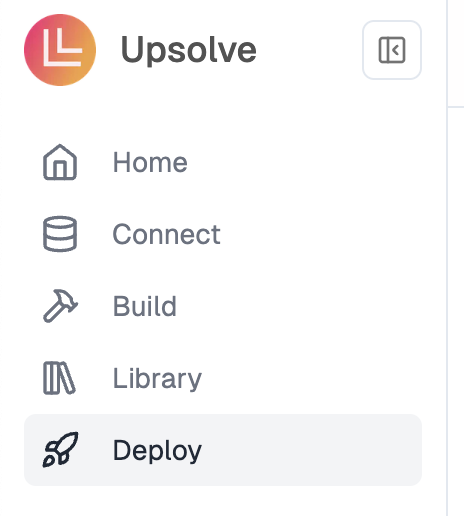
You could inspect whether the user authorization is setup successfully. Navigate to the **Deploy** application using the side navigation bar.
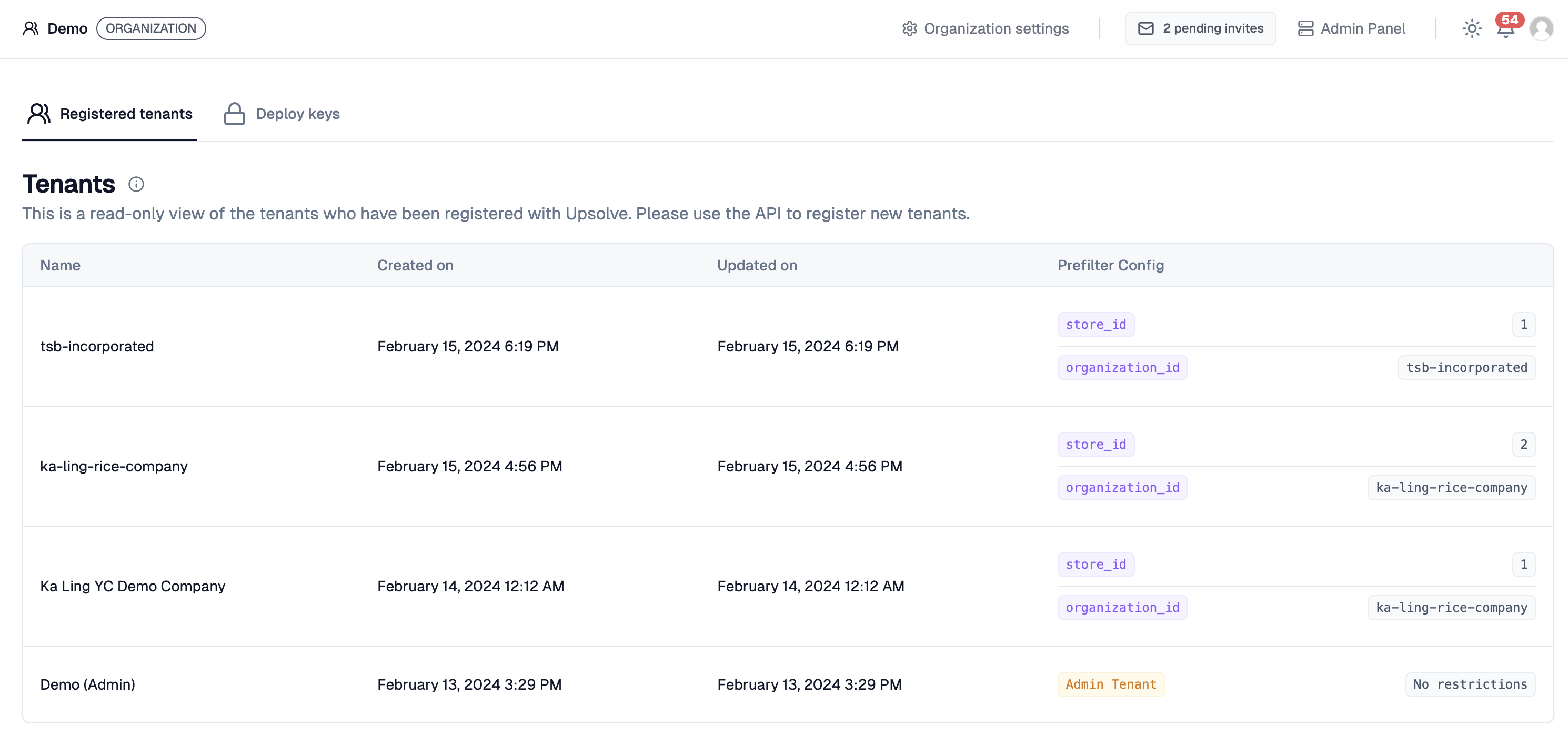
 If the endpoint is successfully called, you should see your new tenants in the **Deploy** application: