> ## Documentation Index
> Fetch the complete documentation index at: https://docs.upsolve.ai/llms.txt
> Use this file to discover all available pages before exploring further.
# Frontend Setup
> Set up frontend for agent and AI Chat deployment
## Deploying agent and AI Chat
Deploy AI chat in your frontend by embedding it as an iFrame.
### Deploying an Application (Recommended)
To embed an Application Space for a specific user, use the following iFrame:
```jsx theme={null}
```
* `applicationId` — found in your hub2 application settings, or in the URL when viewing the application: `/projects/{projectId}/applications/{applicationId}`
* `projectUserToken` — a short-lived JWT obtained from your backend via `POST /v1/api/projects/user-token` (see [Backend Setup](/ai-agent-builder/deploy-agents/backend-setup))
**Token expiry**: Project user tokens expire after 1 hour by default. Replacing the `jwt` query parameter will reload the iFrame. To re-authenticate without a full reload, recreate the iFrame element programmatically.
#### Application Query Parameters
| Parameter | Type | Required | Description |
| --------- | ----------------- | -------- | ------------------------------------- |
| `jwt` | string | Yes | Project user token for authentication |
| `theme` | `light` \| `dark` | No | Visual theme |
**Only compatible with project users** — the `/share/application/` route requires a project user JWT obtained from `POST /v1/api/projects/user-token`. Legacy tenant JWTs are not supported for application embeds.
***
### Deploying Chat via iFrame
You'll need to get the JWT for the current user and the agent ID to render the chat interface. The JWT is generated by following the steps in [Backend Setup](/ai-agent-builder/deploy-agents/backend-setup).
### Getting the Agent ID
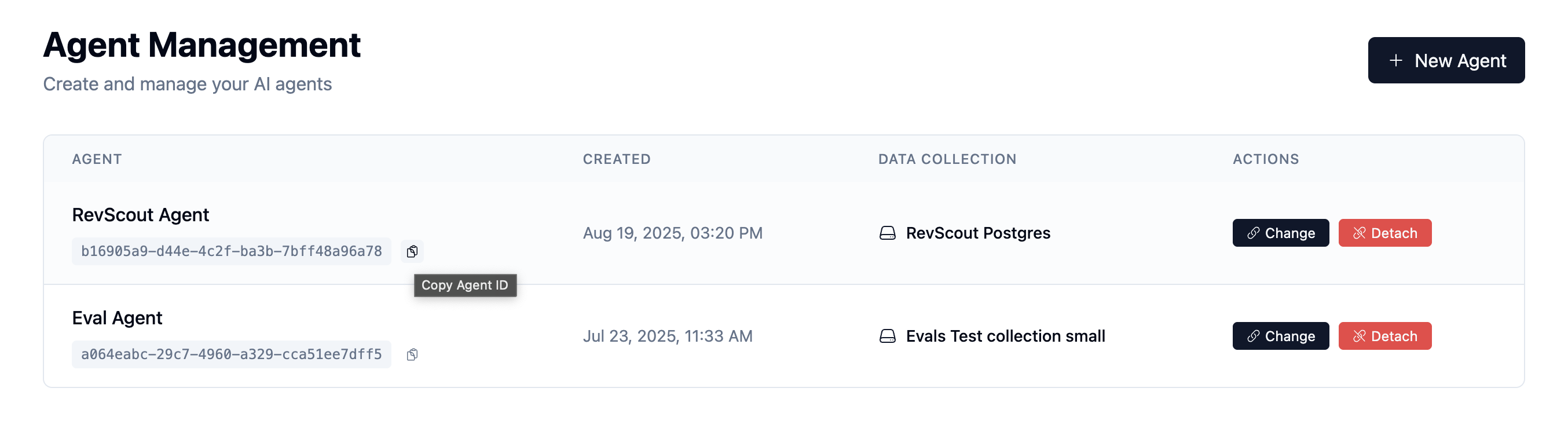
You can find your agent ID by visiting your agents at [https://ai-hub.upsolve.ai/agents](https://ai-hub.upsolve.ai/agents). The agent ID is visible in the URL when you click on an agent, or in the agent list view.
 **Authentication via JWT**: Chat iframes use JWT tokens passed via query
parameters for authentication, similar to dashboards. Users don't need to be
logged into the Hub - they just need a valid JWT token in the URL.
**Important**: Changing the JWT token in the iframe `src` will cause the browser to reload the entire iframe and **reset the chat session**. This happens automatically when:
* The JWT expires and gets refreshed
* User switches tenants/organizations
* Tenant permissions are updated
Each iframe load starts a fresh chat session. Plan your token refresh strategy carefully to avoid interrupting active conversations.
Below is an example of deploying chat with JWT using [**Clerk middleware**](https://clerk.com/docs/references/nextjs/auth-middleware#use-after-auth-for-fine-grained-control):
```javascript theme={null}
"use client";
import React from "react";
import { useUser } from "@clerk/nextjs";
const AIChatInterface: React.FC = () => {
// Get the user information from Clerk and extract the Upsolve token from the metadata
const { user } = useUser();
const upsolveToken = user?.publicMetadata?.["upsolveToken"];
const agentId = "your-agent-id"; // Replace with your agent ID
// Embed the chat component into your app
return (
<>
{upsolveToken != null && typeof upsolveToken === "string" && (
)}
);
};
export default AIChatInterface;
```
### Chat Query Parameters
The chat iframe supports the following query parameters:
| Parameter | Type | Required | Description |
| ---------------------- | ----------------- | -------- | ------------------------------------------------------------------------------------------------ |
| `jwt` | string | Yes | Project user JWT for authentication |
| `prompt` | string | No | Initial prompt — auto-sent when the chat loads |
| `theme` | `light` \| `dark` | No | Visual theme |
| `placeholderOverrides` | JSON string | No | Customize UI text (input placeholder, assistant name, disclaimer, etc.). See schema below |
| `exampleQuestions` | JSON string | No | Array of starter questions shown on the welcome screen before the user sends their first message |
#### `placeholderOverrides` Schema
```json theme={null}
{
"userName": "string",
"assistantName": "string",
"inputPlaceholder": "string",
"thinkingPlaceholder": "string",
"disclaimerText": "string"
}
```
All fields are optional. For example, to customize the input placeholder and disclaimer:
```
?placeholderOverrides={"inputPlaceholder":"Ask about your data...","disclaimerText":"Results may be approximate."}
```
#### `exampleQuestions` Example
```
?exampleQuestions=["What were our top sales last quarter?","Show revenue by region"]
```
### Example with Initial Prompt
```javascript theme={null}
const AIChatWithPrompt: React.FC = () => {
const { user } = useUser();
const upsolveToken = user?.publicMetadata?.["upsolveToken"];
const agentId = "your-agent-id";
const initialPrompt = "What were our top sales last quarter?";
return (
);
};
```
### Understanding Session Reset on JWT Change
When the `upsolveToken` value changes, React re-renders the iframe with a new `src` URL. **This causes the browser to completely reload the iframe and start a new chat session.**
```javascript theme={null}
// Example: Token change triggers iframe reload and session reset
const AIChatInterface: React.FC = () => {
const { user } = useUser();
const upsolveToken = user?.publicMetadata?.["upsolveToken"];
// When upsolveToken changes, the chat session resets
return (
);
};
```
**Common scenarios that trigger session reset:**
* Automatic token refresh (every hour)
* User switches between tenants/organizations
* User logs out and back in
* Tenant permissions are updated
To preserve chat history across token refreshes, consider: 1. Implementing
session persistence on your backend 2. Storing conversation history outside
the iframe 3. Refreshing tokens during natural conversation breaks 4. Warning
users before token expiration
**Authentication via JWT**: Chat iframes use JWT tokens passed via query
parameters for authentication, similar to dashboards. Users don't need to be
logged into the Hub - they just need a valid JWT token in the URL.
**Important**: Changing the JWT token in the iframe `src` will cause the browser to reload the entire iframe and **reset the chat session**. This happens automatically when:
* The JWT expires and gets refreshed
* User switches tenants/organizations
* Tenant permissions are updated
Each iframe load starts a fresh chat session. Plan your token refresh strategy carefully to avoid interrupting active conversations.
Below is an example of deploying chat with JWT using [**Clerk middleware**](https://clerk.com/docs/references/nextjs/auth-middleware#use-after-auth-for-fine-grained-control):
```javascript theme={null}
"use client";
import React from "react";
import { useUser } from "@clerk/nextjs";
const AIChatInterface: React.FC = () => {
// Get the user information from Clerk and extract the Upsolve token from the metadata
const { user } = useUser();
const upsolveToken = user?.publicMetadata?.["upsolveToken"];
const agentId = "your-agent-id"; // Replace with your agent ID
// Embed the chat component into your app
return (
<>
{upsolveToken != null && typeof upsolveToken === "string" && (
)}
);
};
export default AIChatInterface;
```
### Chat Query Parameters
The chat iframe supports the following query parameters:
| Parameter | Type | Required | Description |
| ---------------------- | ----------------- | -------- | ------------------------------------------------------------------------------------------------ |
| `jwt` | string | Yes | Project user JWT for authentication |
| `prompt` | string | No | Initial prompt — auto-sent when the chat loads |
| `theme` | `light` \| `dark` | No | Visual theme |
| `placeholderOverrides` | JSON string | No | Customize UI text (input placeholder, assistant name, disclaimer, etc.). See schema below |
| `exampleQuestions` | JSON string | No | Array of starter questions shown on the welcome screen before the user sends their first message |
#### `placeholderOverrides` Schema
```json theme={null}
{
"userName": "string",
"assistantName": "string",
"inputPlaceholder": "string",
"thinkingPlaceholder": "string",
"disclaimerText": "string"
}
```
All fields are optional. For example, to customize the input placeholder and disclaimer:
```
?placeholderOverrides={"inputPlaceholder":"Ask about your data...","disclaimerText":"Results may be approximate."}
```
#### `exampleQuestions` Example
```
?exampleQuestions=["What were our top sales last quarter?","Show revenue by region"]
```
### Example with Initial Prompt
```javascript theme={null}
const AIChatWithPrompt: React.FC = () => {
const { user } = useUser();
const upsolveToken = user?.publicMetadata?.["upsolveToken"];
const agentId = "your-agent-id";
const initialPrompt = "What were our top sales last quarter?";
return (
);
};
```
### Understanding Session Reset on JWT Change
When the `upsolveToken` value changes, React re-renders the iframe with a new `src` URL. **This causes the browser to completely reload the iframe and start a new chat session.**
```javascript theme={null}
// Example: Token change triggers iframe reload and session reset
const AIChatInterface: React.FC = () => {
const { user } = useUser();
const upsolveToken = user?.publicMetadata?.["upsolveToken"];
// When upsolveToken changes, the chat session resets
return (
);
};
```
**Common scenarios that trigger session reset:**
* Automatic token refresh (every hour)
* User switches between tenants/organizations
* User logs out and back in
* Tenant permissions are updated
To preserve chat history across token refreshes, consider: 1. Implementing
session persistence on your backend 2. Storing conversation history outside
the iframe 3. Refreshing tokens during natural conversation breaks 4. Warning
users before token expiration