> ## Documentation Index
> Fetch the complete documentation index at: https://docs.upsolve.ai/llms.txt
> Use this file to discover all available pages before exploring further.
# Canvas
> Arrange saved answers into a live or snapshot board, and share it privately, org-wide, or as a public link.
A **Canvas** is a board your end users build for themselves out of the answers they've saved. It is the point where a chat agent starts behaving like a dashboard product — except nobody had to specify the dashboard in advance, and nobody had to build it for them.
Canvas is currently marked **Beta** in the product.
## Building a canvas
Open **Canvas** in the left sidebar and create one. From there:
1. **Add Item** opens the user's [Favorites](/ai-agent-builder/interact/favorites) — every chart and SQL result they've saved. Anything already on the canvas is marked, so it can't be added twice by accident.
2. Tiles land on a responsive grid and can be **dragged and resized**. The layout is persisted as you go.
3. Remove a tile at any time; removing it from the canvas does not delete the underlying favorite.
Because a canvas is assembled from favorites, and favorites come from conversations, a canvas is only ever made of answers the user has already seen and decided were worth keeping.
 ## Live and snapshot
A **Snapshot / Live** switch in the header controls where every tile's data comes from:
* **Snapshot** — tiles render the rows captured when the favorite was saved. The numbers are frozen. A banner in the header makes this explicit: *charts display data captured at save time, and shared links will show this frozen view*.
* **Live** — tiles re-run their SQL against your warehouse when the canvas loads, so the numbers are current. Row-level security still applies, so a live tile shows each viewer only the data they're entitled to.
Snapshot is right for a board that documents a moment — a month-end review, an incident write-up. Live is right for a board someone checks every Monday.
## Live and snapshot
A **Snapshot / Live** switch in the header controls where every tile's data comes from:
* **Snapshot** — tiles render the rows captured when the favorite was saved. The numbers are frozen. A banner in the header makes this explicit: *charts display data captured at save time, and shared links will show this frozen view*.
* **Live** — tiles re-run their SQL against your warehouse when the canvas loads, so the numbers are current. Row-level security still applies, so a live tile shows each viewer only the data they're entitled to.
Snapshot is right for a board that documents a moment — a month-end review, an incident write-up. Live is right for a board someone checks every Monday.
 ## Versions
**Save version** freezes the current layout and display mode as a numbered version. A dropdown in the header then lets anyone switch between **Draft** (the working copy) and any saved version. Viewing a saved version is read-only — you can look, but not rearrange — so a version you circulated stays exactly as circulated.
## Versions
**Save version** freezes the current layout and display mode as a numbered version. A dropdown in the header then lets anyone switch between **Draft** (the working copy) and any saved version. Viewing a saved version is read-only — you can look, but not rearrange — so a version you circulated stays exactly as circulated.
 ## Revisiting the conversation behind a tile
Clicking a tile opens the **Session Context** sidebar with the conversation that produced that chart — the same sidebar described under [Favorites](/ai-agent-builder/interact/favorites#revisiting-the-conversation-behind-a-favorite).
This is what separates a canvas from a static dashboard. A tile on a dashboard is a number with no story. A tile on a canvas carries its own provenance: the question that was asked, the agent's reasoning, and the answer in full. And from the bottom of that sidebar the viewer can keep going:
* **Continue conversation** — for the person whose conversation it was. The thread resumes with its full context.
* **Fork conversation** — for anyone else. The thread is cloned under their own identity so they can take the analysis further without touching the original.
So a colleague who opens a shared canvas, sees a number that surprises them, and wants to drill in doesn't have to start from scratch or go and find whoever built the board. They open the tile, read how the number was produced, fork the conversation, and ask their own follow-up.
## Sharing a canvas
**Share** opens the sharing dialog, which controls two independent things: who inside your organization can see the canvas, and whether there's a public link.
### Internal visibility
* **Private** — only the creator.
* **Shared with organization** — everyone in the organization can view it.
* **Shared with specific people** — only the people picked from a user list.
### Public link
A public link can be enabled separately, at any visibility. When it's on, the dialog surfaces the URL and warns that anyone holding it can view the canvas.
**Data mode** decides what a public viewer gets:
| Mode | What the viewer sees |
| ------------ | -------------------------------------------------------- |
| **Snapshot** | The frozen rows captured at save time. |
| **Live** | Tiles re-run against your warehouse on load. |
| **Both** | The viewer gets a toggle and can switch between the two. |
**Live and Both require a passkey.** Until one is set, only Snapshot is selectable — a public link that queries your warehouse on demand should not be open to anyone who guesses the URL. Removing the passkey later reverts the link to Snapshot automatically rather than silently leaving live queries exposed.
## Revisiting the conversation behind a tile
Clicking a tile opens the **Session Context** sidebar with the conversation that produced that chart — the same sidebar described under [Favorites](/ai-agent-builder/interact/favorites#revisiting-the-conversation-behind-a-favorite).
This is what separates a canvas from a static dashboard. A tile on a dashboard is a number with no story. A tile on a canvas carries its own provenance: the question that was asked, the agent's reasoning, and the answer in full. And from the bottom of that sidebar the viewer can keep going:
* **Continue conversation** — for the person whose conversation it was. The thread resumes with its full context.
* **Fork conversation** — for anyone else. The thread is cloned under their own identity so they can take the analysis further without touching the original.
So a colleague who opens a shared canvas, sees a number that surprises them, and wants to drill in doesn't have to start from scratch or go and find whoever built the board. They open the tile, read how the number was produced, fork the conversation, and ask their own follow-up.
## Sharing a canvas
**Share** opens the sharing dialog, which controls two independent things: who inside your organization can see the canvas, and whether there's a public link.
### Internal visibility
* **Private** — only the creator.
* **Shared with organization** — everyone in the organization can view it.
* **Shared with specific people** — only the people picked from a user list.
### Public link
A public link can be enabled separately, at any visibility. When it's on, the dialog surfaces the URL and warns that anyone holding it can view the canvas.
**Data mode** decides what a public viewer gets:
| Mode | What the viewer sees |
| ------------ | -------------------------------------------------------- |
| **Snapshot** | The frozen rows captured at save time. |
| **Live** | Tiles re-run against your warehouse on load. |
| **Both** | The viewer gets a toggle and can switch between the two. |
**Live and Both require a passkey.** Until one is set, only Snapshot is selectable — a public link that queries your warehouse on demand should not be open to anyone who guesses the URL. Removing the passkey later reverts the link to Snapshot automatically rather than silently leaving live queries exposed.

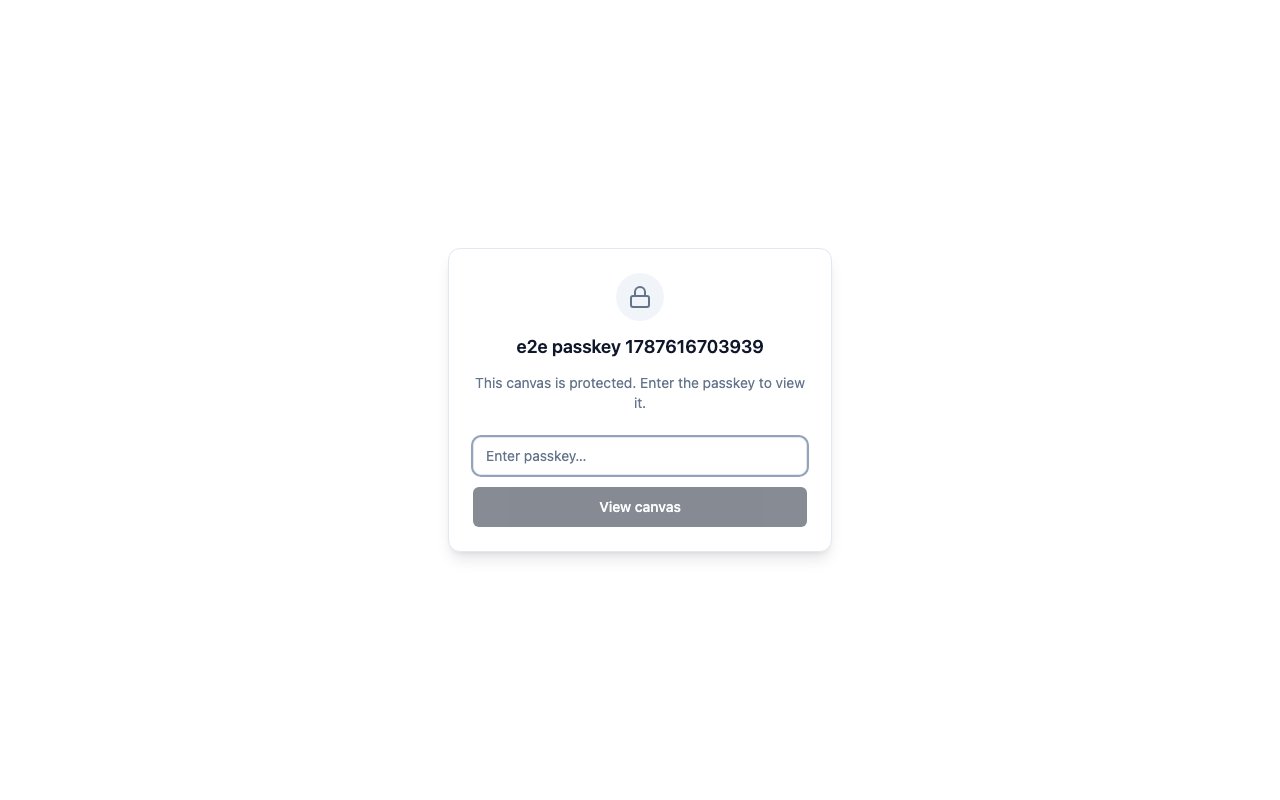 A passkey-protected link asks for the passkey before rendering anything. Get it wrong and the canvas stays hidden.
### Your own domain
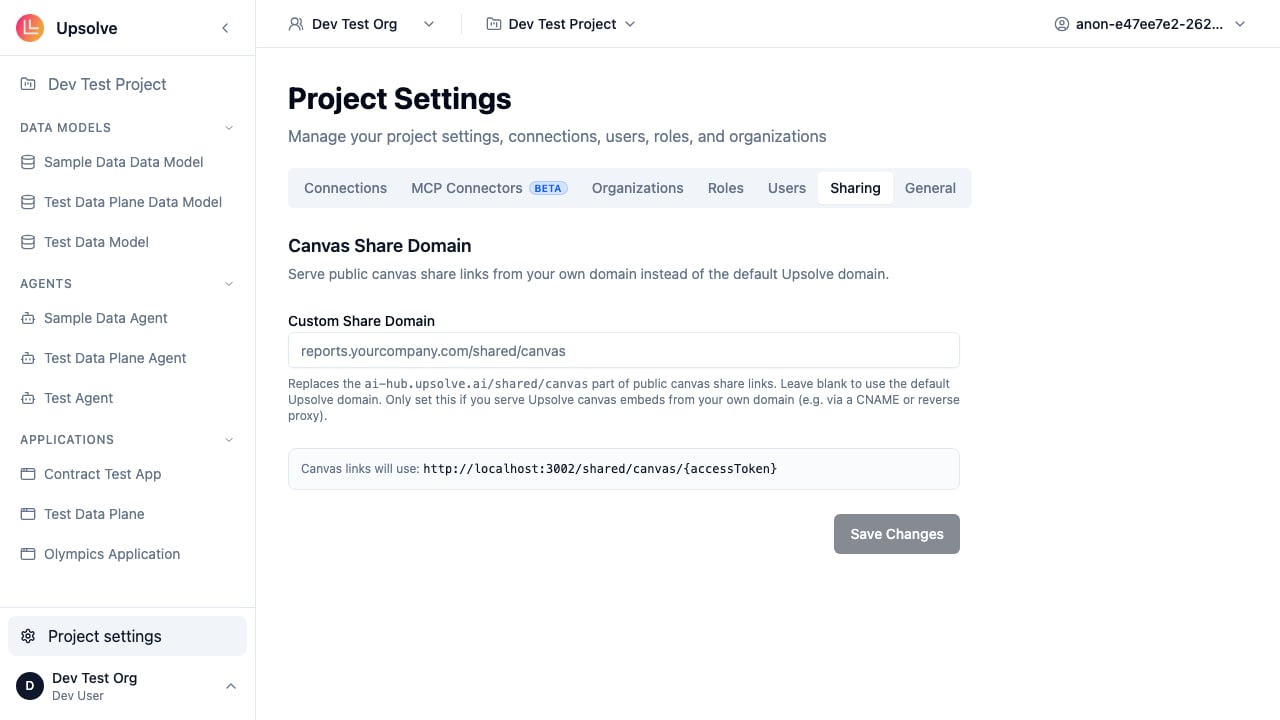
By default public links point at `ai-hub.upsolve.ai`. Set a **Custom Share Domain** in **Project Settings → Sharing** to have Upsolve generate links on your own domain instead.
A passkey-protected link asks for the passkey before rendering anything. Get it wrong and the canvas stays hidden.
### Your own domain
By default public links point at `ai-hub.upsolve.ai`. Set a **Custom Share Domain** in **Project Settings → Sharing** to have Upsolve generate links on your own domain instead.
 ## Embedding a canvas in your product
A public canvas can be dropped into your own application with a plain `
## Embedding a canvas in your product
A public canvas can be dropped into your own application with a plain `