> ## Documentation Index
> Fetch the complete documentation index at: https://docs.upsolve.ai/llms.txt
> Use this file to discover all available pages before exploring further.
# Row-Level Security
> Control what data each user and organization can access.
## What is Row-Level Security?
Row-Level Security (RLS) lets you filter data based on who is viewing it. For example:
* A user from "Acme Corp" only sees Acme Corp's data
* A sales rep only sees their own deals
* Regional managers see data for their region
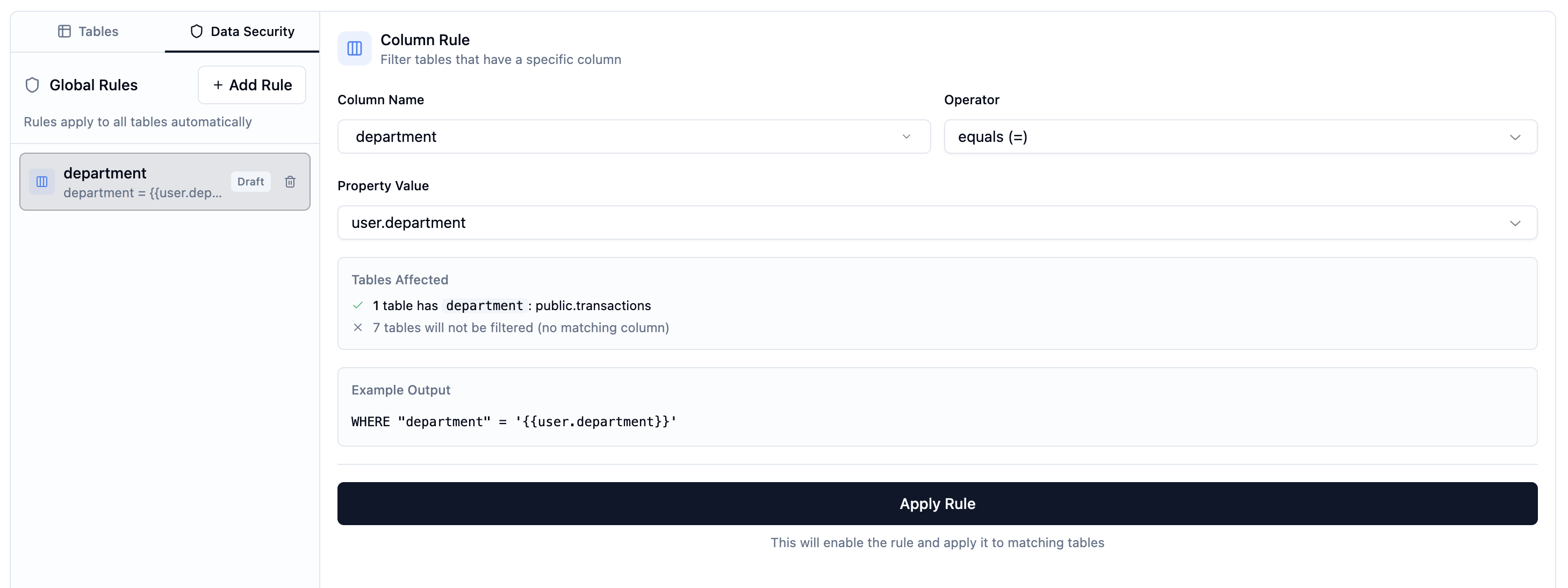 ## How RLS Works
1. **Define properties** on users and organizations (e.g., `region`, `department`)
2. **Write filter rules** in your data model using those properties
3. **Queries are filtered** automatically when users access data
## Setting Up User Properties
### Organization Properties
Properties set at the organization level apply to all users in that organization:
1. Go to your project's **Organizations** tab
2. Click on an organization
3. Add properties in the **Properties** section
```json theme={null}
{
"company_id": "acme-123",
"industry": "retail"
}
```
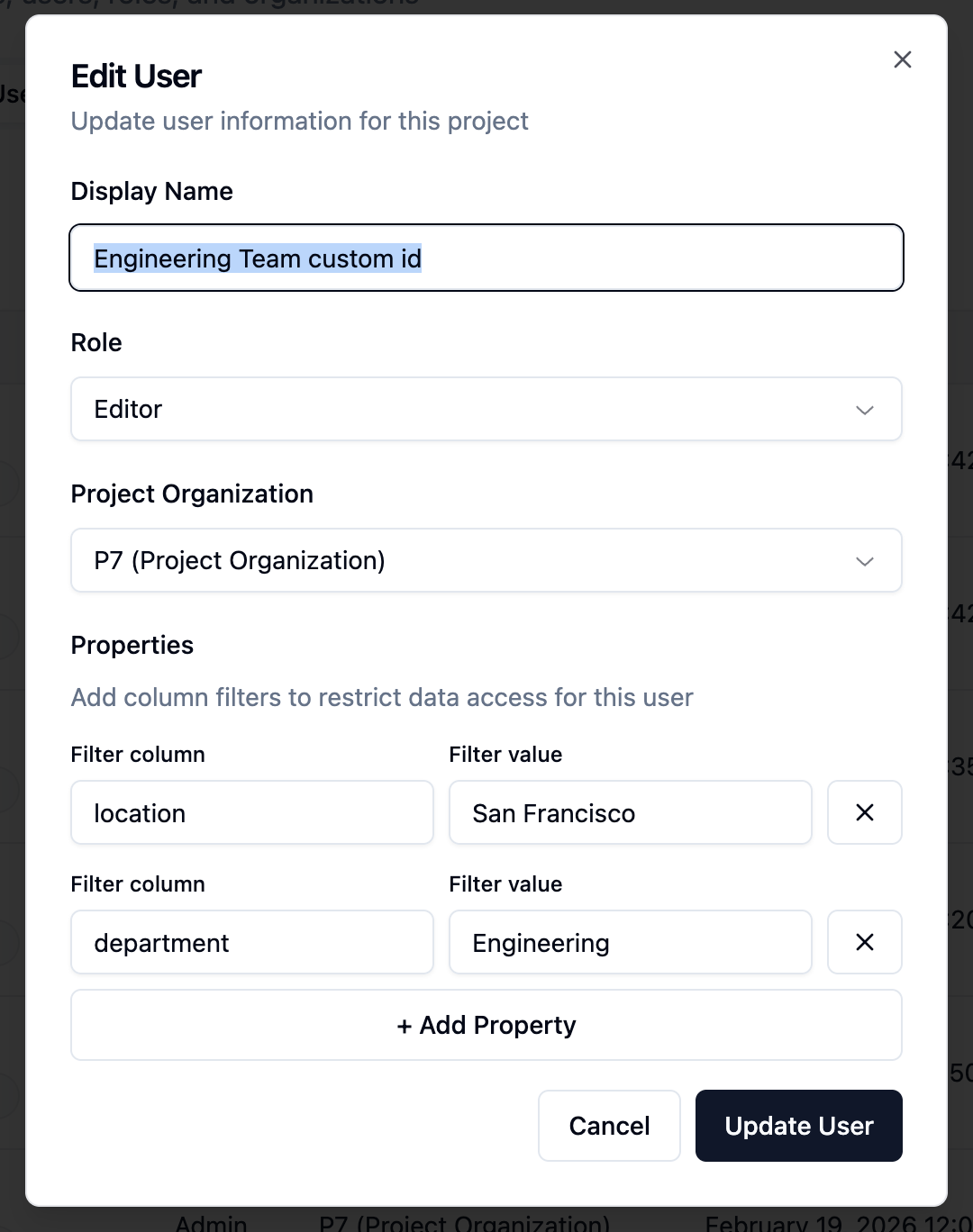
### User Properties
Properties can also be set per user:
1. Go to your project's **Users** tab
2. Click on a user
3. Add properties in the **Properties** section
```json theme={null}
{
"department": "sales",
"region": "US-West"
}
```
## How RLS Works
1. **Define properties** on users and organizations (e.g., `region`, `department`)
2. **Write filter rules** in your data model using those properties
3. **Queries are filtered** automatically when users access data
## Setting Up User Properties
### Organization Properties
Properties set at the organization level apply to all users in that organization:
1. Go to your project's **Organizations** tab
2. Click on an organization
3. Add properties in the **Properties** section
```json theme={null}
{
"company_id": "acme-123",
"industry": "retail"
}
```
### User Properties
Properties can also be set per user:
1. Go to your project's **Users** tab
2. Click on a user
3. Add properties in the **Properties** section
```json theme={null}
{
"department": "sales",
"region": "US-West"
}
```
 ## Writing RLS Rules
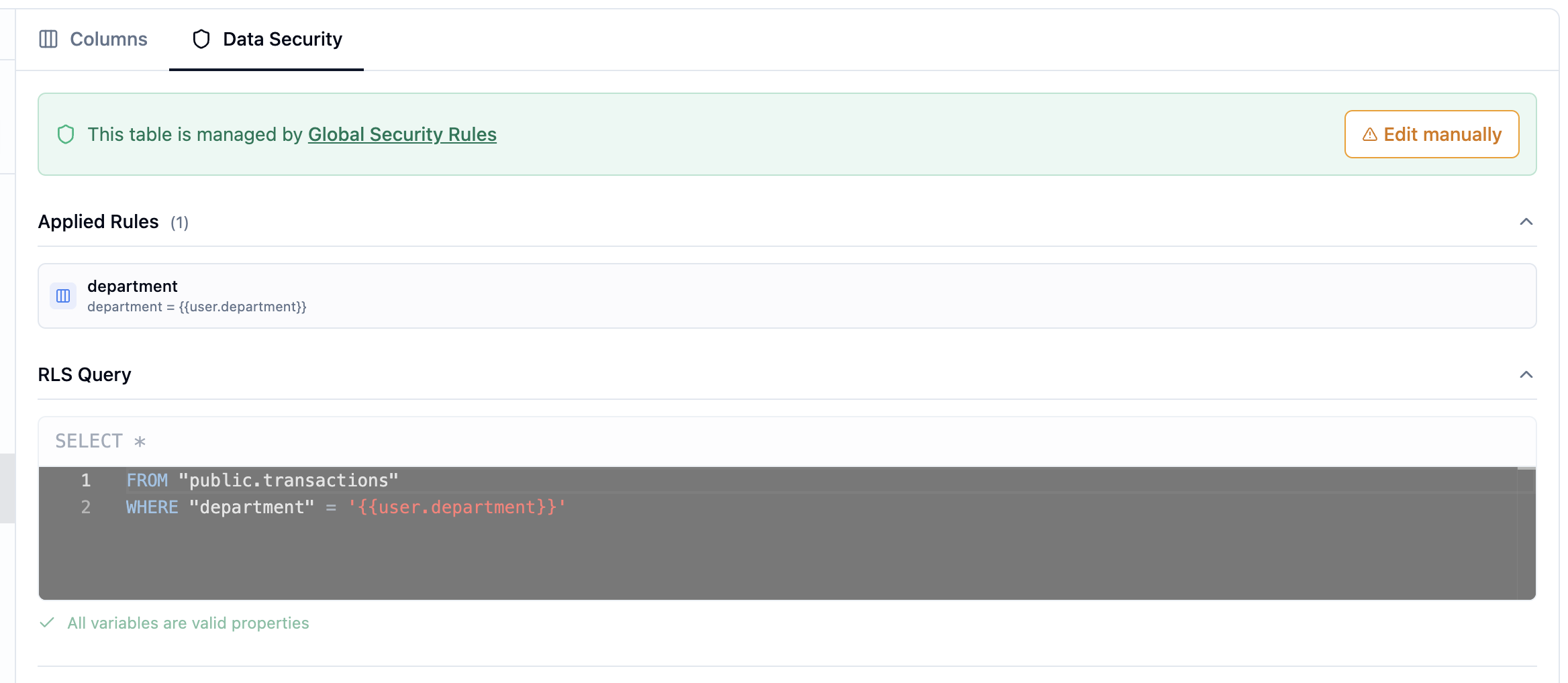
RLS rules are SQL snippets that filter each table. They use placeholders to reference user/organization properties.
### Available Placeholders
| Placeholder | Description |
| ------------------------------- | ----------------------------- |
| `{{user.propertyName}}` | User's property value |
| `{{organization.propertyName}}` | Organization's property value |
### Creating RLS Rules
1. Open your data model
2. Click on a table to select it
3. Go to the **RLS** tab
4. Write your filter rule
5. Click **Save**
## Writing RLS Rules
RLS rules are SQL snippets that filter each table. They use placeholders to reference user/organization properties.
### Available Placeholders
| Placeholder | Description |
| ------------------------------- | ----------------------------- |
| `{{user.propertyName}}` | User's property value |
| `{{organization.propertyName}}` | Organization's property value |
### Creating RLS Rules
1. Open your data model
2. Click on a table to select it
3. Go to the **RLS** tab
4. Write your filter rule
5. Click **Save**
 ### Example Rules
**Filter by organization's company ID:**
```sql theme={null}
SELECT *
FROM "orders"
WHERE "company_id" = {{organization.company_id}}
```
**Filter by user's department:**
```sql theme={null}
SELECT *
FROM "employees"
WHERE "department" = {{user.department}}
```
**Combine multiple conditions:**
```sql theme={null}
SELECT *
FROM "sales_data"
WHERE "region" = {{user.region}}
AND "company_id" = {{organization.company_id}}
```
## Testing RLS Rules
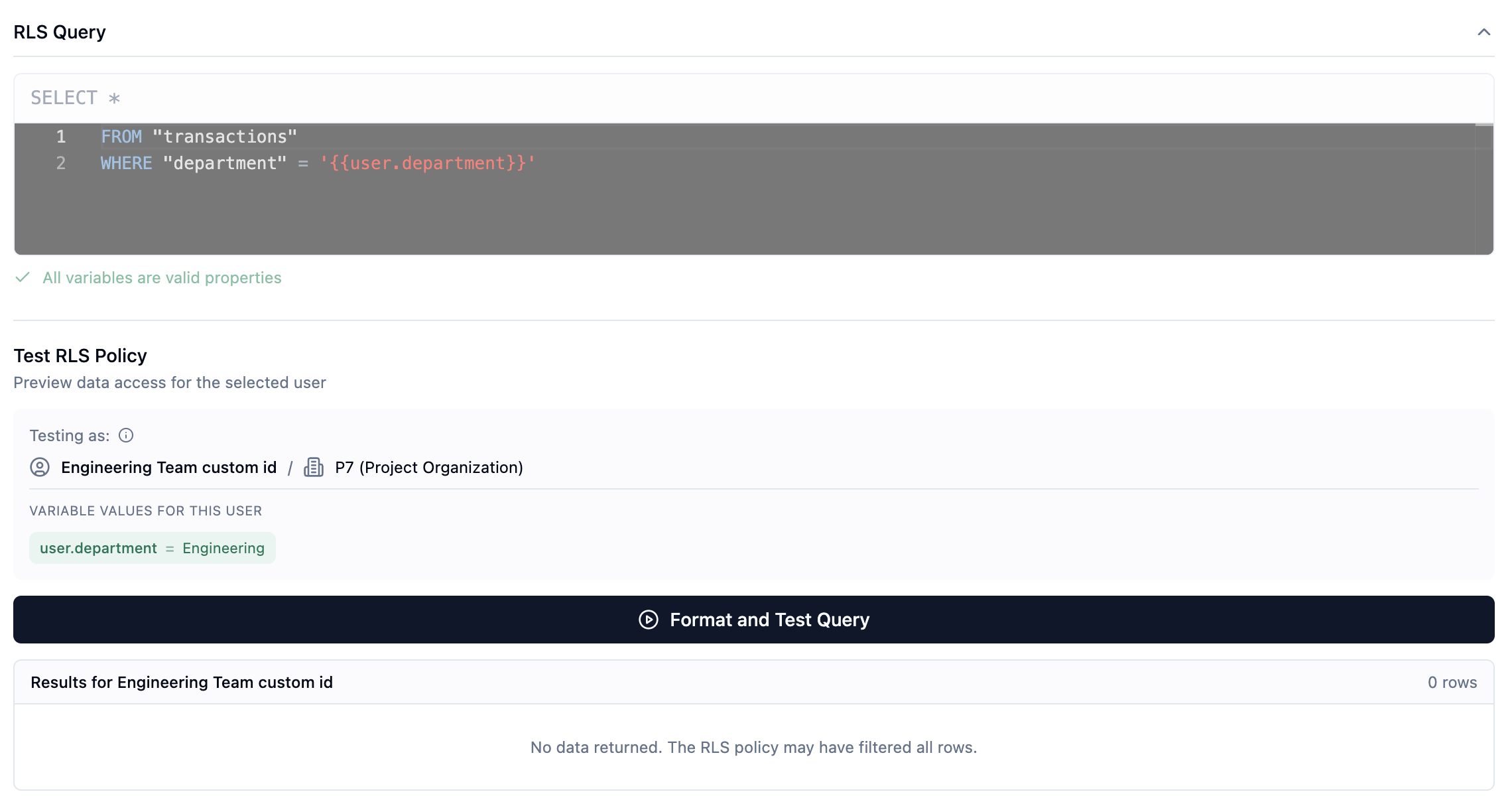
You can test RLS rules before deploying to see exactly what data users will see.
### Running a Test
1. Open your data model
2. Select a table with RLS rules
3. Click **Test RLS**
4. Select a project user from the dropdown
5. View their properties
6. Click **Run Test**
7. See the filtered results
### Example Rules
**Filter by organization's company ID:**
```sql theme={null}
SELECT *
FROM "orders"
WHERE "company_id" = {{organization.company_id}}
```
**Filter by user's department:**
```sql theme={null}
SELECT *
FROM "employees"
WHERE "department" = {{user.department}}
```
**Combine multiple conditions:**
```sql theme={null}
SELECT *
FROM "sales_data"
WHERE "region" = {{user.region}}
AND "company_id" = {{organization.company_id}}
```
## Testing RLS Rules
You can test RLS rules before deploying to see exactly what data users will see.
### Running a Test
1. Open your data model
2. Select a table with RLS rules
3. Click **Test RLS**
4. Select a project user from the dropdown
5. View their properties
6. Click **Run Test**
7. See the filtered results
 ### Understanding Test Results
The test shows:
* The SQL query with placeholders replaced
* The actual data the selected user would see
* Row count for the filtered results
If no rows return, either:
* The user's properties don't match any data
* The RLS rule syntax has an issue
## Best Practices
### 1. Use Organization Properties for Tenant Isolation
For multi-tenant apps, filter by organization properties:
```sql theme={null}
WHERE "tenant_id" = {{organization.tenant_id}}
```
### 2. Combine with User Properties for Fine-Grained Access
Add user-level filtering within a tenant:
```sql theme={null}
WHERE "tenant_id" = {{organization.tenant_id}}
AND "owner_id" = {{user.user_id}}
```
### 3. Test with Multiple Users
Always test RLS with:
* Users from different organizations
* Users with different roles/properties
* Edge cases (missing properties)
### 4. Handle Missing Properties Gracefully
If a property might be missing, consider defaults:
```sql theme={null}
WHERE "department" = COALESCE({{user.department}}, 'all')
```
## Troubleshooting
### Users See No Data
**Check:**
* User has the correct properties set
* Property names match exactly (case-sensitive)
* Data exists matching those property values
### Users See Too Much Data
**Check:**
* RLS rule is saved and applied
* Placeholders use correct syntax (`{{user.prop}}` not `{{user.prop}`)
* Data model version with RLS is set as production
### RLS Not Applied
**Check:**
* The table has an RLS rule defined
* The data model version is marked as production
* Users are accessing through the correct application
## Next Steps
* [Create an Agent](/ai-agent-builder/agents) that respects RLS rules
* [Build an Application](/ai-agent-builder/applications) with filtered dashboards
### Understanding Test Results
The test shows:
* The SQL query with placeholders replaced
* The actual data the selected user would see
* Row count for the filtered results
If no rows return, either:
* The user's properties don't match any data
* The RLS rule syntax has an issue
## Best Practices
### 1. Use Organization Properties for Tenant Isolation
For multi-tenant apps, filter by organization properties:
```sql theme={null}
WHERE "tenant_id" = {{organization.tenant_id}}
```
### 2. Combine with User Properties for Fine-Grained Access
Add user-level filtering within a tenant:
```sql theme={null}
WHERE "tenant_id" = {{organization.tenant_id}}
AND "owner_id" = {{user.user_id}}
```
### 3. Test with Multiple Users
Always test RLS with:
* Users from different organizations
* Users with different roles/properties
* Edge cases (missing properties)
### 4. Handle Missing Properties Gracefully
If a property might be missing, consider defaults:
```sql theme={null}
WHERE "department" = COALESCE({{user.department}}, 'all')
```
## Troubleshooting
### Users See No Data
**Check:**
* User has the correct properties set
* Property names match exactly (case-sensitive)
* Data exists matching those property values
### Users See Too Much Data
**Check:**
* RLS rule is saved and applied
* Placeholders use correct syntax (`{{user.prop}}` not `{{user.prop}`)
* Data model version with RLS is set as production
### RLS Not Applied
**Check:**
* The table has an RLS rule defined
* The data model version is marked as production
* Users are accessing through the correct application
## Next Steps
* [Create an Agent](/ai-agent-builder/agents) that respects RLS rules
* [Build an Application](/ai-agent-builder/applications) with filtered dashboards