> ## Documentation Index
> Fetch the complete documentation index at: https://docs.upsolve.ai/llms.txt
> Use this file to discover all available pages before exploring further.
# Overview
> Customize your dashboard to fit seamlessly in with your product
## Customization Overview
To customize your dashboard, you may use the point & click theme editor in the Hub, or pass a theme configuration directly to your embed.
### Point & click editor
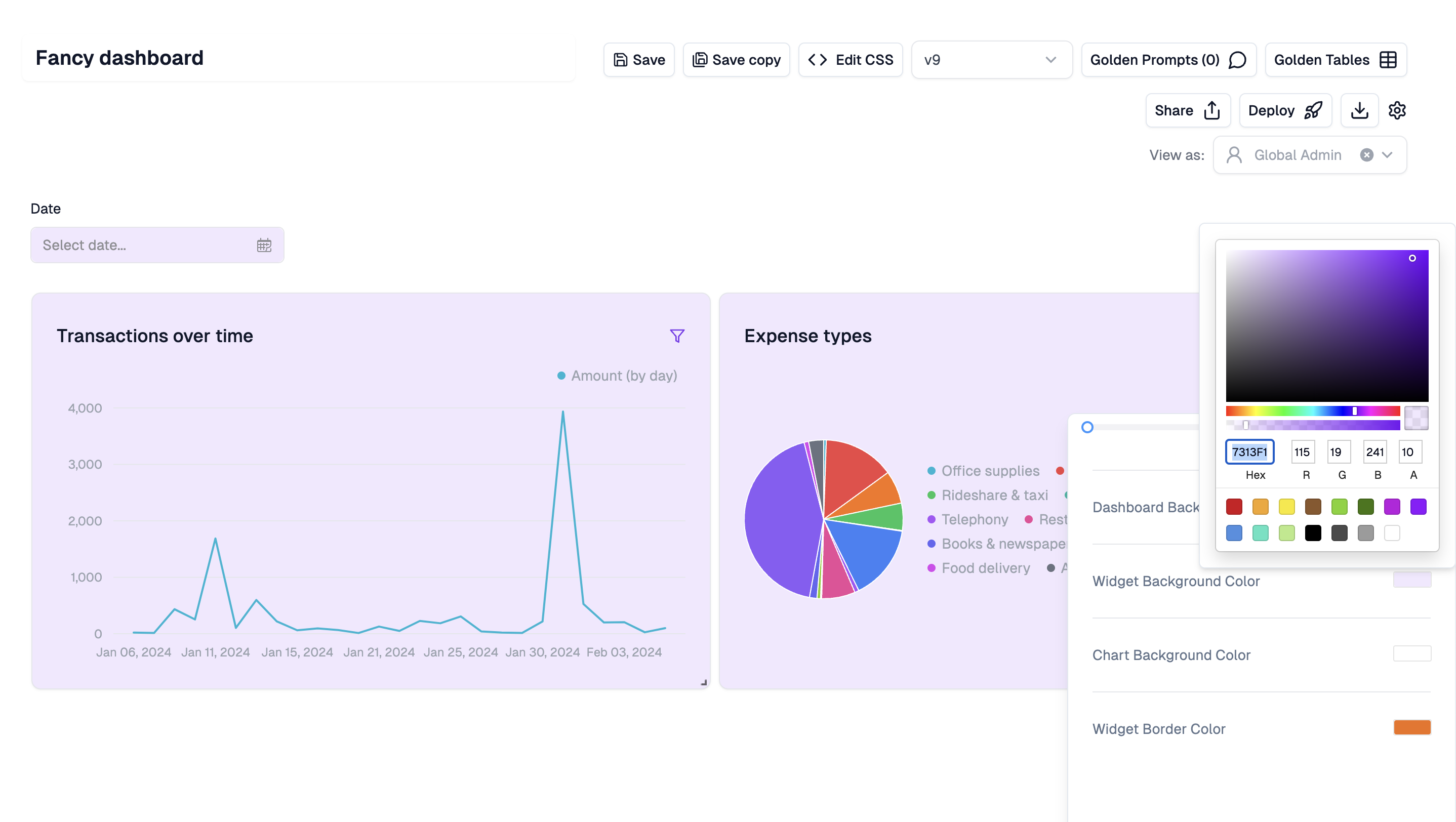
In the Upsolve Hub, you can use the theme editor to quickly set colors, fonts, border widths, etc.
Anything you save here will automatically propagate into your deployed dashboard, so you can iterate quickly without opening your IDE.
 ### Theme configuration via embed
For more technical users, pass a `themeConfigs` JSON object as a query parameter on your iFrame `src` to configure the theme in code. See [Frontend Setup](/embedded-bi/deploy-dashboards/frontend-setup) for the embedding details.
### Theme configuration via embed
For more technical users, pass a `themeConfigs` JSON object as a query parameter on your iFrame `src` to configure the theme in code. See [Frontend Setup](/embedded-bi/deploy-dashboards/frontend-setup) for the embedding details.