> ## Documentation Index
> Fetch the complete documentation index at: https://docs.upsolve.ai/llms.txt
> Use this file to discover all available pages before exploring further.
# Set up connection
> Set up connection to your data sources to get started
Looking for our new [Data Plane](/embedded-bi/integrations/introduction) experience for connecting your data?
 ## Connect to your data sources
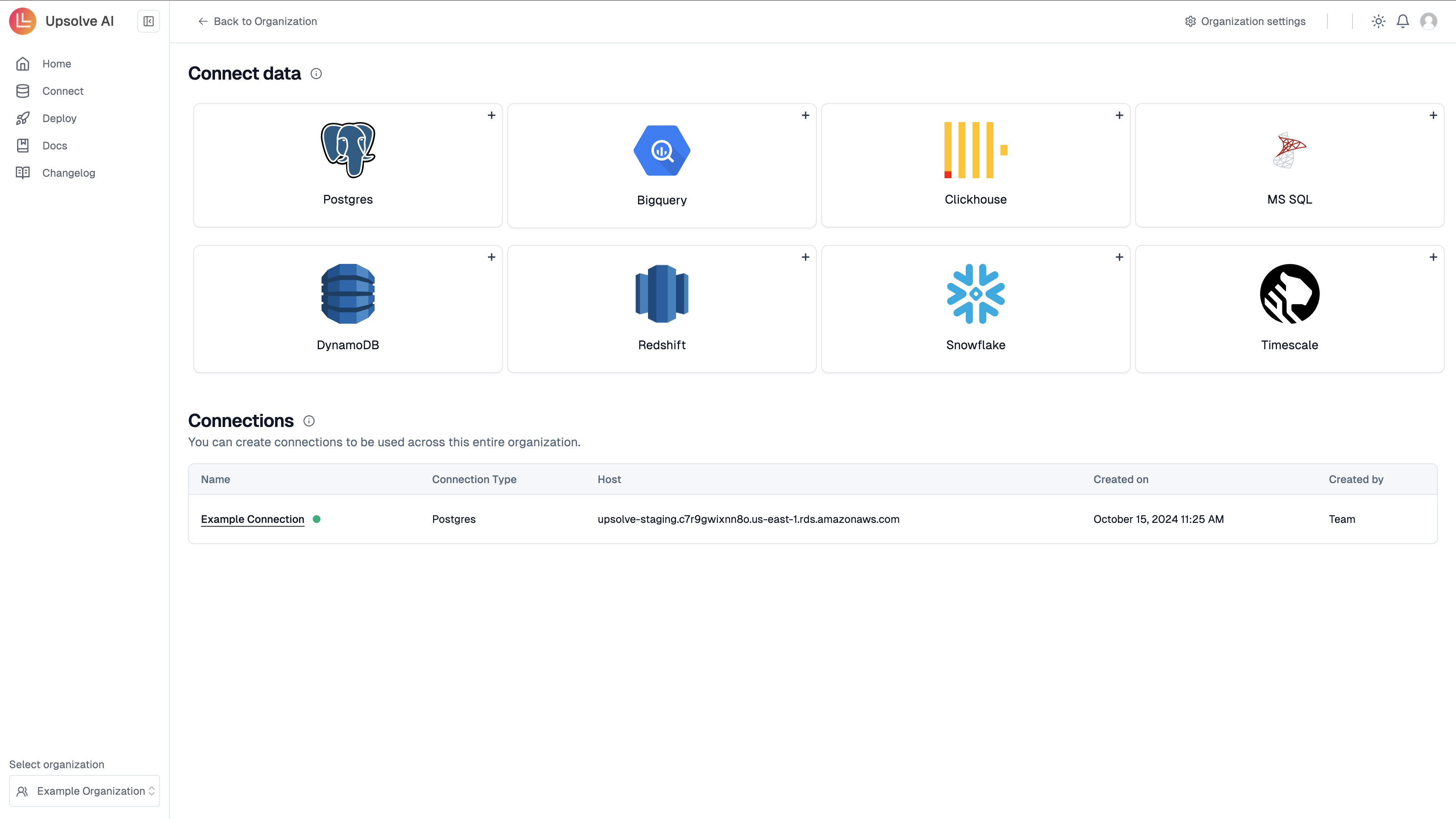
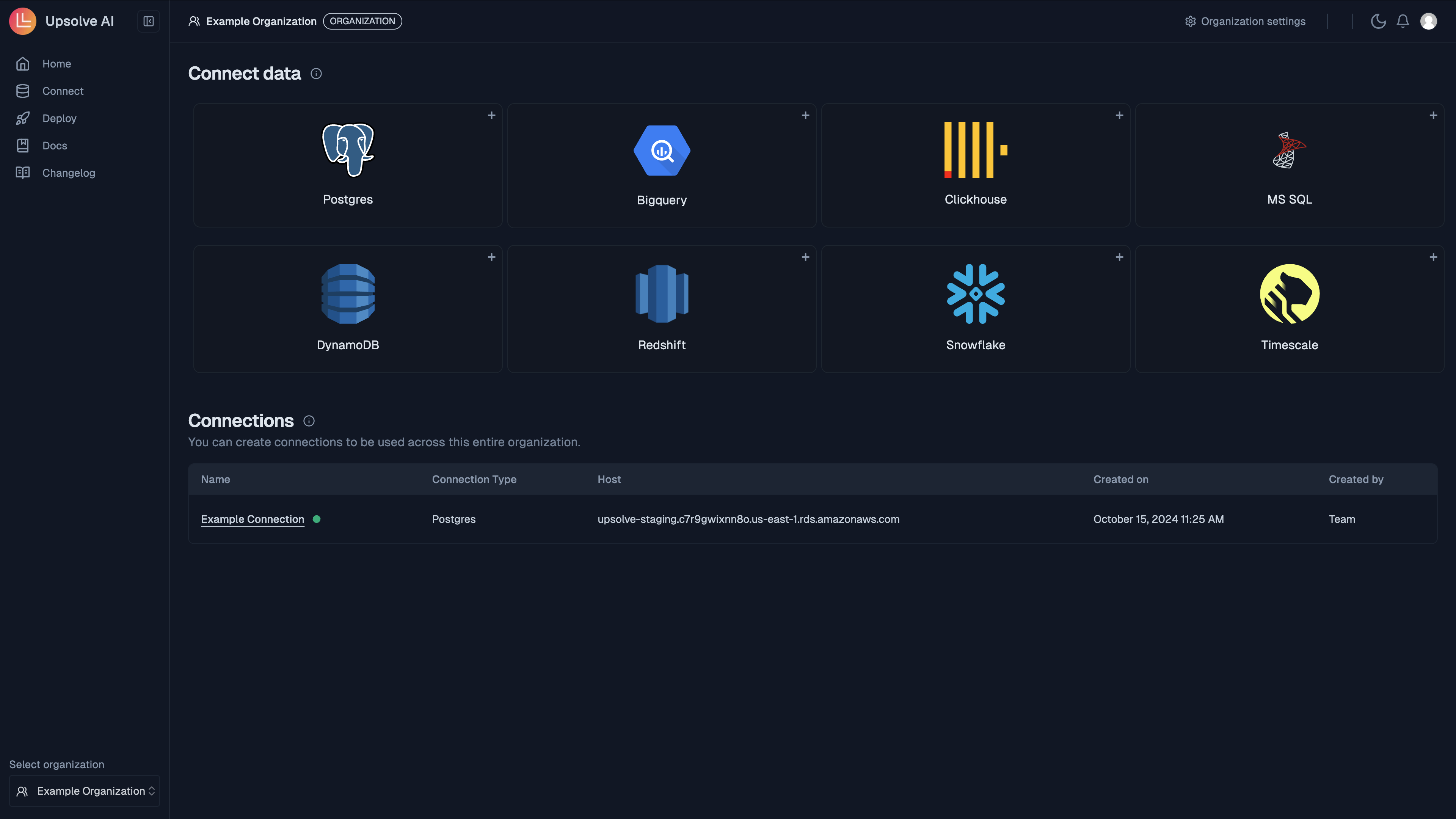
1. Navigate to the **Connect** application using the side navigation bar.
2. Select your data source type.
To connect to a Postgres database, you'll need:
* **Host:** The server address of the Postgres instance.
* **Port:** The port number where Postgres is running (default: 5432).
* **Database Name:** The specific Postgres database to connect to.
* **User:** The Postgres username.
* **Password:** The corresponding password for the user.
* **Pool Size (optional):** Number of active connections to maintain (default: 10).
* **Concurrency Limit (optional):** Maximum number of concurrent queries.
* **Interval Limit (optional):** Maximum number of operations in a time interval.
* **Interval Time (optional):** Time interval in milliseconds (e.g., 1000 ms for 1 second).
* **Row-level-security (RLS) variable (optional):** Variable name used in RLS policies (recommended: "app").
* **Default row-level-security (RLS) value (optional):** Default user value applied to RLS policies when in the Upsolve Hub.
**Note on RLS:** When using row-level security, ensure the database user for connection is not a superadmin, as RLS policies are bypassed by superusers.
To connect to Clickhouse, you'll need:
* **Host:** The Clickhouse server address (e.g., `https://clickhouse-host`).
* **Port:** The port number (default: 8443 for HTTPS connections).
* **User:** The Clickhouse username.
* **Password:** The corresponding password for the user.
* **Database Name:** The Clickhouse database to connect to.
* **Concurrency Limit (optional):** Maximum number of simultaneous queries.
* **Interval Limit (optional):** Maximum operations allowed during a time interval.
* **Interval Time (optional):** Time interval in milliseconds.
* **Default Database (for Database Tenancy) (optional):** When set, enables [schema-based tenancy](/embedded-bi/data-permissioning/rls-management#schema-level-filtering). The metadata will only include tables from this database, and it will be used as the default database for admin users and tenants without a `schemaPreFilter` configured.
To connect to Snowflake, you'll need:
* **Account:** The Snowflake account identifier (e.g., `account_name.region.cloud_provider`).
* **User:** Your Snowflake username.
* **Password:** Your Snowflake password.
* **Database Name:** The specific Snowflake database to connect to.
To connect to a MySQL database:
* **Host:** The MySQL server address.
* **Port:** The port number (default: 3306).
* **Database Name:** The MySQL database to connect to.
* **User:** The MySQL username.
* **Password:** The password for the user.
To connect to Microsoft SQL Server:
* **Host:** The MS SQL server address.
* **Port:** The port number (default: 1433).
* **Database Name:** The MS SQL database to connect to.
* **User:** The MS SQL username.
* **Password:** The corresponding password for the user.
To connect to Amazon Redshift:
* **Host:** The Redshift cluster endpoint.
* **Port:** The port number (default: 5439).
* **Database Name:** The Redshift database to connect to.
* **User:** The Redshift username.
* **Password:** The password for the user.
To connect to TimescaleDB (Postgres with time-series capabilities):
* **Host:** The server address where Timescale is running.
* **Port:** The port number (default: 5432).
* **Database Name:** The Timescale/Postgres database to connect to.
* **User:** The database username.
* **Password:** The password for the user.
To connect to Trino:
* **Host:** The Trino coordinator server address.
* **Port:** The port number (default: 8080 for HTTP, 443 for HTTPS).
* **User:** The Trino username.
* **Password:** The corresponding password for the user.
* **Catalog:** The Trino catalog name (required).
* **Default Schema (optional):** The default schema in the catalog (e.g. `demo`, `public`). Used for metadata and queries when no schema is specified.
To connect to AWS Athena, you'll need:
* **Region:** The AWS region hosting your Athena workgroup and Glue catalog (e.g., `us-east-1`).
* **Access Key ID:** The access key ID from your AWS IAM user. Athena is IAM-authenticated, so this key pair is the equivalent of a username and password — the official Athena JDBC driver maps them the same way.
* **Secret Access Key:** The matching secret key. Stored encrypted and never returned by the API.
* **S3 Output Location:** The S3 URI Athena writes query results to, e.g. `s3://my-bucket/athena-results/`. Required — Athena stages every result set in S3 before it can be read back, so the IAM principal needs both read and write access to this prefix.
* **Database:** The database that unqualified table names resolve against when a query runs. This does **not** limit which schemas are introspected — use Schemas for that.
* **Schemas:** Comma-separated list of schemas to introspect, supporting `*` wildcards — e.g. `dw,domain_*_mart*`. Leave empty to fall back to the Database field, or to scan every schema in the catalog if that is empty too. On a catalog with thousands of schemas that is slow and rarely what you want, so list only the schemas your service user has access to.
* **Data Catalog (optional):** The Glue data catalog to resolve tables against (default: `AwsDataCatalog`).
* **Workgroup (optional):** The Athena workgroup to run queries in (default: `primary`).
The IAM policy attached to the key pair needs, at minimum:
* `athena:StartQueryExecution`, `athena:GetQueryExecution`, `athena:GetQueryResults`, `athena:StopQueryExecution` and `athena:GetWorkGroup`, on the workgroup ARN
* `glue:GetDatabase*`, `glue:GetTable*` and `glue:GetPartition*` for the databases you expose
* On the **output location**: `s3:GetObject`, `s3:PutObject`, `s3:AbortMultipartUpload`, plus `s3:ListBucket` and `s3:GetBucketLocation`
* On the **buckets your tables read from**: `s3:GetObject`, `s3:ListBucket`, `s3:GetBucketLocation`
`s3:ListBucket` and `s3:GetBucketLocation` are **bucket-level** actions. They
cannot be scoped to a sub-directory by resource ARN — a grant on
`arn:aws:s3:::bucket/prefix/*` silently never matches them. Restrict listing
with the `s3:prefix` condition key instead, or give Athena its own results
bucket. If the error says "with an explicit deny in a resource-based policy",
the bucket policy is denying the call and no IAM grant can override it.
If the connection tests successfully but metadata comes back empty, the Athena and results-bucket permissions are fine and the Glue or source-bucket ones are not: the connection test runs `SELECT 1+1`, which touches no table.
**Notes on Athena:**
* Athena runs a Trino engine, so queries use Trino/Presto SQL — double-quoted identifiers, and `date_trunc`/`date_format` rather than their Postgres or MySQL equivalents.
* Queries are billed per byte scanned. Selectable-column detection is therefore disabled for Athena connections: auto-detecting it would fire a `COUNT` per table on every metadata refresh.
* Athena executions are asynchronous. Upsolve polls until the query completes and gives up after 120 seconds.
To connect to Supabase, use the following credentials and configuration steps:
1. **Create the `execute_raw_sql` Function:**
To enable secure execution of SQL queries, run the following SQL in your Supabase SQL editor:
```sql theme={null}
CREATE OR REPLACE FUNCTION public.execute_raw_sql(query text)
RETURNS jsonb
LANGUAGE plpgsql
SECURITY INVOKER
AS $$
DECLARE
result jsonb;
BEGIN
-- Execute the SQL query and store the result in a JSONB format
EXECUTE format('SELECT json_agg(t) FROM (%s) AS t', query) INTO result;
RETURN result;
EXCEPTION
WHEN others THEN
-- Handle errors gracefully by returning the error message in JSON
RETURN jsonb_build_object('error', SQLERRM);
END;
$$;
```
2. **Set Up Credentials in Upsolve Hub:**
Use the following details to connect to your Supabase instance:
* **URL:** The unique URL of your Supabase instance.
* **Anon Key:** The public API key for accessing Supabase.
* **Service Key:** The secret API key for accessing Supabase.
You can find these details in your [Supabase API settings](https://supabase.com/dashboard/project/_/settings/api).
For enterprise features, look for the 🔒 symbol. These features are available
in our Enterprise plan. Please contact us for more information.
3. Input the corresponding credentials for the data source.
## Connect to your data sources
1. Navigate to the **Connect** application using the side navigation bar.
2. Select your data source type.
To connect to a Postgres database, you'll need:
* **Host:** The server address of the Postgres instance.
* **Port:** The port number where Postgres is running (default: 5432).
* **Database Name:** The specific Postgres database to connect to.
* **User:** The Postgres username.
* **Password:** The corresponding password for the user.
* **Pool Size (optional):** Number of active connections to maintain (default: 10).
* **Concurrency Limit (optional):** Maximum number of concurrent queries.
* **Interval Limit (optional):** Maximum number of operations in a time interval.
* **Interval Time (optional):** Time interval in milliseconds (e.g., 1000 ms for 1 second).
* **Row-level-security (RLS) variable (optional):** Variable name used in RLS policies (recommended: "app").
* **Default row-level-security (RLS) value (optional):** Default user value applied to RLS policies when in the Upsolve Hub.
**Note on RLS:** When using row-level security, ensure the database user for connection is not a superadmin, as RLS policies are bypassed by superusers.
To connect to Clickhouse, you'll need:
* **Host:** The Clickhouse server address (e.g., `https://clickhouse-host`).
* **Port:** The port number (default: 8443 for HTTPS connections).
* **User:** The Clickhouse username.
* **Password:** The corresponding password for the user.
* **Database Name:** The Clickhouse database to connect to.
* **Concurrency Limit (optional):** Maximum number of simultaneous queries.
* **Interval Limit (optional):** Maximum operations allowed during a time interval.
* **Interval Time (optional):** Time interval in milliseconds.
* **Default Database (for Database Tenancy) (optional):** When set, enables [schema-based tenancy](/embedded-bi/data-permissioning/rls-management#schema-level-filtering). The metadata will only include tables from this database, and it will be used as the default database for admin users and tenants without a `schemaPreFilter` configured.
To connect to Snowflake, you'll need:
* **Account:** The Snowflake account identifier (e.g., `account_name.region.cloud_provider`).
* **User:** Your Snowflake username.
* **Password:** Your Snowflake password.
* **Database Name:** The specific Snowflake database to connect to.
To connect to a MySQL database:
* **Host:** The MySQL server address.
* **Port:** The port number (default: 3306).
* **Database Name:** The MySQL database to connect to.
* **User:** The MySQL username.
* **Password:** The password for the user.
To connect to Microsoft SQL Server:
* **Host:** The MS SQL server address.
* **Port:** The port number (default: 1433).
* **Database Name:** The MS SQL database to connect to.
* **User:** The MS SQL username.
* **Password:** The corresponding password for the user.
To connect to Amazon Redshift:
* **Host:** The Redshift cluster endpoint.
* **Port:** The port number (default: 5439).
* **Database Name:** The Redshift database to connect to.
* **User:** The Redshift username.
* **Password:** The password for the user.
To connect to TimescaleDB (Postgres with time-series capabilities):
* **Host:** The server address where Timescale is running.
* **Port:** The port number (default: 5432).
* **Database Name:** The Timescale/Postgres database to connect to.
* **User:** The database username.
* **Password:** The password for the user.
To connect to Trino:
* **Host:** The Trino coordinator server address.
* **Port:** The port number (default: 8080 for HTTP, 443 for HTTPS).
* **User:** The Trino username.
* **Password:** The corresponding password for the user.
* **Catalog:** The Trino catalog name (required).
* **Default Schema (optional):** The default schema in the catalog (e.g. `demo`, `public`). Used for metadata and queries when no schema is specified.
To connect to AWS Athena, you'll need:
* **Region:** The AWS region hosting your Athena workgroup and Glue catalog (e.g., `us-east-1`).
* **Access Key ID:** The access key ID from your AWS IAM user. Athena is IAM-authenticated, so this key pair is the equivalent of a username and password — the official Athena JDBC driver maps them the same way.
* **Secret Access Key:** The matching secret key. Stored encrypted and never returned by the API.
* **S3 Output Location:** The S3 URI Athena writes query results to, e.g. `s3://my-bucket/athena-results/`. Required — Athena stages every result set in S3 before it can be read back, so the IAM principal needs both read and write access to this prefix.
* **Database:** The database that unqualified table names resolve against when a query runs. This does **not** limit which schemas are introspected — use Schemas for that.
* **Schemas:** Comma-separated list of schemas to introspect, supporting `*` wildcards — e.g. `dw,domain_*_mart*`. Leave empty to fall back to the Database field, or to scan every schema in the catalog if that is empty too. On a catalog with thousands of schemas that is slow and rarely what you want, so list only the schemas your service user has access to.
* **Data Catalog (optional):** The Glue data catalog to resolve tables against (default: `AwsDataCatalog`).
* **Workgroup (optional):** The Athena workgroup to run queries in (default: `primary`).
The IAM policy attached to the key pair needs, at minimum:
* `athena:StartQueryExecution`, `athena:GetQueryExecution`, `athena:GetQueryResults`, `athena:StopQueryExecution` and `athena:GetWorkGroup`, on the workgroup ARN
* `glue:GetDatabase*`, `glue:GetTable*` and `glue:GetPartition*` for the databases you expose
* On the **output location**: `s3:GetObject`, `s3:PutObject`, `s3:AbortMultipartUpload`, plus `s3:ListBucket` and `s3:GetBucketLocation`
* On the **buckets your tables read from**: `s3:GetObject`, `s3:ListBucket`, `s3:GetBucketLocation`
`s3:ListBucket` and `s3:GetBucketLocation` are **bucket-level** actions. They
cannot be scoped to a sub-directory by resource ARN — a grant on
`arn:aws:s3:::bucket/prefix/*` silently never matches them. Restrict listing
with the `s3:prefix` condition key instead, or give Athena its own results
bucket. If the error says "with an explicit deny in a resource-based policy",
the bucket policy is denying the call and no IAM grant can override it.
If the connection tests successfully but metadata comes back empty, the Athena and results-bucket permissions are fine and the Glue or source-bucket ones are not: the connection test runs `SELECT 1+1`, which touches no table.
**Notes on Athena:**
* Athena runs a Trino engine, so queries use Trino/Presto SQL — double-quoted identifiers, and `date_trunc`/`date_format` rather than their Postgres or MySQL equivalents.
* Queries are billed per byte scanned. Selectable-column detection is therefore disabled for Athena connections: auto-detecting it would fire a `COUNT` per table on every metadata refresh.
* Athena executions are asynchronous. Upsolve polls until the query completes and gives up after 120 seconds.
To connect to Supabase, use the following credentials and configuration steps:
1. **Create the `execute_raw_sql` Function:**
To enable secure execution of SQL queries, run the following SQL in your Supabase SQL editor:
```sql theme={null}
CREATE OR REPLACE FUNCTION public.execute_raw_sql(query text)
RETURNS jsonb
LANGUAGE plpgsql
SECURITY INVOKER
AS $$
DECLARE
result jsonb;
BEGIN
-- Execute the SQL query and store the result in a JSONB format
EXECUTE format('SELECT json_agg(t) FROM (%s) AS t', query) INTO result;
RETURN result;
EXCEPTION
WHEN others THEN
-- Handle errors gracefully by returning the error message in JSON
RETURN jsonb_build_object('error', SQLERRM);
END;
$$;
```
2. **Set Up Credentials in Upsolve Hub:**
Use the following details to connect to your Supabase instance:
* **URL:** The unique URL of your Supabase instance.
* **Anon Key:** The public API key for accessing Supabase.
* **Service Key:** The secret API key for accessing Supabase.
You can find these details in your [Supabase API settings](https://supabase.com/dashboard/project/_/settings/api).
For enterprise features, look for the 🔒 symbol. These features are available
in our Enterprise plan. Please contact us for more information.
3. Input the corresponding credentials for the data source.
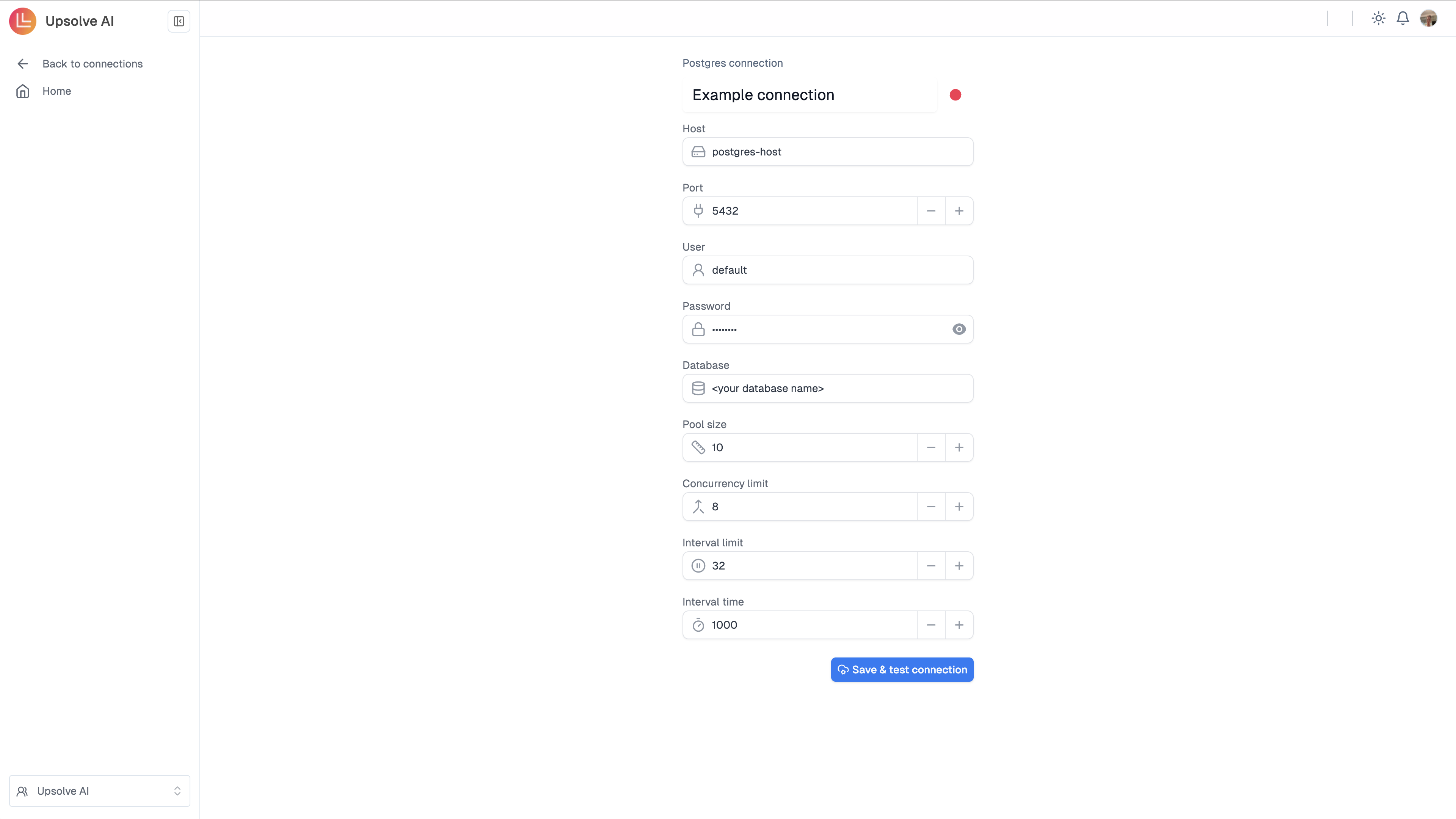
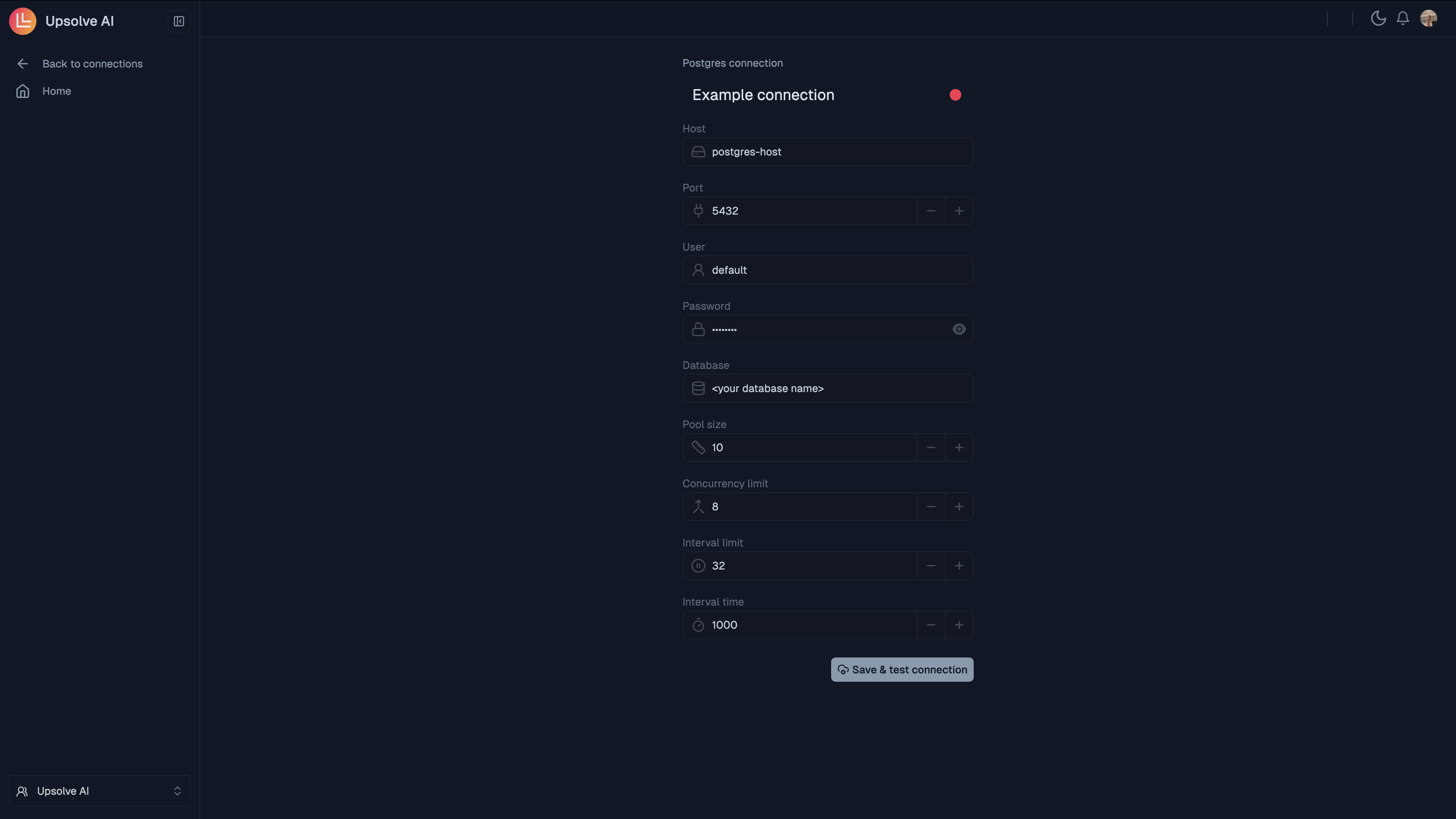 4. Click **Save** to see if connection is set up successfully.
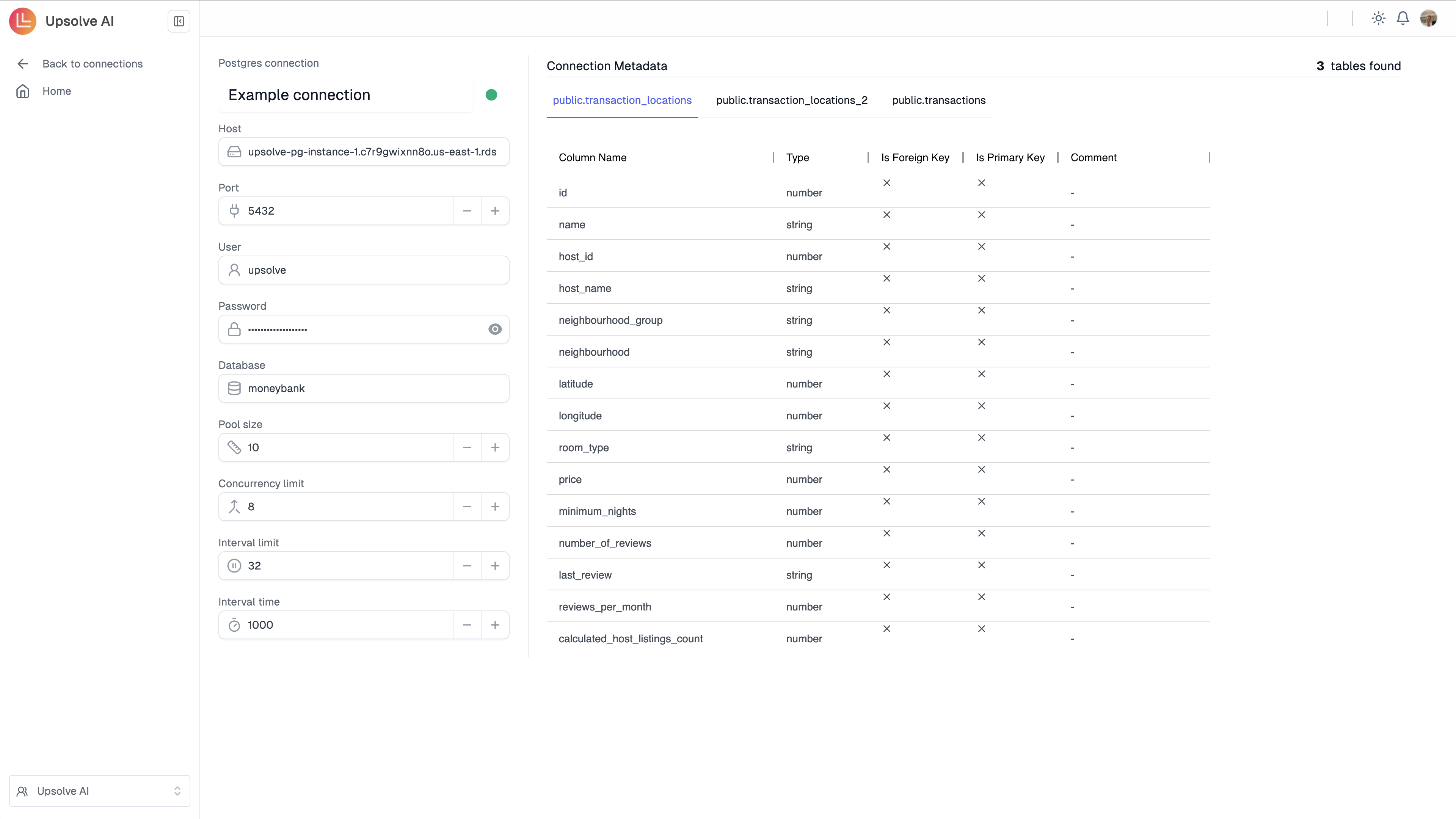
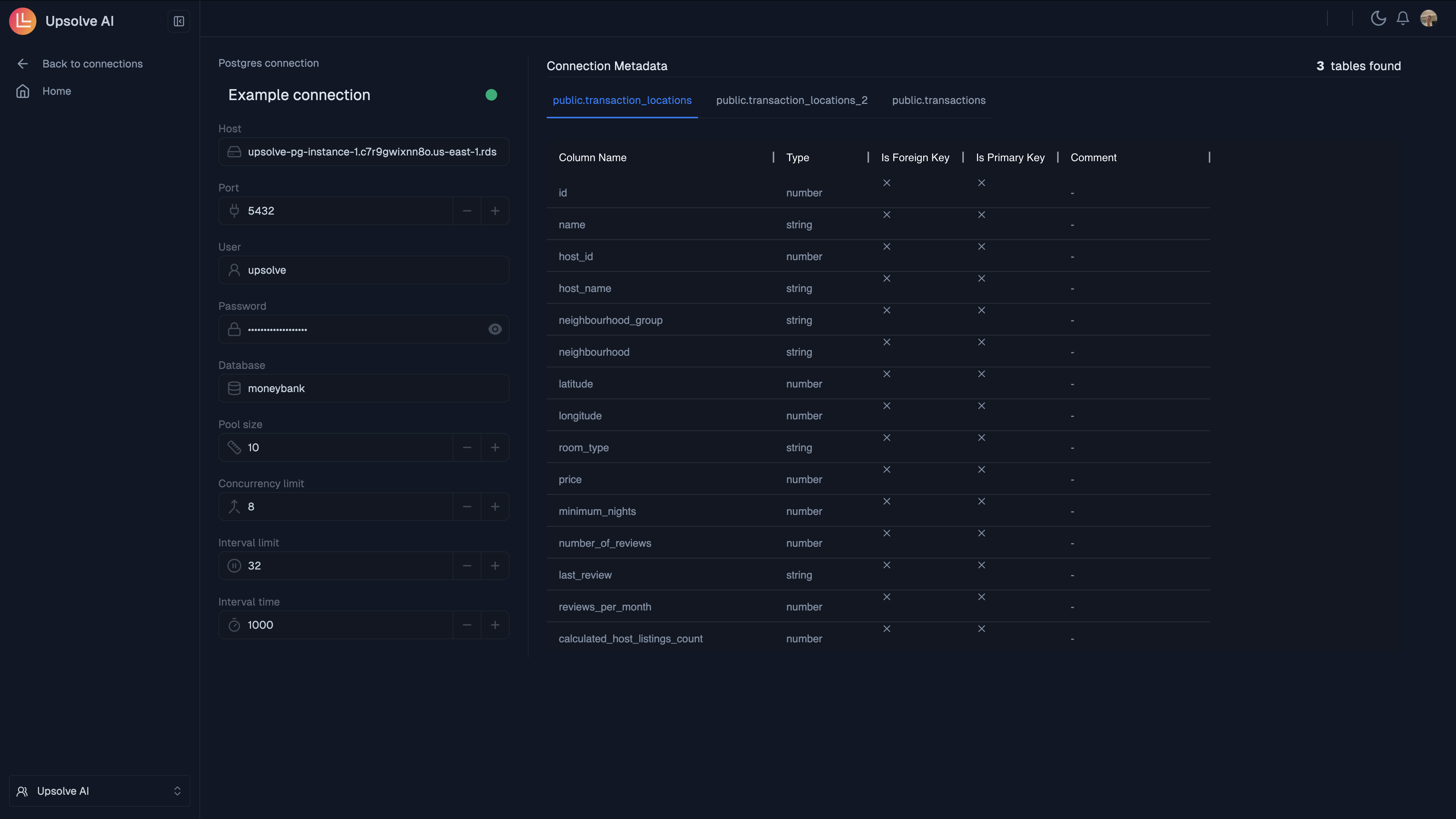 You are now good to go to start [building charts](/embedded-bi/charts/create-chart) and [creating dashboards](/embedded-bi/dashboards/create-dashboard).
If you do not see the data source type you want to connect to in the **Connect** application, please raise a support ticket.
You are now good to go to start [building charts](/embedded-bi/charts/create-chart) and [creating dashboards](/embedded-bi/dashboards/create-dashboard).
If you do not see the data source type you want to connect to in the **Connect** application, please raise a support ticket.