> ## Documentation Index
> Fetch the complete documentation index at: https://docs.upsolve.ai/llms.txt
> Use this file to discover all available pages before exploring further.
# Controlled Filters
> Controlling filters from your app
## Overview
It is possible to control dashboard-level filters from your application. This requires setup in the Upsolve Hub to configure a filter key, and then passing a filter value through that key on your embed URL.
Controlled filters and their set values are not visible to your end users by default. They are meant to be exclusively for your access.
## Configuration in Upsolve Hub
To make a filter controlled, first have a dashboard with a filter configured for it.
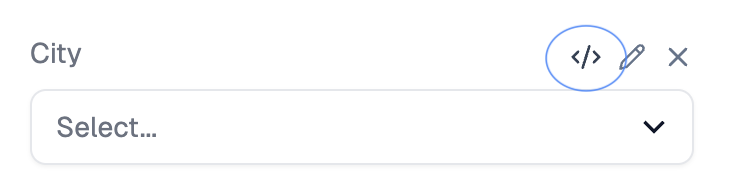
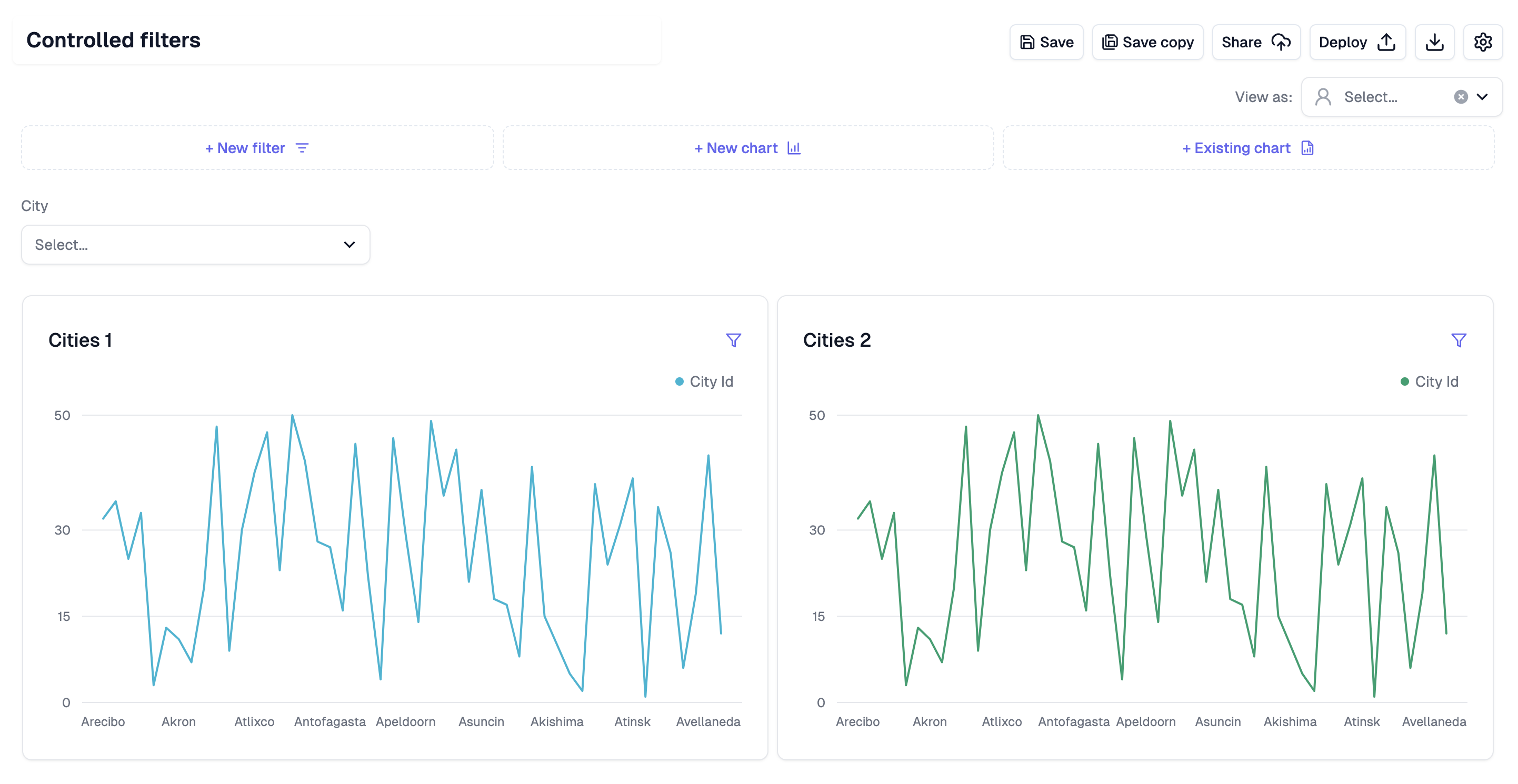 Next, click the "code" icon on the filter
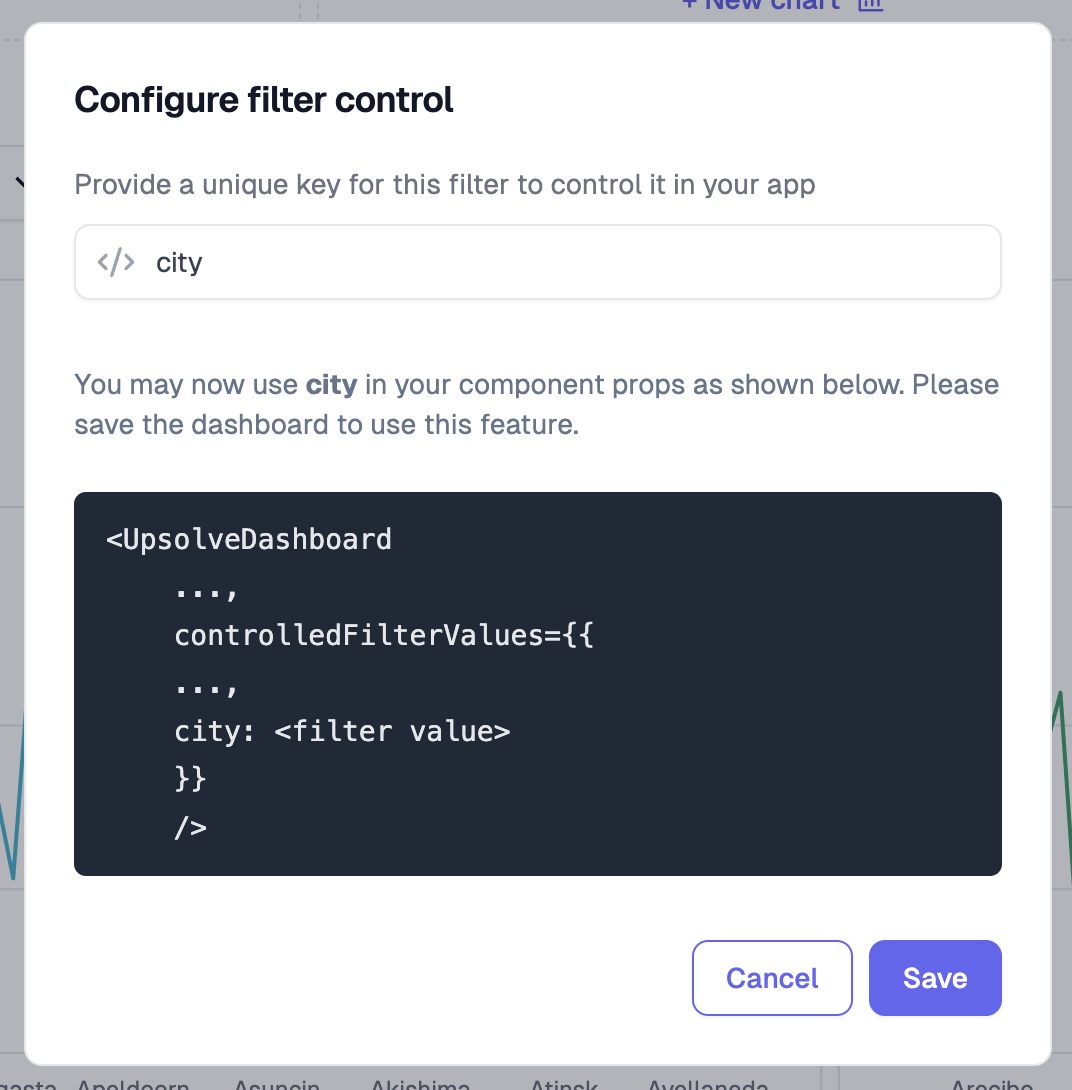
 Then, configure a key for the filter. In this case, we have chosen `city`
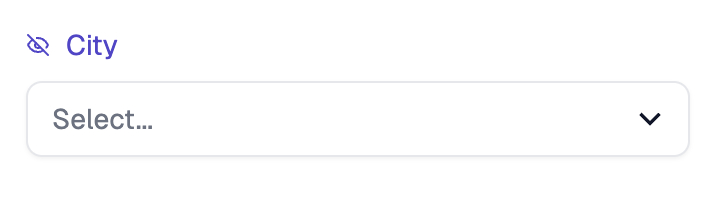
 Finally, when the control is added, note that the filter label changes color and the icon indicates that this filter will not be visible to your users
 ## Passing Controlled Filter Values
Pass controlled filter values on your embed iFrame `src` using the `filter_{controlKey}` query parameter, where `{controlKey}` is the key you configured in the Hub. Each value must be JSON-encoded (and URL-encoded).
```
https://ai-hub.upsolve.ai/share/application/{applicationId}?jwt={token}&filter_{controlKey}={value}
```
For the `city` key configured above:
```html theme={null}
```
For **Select Multi** filter types, the value **must** be a JSON array, not a
plain string. For example `filter_region=%5B%22North%20America%22%5D` (which is
`["North America"]` URL-encoded). Plain strings cause chart load errors.
### Multiple Controlled Filters
Combine multiple `filter_` parameters in the same URL:
```html theme={null}
```
For the full URL parameter reference — including omnibar (`f_`) filters and combining both types — see [URL Filter Parameters](/embedded-bi/filters/url-filter-parameters).
## Visibility in Embedded Contexts
By default, controlled filters are **hidden** when your dashboard is embedded, keeping them invisible to end users.
If you need to show a controlled filter in embedded contexts (such as admin panels or internal tools), set **`isVisible: true`** on the filter's control configuration in the Hub. The filter will then render as a visible pill while still being driven by your `filter_` URL parameter.
## Best Practices
1. **Use Descriptive Keys**: Choose filter keys that clearly indicate their purpose (e.g., `userRegion`, `departmentFilter`)
2. **Document Your Filters**: Keep track of which filters are controlled and their expected values
3. **JSON-encode values**: Always JSON-encode (and URL-encode) the value, especially arrays for Select Multi filters
## Troubleshooting
### Controlled Filter Not Working
* Verify the filter key matches exactly between the Hub configuration and your `filter_{controlKey}` URL parameter
* Check that the filter value type matches the filter configuration (string, number, array, etc.)
* For Select Multi filters, ensure the value is a JSON-encoded array (`%5B%22value%22%5D`), not a plain string
### Controlled Filter Hidden When It Should Be Visible
* Set `isVisible: true` on the filter's control configuration in the Hub to override the default hiding behavior
## Passing Controlled Filter Values
Pass controlled filter values on your embed iFrame `src` using the `filter_{controlKey}` query parameter, where `{controlKey}` is the key you configured in the Hub. Each value must be JSON-encoded (and URL-encoded).
```
https://ai-hub.upsolve.ai/share/application/{applicationId}?jwt={token}&filter_{controlKey}={value}
```
For the `city` key configured above:
```html theme={null}
```
For **Select Multi** filter types, the value **must** be a JSON array, not a
plain string. For example `filter_region=%5B%22North%20America%22%5D` (which is
`["North America"]` URL-encoded). Plain strings cause chart load errors.
### Multiple Controlled Filters
Combine multiple `filter_` parameters in the same URL:
```html theme={null}
```
For the full URL parameter reference — including omnibar (`f_`) filters and combining both types — see [URL Filter Parameters](/embedded-bi/filters/url-filter-parameters).
## Visibility in Embedded Contexts
By default, controlled filters are **hidden** when your dashboard is embedded, keeping them invisible to end users.
If you need to show a controlled filter in embedded contexts (such as admin panels or internal tools), set **`isVisible: true`** on the filter's control configuration in the Hub. The filter will then render as a visible pill while still being driven by your `filter_` URL parameter.
## Best Practices
1. **Use Descriptive Keys**: Choose filter keys that clearly indicate their purpose (e.g., `userRegion`, `departmentFilter`)
2. **Document Your Filters**: Keep track of which filters are controlled and their expected values
3. **JSON-encode values**: Always JSON-encode (and URL-encode) the value, especially arrays for Select Multi filters
## Troubleshooting
### Controlled Filter Not Working
* Verify the filter key matches exactly between the Hub configuration and your `filter_{controlKey}` URL parameter
* Check that the filter value type matches the filter configuration (string, number, array, etc.)
* For Select Multi filters, ensure the value is a JSON-encoded array (`%5B%22value%22%5D`), not a plain string
### Controlled Filter Hidden When It Should Be Visible
* Set `isVisible: true` on the filter's control configuration in the Hub to override the default hiding behavior