> ## Documentation Index
> Fetch the complete documentation index at: https://docs.upsolve.ai/llms.txt
> Use this file to discover all available pages before exploring further.
# Timezones
> Configure timezones for your dashboard
## Overview
Dashboards provide flexible timezone configurations to ensure your data is displayed in a way that best suits your end users' needs. By default, dashboards automatically adjust to the **local timezone of the end user**, contextualizing data for their location.
## Key Requirements
* **Data Storage in UTC:** Ensure all timestamps in your data source are stored in **UTC**. Upsolve automatically adjusts these timestamps to match the configured timezone.
* **Automatic Adjustment:** Date columns will automatically shift to reflect the end user's local timezone unless otherwise specified.
## Setting a Specific Timezone
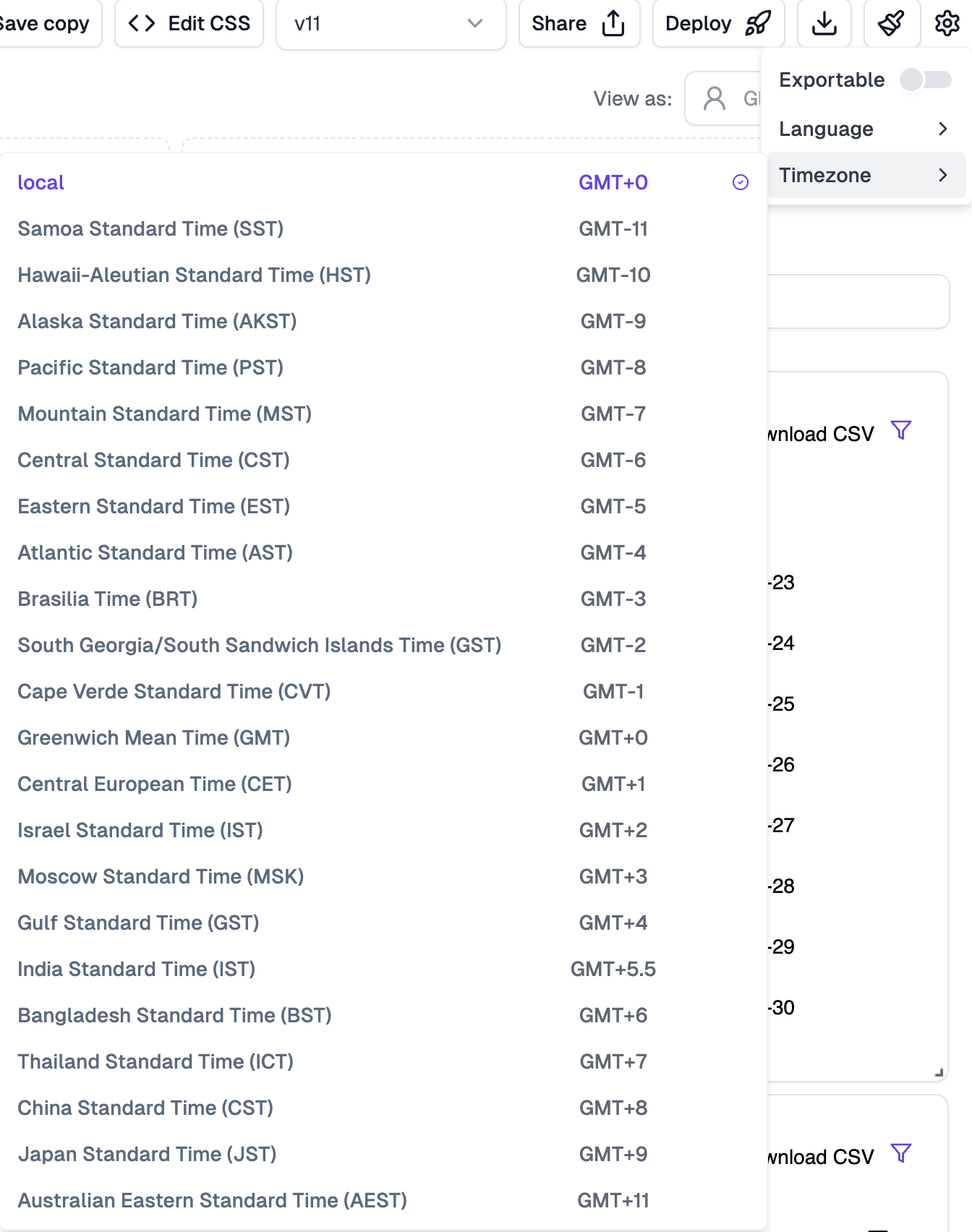
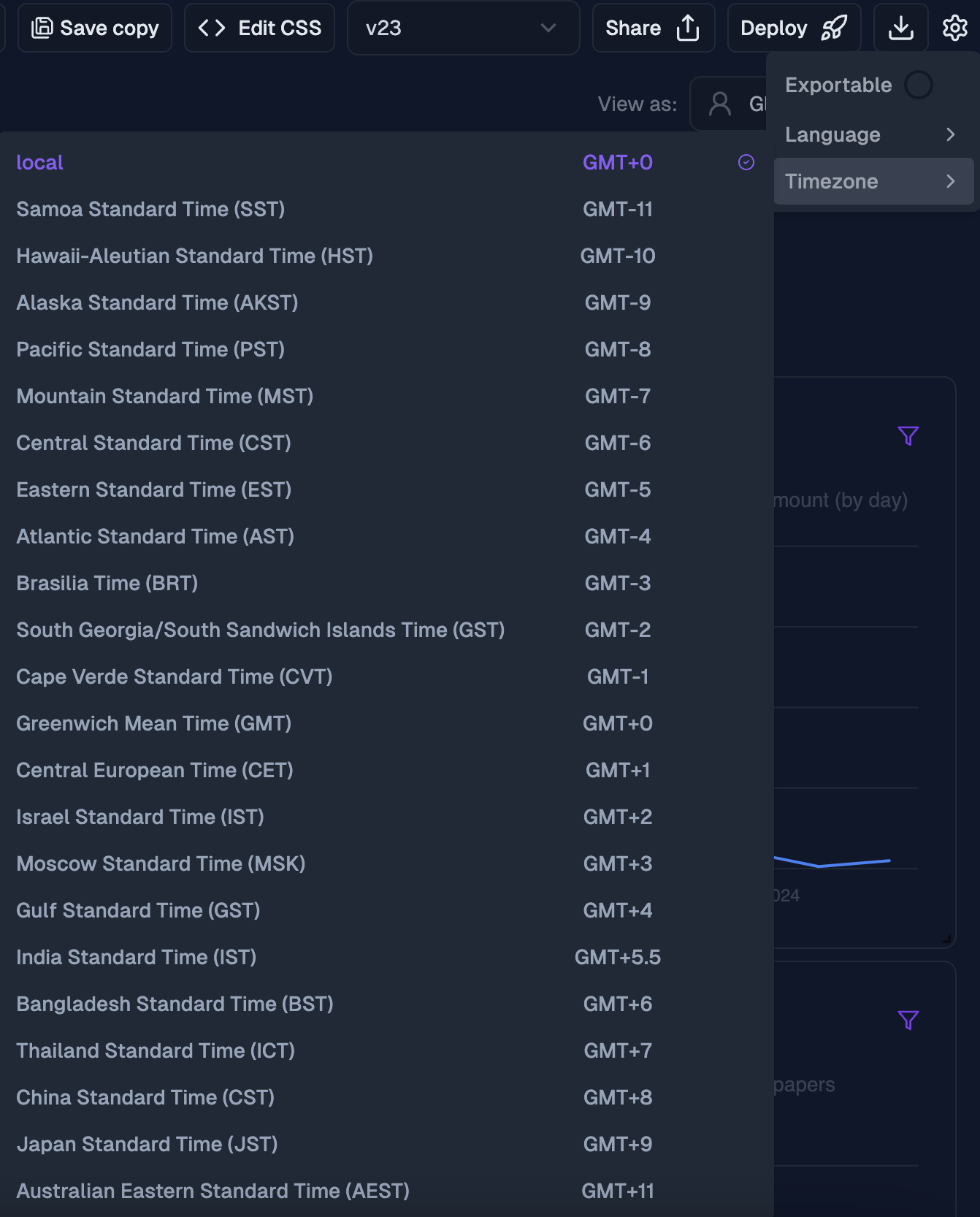
If you need all end users to see data in the same timezone, regardless of their location, you can configure a specific timezone through the **dashboard builder settings**.
### Steps to Set a Timezone:
1. Open the **Settings** dropdown in the dashboard builder.
2. Select the desired timezone from the available options.
3. To revert to displaying data in the end user's local timezone, select the **Local** option.
By setting a specific timezone, your dashboard provides a consistent view of time-sensitive data for all users.
 ## Notes
* Dashboards always assume data is stored in **UTC** and adjust based on the selected timezone.
* Switching back to the **Local** option ensures data reflects the end user's local timezone automatically.
## Notes
* Dashboards always assume data is stored in **UTC** and adjust based on the selected timezone.
* Switching back to the **Local** option ensures data reflects the end user's local timezone automatically.