> ## Documentation Index
> Fetch the complete documentation index at: https://docs.upsolve.ai/llms.txt
> Use this file to discover all available pages before exploring further.
# Schedule Reports
> Automatically email static dashboard links to recipients on a cadence
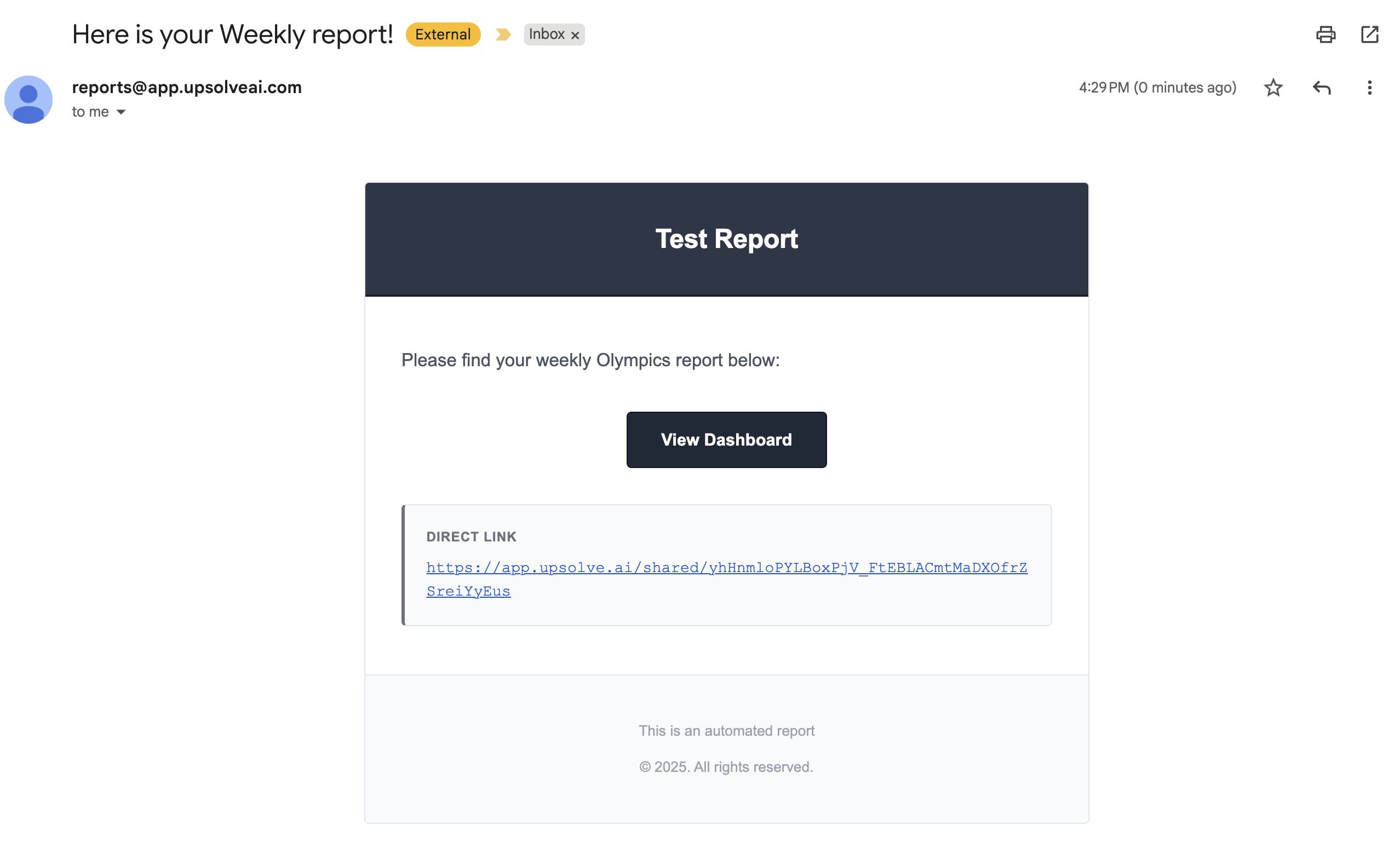
With SMTP verified, you can schedule recurring report emails that include secure links to static dashboard snapshots. Reports arrive on time, every time, with numbers that don’t change.
### What Gets Sent
* Email subject and message body you configure
* A secure link to a static dashboard snapshot (generated at send time)
* Optional custom message for context
 ### Workflow: Create a Schedule
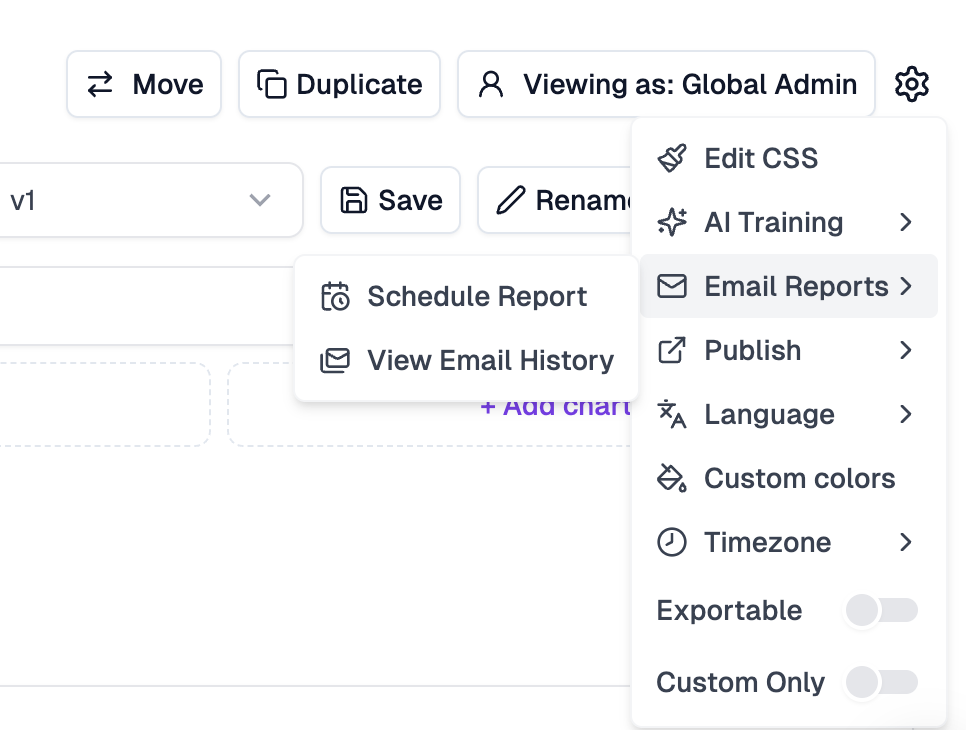
1. Open a dashboard and click "Schedule report"
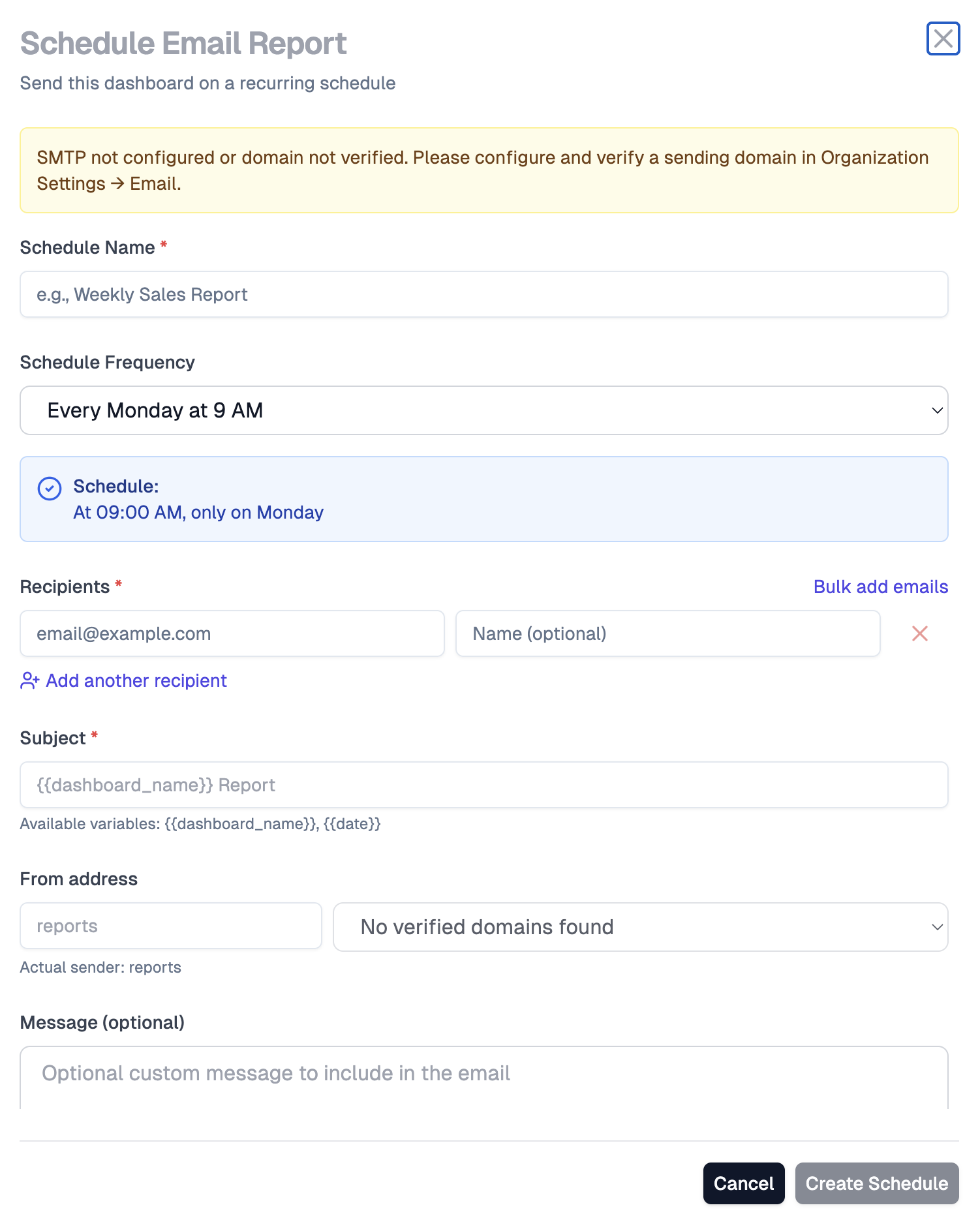
2. Name your schedule (e.g., "Weekly Executive Summary")
3. Select recipients (add multiple emails, names optional)
4. Choose the send time and timezone
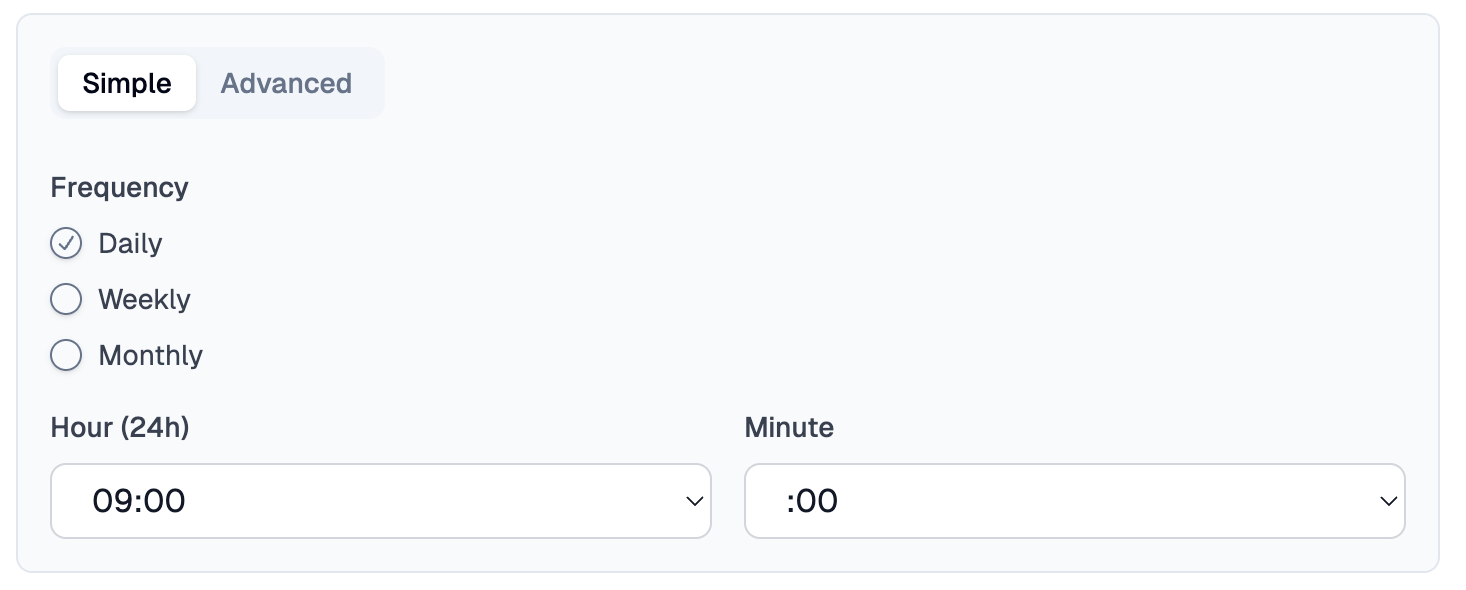
5. Set the cadence via cron expression or the visual picker (e.g., every Monday 8am)
6. Customize subject and message body
7. Save and activate the schedule
### Filter and Tenant Persistence
When you create a scheduled report, any dashboard filters or tenant selection active at the time will be preserved and applied to each static snapshot generated by the schedule:
* **Dashboard Filters**: All filter values set when creating the schedule will be locked into the schedule. Each time the report is sent, the static snapshot will reflect those filter values.
* **Relative Date Filters**: Date filters using relative ranges (such as "Last 7 Days", "Month to Date", or "Last 30 Days") are treated specially. These filters will be recalculated at send time, ensuring the report always shows the most recent data for the specified period. For example, a schedule with "Last 7 Days" will always show the previous 7 days from when the email is sent, not the 7 days from when the schedule was created.
* **Static Date Filters**: Date filters with specific date ranges (such as "January 1, 2024 - January 31, 2024") remain fixed and will always show data for those exact dates.
* **Tenant Selection**: If you have selected a specific tenant using the "View as" feature when creating the schedule, the schedule will be scoped to that tenant's data permissions. Each generated snapshot will respect the tenant's data access rules.
This ensures that each report is generated with consistent filtering and data access, making it ideal for sending tenant-specific reports or filtered views to different stakeholder groups.
### Custom URL Base (Advanced)
When embedding dashboards into your product via iframe, you can customize the base URL used in email report links. This allows you to use your own domain or staging environment instead of the default `hub.upsolve.ai/share/static` URL.
**Use Cases:**
* Embedding dashboards into your product's iframe
* Using a custom domain for report links
* Pointing to a staging environment for testing
**How to Configure:**
1. When creating or editing a schedule, expand the "Advanced Options" section
2. Enter your custom URL base in the "Custom URL Base" field
* You can include the protocol (`https://` or `https://`) or omit it (defaults to `https://`)
* Examples:
* `https://{your-domain}.com/share`
* `yourdomain.com/dashboards`
3. The system will automatically append the access token to your custom URL base
**Note:** The custom URL base applies to both scheduled sends and "Send Now" test emails, ensuring consistency across all email reports.
**Example:**
If you set the custom URL base to `https://{your-domain}.com/share`, the email will contain a link like:
```
https://{your-domain}.com/share/{accessToken}
```
Instead of the default:
```
https://hub.upsolve.ai/share/static/{accessToken}
```
### Workflow: Create a Schedule
1. Open a dashboard and click "Schedule report"
2. Name your schedule (e.g., "Weekly Executive Summary")
3. Select recipients (add multiple emails, names optional)
4. Choose the send time and timezone
5. Set the cadence via cron expression or the visual picker (e.g., every Monday 8am)
6. Customize subject and message body
7. Save and activate the schedule
### Filter and Tenant Persistence
When you create a scheduled report, any dashboard filters or tenant selection active at the time will be preserved and applied to each static snapshot generated by the schedule:
* **Dashboard Filters**: All filter values set when creating the schedule will be locked into the schedule. Each time the report is sent, the static snapshot will reflect those filter values.
* **Relative Date Filters**: Date filters using relative ranges (such as "Last 7 Days", "Month to Date", or "Last 30 Days") are treated specially. These filters will be recalculated at send time, ensuring the report always shows the most recent data for the specified period. For example, a schedule with "Last 7 Days" will always show the previous 7 days from when the email is sent, not the 7 days from when the schedule was created.
* **Static Date Filters**: Date filters with specific date ranges (such as "January 1, 2024 - January 31, 2024") remain fixed and will always show data for those exact dates.
* **Tenant Selection**: If you have selected a specific tenant using the "View as" feature when creating the schedule, the schedule will be scoped to that tenant's data permissions. Each generated snapshot will respect the tenant's data access rules.
This ensures that each report is generated with consistent filtering and data access, making it ideal for sending tenant-specific reports or filtered views to different stakeholder groups.
### Custom URL Base (Advanced)
When embedding dashboards into your product via iframe, you can customize the base URL used in email report links. This allows you to use your own domain or staging environment instead of the default `hub.upsolve.ai/share/static` URL.
**Use Cases:**
* Embedding dashboards into your product's iframe
* Using a custom domain for report links
* Pointing to a staging environment for testing
**How to Configure:**
1. When creating or editing a schedule, expand the "Advanced Options" section
2. Enter your custom URL base in the "Custom URL Base" field
* You can include the protocol (`https://` or `https://`) or omit it (defaults to `https://`)
* Examples:
* `https://{your-domain}.com/share`
* `yourdomain.com/dashboards`
3. The system will automatically append the access token to your custom URL base
**Note:** The custom URL base applies to both scheduled sends and "Send Now" test emails, ensuring consistency across all email reports.
**Example:**
If you set the custom URL base to `https://{your-domain}.com/share`, the email will contain a link like:
```
https://{your-domain}.com/share/{accessToken}
```
Instead of the default:
```
https://hub.upsolve.ai/share/static/{accessToken}
```
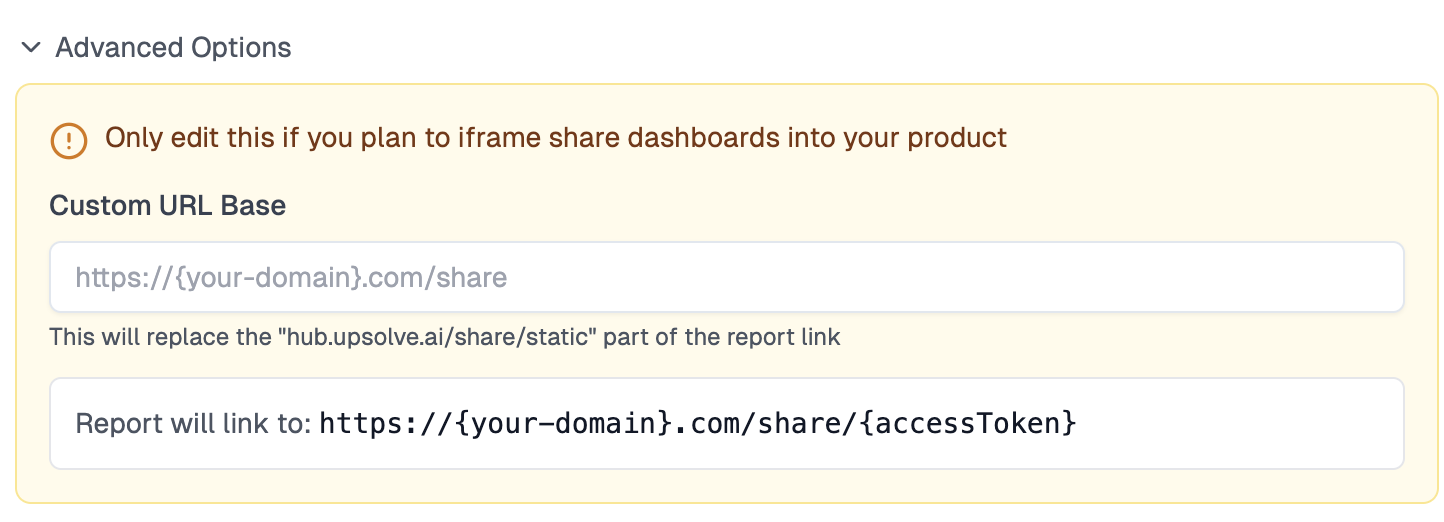 > **Note:** Only configure a custom URL base if you plan to iframe share dashboards into your product. For standard use cases, the default URL works perfectly.
Entry point:
> **Note:** Only configure a custom URL base if you plan to iframe share dashboards into your product. For standard use cases, the default URL works perfectly.
Entry point:
 Modal:
 Cron picker:
 Recipients:
 ### Managing Schedules
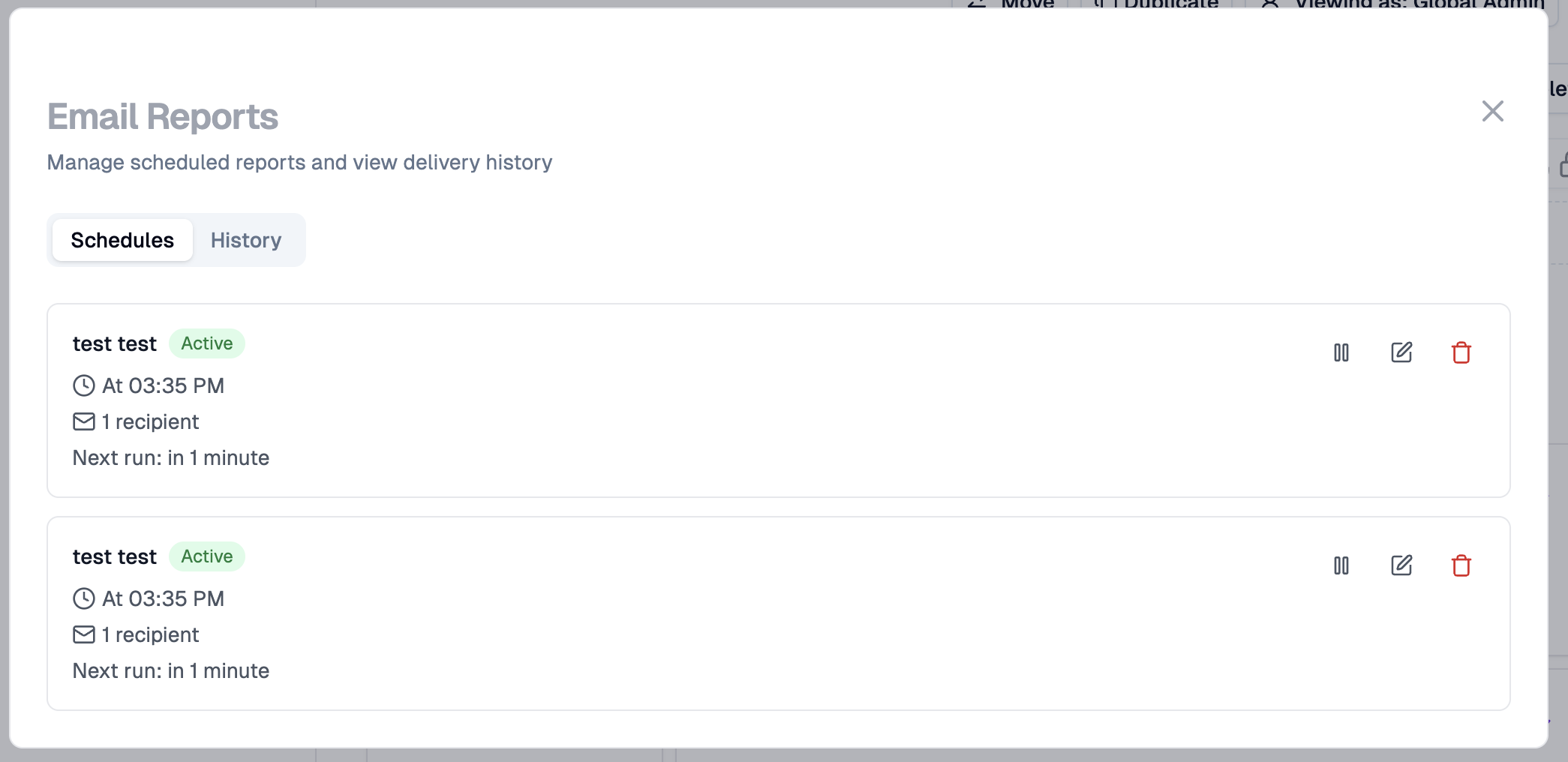
* Toggle active/inactive
* Edit cadence, recipients, or content
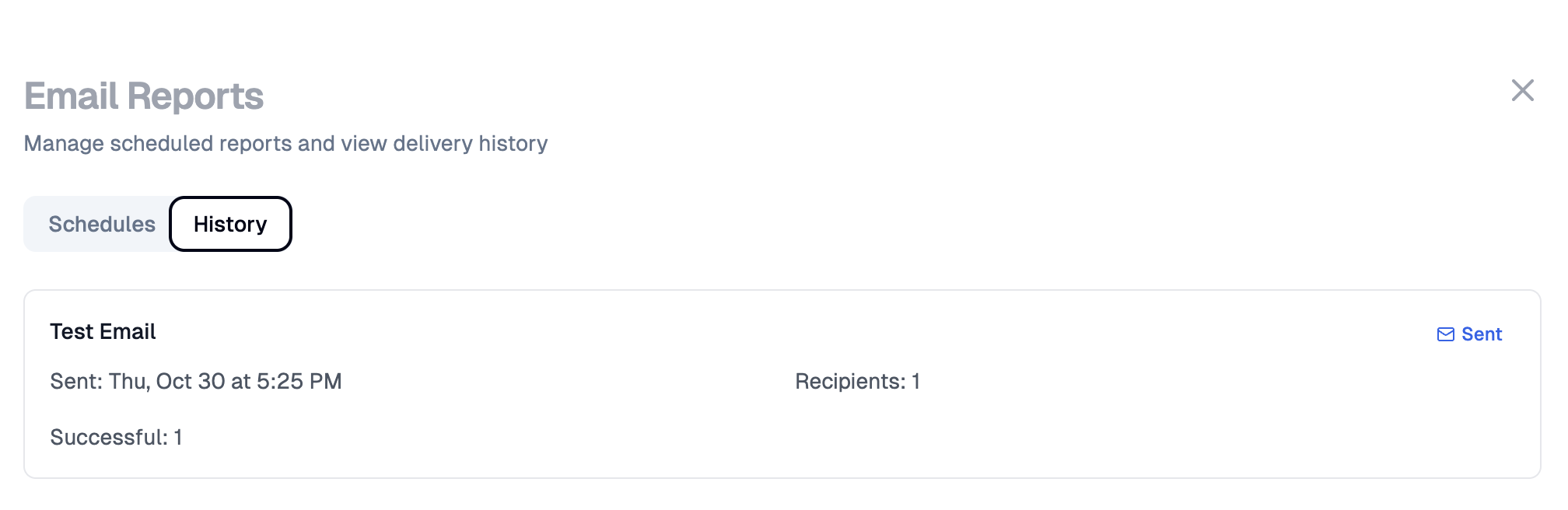
* View send history and delivery logs
### Managing Schedules
* Toggle active/inactive
* Edit cadence, recipients, or content
* View send history and delivery logs
 ### Best Practices
* Keep one schedule per audience to tailor subject/body
* Prefer static snapshot links for auditability and consistency
* Use organization email domain for higher deliverability (via SMTP verification)
### Best Practices
* Keep one schedule per audience to tailor subject/body
* Prefer static snapshot links for auditability and consistency
* Use organization email domain for higher deliverability (via SMTP verification)