> ## Documentation Index
> Fetch the complete documentation index at: https://docs.upsolve.ai/llms.txt
> Use this file to discover all available pages before exploring further.
# Clickhouse
> Discover a seamless integration process! Learn how to connect Clickhouse to Upsolve effortlessly for streamlined transactions.
This article guides you through the process of connecting Clickhouse to Upsolve, allowing you to seamlessly access your Clickhouse data within the Upsolve platform.
## Prerequisites
Before you start, you will need the following information from Clickhouse.
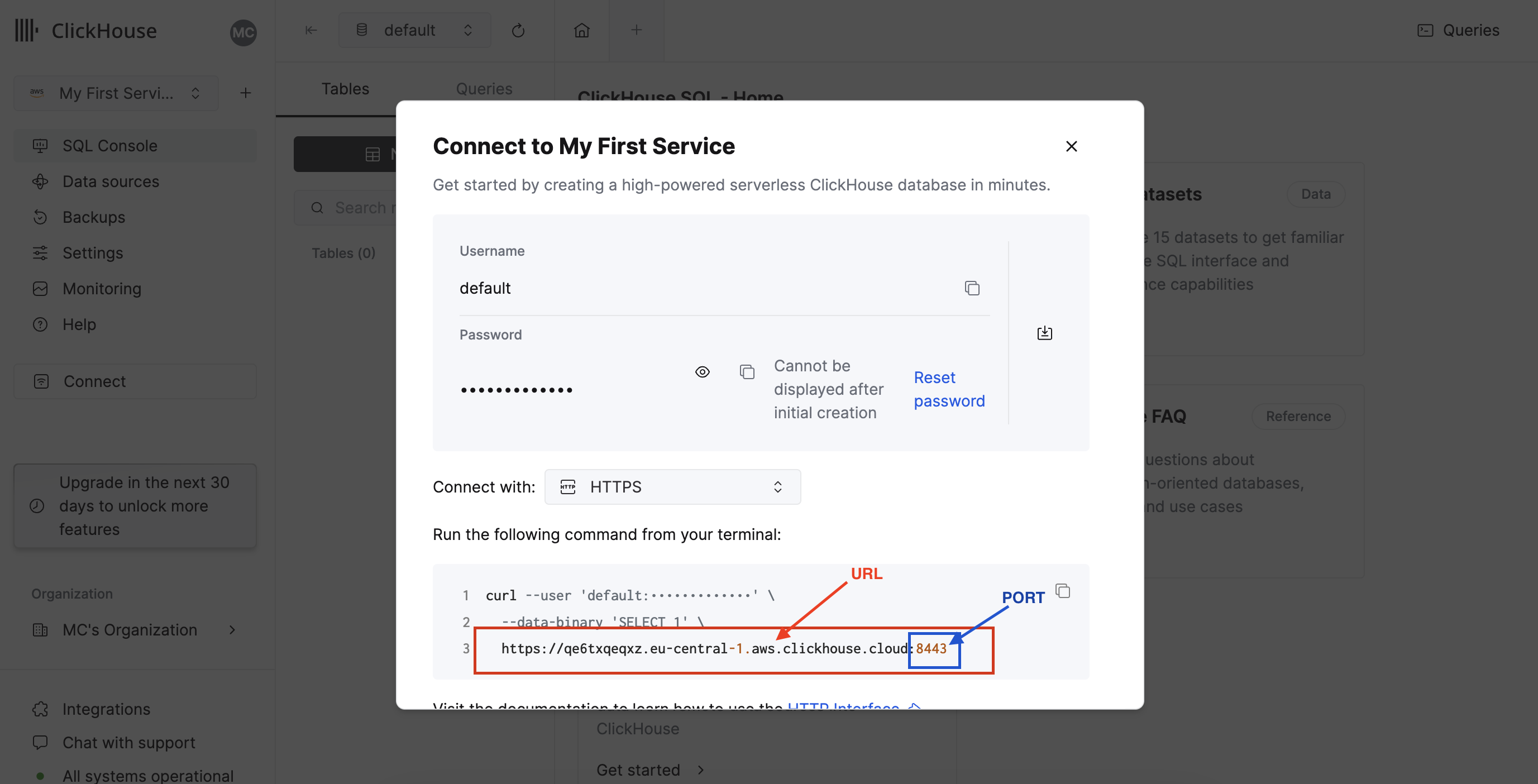
* URL
* PORT
* User Name
* Password
* SSL (Toggle "Connect Through TLS" switch)
Follow the steps below to obtain it:
1. Open the Clickhouse dashboard.
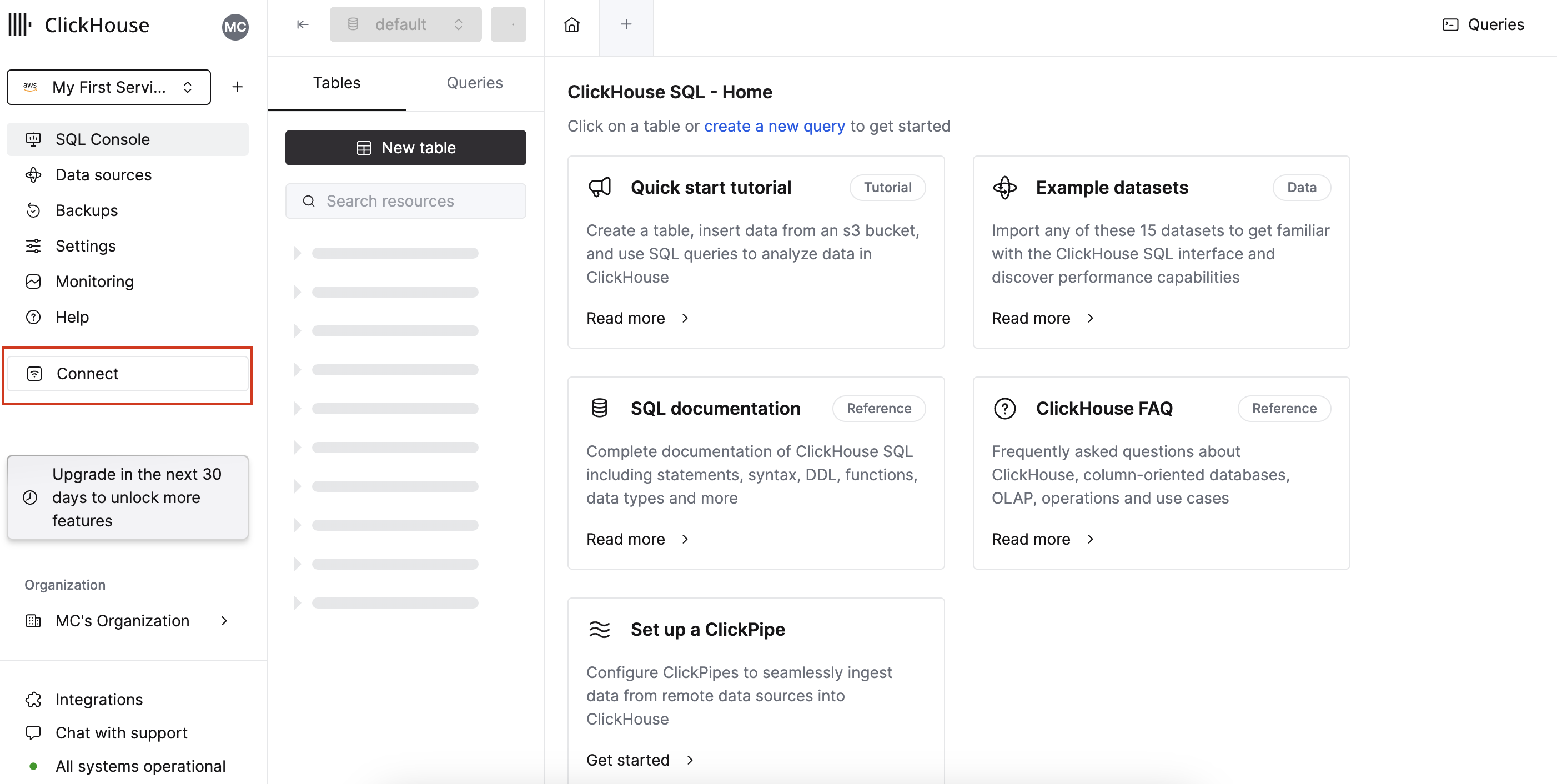
2. Click on the "Connect" button as shown in the image below.
 3. It will open a modal and show the data source detail such as URL, PORT, User Name, and Password.
 ## Connecting Clickhouse to Upsolve
Now that you have obtained the necessary integration data and credentials, you can connect Clickhouse to Upsolve using the following steps:
1. Navigate to the data model page in Upsolve.
2. In the side menu bar, click the "New Data Source" button to initiate the connection process.
3. In the modal that appears, select "Clickhouse" as your data source.
4. Enter a name for your data source, input the credentials you obtained in the previous steps, and toggle the "Connect Through TLS" switch if SSL is required.
## Connecting Clickhouse to Upsolve
Now that you have obtained the necessary integration data and credentials, you can connect Clickhouse to Upsolve using the following steps:
1. Navigate to the data model page in Upsolve.
2. In the side menu bar, click the "New Data Source" button to initiate the connection process.
3. In the modal that appears, select "Clickhouse" as your data source.
4. Enter a name for your data source, input the credentials you obtained in the previous steps, and toggle the "Connect Through TLS" switch if SSL is required.
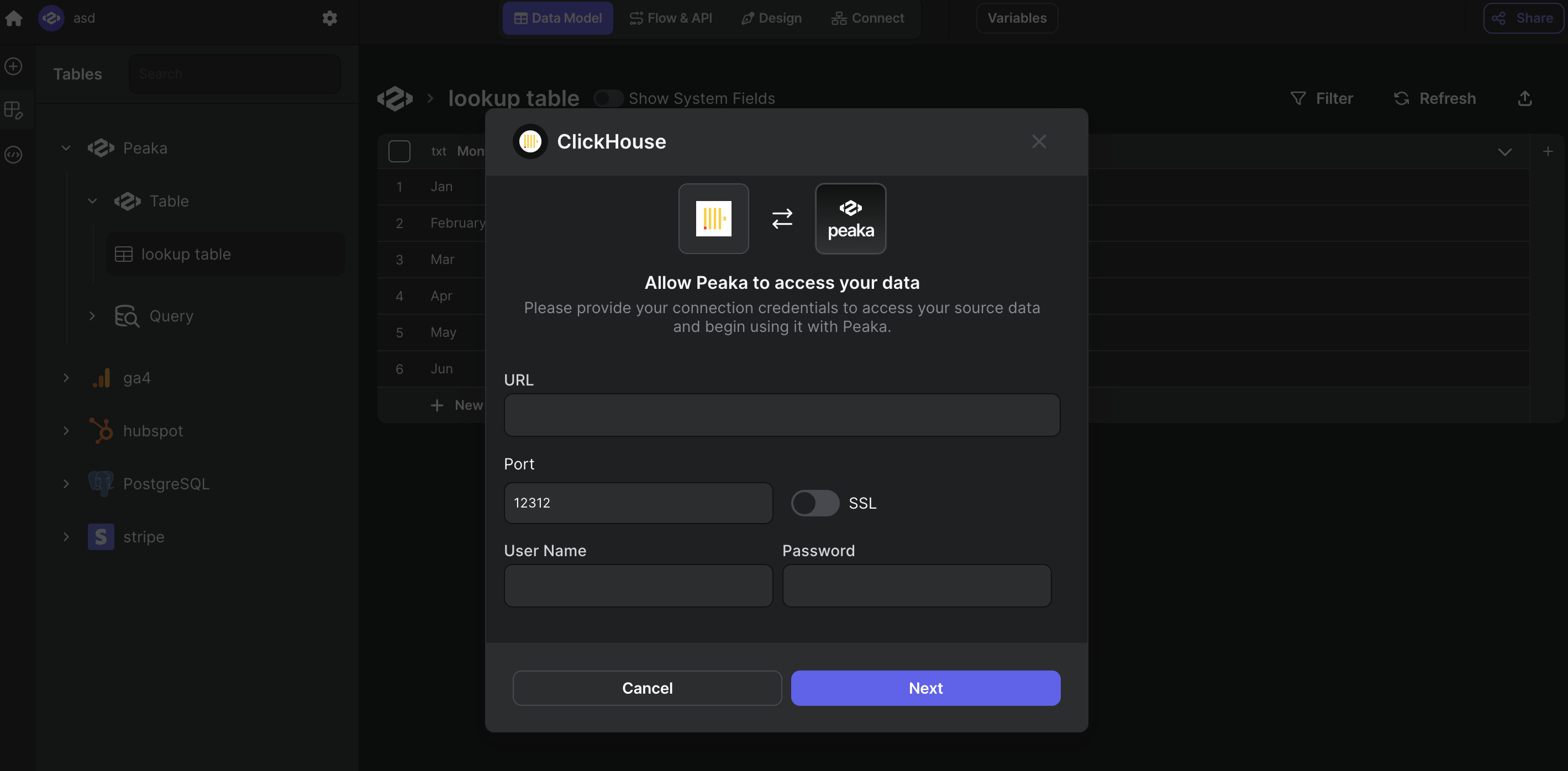 5. Click "Next" to create your Clickhouse data source.
Congratulations! You've successfully connected Clickhouse to Upsolve. You can now access and manage your Clickhouse data seamlessly within the Upsolve platform.
5. Click "Next" to create your Clickhouse data source.
Congratulations! You've successfully connected Clickhouse to Upsolve. You can now access and manage your Clickhouse data seamlessly within the Upsolve platform.