> ## Documentation Index
> Fetch the complete documentation index at: https://docs.upsolve.ai/llms.txt
> Use this file to discover all available pages before exploring further.
# Google Analytics
> Discover a seamless integration process! Learn how to connect Google Analytics to Upsolve effortlessly for streamlined transactions.
This article guides you through the process of connecting Google Analytics to Upsolve, allowing you to seamlessly access your Google Analytics data within the Upsolve platform.
Follow these steps to connect Google Analytics to Upsolve:
1. Navigate to the data model page in Upsolve.
2. In the side menu bar, click the "New Data Source" button to initiate the connection process.
3. In the modal, select "Google Analytics" as your data source.
4. Enter a name for your data source.
5. Click the "Signing in to Google Analytics" button. This will open a modal to allow Upsolve access to your Google Analytics account.
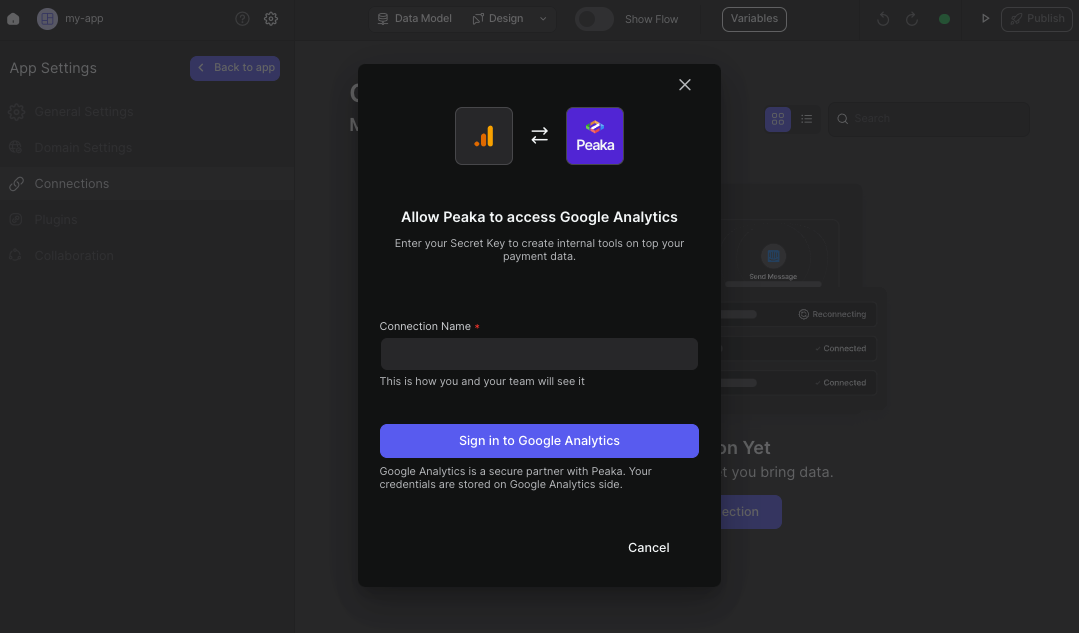 6. In the modal, click the "Allow" button to grant Upsolve access to your Google Analytics data.
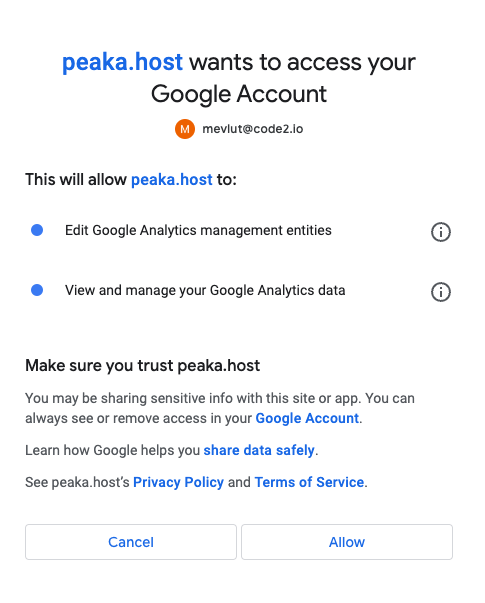 Congratulations! You've successfully connected Google Analytics to Upsolve. You can now access and manage your Google Analytics data seamlessly within the Upsolve platform.