

What is an Agent?
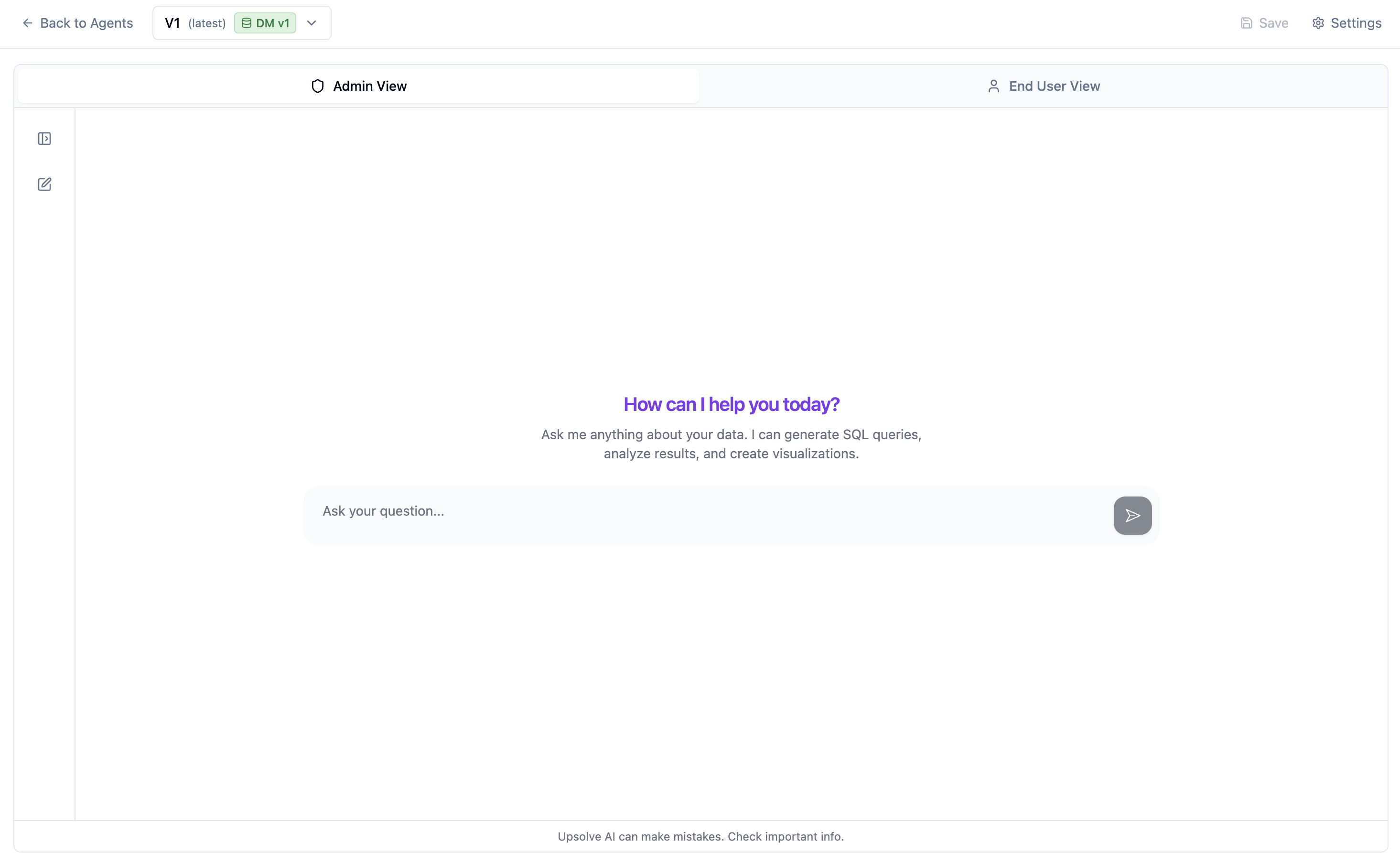
An Agent is an AI-powered chat interface that:- Converts natural language questions into SQL
- Analyzes results and provides insights
- Creates visualizations from query results
- Learns from examples (Golden Assets)
Agent Components
Data Model Link
Every agent is linked to a specific data model version. This ensures:- The agent knows what tables and columns exist
- Changes to the data model don’t break the agent
- You can test with different data model versions
System Prompt
A custom prompt that shapes how the agent responds:- Company context and terminology
- Response style preferences
- Special instructions
Golden Assets
Example queries and charts that teach the agent:- How to write SQL for common questions
- What visualizations to create
- Correct terminology and calculations
Evaluations (Evals)
Test sets to verify agent accuracy:- Known question-answer pairs
- SQL validation
- Result comparison
Creating an Agent
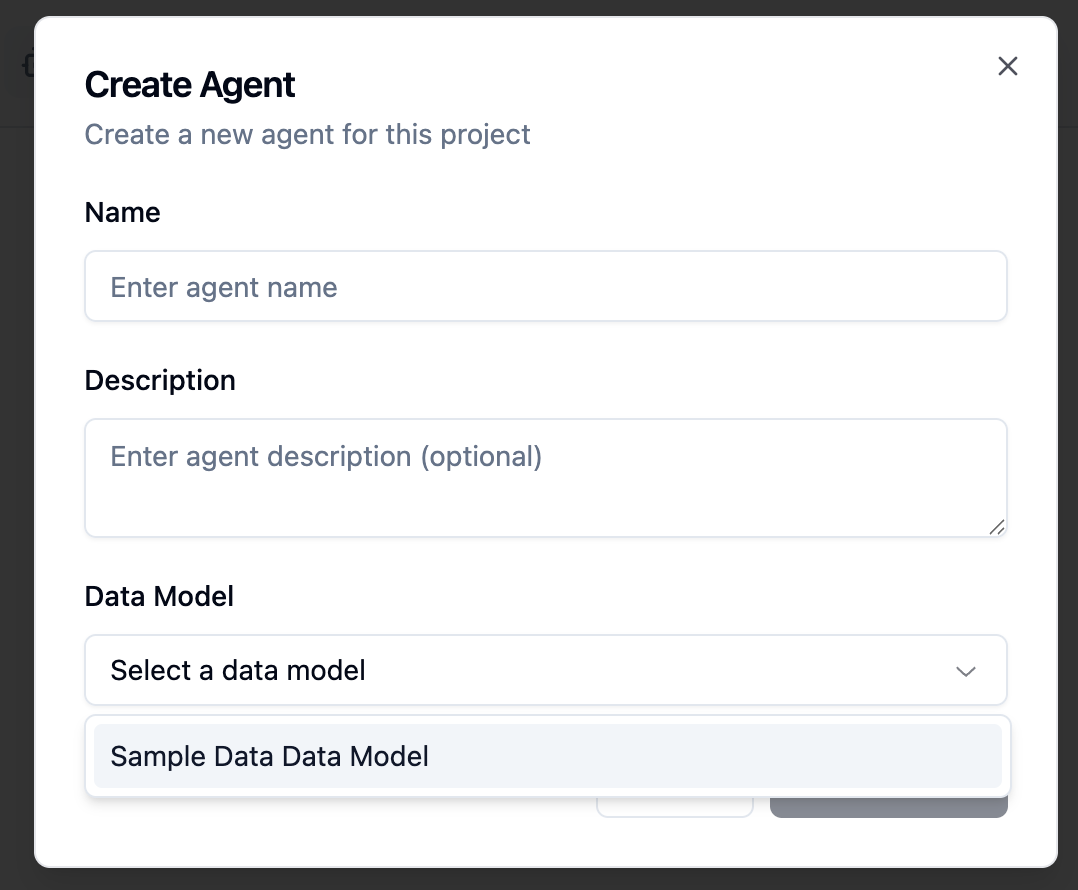
- Navigate to your project’s Agents tab
- Click Create Agent
- Enter a name and description
- Select the data model to use
- Click Create
Configuring Your Agent
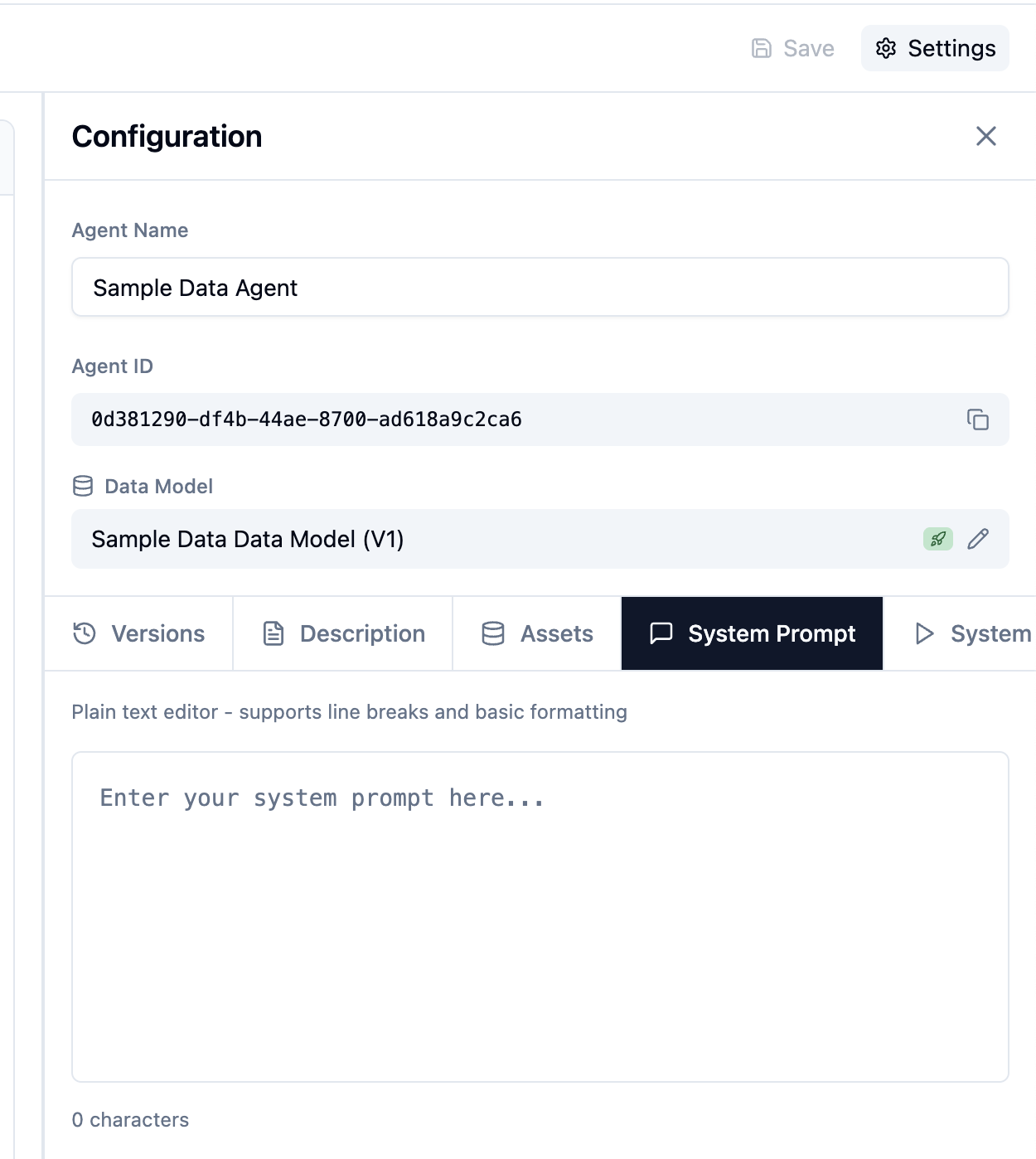
Setting the System Prompt
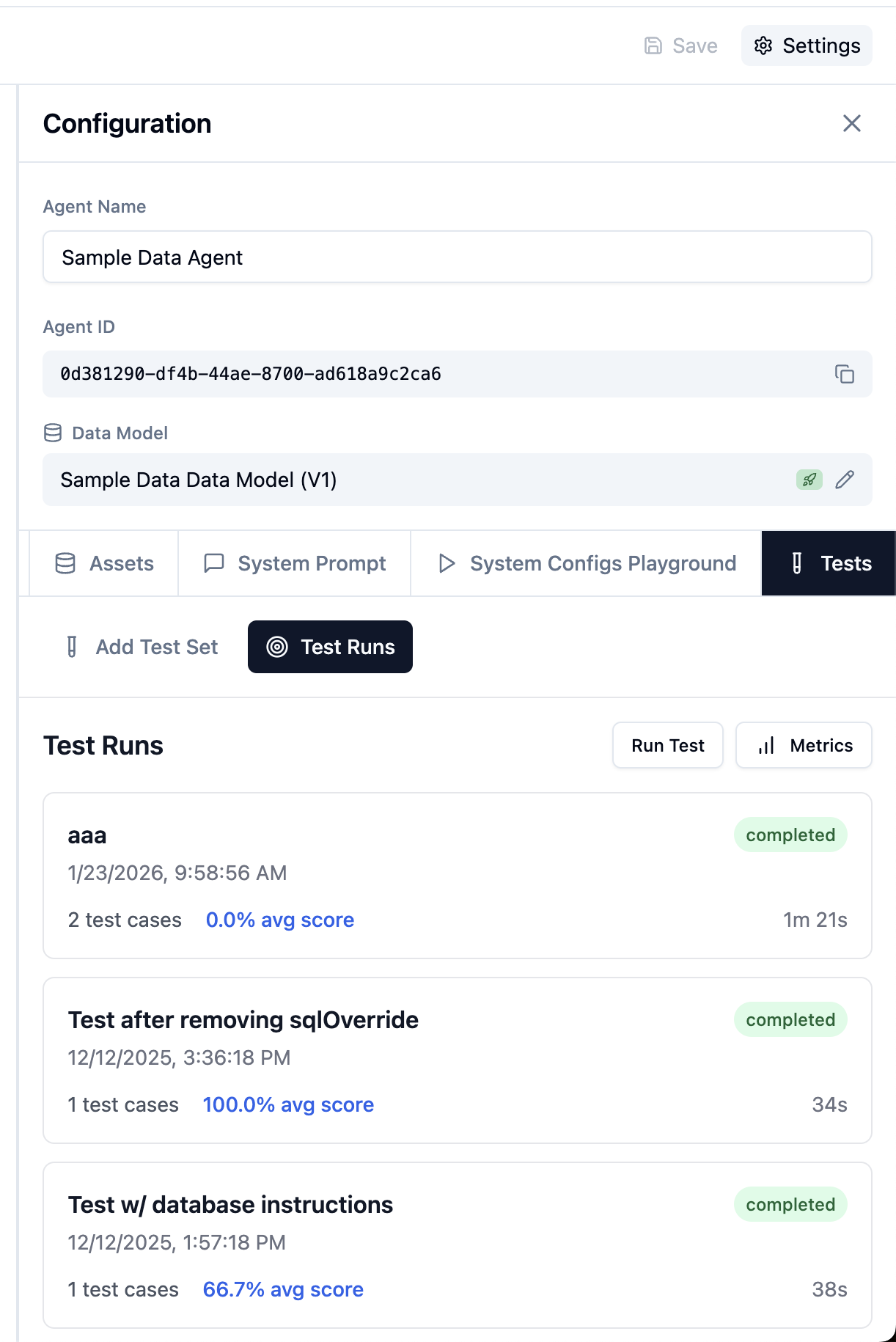
- Open your agent
- Go to the System Prompt tab in the sidebar
- Write instructions for the agent
- Click Save
Adding Golden Assets
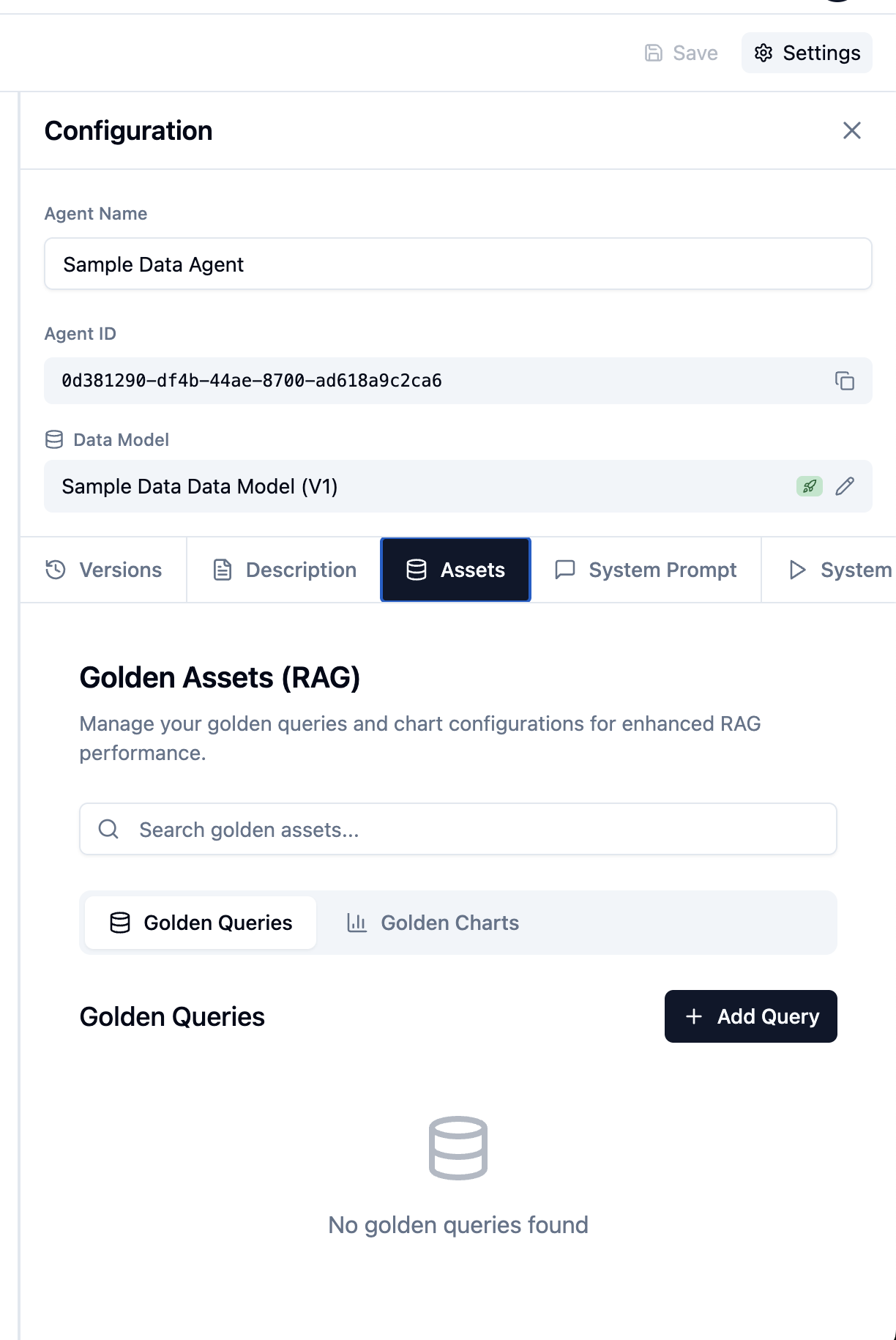
Golden Assets are example queries that improve accuracy:- Go to the Assets tab
- Click Add Asset
- Enter the question and corresponding SQL
- Optionally add a chart configuration
- Click Save
Creating Evaluations
- Go to the Tests tab
- Click Add Test
- Enter a question
- Enter the expected SQL or answer
- Save and run the test
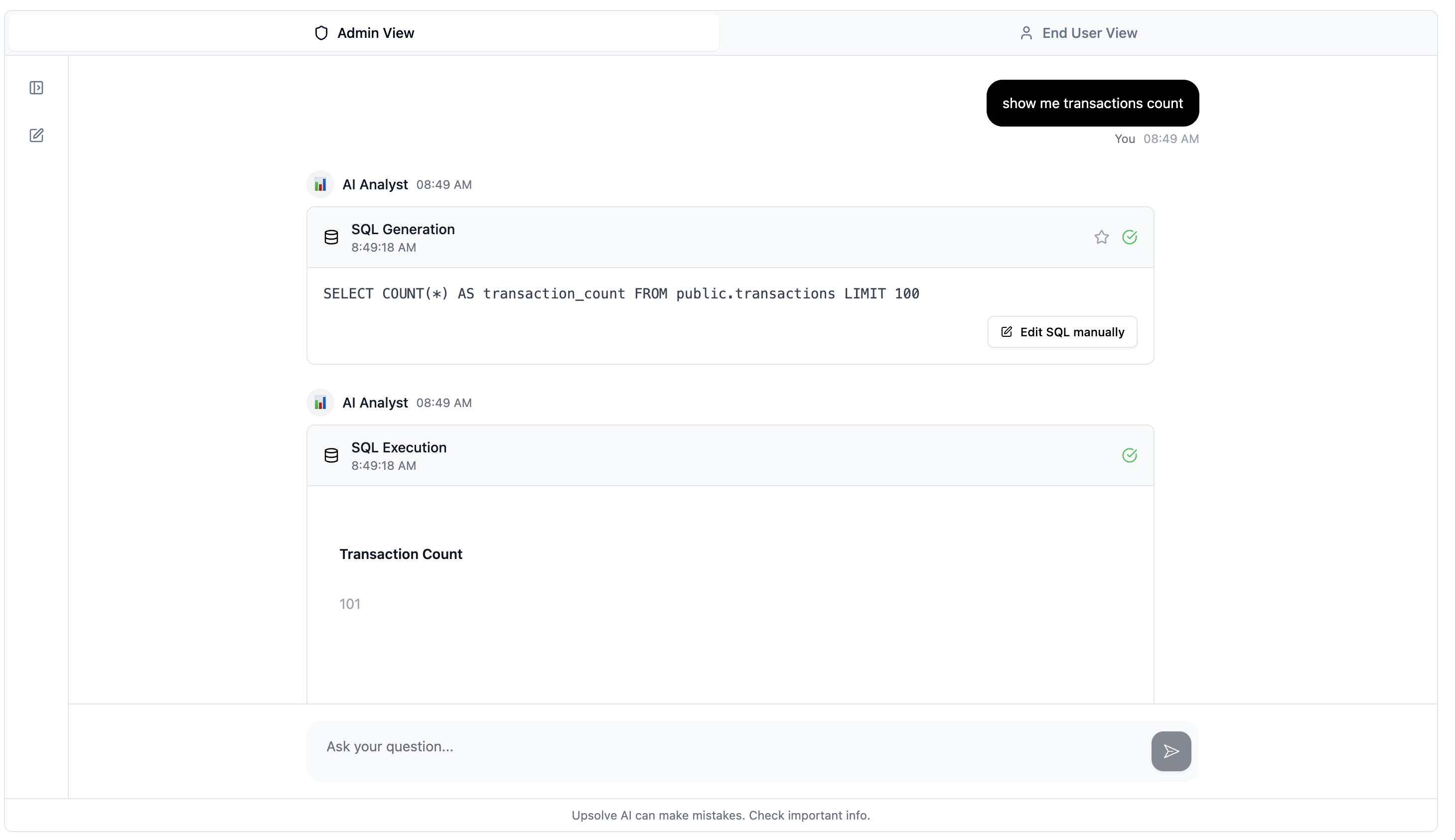
Admin View vs User View
Admin View
As an admin, you see full details:- Every tool call the AI makes
- SQL queries generated
- Step-by-step reasoning
- Token usage and timing
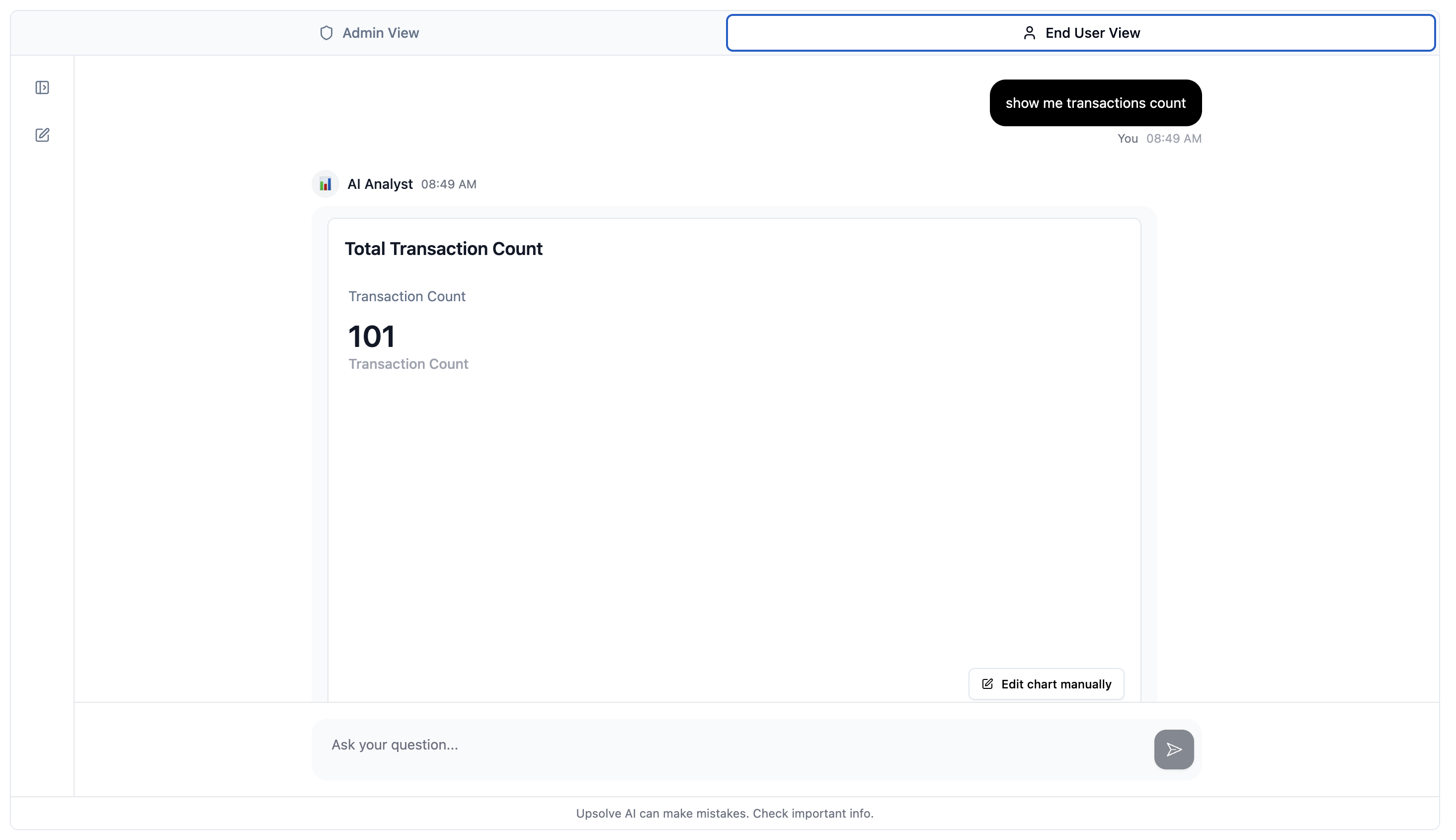
User View
End users see a clean interface:- Just the question and answer
- Charts and insights
- No technical details
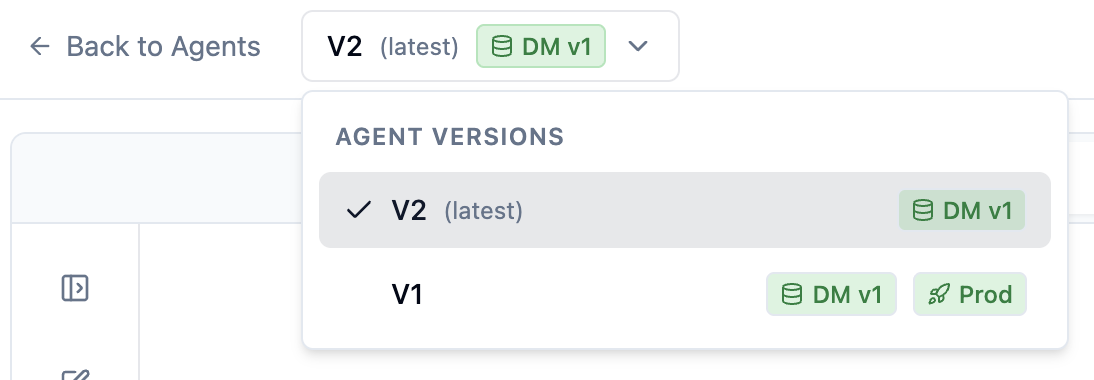
Versioning
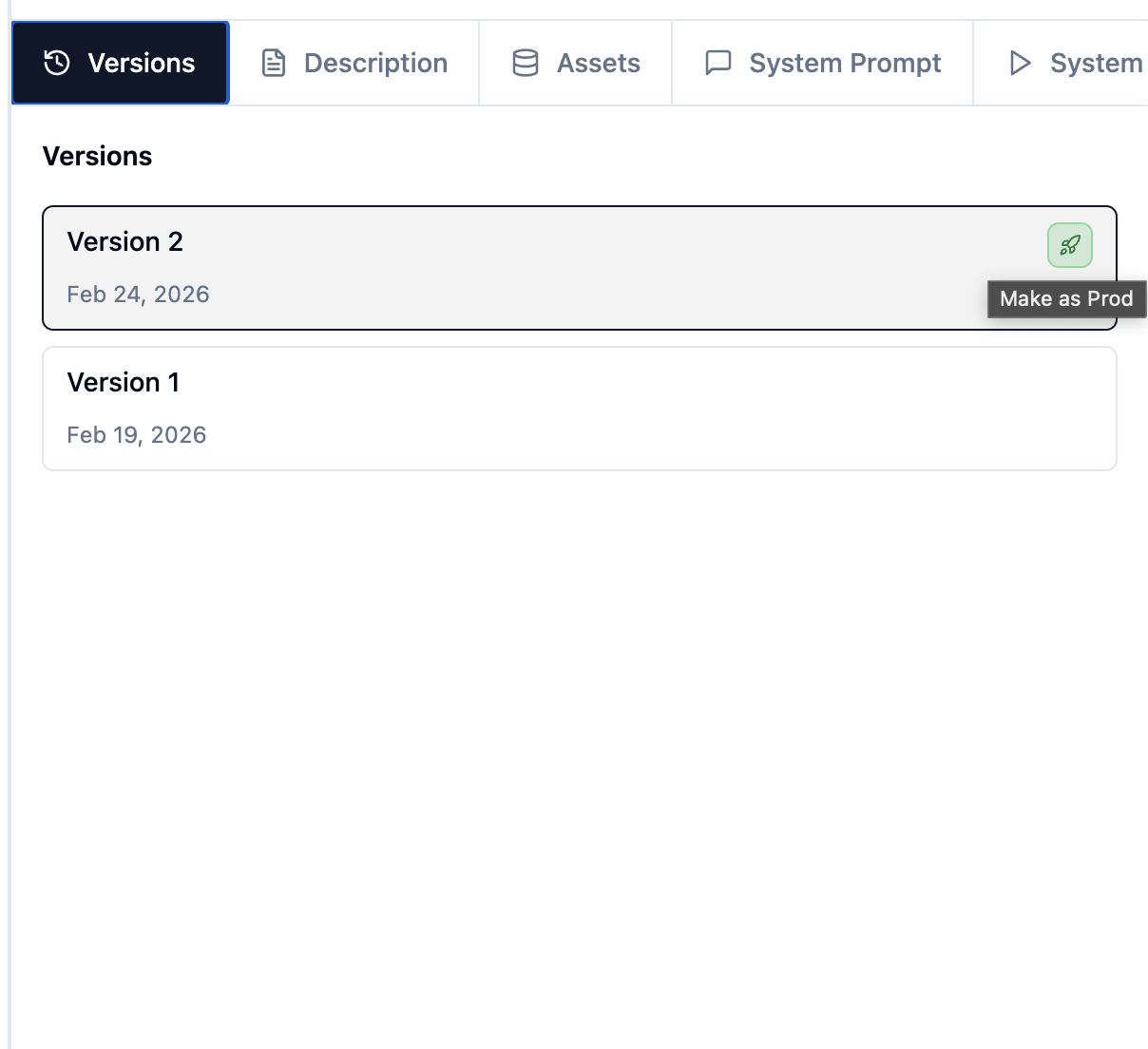
Like data models, agents are versioned:- Go to the Versions tab
- See all versions with timestamps
- Each version tracks: assets, prompt, data model link
Setting Production
Before users can access your agent, you must set a version as production.Requirements
- The agent must be linked to a data model
- That data model version must already be production
- The agent’s schema requirements must fit within the data model
Steps
- Open your agent
- Go to the Versions tab
- Click Set as Production on the version you want
- The system validates everything
- If successful, users can now access this version
Validation Errors
If validation fails, you’ll see specific errors:- “Data model version is not production” - Set the data model production first
- “Missing tables/columns” - The agent uses data not in the data model
Changing Data Model Version
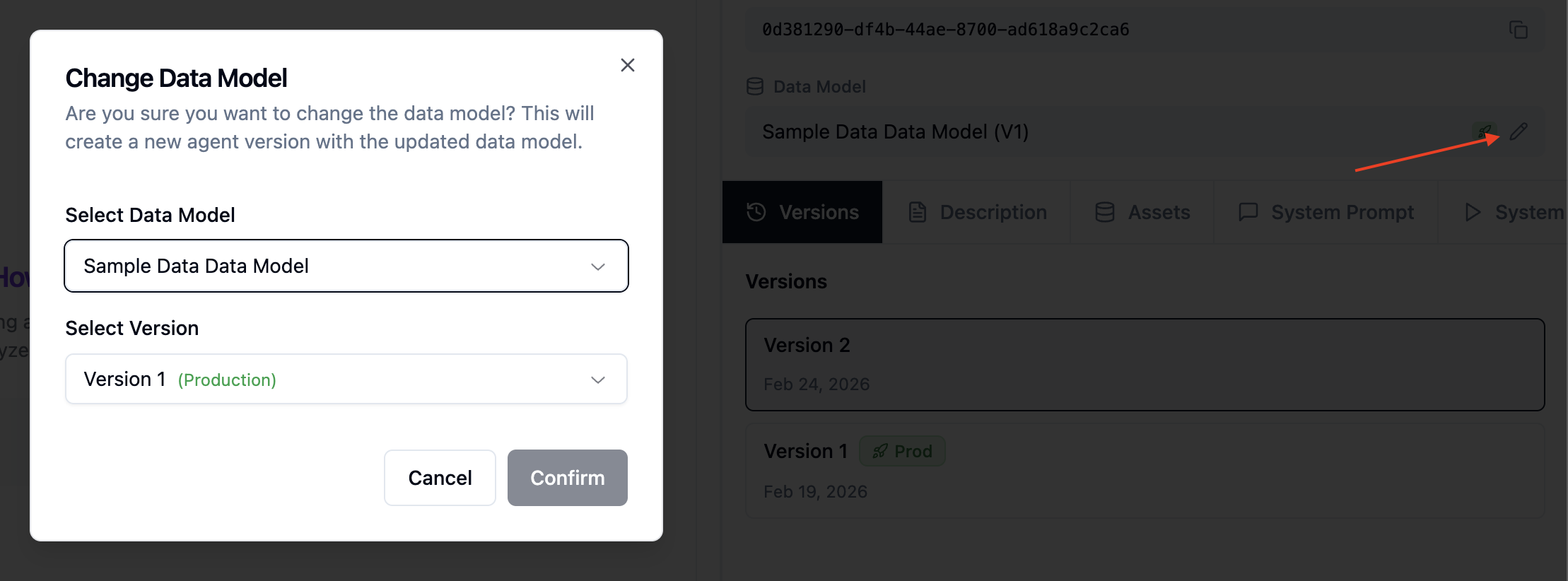
To link your agent to a different data model version:- Go to the Data Model tab in the sidebar
- Select the data model
- Choose a version (production versions recommended)
- Click Save
Best Practices
1. Start with Golden Assets
Add 10-20 golden assets covering common questions before going live.2. Use Descriptive Data Models
Column descriptions in your data model help the agent understand your schema.3. Run Evals Regularly
Create a test suite and run it whenever you update the agent.4. Monitor in Admin View
Periodically check admin view to see how the agent handles real questions.Next Steps
- Build an Application to combine agents with dashboards
- Set up the complete flow from project to production