

What is a Data Model?
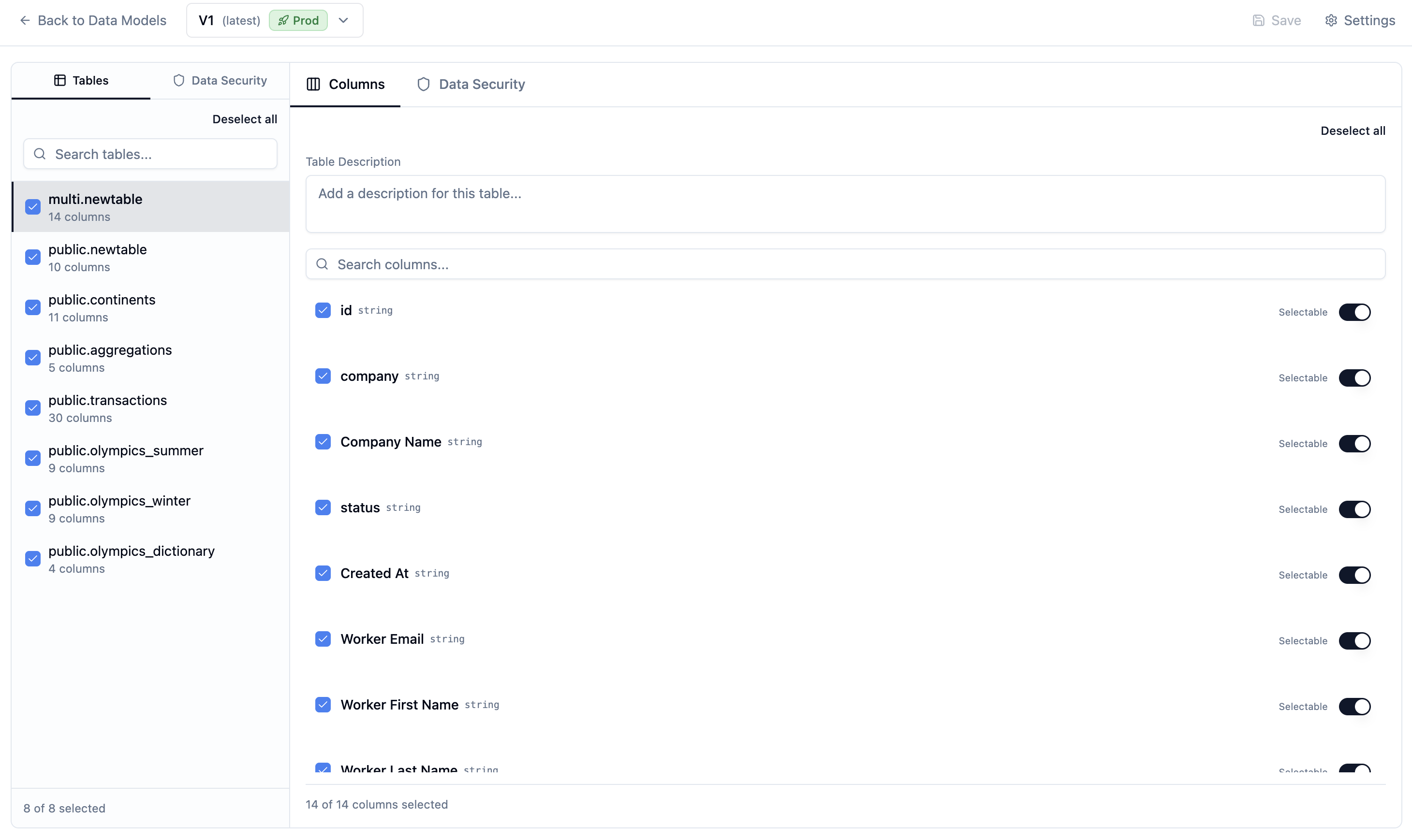
A Data Model is a curated view of your database that:- Selects which tables and columns are available
- Describes fields with human-readable annotations
- Secures data with row-level security rules
- Versions changes so you can track and rollback
Why Use Data Models?
- Simplify for AI - Only expose relevant tables so AI agents aren’t overwhelmed
- Add context - Descriptions help AI understand what columns mean
- Control access - Data Security rules ensure users see only their data
- Safe deployments - Versioning prevents breaking changes
Creating a Data Model
- Navigate to your project’s Data Models tab
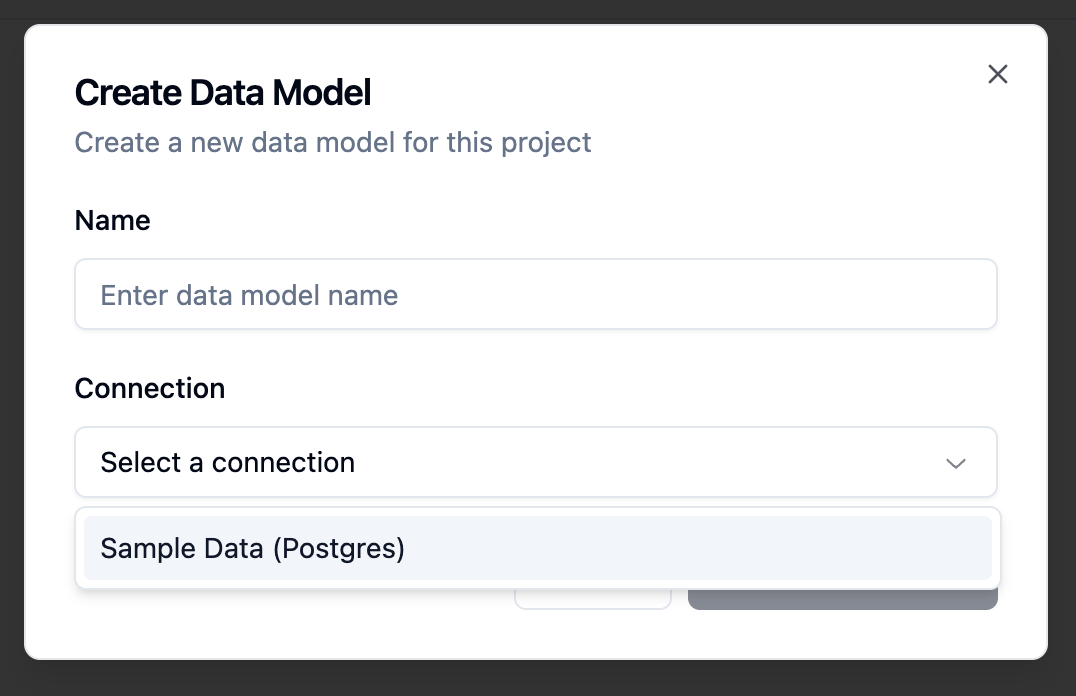
- Click Create Data Model
- Select the connection to base it on
- Enter a name for your data model
- Click Create
Configuring Your Data Model
Selecting Tables and Columns
By default, all tables are selected. To customize:- Open your data model
- Uncheck tables you want to hide
- Expand tables to uncheck specific columns
- Click Save Changes
Adding Descriptions
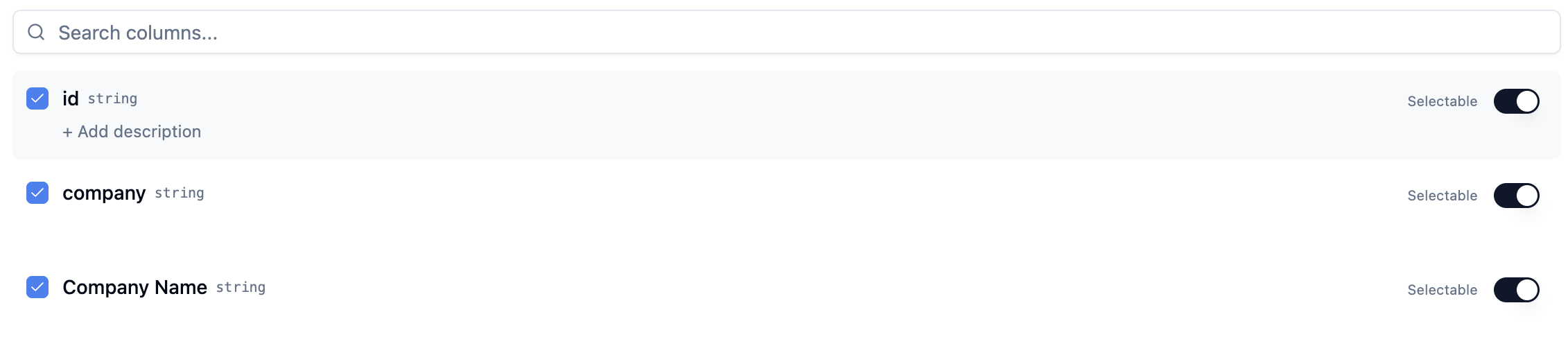
Help AI and users understand your data:- Click the edit icon next to a table or column
- Enter a description
- For AI agents, mark columns as “selectable” if they contain categorical values users might filter by

Data Security
Data Security controls which rows of data each user can access. You can define Global Security Rules that apply across all tables, or configure per-table rules for specific needs.Understanding Data Security
The Data Security system uses SQL-based filtering with dynamic variables:{{user.*}}- Access properties of the currently authenticated user{{organization.*}}- Access properties of the user’s organization
orders table so users only see their own orders:
Global Security Rules
Global Security Rules let you define filtering logic once and apply it to all applicable tables automatically. This is ideal when you have consistent patterns like:- Multi-tenant data separated by
tenant_id - User-owned data filtered by
user_id - Schema-based isolation (each tenant has their own database schema)
Accessing Global Rules
- Open your data model
- Click the Data Security tab in the left sidebar
- You’ll see the Global Rules editor

Rule Types
Schema Rules - Dynamic schema prefixing for multi-tenant databases where each tenant has their own schema:

Creating a Global Rule
- Click the Data Security tab in the sidebar
- Click Add Rule
- Choose Schema Rule or Column Rule
- Configure the rule settings
- The rule is automatically enabled

How Rules Are Applied
- Schema rules affect all tables - they change where data is fetched from
- Column rules only affect tables that have the specified column - tables without the column are unaffected
- Multiple rules are combined with AND logic
- Rules are applied in priority order (lower priority number = applied first)

Per-Table Data Security
When you select a table and go to its Data Security tab, you’ll see how the global rules apply to that specific table.
Manual Overrides (Break Glass)
Sometimes you need custom logic for a specific table. You can override global rules:- Select the table
- Go to the Data Security tab
- Click Edit manually
- Confirm the warning dialog
- Edit the SQL directly


Resetting to Global Rules
To return a table to global rule management:- Click Reset to global
- Confirm the dialog
- Your manual edits will be replaced with the auto-generated SQL

Testing Data Security
You can test your security rules to see exactly what data a specific user would see:- Select a table
- Go to the Data Security tab
- Select a user from the top-right user dropdown
- Click Test Query
- View the filtered results

Testing uses your actual database connection and shows real data filtered by the security rules. This helps verify your configuration before deploying.
Versioning
Every change to a data model creates a new version. This means:- You can see the history of changes
- You can compare versions
- Agents and applications link to specific versions
Viewing Versions
- Open your data model
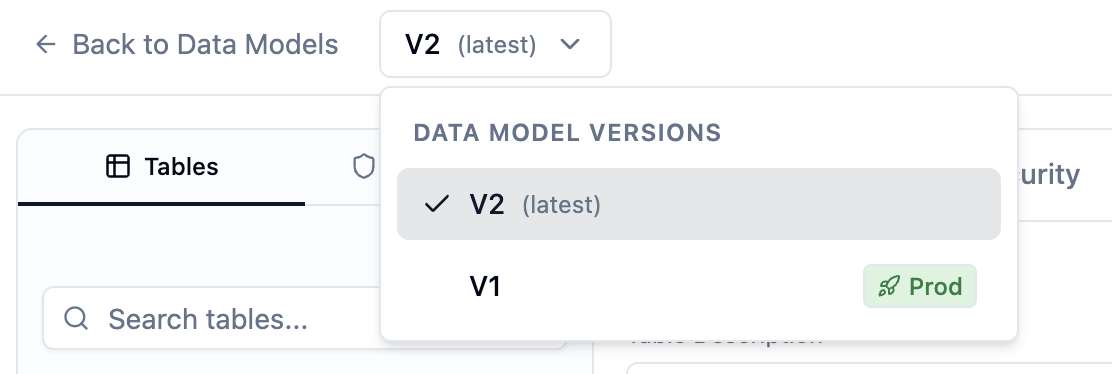
- Click the Versions tab in the sidebar
- See all versions with timestamps and change information
Production Status
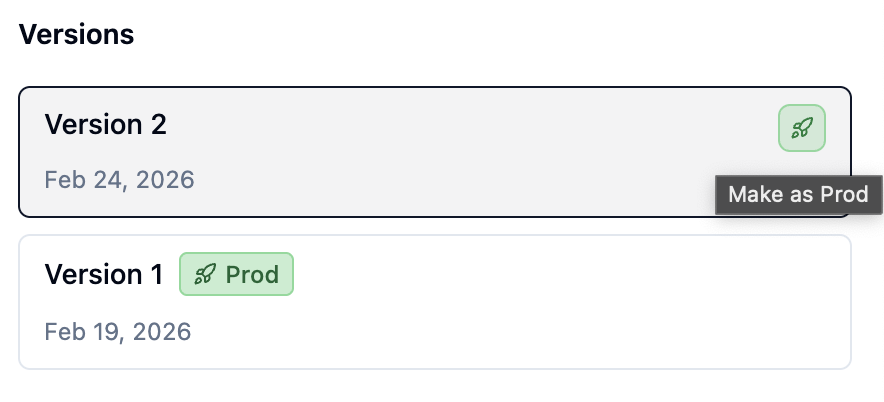
Before agents and applications can use a data model in production, you must mark a version as “Production.”Setting Production
- Open your data model
- Go to the Versions tab
- Click Set as Production on the version you want
- The system validates the schema against your connection
- If successful, the version is now production
Validation
When setting production, the system checks:- All tables in your data model exist in the connection
- All columns in your data model exist in their tables
- If validation fails, you’ll see which tables/columns are missing
If your database schema changes, you may need to update your data model to match.
Syncing with Connection Changes
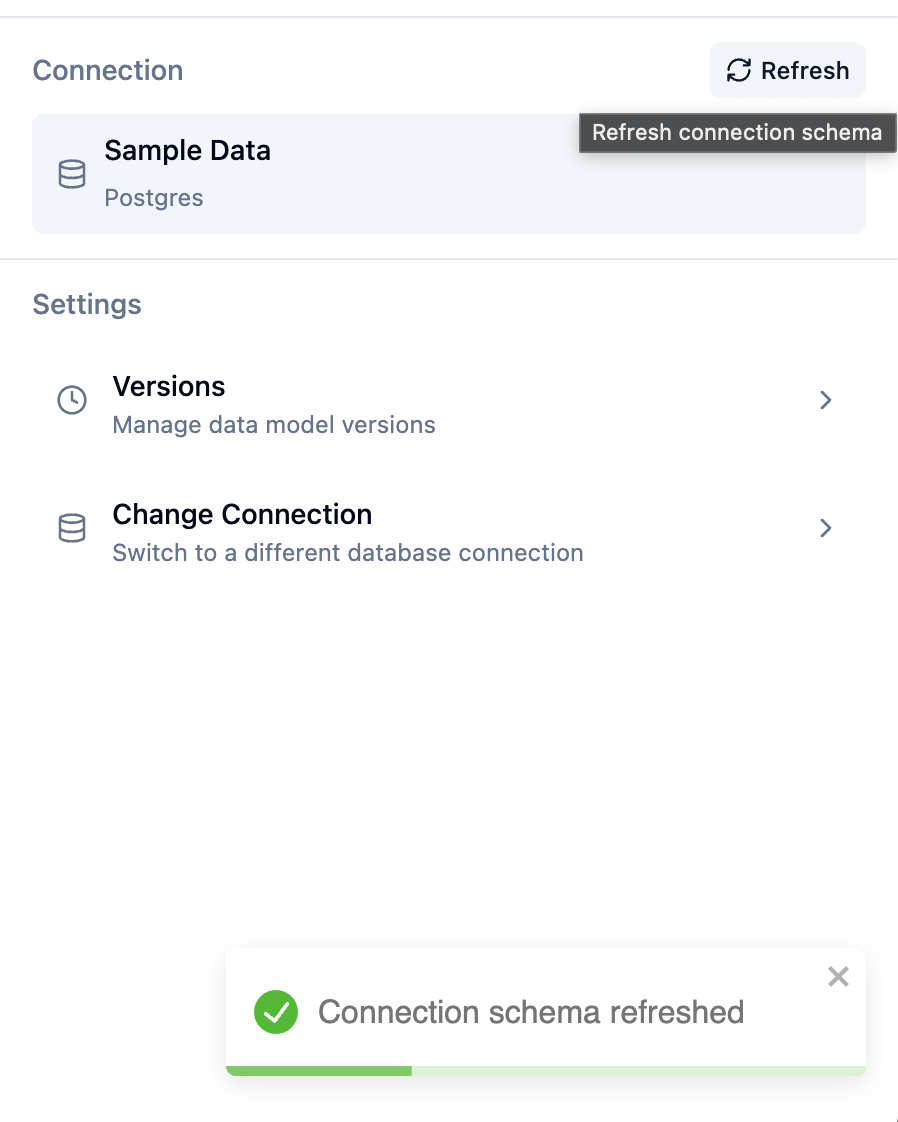
If your database schema changes:- Open your data model
- Go to the Connection tab
- Click Refresh Schema
- New tables/columns will appear (you can select them)
- Missing tables/columns will show warnings
Data Model Errors
If a production data model has errors (e.g., missing tables), you’ll see a warning banner. This typically happens when:- A table was dropped from the database
- A column was renamed or removed
- The connection credentials changed
Next Steps
- Create an Agent that uses this data model
- Build an Application for dashboards
- Manage Project Users to define user properties for Data Security