

What is a Project?
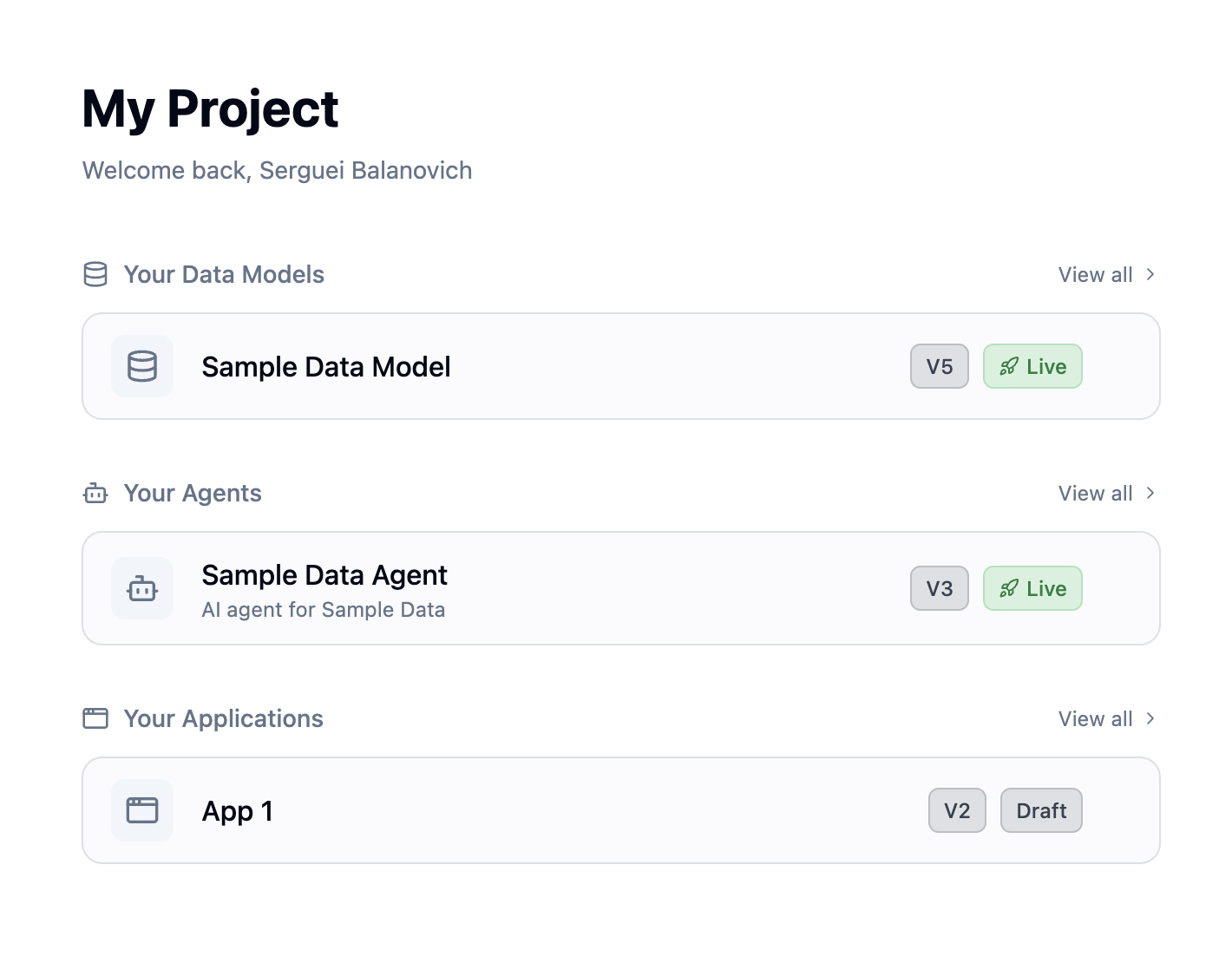
A Project is an isolated environment that contains everything you need to build a data product:- Connections - Links to your databases
- Data Models - Curated views of your data
- Organizations - Your customers/tenants
- Users - End-users with specific permissions
- Agents - AI chat interfaces
- Applications - Dashboard builders
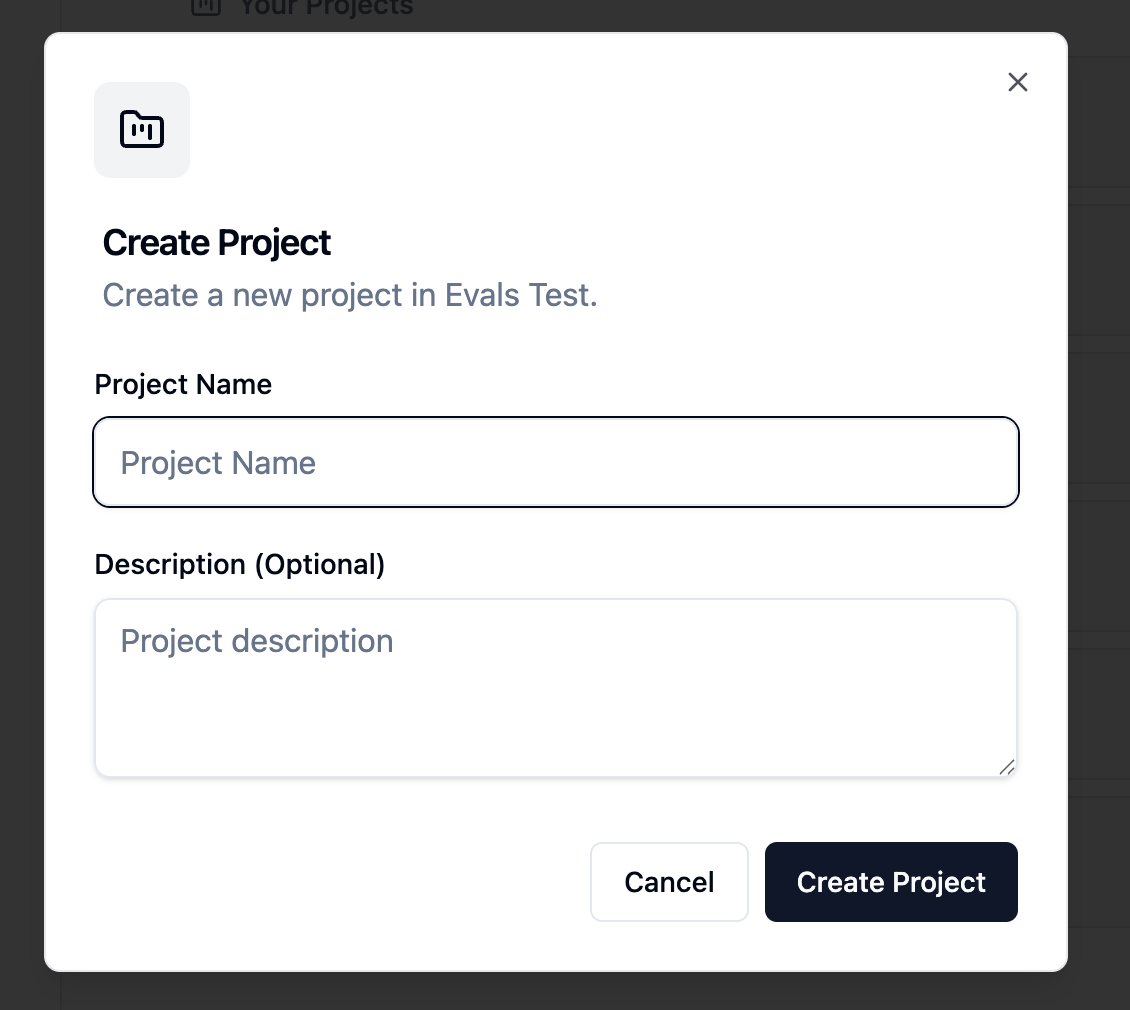
Creating a Project
- Navigate to the Projects section from the sidebar
- Click Create Project
- Enter a project name and description
- Click Create
- Default user roles (Admin, Editor, Creator, Reader)
- A default project organization
- An admin user (you)
Project Organizations
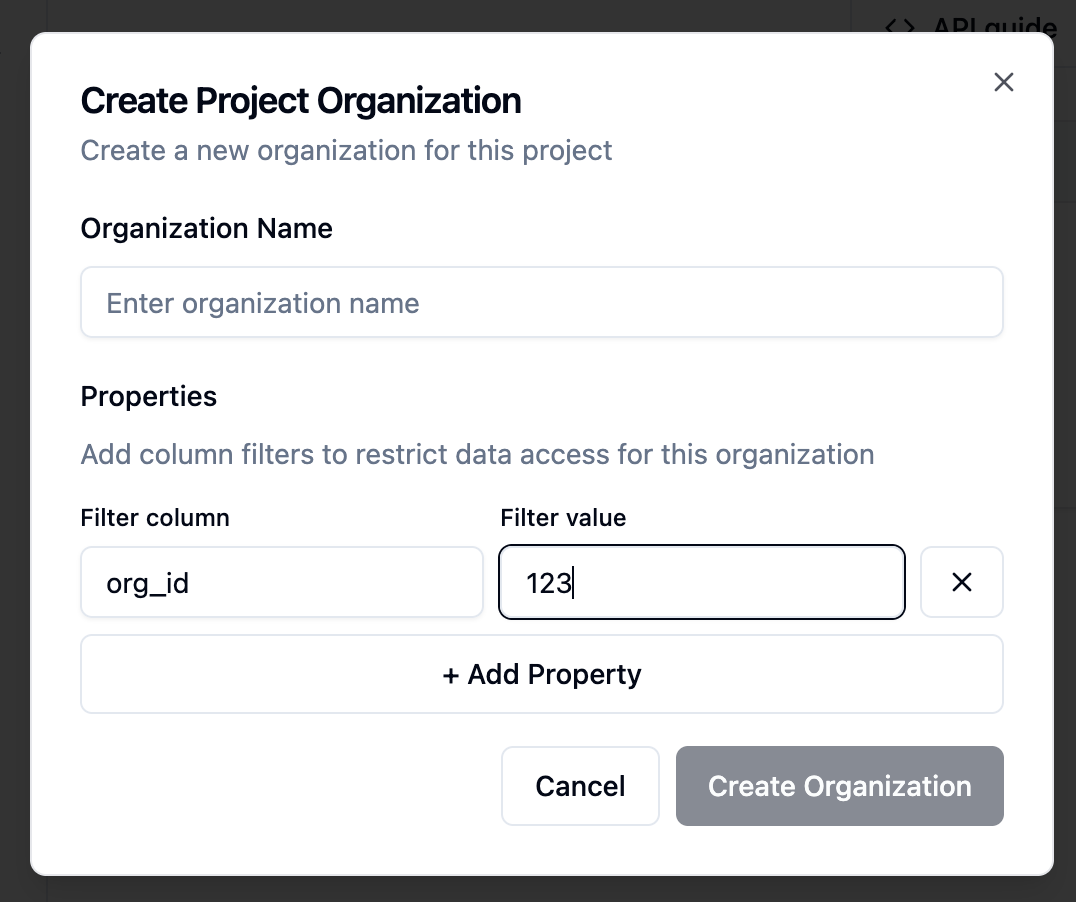
Project organizations represent your customers or tenants. Each organization:- Has isolated access to their own data
- Gets their own Spaces for each application
- Can have custom properties for data filtering
Creating a Project Organization
- Go to your project’s Organizations tab
- Click Add Organization
- Enter the organization name
- Add any custom properties (these can be used for data filtering)
- Click Create
Project Users
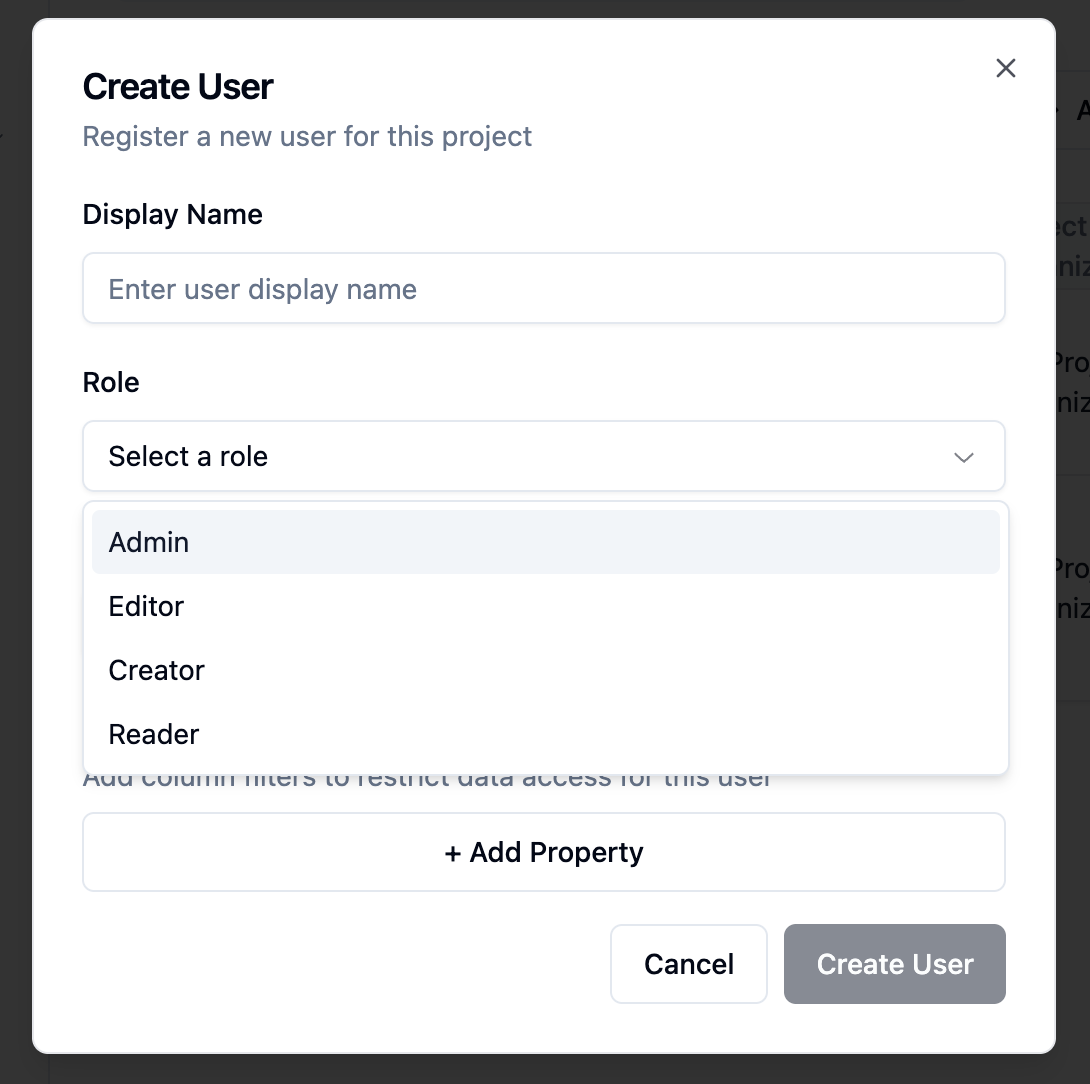
Project users are the end-users who will interact with your dashboards and agents.User Roles
Each project comes with default roles:| Role | Permissions |
|---|---|
| Admin | Full access to create, edit, delete content |
| Editor | Can edit existing charts and dashboards |
| Creator | Can create new charts but not delete |
| Reader | View-only access |
Creating Project Users
You can create users manually in the UI or programmatically via the API:- Go to your project’s Users tab
- Click Add User
- Enter the user name
- Select their organization and role
- Add any custom properties (for data filtering)
- Click Create
Connections
Connections link your project to a database. Each project needs at least one connection to power data models.Supported Databases
- PostgreSQL
- MySQL
- BigQuery
- Snowflake
- Redshift
- And many more via our data plane
Adding a Connection
- Go to your project’s Connections tab
- Click Add Connection
- Select your database type
- Enter connection credentials
- Test the connection
- Click Save
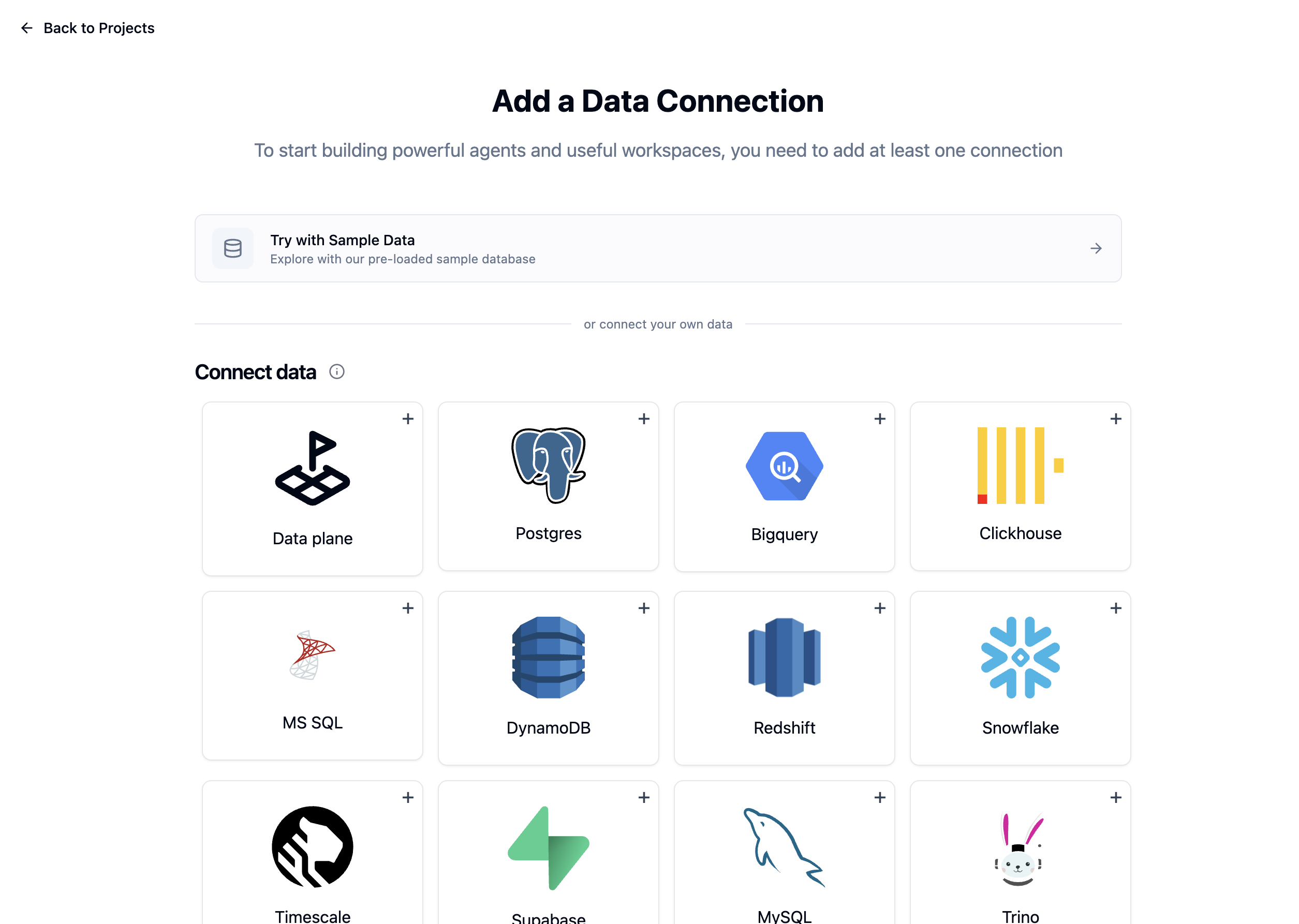
Using the Demo Connection
For testing, you can use our demo database:- Click Try Demo Data
- A sample connection with e-commerce data will be created
- Use this to explore the platform before connecting real data

Next Steps
Once you have a project with a connection:- Create a Data Model to define which tables and columns are available
- Set up Row-Level Security to control data access
- Build an Agent or Application