

What is an Application?
An Application is a container for dashboard templates that you deploy to your customers. It includes:- Chart Templates - Reusable chart configurations
- Dashboard Templates - Layouts combining multiple charts
- Spaces - Customer-specific instances of your templates
- Default Settings - Language, timezone, export options
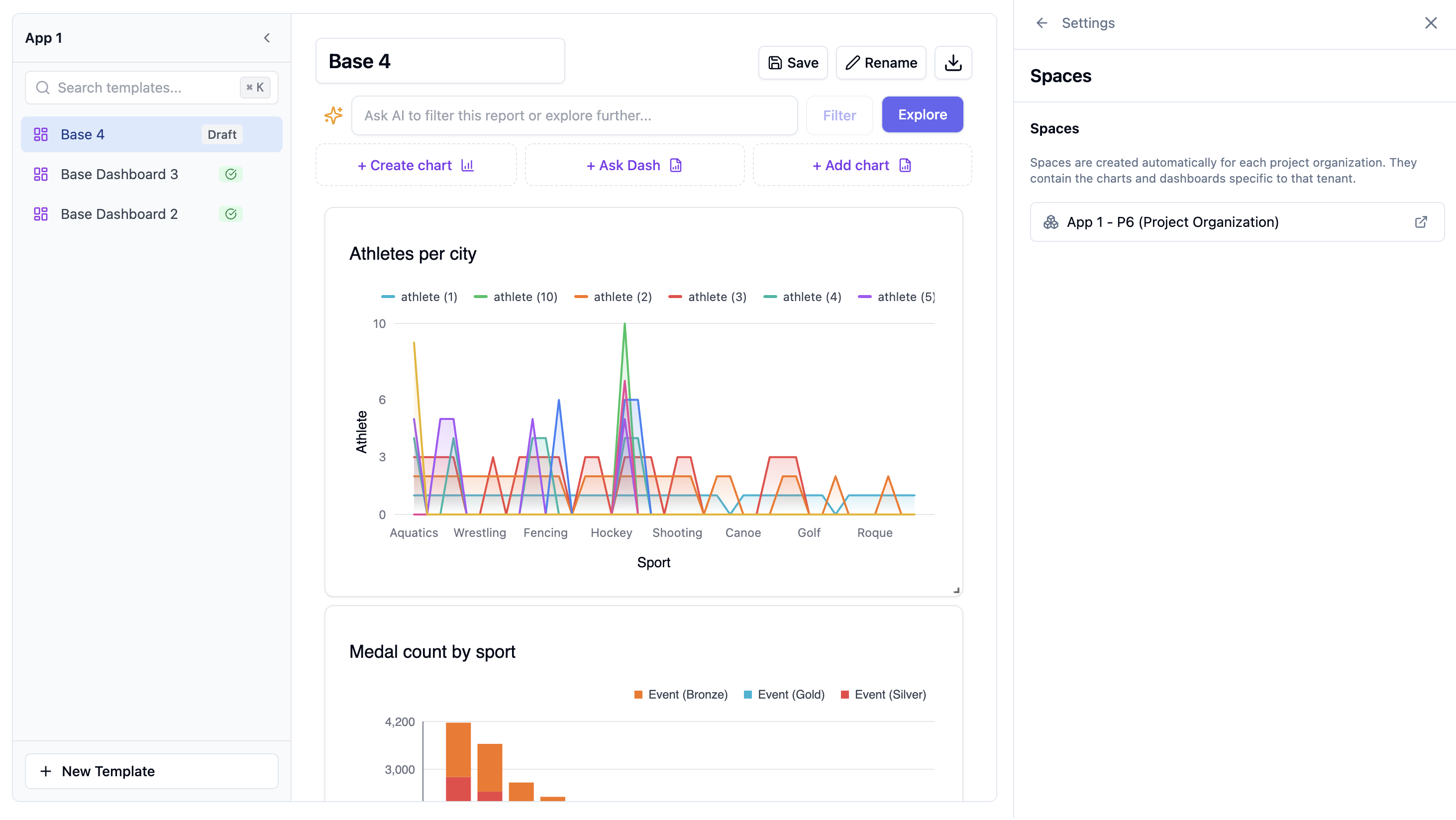
How Applications and Spaces Work
Each space receives its own private copies of your published templates. When you publish a template:- It becomes available to all spaces
- Each space gets its own private copy
- Users can customize their copies without affecting others
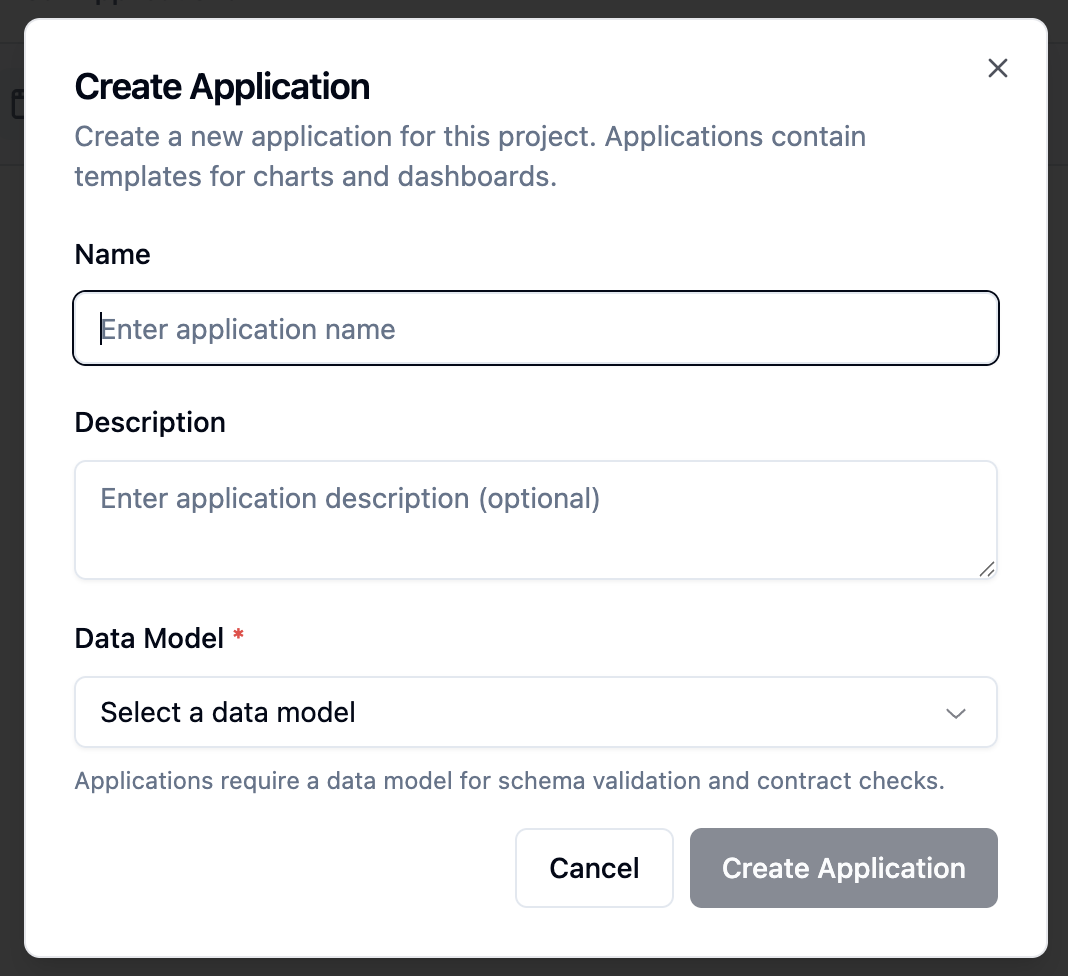
Creating an Application
- Navigate to your project’s Applications tab
- Click Create Application
- Enter a name
- Select a data model
- Click Create
Building Templates
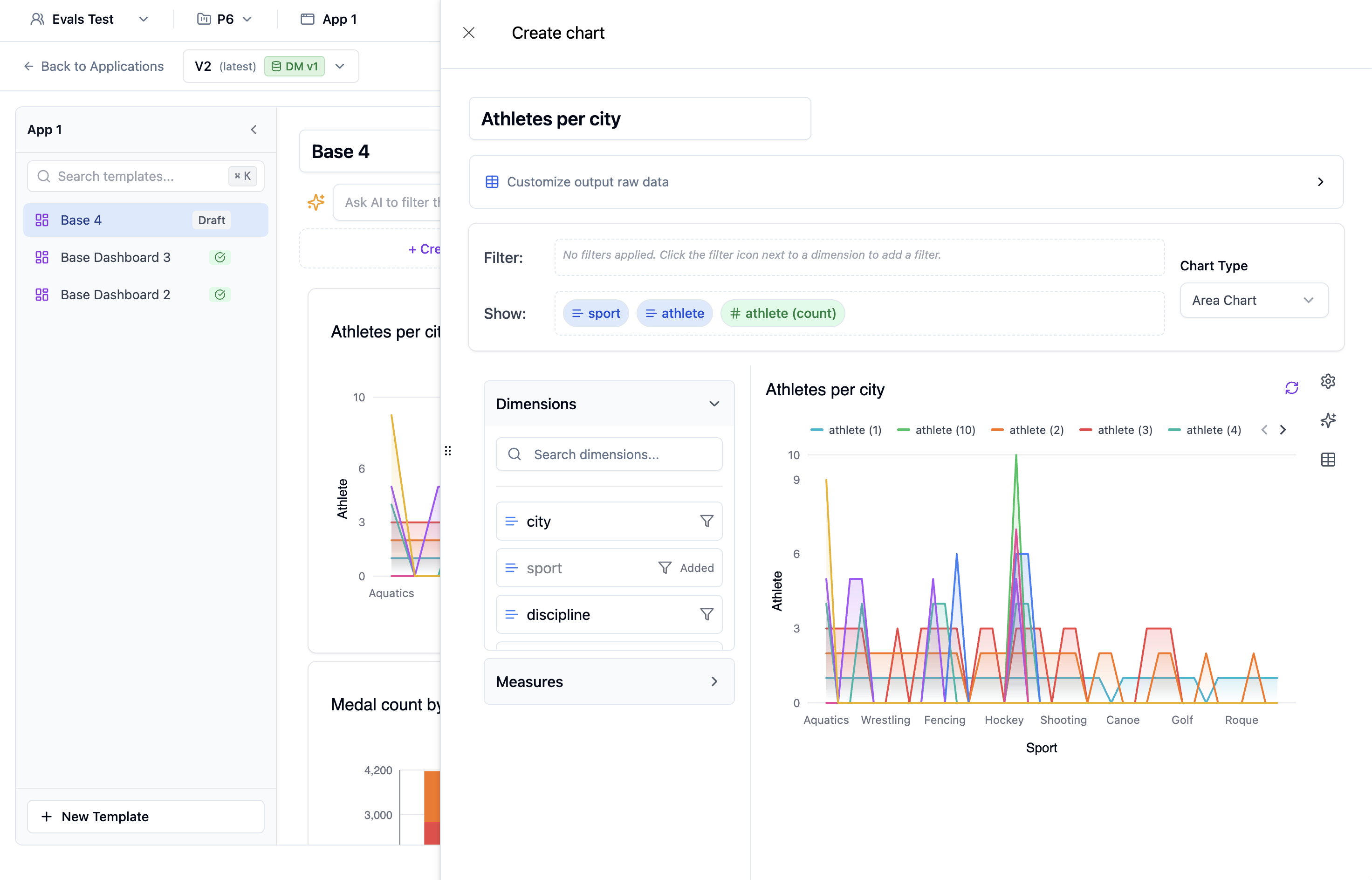
Creating a Chart Template
- Open your application
- Click Add Chart
- Choose a chart type
- Configure the data and visualization
- Click Save
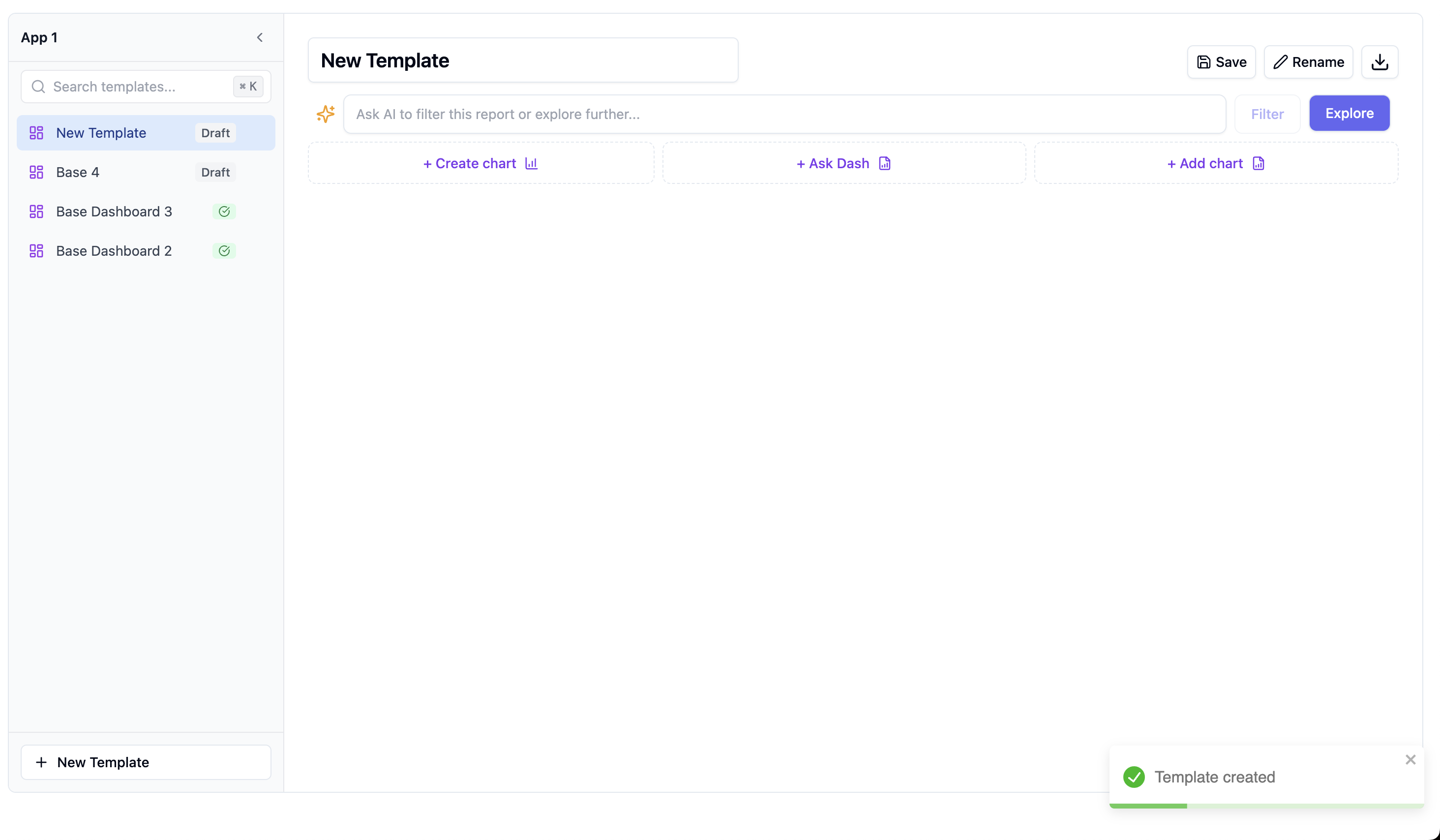
Creating a Dashboard Template
- Open your application
- Click Add Dashboard
- Drag and drop charts onto the canvas
- Arrange the layout
- Add filters if needed
- Click Save
Viewing as a User
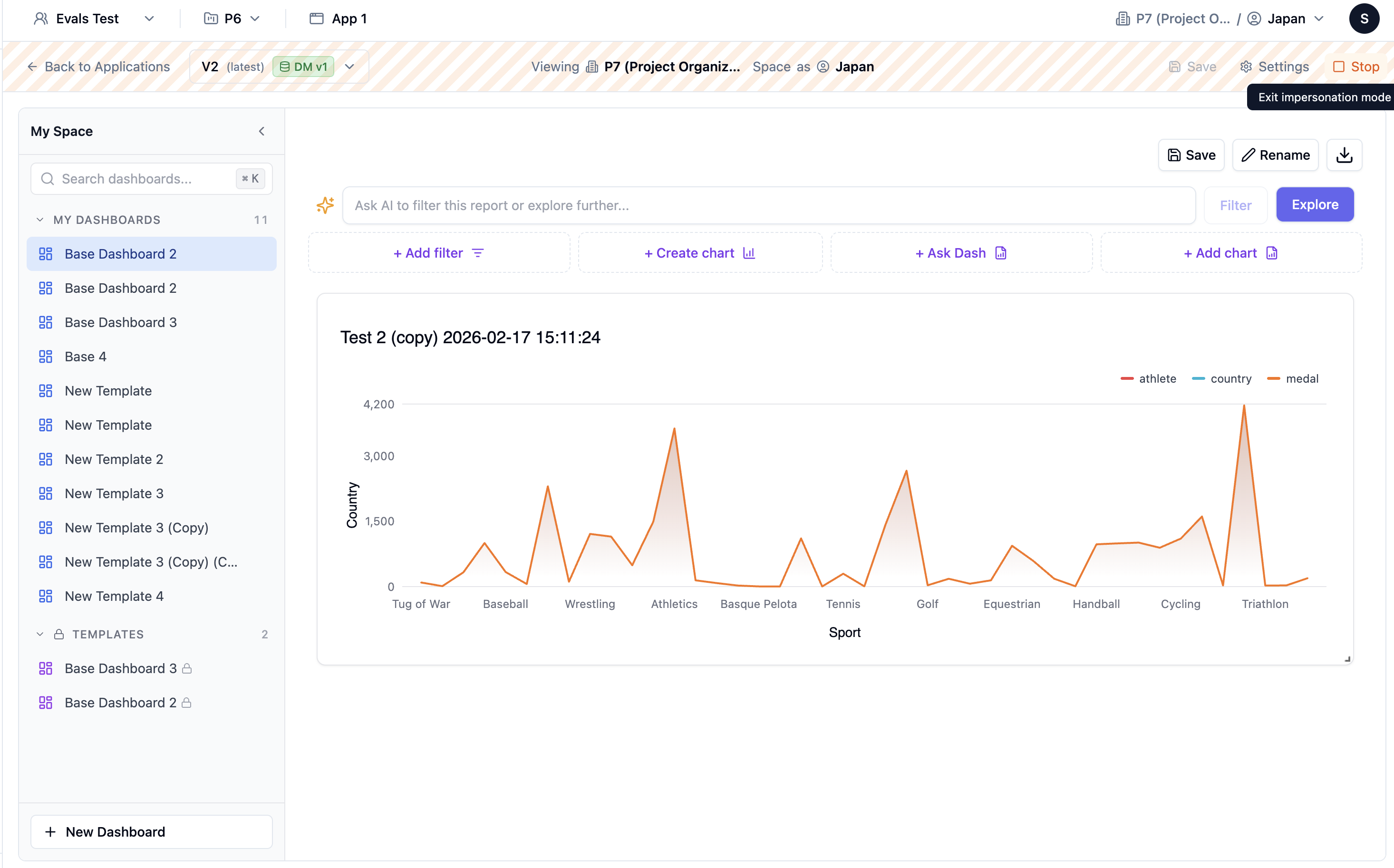
While building templates, you see them as an admin. To see what users will see:- Select a project user from the dropdown
- The view switches to their perspective
- Data is filtered by their RLS rules
- Check that the template works for different users
Publishing Templates
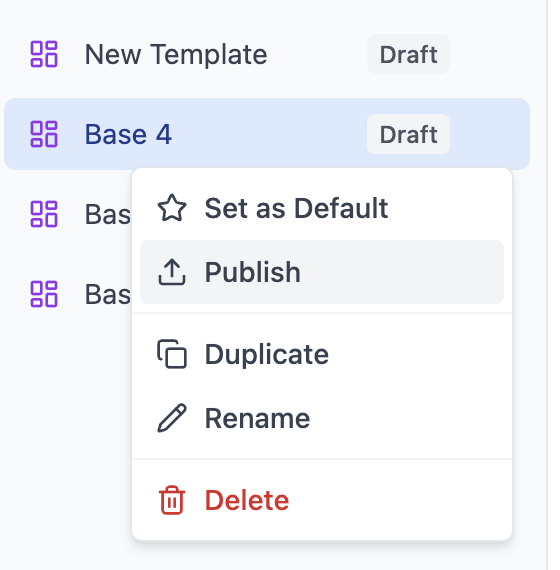
Templates start in “draft” mode. To make them available to users:- Open the template
- Click Publish
- The template propagates to all spaces
What Happens When You Publish
- Template status changes to “published”
- Each space gets a copy of the dashboard
- Users can now see and interact with it
- Future updates require re-publishing
Understanding Spaces
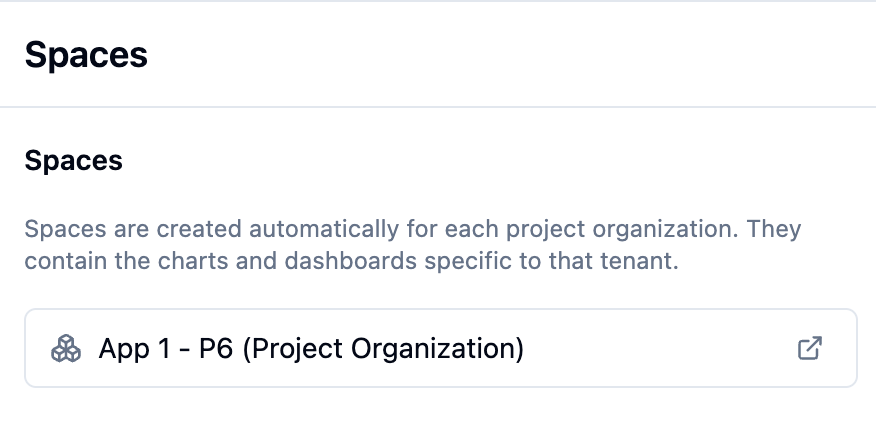
Each project organization automatically gets a Space for each application.What’s in a Space?
- Template Copies - Private instances of published templates
- User Dashboards - Dashboards users create themselves
- User Charts - Charts users create themselves
Viewing Spaces
- Open your application
- Go to the Spaces tab in the sidebar
- See all spaces (one per organization)
- Click to preview any space
Default Views
You can set which dashboard users see first when they open their space.Setting an Application Default
- Open your application
- Go to the Templates tab
- Click the star icon next to a template
- This becomes the default for all users
User-Specific Defaults
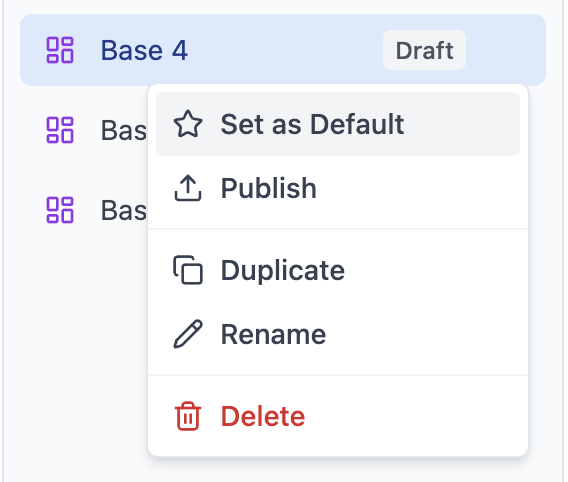
Users can change their own default:- Open any dashboard in their space
- Click Set as Default
- This overrides the application default for them only
Application Settings
Default Language
Set the default language for your application:- Go to application settings
- Select default language
- Users can override in their preferences
Default Timezone
Configure how dates are displayed:- Go to application settings
- Set the default timezone offset
- Enable “Use Local Timezone” for auto-detection
Export Settings
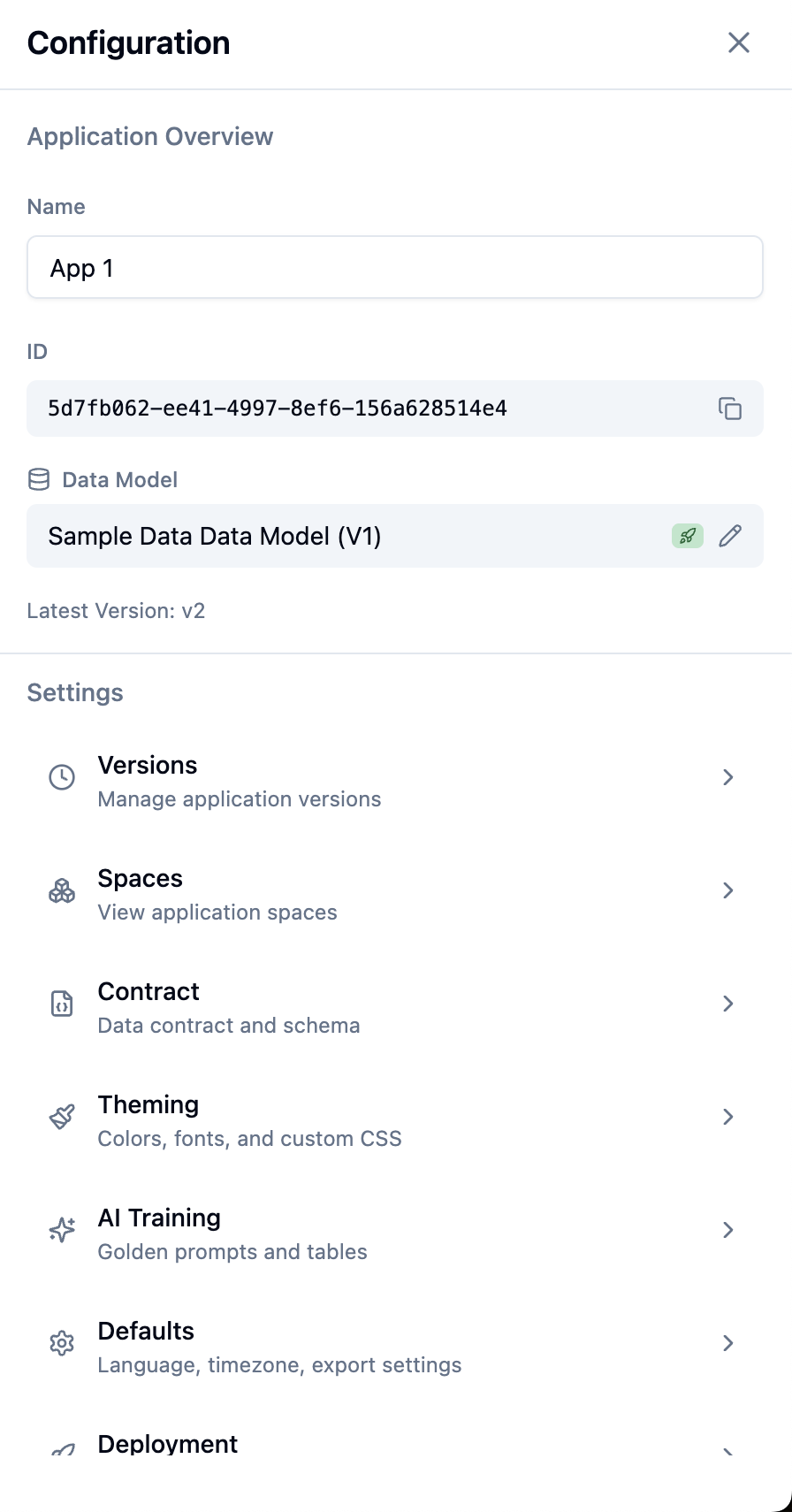
Control whether users can export data:- Go to application settings
- Toggle “Allow Exports”
Production Status
Like data models and agents, applications can be set to production.Requirements
- Application must have a linked data model
- That data model version must be production
- All template schemas must fit within the data model
Setting Production
- Open your application
- Go to the Versions tab
- Click Set as Production
- Validation runs automatically
Connecting Agents and Applications
If an agent and application share the same data model version:- The agent can generate charts compatible with the application
- Users can save agent-generated charts to their space
- Charts flow seamlessly between AI and dashboards
Best Practices
1. Test with Multiple Users
Always preview templates as different users to ensure RLS works correctly.2. Start with Core Dashboards
Create 2-3 essential dashboards before adding more.3. Use Consistent Naming
Name templates clearly so users understand what they show.4. Document in Descriptions
Add descriptions to dashboards explaining what they display.Next Steps
- Follow the Complete Setup Guide for the full workflow
- Learn about Row-Level Security for data filtering