

Overview
Row-level security (RLS) and schema filtering ensure each user only sees their relevant data. Access is scoped by the user’s organization and properties, which your backend sends each time it signs a user in (see Embed Upsolve in your product). Upsolve supports two complementary mechanisms:- Schema-level filtering — isolate users to a separate database/schema (maximum isolation).
- Column pre-filtering — filter rows within a shared schema using user/organization properties (flexible, fine-grained).
Schema-Level Filtering
Isolates users to separate database schemas/databases. When a user has a schema prefilter configured, all SQL queries for that user are rewritten to reference tables from their designated schema/database instead of the default.- When to use: Complete data separation, compliance requirements, performance isolation
- Benefits: Maximum security, database-level isolation
- Example:
customer_schema_1,tenant_db_123
Only applies when configured: Schema-level filtering only affects users
who have a schema prefilter value set. Users without this configuration will
query the default schema. This lets you mix schema-based and column-based
isolation within the same connection.
Supported Data Sources
How Query Rewriting Works
When a user with a schema prefilter ofcustomer_db runs a query, all table references are rewritten:
Connection Configuration for Schema-Based Isolation
When using schema-based isolation, configure your connection with a Default Schema. This setting:-
Filters metadata: Only tables from the specified database/schema are included when computing metadata. Your catalog will show tables as
A,B,Cinstead of(schema_one) A,(schema_one) B,(schema_two) A, etc. - Sets the default for admins: Admin users (those without a schema prefilter) will query from this default database.
- Falls back for users without a schema: Users that don’t have a schema prefilter configured will also use this default database.
1
Navigate to Connection Settings
Go to Connect → Select your connection → Edit
2
Set Default Database/Schema
Configure the default database for schema-based isolation: - MySQL: Enter
the database name in the Default Database (for Database Tenancy) field -
Clickhouse: Enter the database name in the Default Database (for
Database Tenancy) field - Data Plane: Enable schema-based tenancy and
select the Default Schema from the dropdown
3
Refresh Metadata
After setting the default database/schema, click Compute Metadata to
recompute the table catalog. The metadata will now only include tables from
your specified database.
4
Assign Schema Prefilters
Set each organization’s (or user’s) schema prefilter to their specific
database name. Each user will only see data from their designated database.
Column Pre-Filtering
Filters data using column values within shared schemas. Filters are derived from the user’s and organization’s properties, so each user only sees rows matching their own values.- When to use: Shared database with per-customer identifiers, flexible multi-column filtering
- Benefits: Granular control, multiple filter combinations
- Example:
customer_id = 'user_123'ANDregion = 'us-east'
{{user.propertyName}} and {{organization.propertyName}} placeholders. See the Row-Level Security guide for the full rule syntax, examples, and testing workflow.
Configuring Data Isolation
Properties are sent each time your backend signs a user in (see Embed Upsolve in your product), or managed afterward in the Hub:- Organization properties apply to every user in the organization — ideal for customer-level isolation (e.g.
company_id). - User properties apply to a single user — ideal for fine-grained access within an organization (e.g.
region,department). - Schema isolation (a database schema per customer) is set up with the Schema Rules in the workspace’s Data Model, which read the same properties.
Validation Rules
- Either schema filtering OR column pre-filtering should be configured for isolated access.
- Warning: No filtering and no schema prefilter = admin access to all data.
Preview Mode
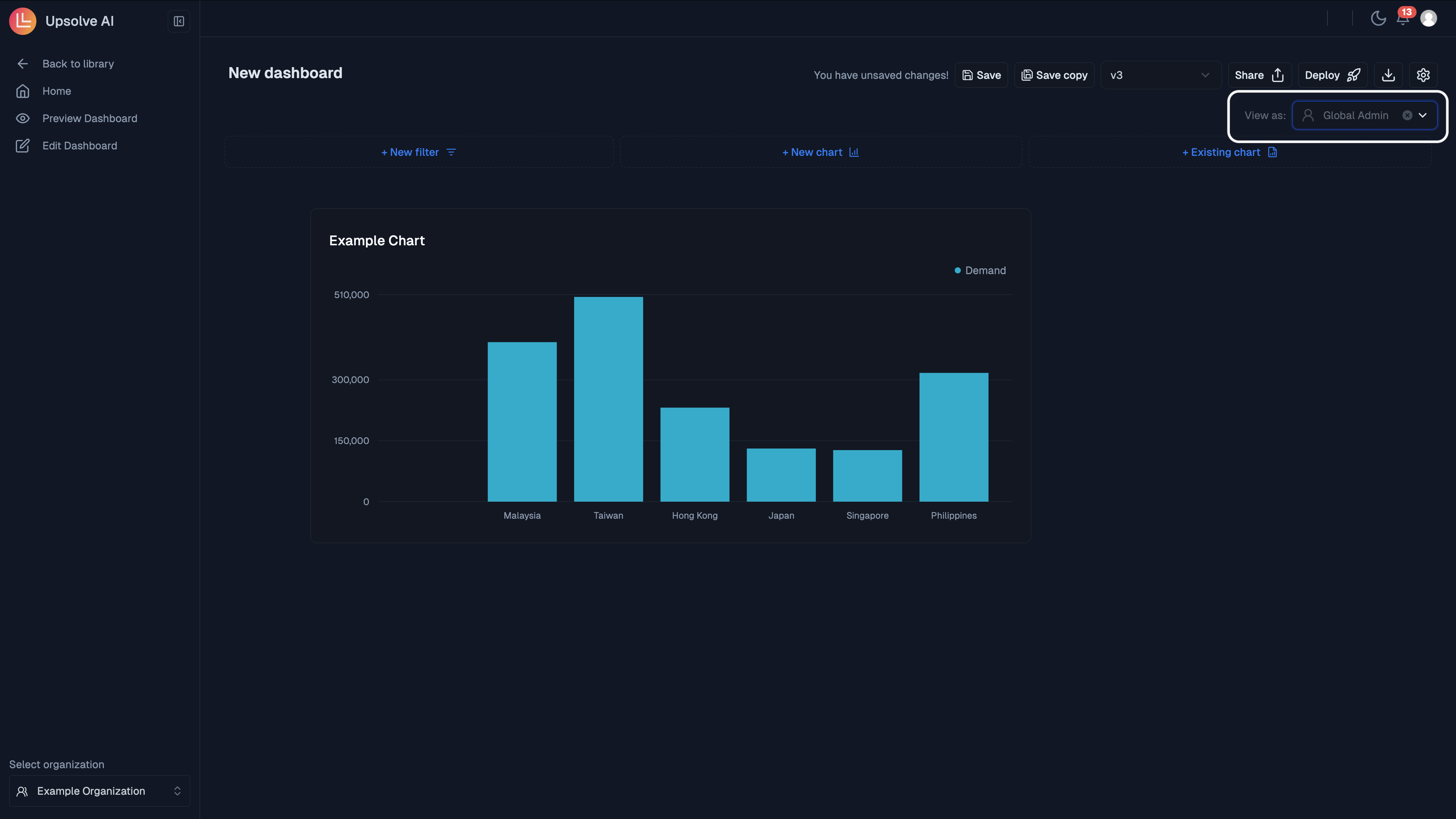
Test isolation configurations by previewing dashboards as a specific user.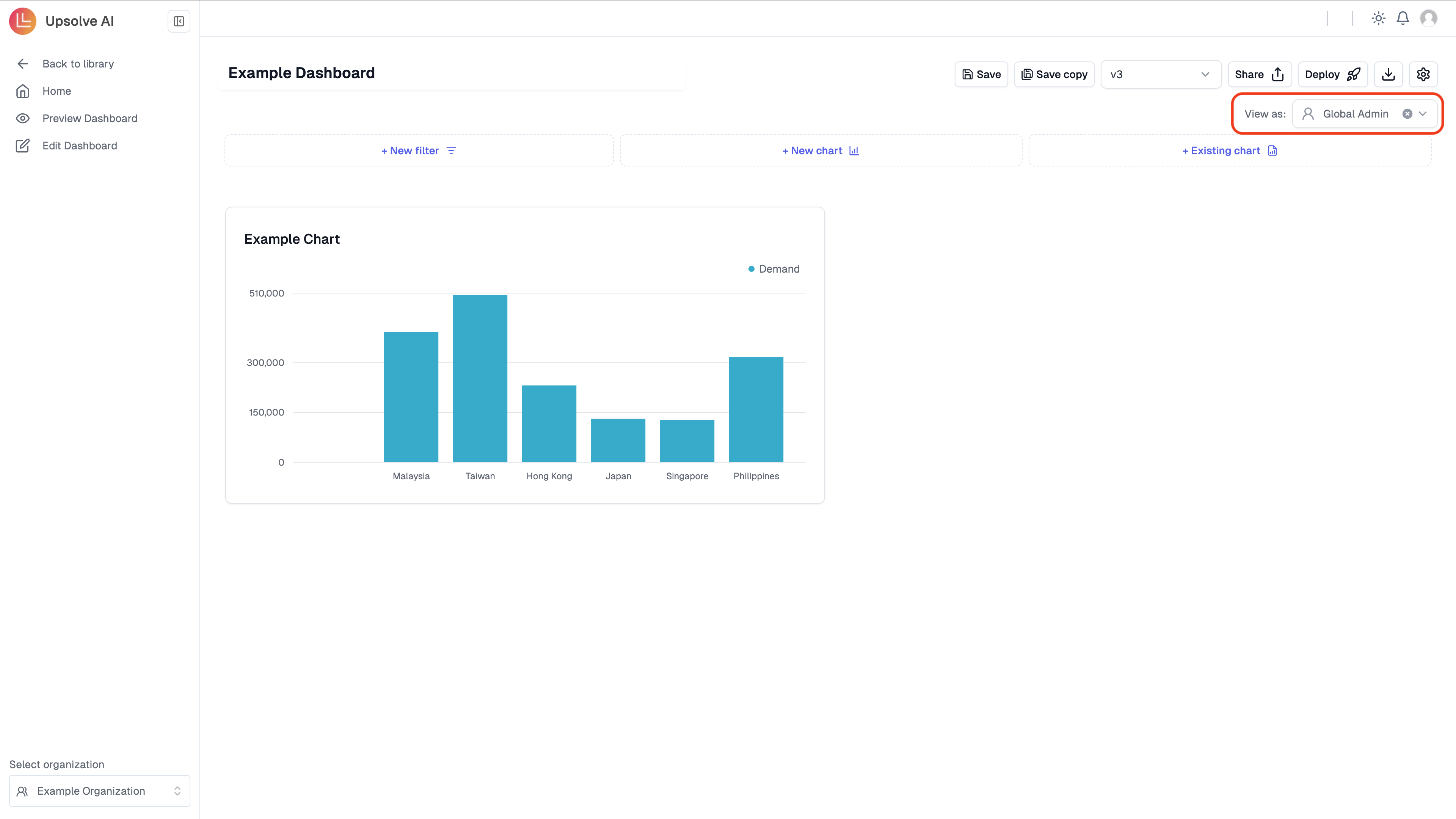
Best Practices
- Index Column Pre-Filter columns for performance
- Grant minimal access required
- Validate all isolation configurations to prevent unintended admin access
- Schema filtering generally performs better than complex Column Pre-Filtering
- Regular audits of user properties and access