

Selecting tables and columns
Not every table in your database is relevant to every question your agent will answer. Narrowing the schema down to what matters reduces ambiguity, improves query accuracy, and avoids the agent making inferences across data it shouldn’t touch.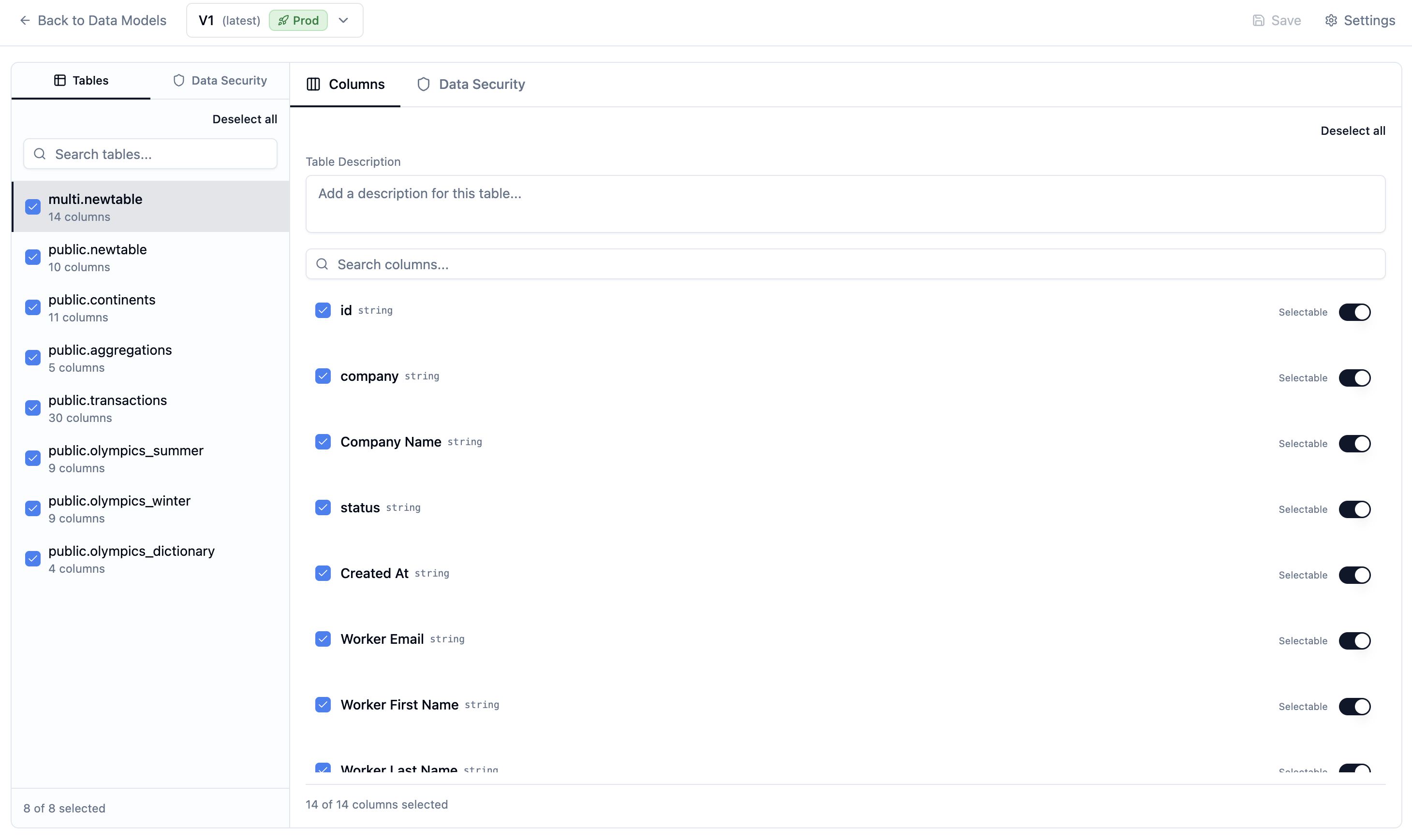
Less is more here. An agent scoped to 5 relevant tables with clear descriptions will significantly outperform one with access to 50 tables it has to guess about.
Adding table and column descriptions
Descriptions are how you encode institutional knowledge directly into the schema. The agent reads these when generating SQL — they’re the mechanism for telling it what your data actually means, not just what it’s called.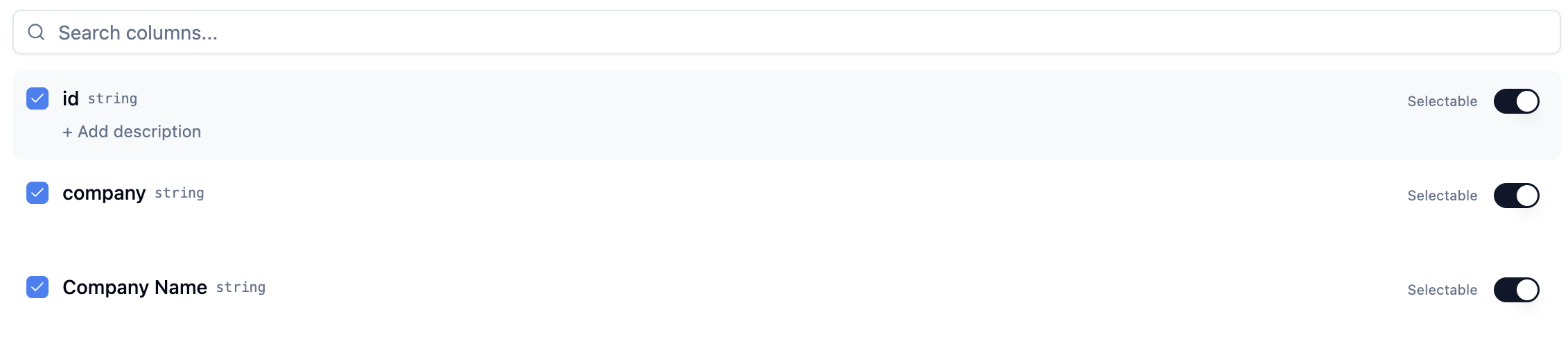
contact_name→ “Name of the customer’s point of contact for this order”owner_name→ “Name of the sales rep (seller) who owns this account”arr→ “Annual Recurring Revenue in USD, calculated as MRR × 12. Excludes one-time fees.”
Marking columns as selectable
The Selectable toggle controls whether the agent can scan a column’s distinct values at query time to inform how it builds SQL.
DISTINCT() over it to extract its unique values, and then use those values in two ways:
- Categorical filtering in SQL writing — the agent knows the valid filter values before it writes a
WHEREclause. It knows thatregioncontains “North America”, “EMEA”, and “APAC”, so it filters on real values rather than guessing at spellings or inventing categories. - Text grep search — the agent can search across a selectable column’s values to find the exact entry a user referred to loosely (e.g. matching “acme” to the
customer_namevalue “Acme Corp (US)”).
- It contains categorical values users would naturally filter by (region, product, owner, status)
- The distinct values are finite and meaningful to business questions
- You want the agent to be able to enumerate or search options rather than guess at valid values
Beyond the schema: the Knowledge Base
The Data Model page carries Tables and Global Data Security. Descriptions on tables and columns cover what your data means, but some context isn’t about any one column: business policies, company background, definitions of terms users use loosely, and known caveats about the data. Those live on the workspace’s own Knowledge Base page as searchable markdown documents that publish with each workspace version.Saving your changes
Changes to the data model autosave to the workspace’s draft — there is no separate save step. Click Publish on the version bar when you’re ready to checkpoint the schema together with the agent’s context, and promote the version to production to make it live.The schema and the agent publish together, as one workspace version. What an embedded deployment serves is always the workspace’s production version — publishing stages a new version, and promoting it to production is what makes it live.
Next steps
System Prompts
Encode business rules, terminology, and behavioral guardrails into the agent.
Golden Assets
Add example queries and charts the agent can reference when answering similar questions.
Knowledge Base
Store reference documents the agent searches on demand to interpret your terms.
Skills
Package procedures and conventions the agent loads when it needs them.
User Memory
Let the agent record and apply each end user’s preferences automatically.
MCP as Context Source
Connect external tools and live systems as additional agent context.