

Canvases replace Applications for both. If you’re moving from Applications, see Moving from Applications.
Every customer, their own data
Build the dashboard once as a canvas, share it with the workspace, and every user of your embedded workspace gets it, each with their own numbers.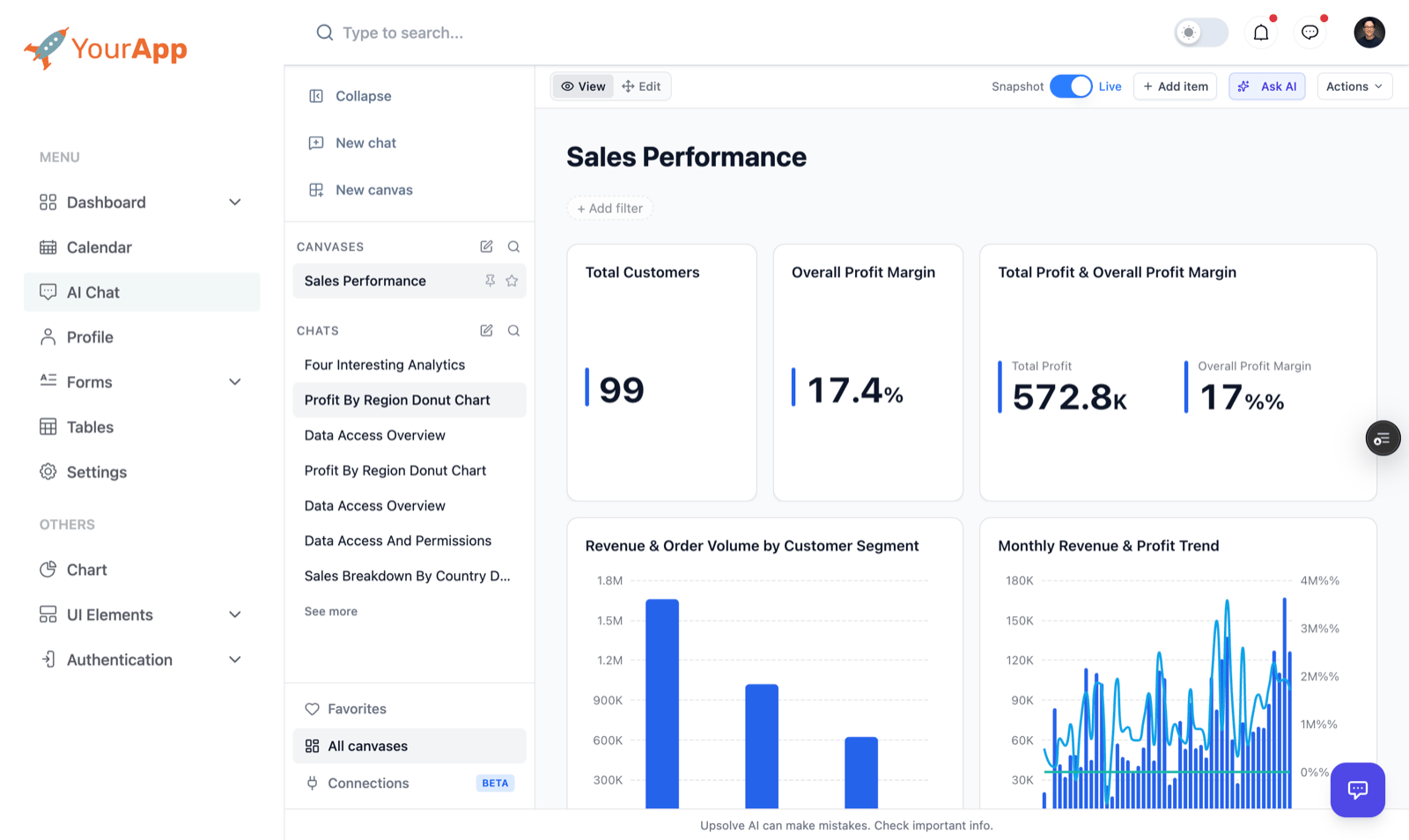
- Build the canvas in the workspace: in Home, open Canvas and create one, then add charts to it. See Canvas.
- Save a version from the canvas’s Actions menu.
- Share it with the workspace. In the share dialog, turn on Workspace. Only a builder can.
- Promote a version. Click the rocket beside the version picker and choose the version to promote. Everyone who opens the canvas through the workspace now sees that version, and can’t switch to another.
- Embed the workspace in your product if you haven’t yet: see Embed Upsolve in your product.
nav=canvas to the iframe URL. For each user:
- Every chart runs live, as them. The rows each user sees come from your warehouse under their own row-level security, never from the numbers you saw when you built it.
- They can’t change it, but they can make a copy of their own to change, and build canvases of their own from their chats.
- You keep editing. Changes to the canvas reach your users only when you promote a new version. Stop promoting shows them the canvas as it stands.
One view for everyone: embed a canvas link
A canvas link carries the access of the canvas owner who made it: everyone who opens it sees the canvas as that owner does. It needs no Upsolve account and no DNS or CNAME setup.Before you start
- A canvas you own, with a saved version.
- Your link to it: open the canvas’s share dialog, choose what visitors see under Your link (a Live link needs a passkey) and make the link. Its token is the last part of the URL the dialog shows.
Embed the link
Build a page in your product and point an iframe at the canvas link:- Replace
{accessToken}with the token from your share dialog. ?hideHeader=1hides the canvas name and “Read-only” badge for a chrome-free embed.- A link with a passkey asks for it in the frame before it shows the canvas.
- For on-premise deployments, replace
ai-hub.upsolve.aiwith your instance’s hostname.
Use your own domain (optional)
By default, canvas links are onai-hub.upsolve.ai. To make the link you copy show your own domain, set a Custom Share Domain:
- Go to Project Settings → Sharing.
- Enter your Custom Share Domain, for example
insights.yourcompany.com/canvas. A preview shows the resulting link. - Save.
https://insights.yourcompany.com/canvas/{accessToken}.
The Custom Share Domain only changes the link Upsolve shows you, not where the canvas is served. Either route that path in your own product to a page that iframes the Upsolve link (no DNS needed), or point the domain at Upsolve with a CNAME or reverse proxy. If you proxy, keep the
frame-ancestors * response header so the page can still be framed.Security
- The canvas is read-only. A Live link runs only the charts in the link’s version; a Snapshot link runs nothing and shows their saved rows.
- A visitor needs the token, and the passkey when there is one (a Live link always has one). Wrong passkeys are throttled.
- Every live chart runs as the link’s owner, so a link never shows more than its owner can see. It stops working when they lose their access, and deleting the link stops it at once. A builder can revoke any link to a canvas.
Moving from Applications
Applications are being deprecated. Everything they did maps onto workspaces and canvases:Next steps
Canvas
Build canvases, save versions and share them.
Embed Upsolve in your product
Sign your users in and embed the workspace.