

Share one answer
Next to the thumbs up / thumbs down on any answer, a share icon opens the share dialog for that exchange. The user picks which parts of the answer travel with the link:
Only the parts the answer actually produced are offered — an answer with no chart won’t offer Chart. This is what makes the feature safe to expose to end users: someone sending a summary to a non-technical stakeholder can leave Details off, and the recipient never sees SQL or column names.
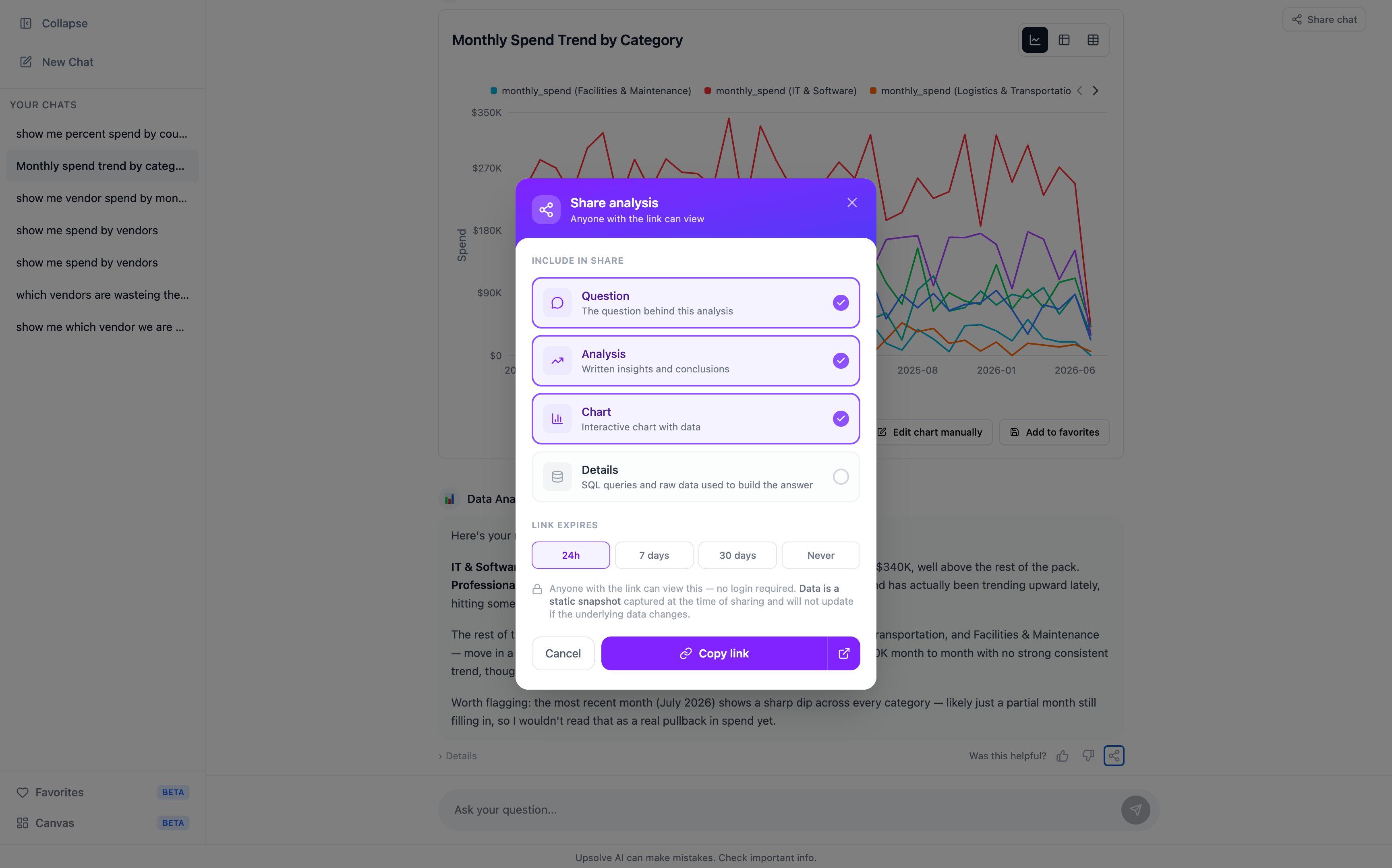
Link expiry
Every share link carries an expiry, chosen when the link is created:- 24h (the default)
- 7 days
- 30 days
- Never
What the recipient sees
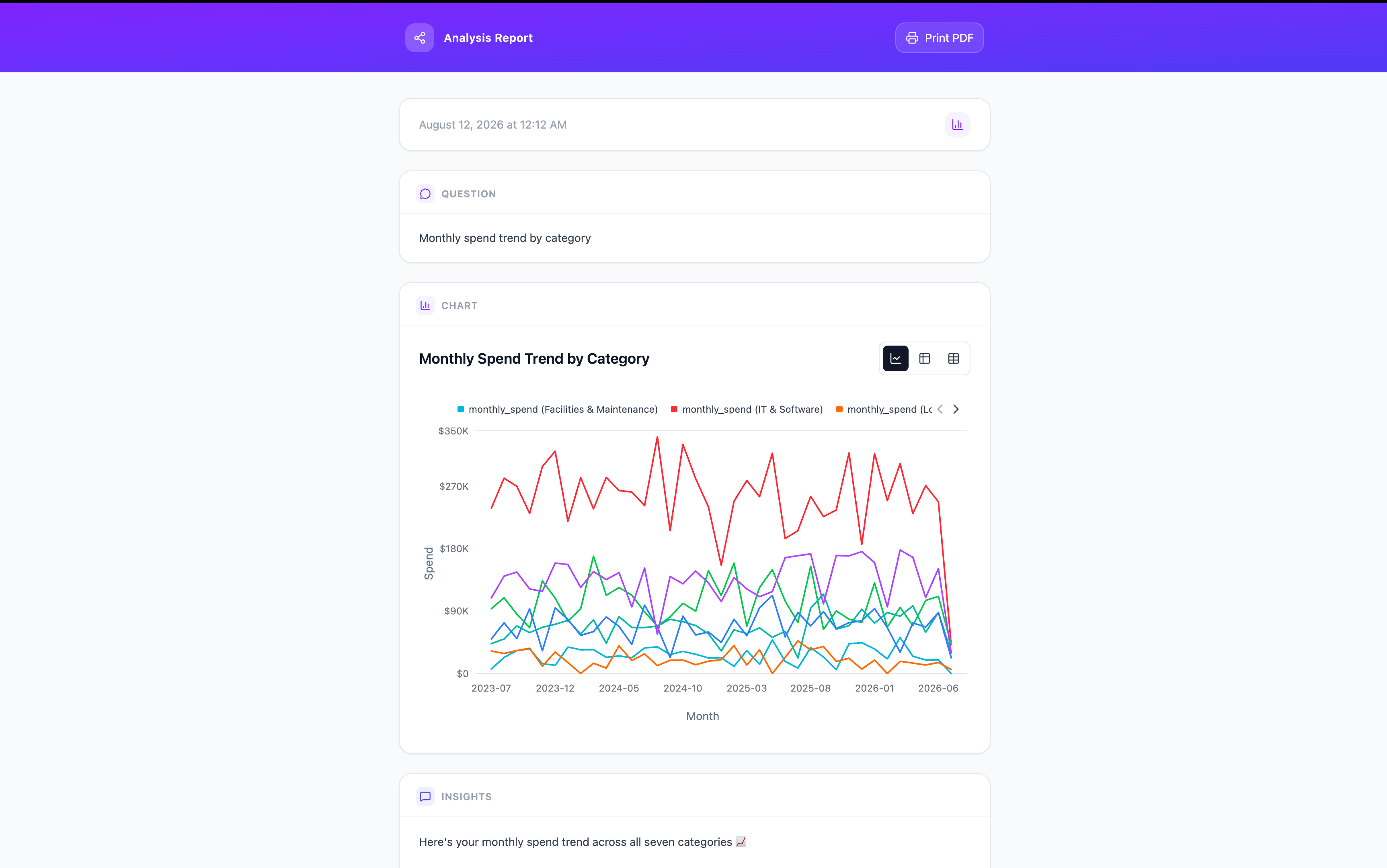
The link opens a clean, standalone report page at/share/analysis/{id} — the question, the narrative, the chart, and the details, in that order, with none of the chat interface around it. The page has a Print PDF action, so the recipient can save it as a PDF or drop it into a deck.
Share the whole conversation
Some analyses only make sense as a sequence — the user narrowed down through four questions, and the fourth answer is meaningless without the first three. For those, the Share chat button in the top-right of the chat pane shares the entire conversation. It takes the same expiry options and produces a link to/share/chat-history/{id}, which renders the full thread — every question and every answer, with the charts — as a read-only page.
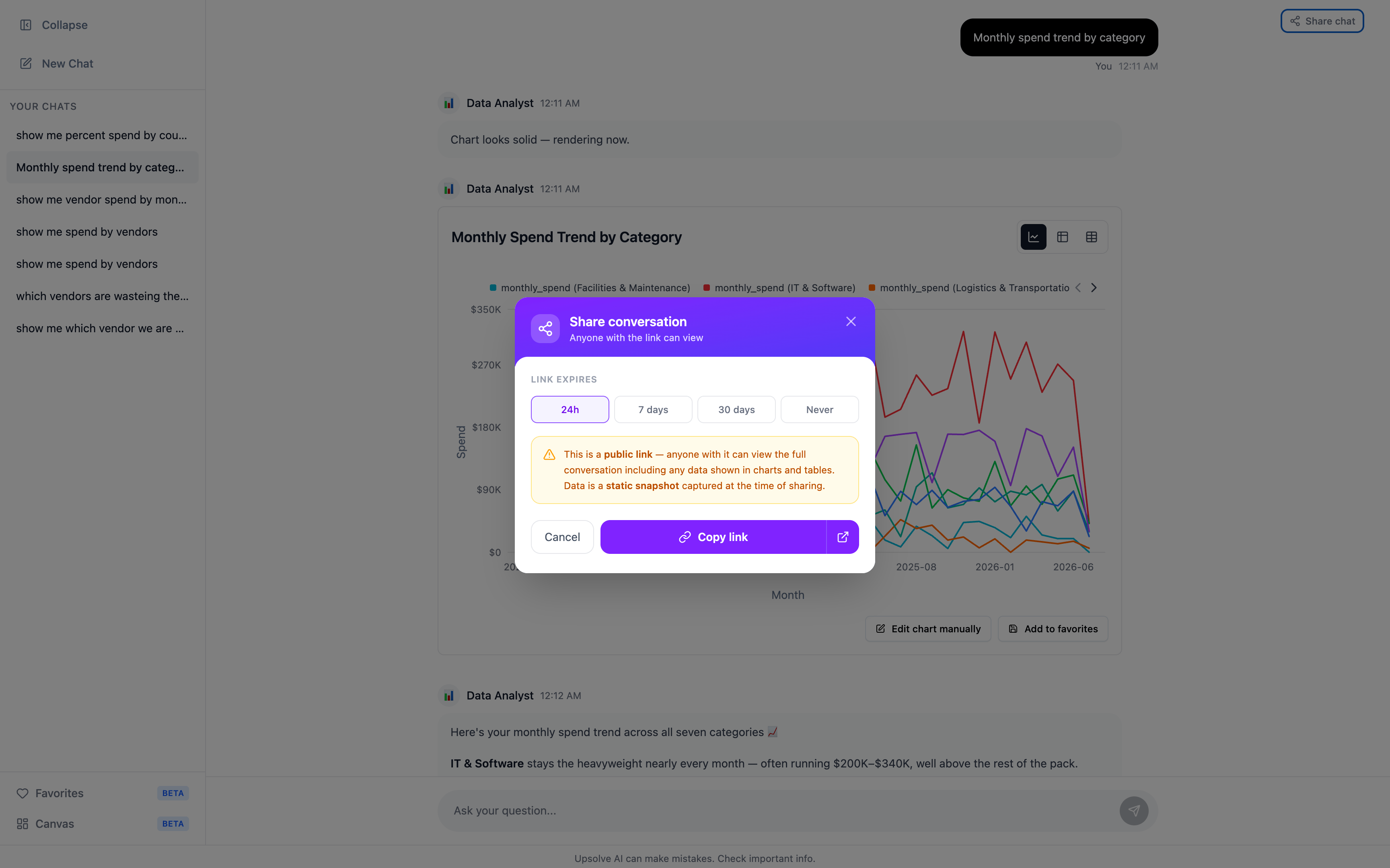
Both share types are point-in-time snapshots of the conversation as it stood when the link was created. They do not re-run the SQL when opened, so the recipient sees the numbers the sender saw. If you need a shared view that refreshes against live data, use a Canvas in live mode instead.
Shared chats your users can continue
A conversation in an embedded workspace chat (/share/workspace/{projectId}/{workspaceId}) is more than a transcript: the recipient can pick the conversation up.
- If they were the original participant, they get Continue conversation — the thread resumes with all its context.
- If they weren’t, they get Fork conversation — a copy of the thread is created under their own identity, and they carry on from there without altering the original.
What the builder sees
A shared analysis is still a conversation, so it appears in Chat History like any other, and its Shareable Report step shows up in the observability trace. Sharing itself isn’t a separate surface you have to monitor.Next steps
Favorites
Save an answer for later instead of sending it now.
Canvas
Assemble saved answers into a board and share that instead.