

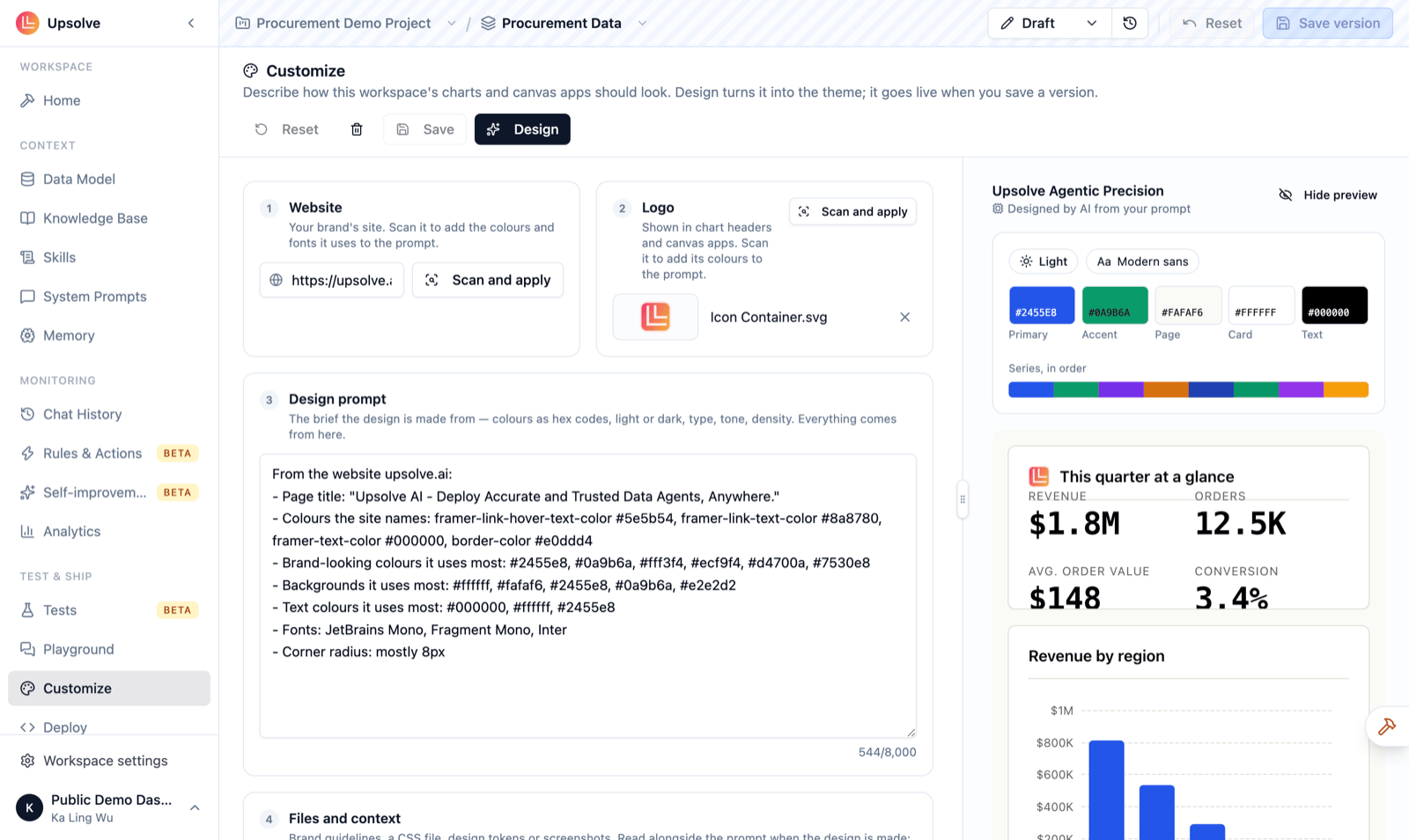
Write the brief
The left side of the page is the brief the theme is made from:- Website: enter your brand’s site and click Scan and apply. Upsolve reads its colours and fonts and adds them to the prompt as hex codes.
- Logo: drop your logo (PNG, JPEG, WebP or SVG, up to 8 MB). It’s shown in chart headers and canvases, and scanning it adds its colours to the prompt.
- Design prompt: everything the design comes from. Say which colours to use (as hex codes), light or dark, the typeface, the tone and how dense the charts should feel. You can edit what the website and logo scans added.
- Files and context: drop reference files such as a brand guide, a CSS file or screenshots. Each text file is read up to its first 24,000 characters, and all text files together contribute at most 24,000 characters, in the order you added them, so put the most important guidance first. Images only contribute their colours.
Preview the theme
Click Show preview to see the result: whether the theme is light or dark, its font, its primary, accent and brand colours, and sample charts drawn in it. Below the charts:- Style guide: the rules the theme follows, in words.
- History: every design you have made. Click Apply on any of them to go back to it.
- How canvas designs use it: how canvases pick up the theme.
Save it
The theme is part of the workspace, versioned with everything else:- Save keeps your changes in the workspace’s draft. Reset throws away unsaved changes.
- The theme reaches your users when you save a version and promote it, like any other change. See Workspaces: Draft, Publish and Production.
Where the theme appears
One theme is used everywhere the workspace draws a chart:- Charts in the Playground (using the version you’re chatting with) and in Home.
- Your embedded chat and the end-user workspace (using the version in production).
- Canvases and their designs.
- PDF reports and images sent by Rules & Actions.
- Chart images in Upsolve for Slack.
- Chart widgets in Claude and other MCP clients.
theme URL parameter; see Embed Upsolve in your product.
Next steps
Embed Upsolve in your product
Put your themed agent in front of your users.
Canvas
Boards of charts drawn in your theme.