

- Your team are members of your Upsolve organization. You invite them, and each has an organization role: owner, admin, member, viewer or end user. The role decides whether they can build.
- Your customers are project organizations and project users. Your backend signs them in, or you add them by hand, and they carry the properties your data security rules read. They never build anything.
Organization roles
Owners, admins and members are the builders. Throughout these docs, “builders” means those three roles.
What each role can do
Saving a version runs no checks: tests run when a version is deployed to an environment that requires them. A member’s work therefore reaches those users through tests, and only an owner or admin can skip them.
A viewer sees only Home and the Playground in a workspace’s sidebar. They can still save their own favorites and canvases, because those belong to them and change nothing anyone else sees.
End users
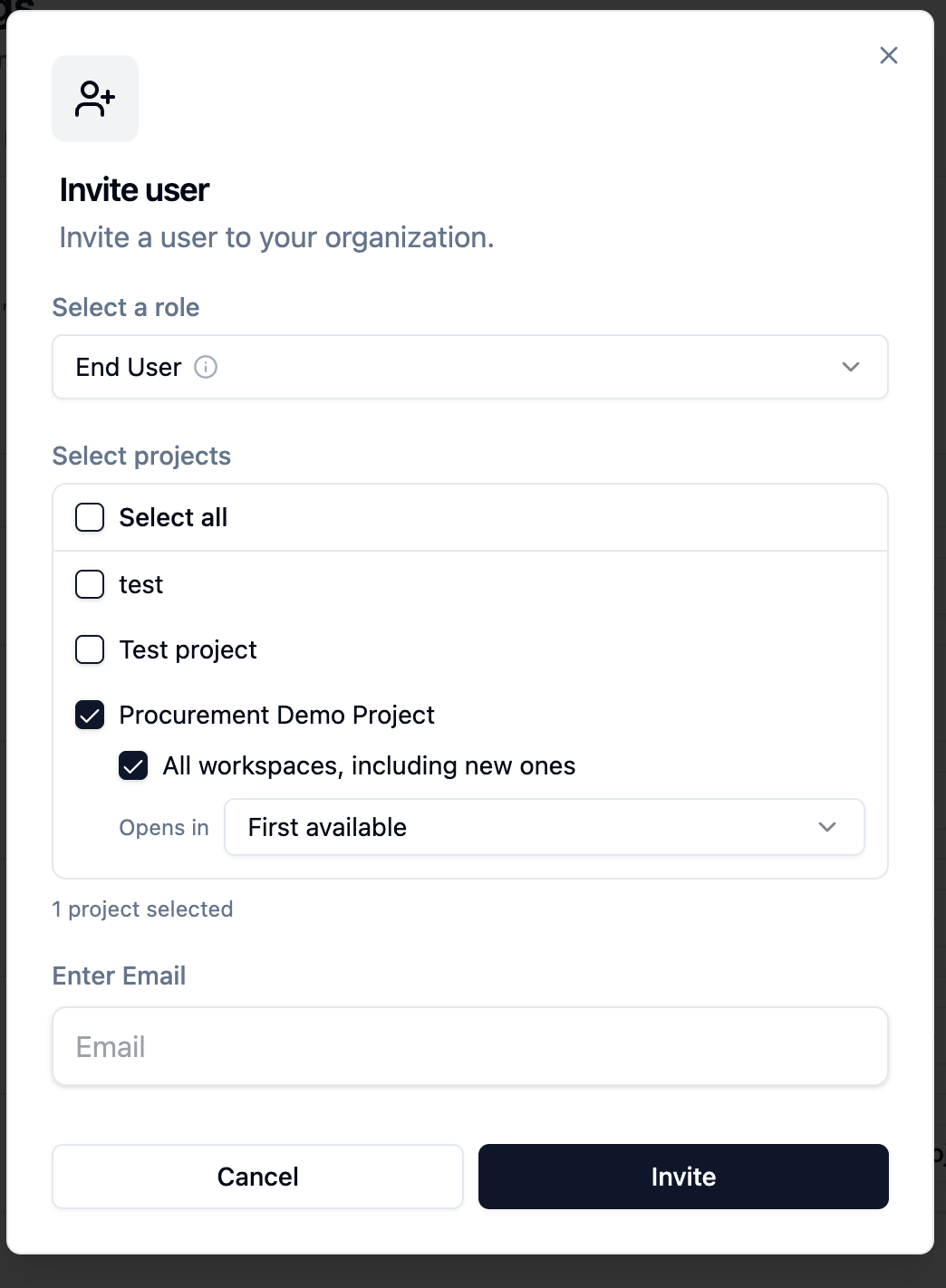
An end user is someone on your team, or a customer you’d rather invite than embed for, who should ask questions and nothing else. When you invite one, you pick the projects, and the workspaces in each, they can open. They see a simple workspace page with the chat and the canvases shared with them. Each end user acts as their own project user in each project they can open, so data security rules apply to them by their own properties, exactly as they do to an embedded customer.Invite your team
- Open the account menu at the bottom left and choose Organization settings, then the Members tab.
- Click Invite user and pick a role: Admin, Member, Viewer or End User.
- For an End User, also pick the projects they can open. In each project, give them All workspaces, including new ones, or pick workspaces one by one, and choose which one they land on (Opens in).
- Enter their email address and click Invite.
Your customers: project organizations and project users
Customers don’t get an organization role. They live inside a project:- A project organization is one of your customers (a tenant), with properties such as
company_id. - A project user is a person at that customer, with properties such as
departmentandemail.
POST /v1/api/projects/embed-token. You can also add them by hand in the project’s Organizations and Users tabs to try your rules before your integration exists. See Projects & Connections and Embed Upsolve in your product.
In a project with environments, each project organization and its users belong to one environment.
Other roles you’ll see
Two other kinds of role are separate from the organization role:- Canvas roles. Each person a canvas is shared with is its owner, editor or viewer. See Canvas.
- Project user roles (Admin, Editor, Creator, Reader) only control what an embedded user may do on a legacy Applications dashboard. See Roles and permissions for Applications.
Roles in other places
The same roles apply wherever someone reaches Upsolve:- From Claude or another MCP client, everyone can ask, save favorites and build canvases, and only builders can build, test, save versions and promote them. See Upsolve MCP Server.
- In Slack, everyone asks as themselves, under their own data access. See Use Upsolve in Slack.