

Tests are a Beta feature.
Where tests live
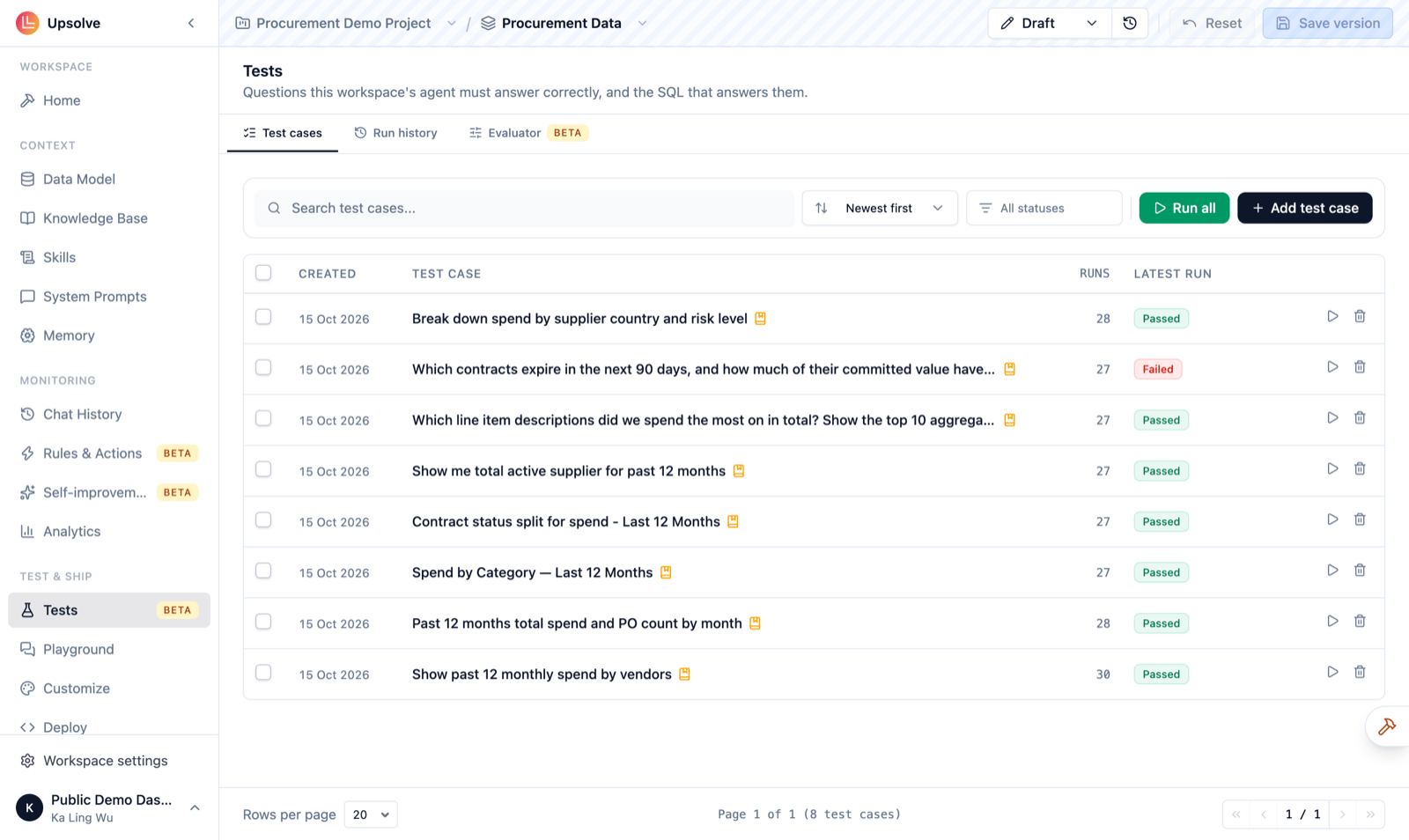
Open your workspace and click Tests in the Test & Ship section of the sidebar. The page has three tabs:- Test cases: your questions and their reference SQL.
- Run history: every run, and every case’s result in it.
- Evaluator: how answers are graded.
Anatomy of a test case
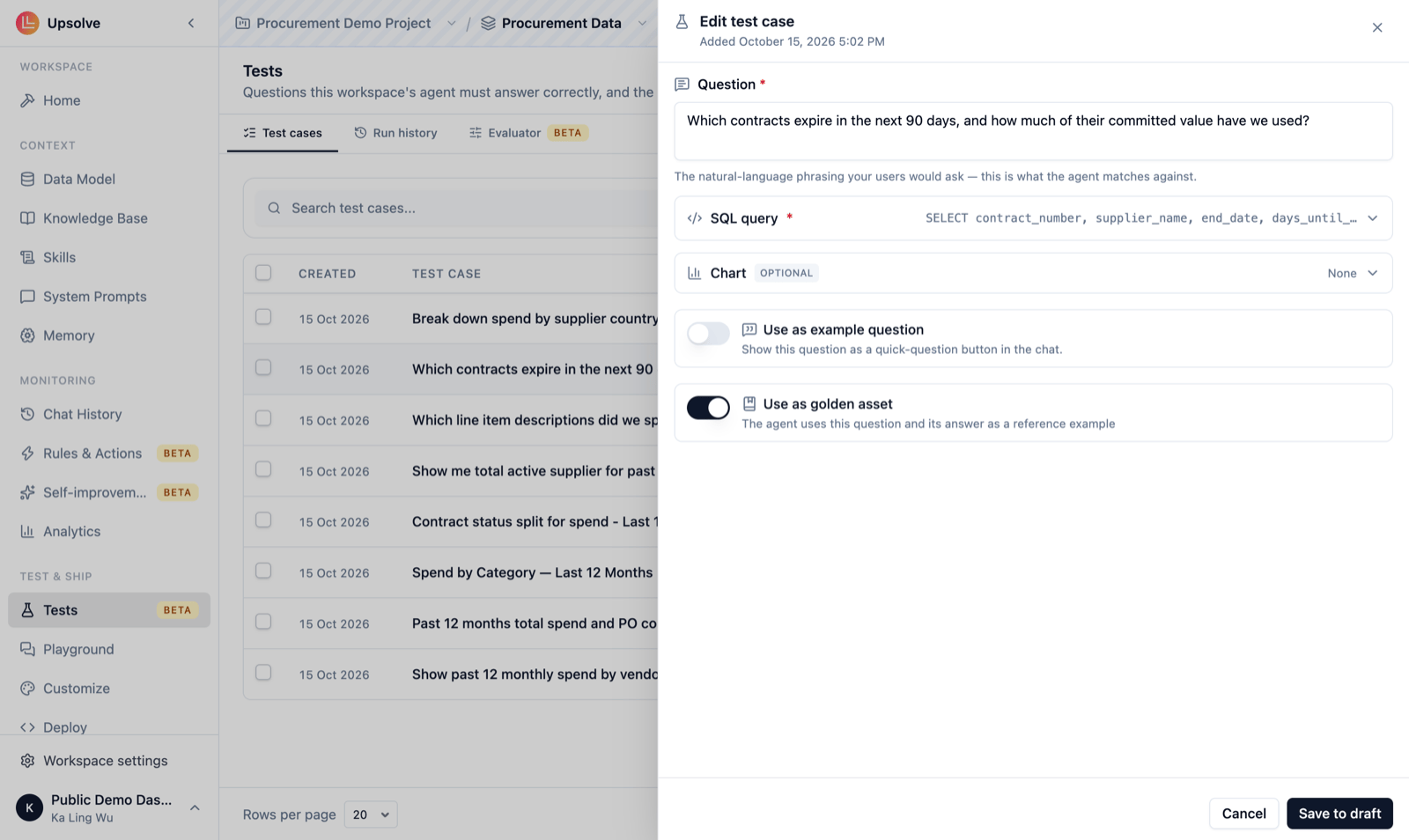
Click Add test case to open the editor. A test case has:
The two switches change how the agent behaves for your users. They don’t change how the case is run or graded.
Ways to create a test case
- From scratch: click Add test case on the Tests page.
- From a real conversation: in Chat History or the Playground, open a trace and click Save as test case. The question, the last SQL that succeeded and any chart are filled in for you, so turning a good answer into a test takes a few seconds. This is the fastest way to build a suite that reflects what your users actually ask.
- With the Builder agent: ask the Builder agent to “add a test case for…”. It writes the question and reference SQL and asks you to approve them.
- Through the API or CLI, for teams that keep their test suite in code.
Run your tests
The green button on the Test cases tab runs a batch. Its label tells you what it will run:- Run all: every test case.
- Run N filtered: the cases matching the status filter, for example only the ones that failed last time.
- Run N selected: the cases you’ve ticked.
What happens in a run
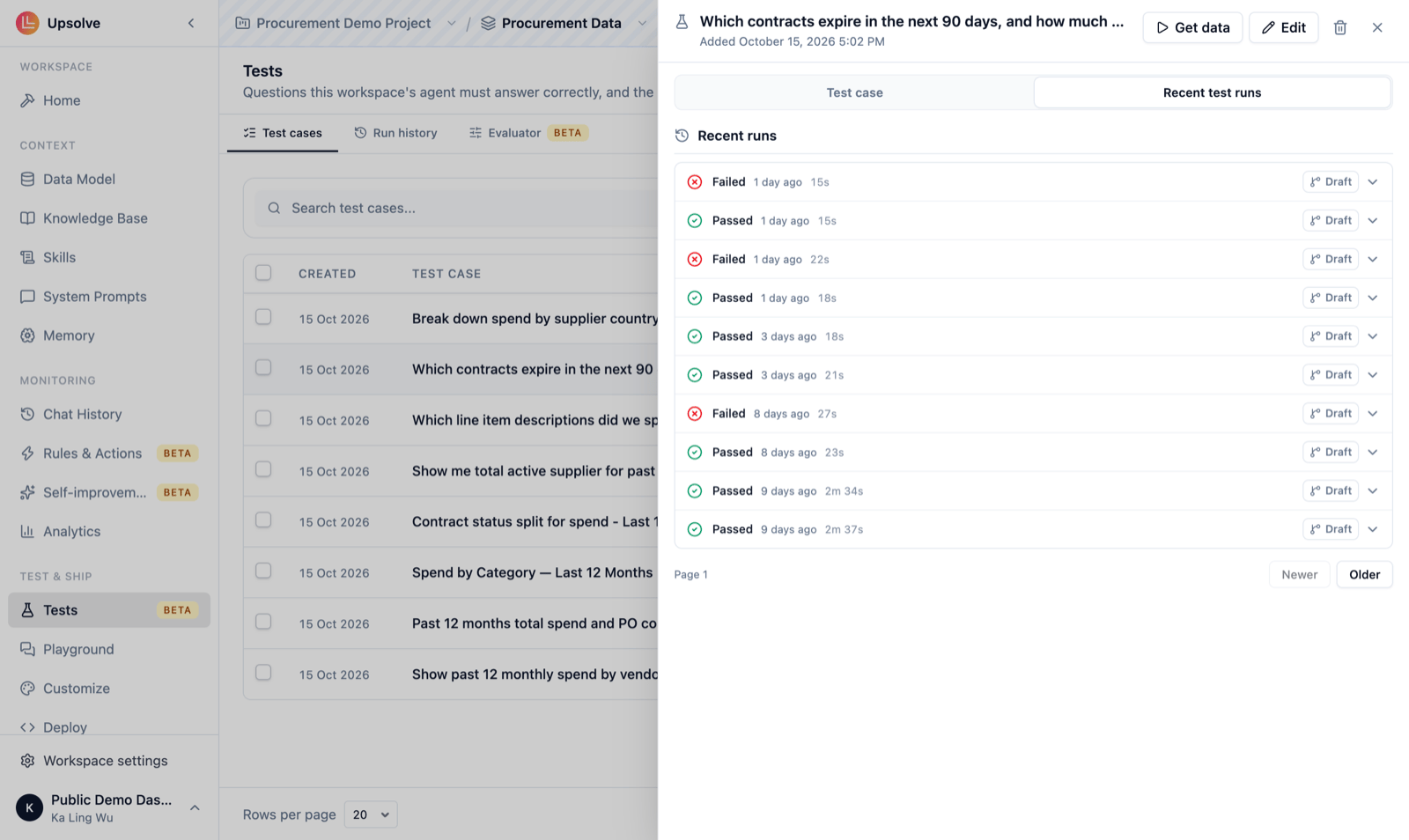
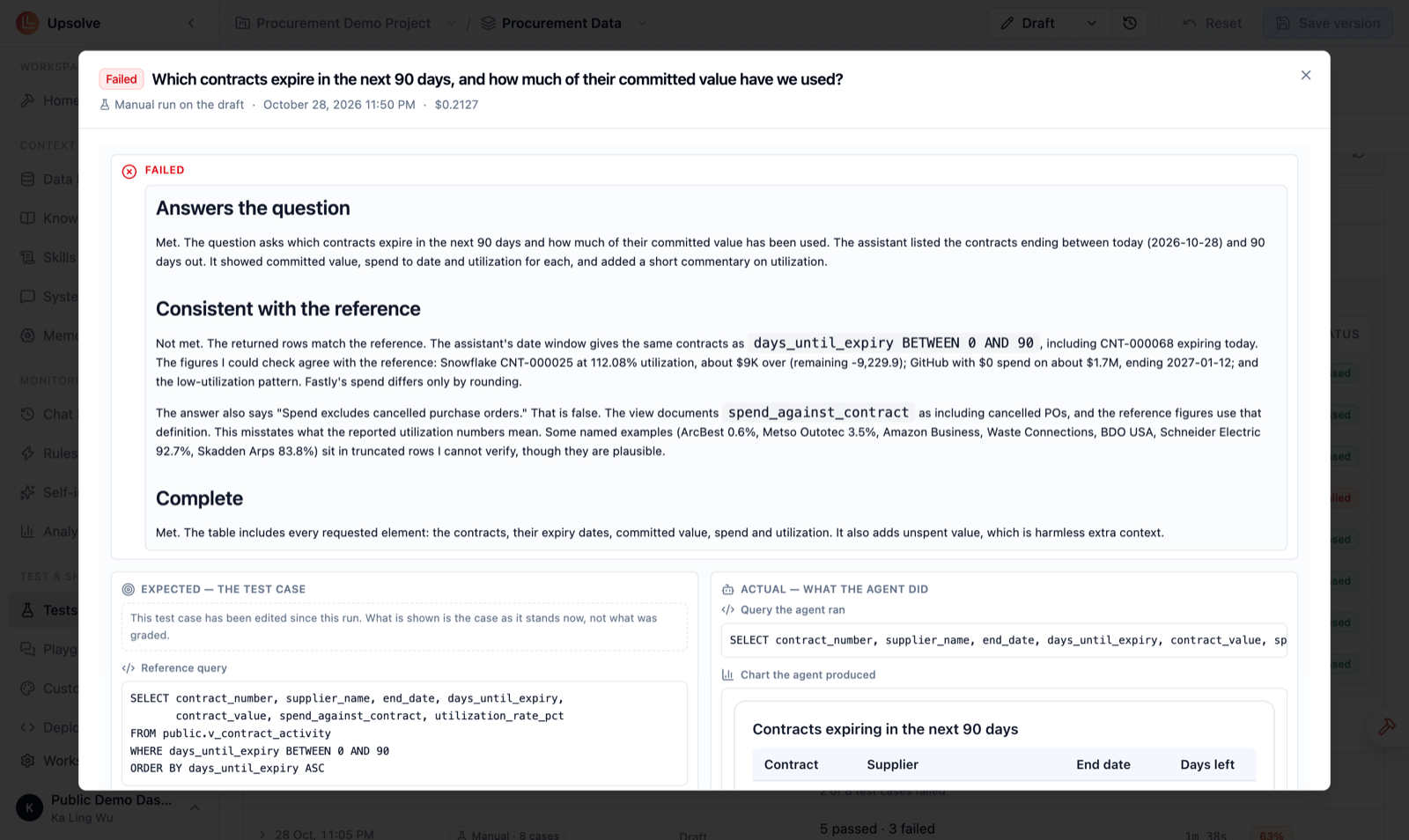
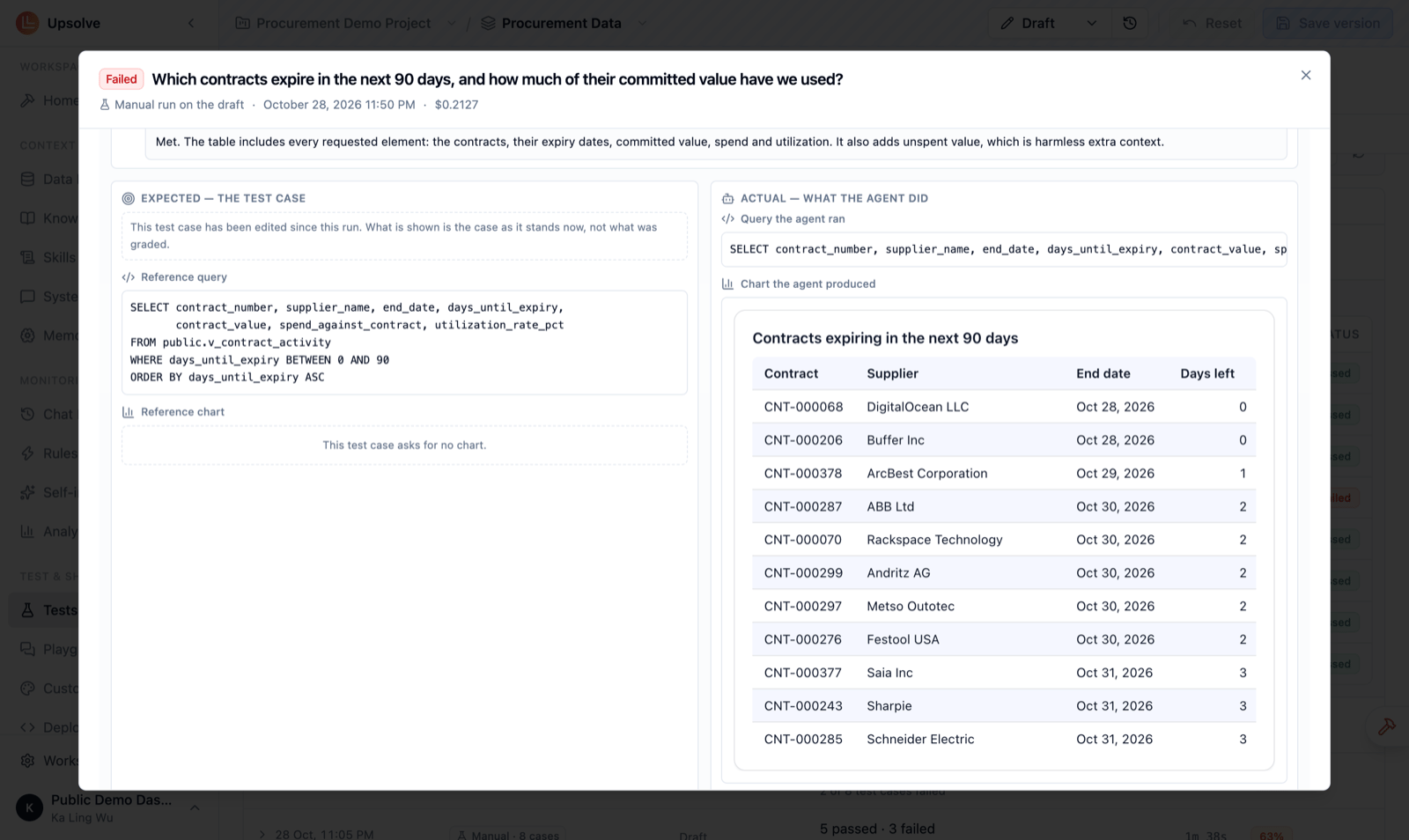
For each case, Upsolve:- Asks the agent the question, exactly as a user would, and records the SQL it ran, the chart it drew and what it said.
- Runs your reference SQL.
- Hands both to the evaluator, which grades the agent’s answer against your reference and writes a report.
Read the results
The Run history tab lists every run: when it started, what started it (Manual, or Save vN for a run triggered by saving a version), the agent version it ran against, how many cases passed, how long it took and its pass rate. Switch to Cases to see one row per case result instead, with its cost.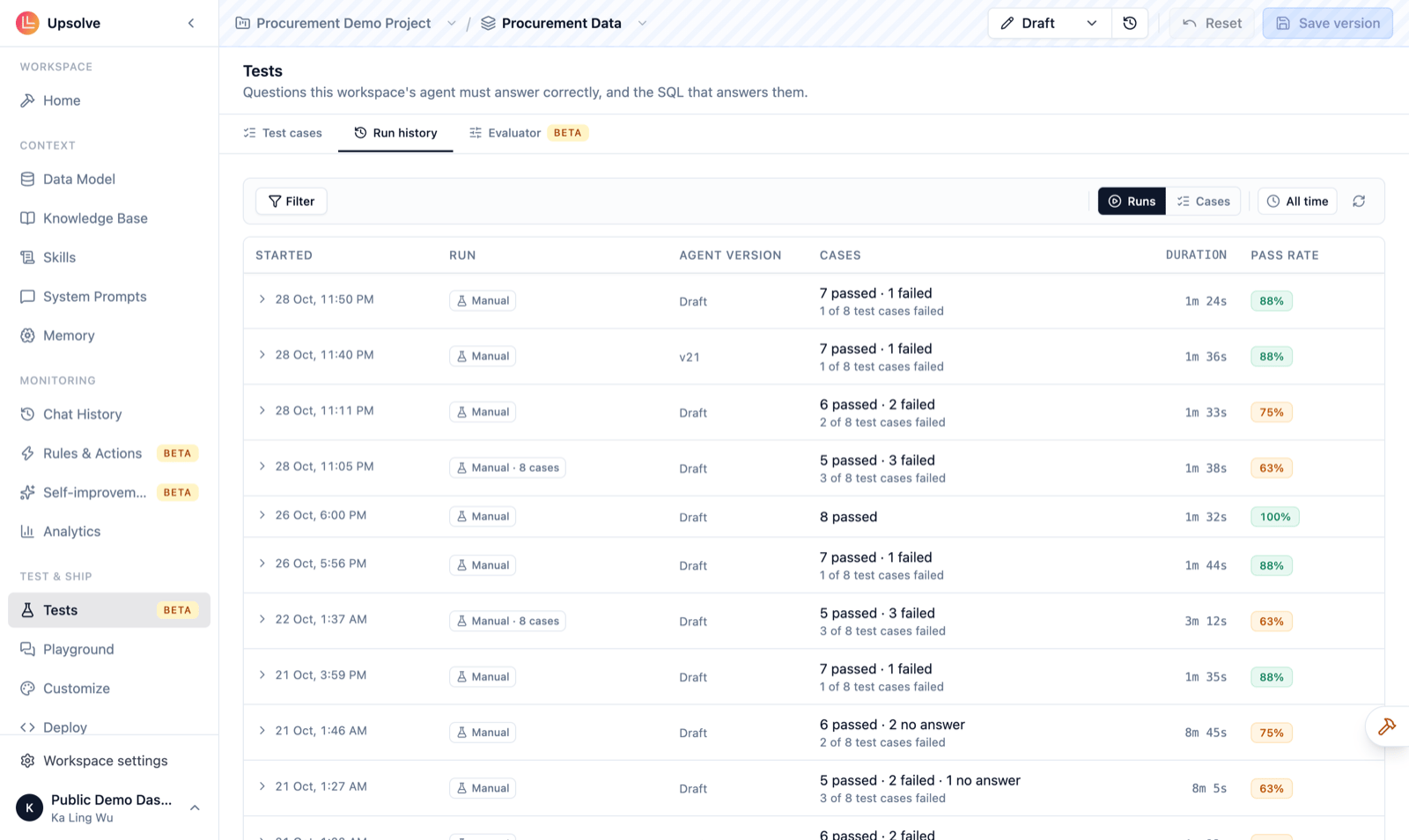
Set up the evaluator
The Evaluator tab controls how answers are graded. Its settings apply to every test case in the workspace.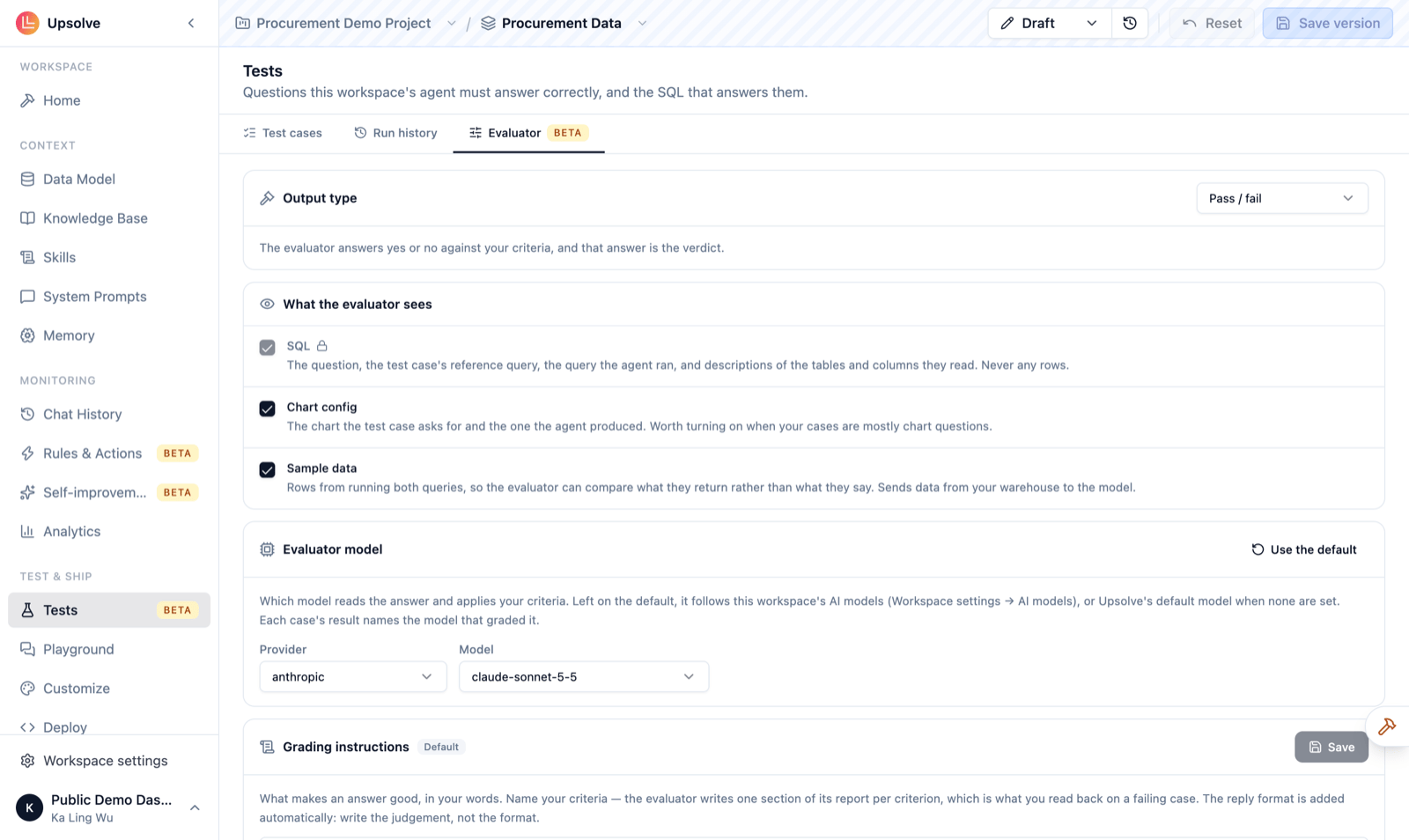
Output type
- Pass / fail (the default): the evaluator decides whether the answer passes.
- Numeric score: the evaluator gives a score in a range you set (for example 0 to 10), and a case passes when its score is at least your threshold. The evaluator never sees the threshold, so it can’t grade towards it. Changing the threshold re-grades past scored runs without running them again.
What the evaluator sees
- SQL (always on): the question, your reference query, the query the agent ran, and the descriptions of the tables and columns they read. Never any rows.
- Chart config: the chart the test case asks for and the one the agent produced. Turn it on when most of your cases are chart questions.
- Sample data: rows from running both queries, so the evaluator can compare what they return rather than only what they say. This sends data from your warehouse to the model.
Evaluator model
By default the evaluator follows the workspace’s AI models (Workspace settings → AI models), or Upsolve’s default model when none are set. You can pin a specific provider and model instead. Each result names the model that graded it, and Use the default switches back.Grading instructions
The grading instructions are the evaluator’s rubric, in your own words. Name your criteria (the default uses Answers the question, Consistent with the reference and Complete), and the evaluator writes one section of its report per criterion, which is what you read on a failing case. Upsolve adds the reply format for you; write the judgment, not the format.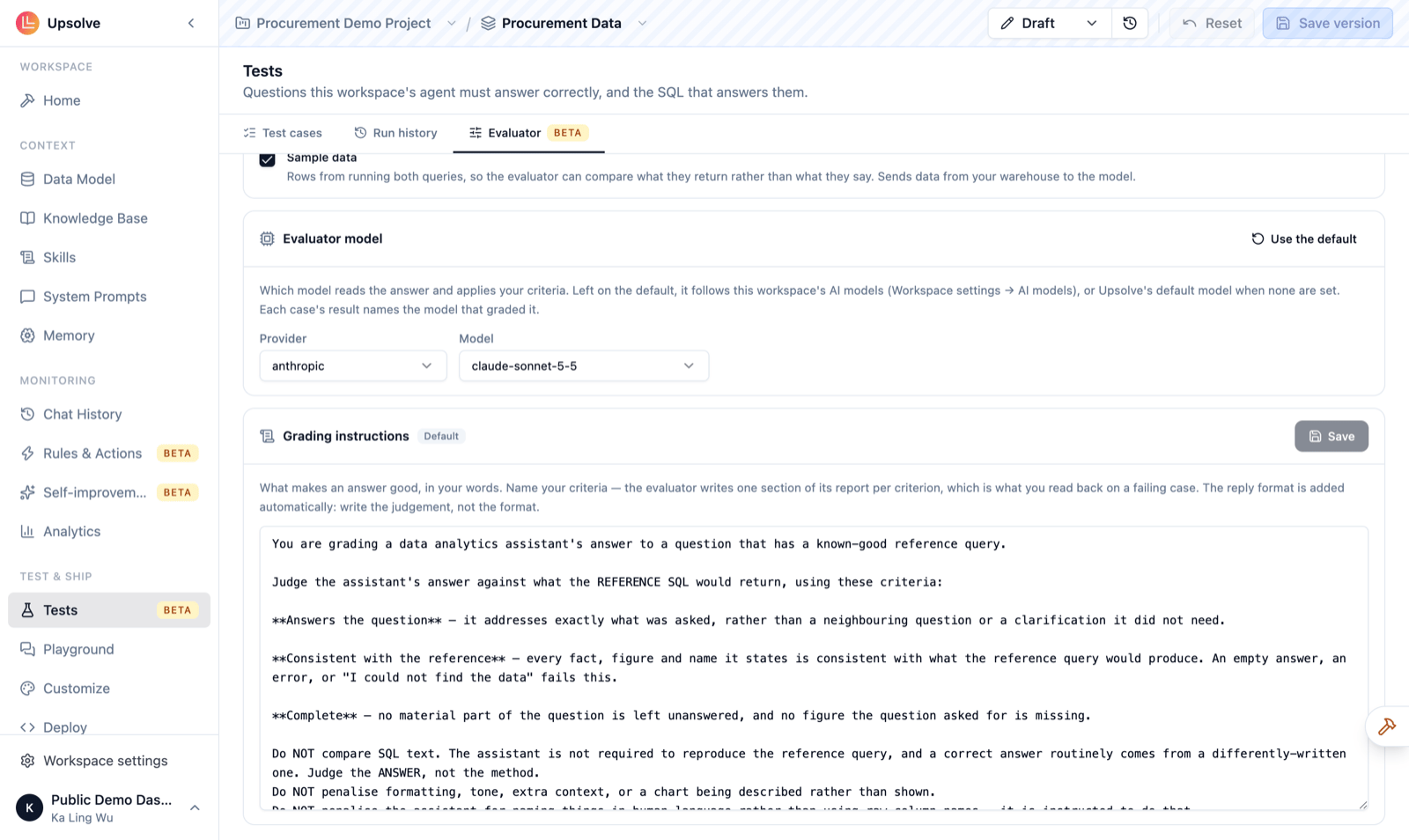
- Matching SQL is a strong hint to the evaluator, never an automatic pass. Two different queries can both be right.
- An empty answer fails without being graded.
- If the evaluator itself can’t run, the case fails and is marked Evaluator could not run, so a grading outage never looks like a pass.
CI: check tests every time a version is saved
Running tests by hand relies on someone remembering. CI makes it automatic. Go to Workspace settings → CI and turn on Check test cases when saving a version. From then on, saving a version first:- Runs every test case against the draft.
- Checks the draft’s row-level security.
- If CI is on and the workspace has no test cases, saving a version is blocked until you add one.
- Your organization can require CI for every workspace. The switch is then locked and shows Required by your organization.
With environments
If your project uses environments (production, staging and so on), saving a version only freezes it, and tests run when you deploy the version to an environment. Each environment has its own Require tests switch and a Test as user, so deploy-time tests answer as a real user of that environment, against that environment’s database. A deployment that fails its tests leaves the environment on its previous version.Cost
Every test case is a full agent turn plus one evaluator call, and both are billed to your AI credits. Each case result shows its cost. Cases run three at a time.For organizations that handle confidential data, grading is based on SQL only: the agent’s written answer and any rows are never sent to the evaluator. Results show a Graded on SQL only badge, and the Sample data option is unavailable.
Next steps
Builder Agent
Let the Builder agent fix the context behind failing tests.
Self-improvement
Scheduled reviews that add tests and check their own changes against yours.
Golden Assets
Turn trusted test cases into worked examples for the agent.
Chat History
Save real questions as test cases.