

Schema and row rules are part of the workspace version: a rule change reaches your users only when you save a version and promote it. Restrict data from agent is set for your whole organization by Upsolve, so it doesn’t change with workspace versions.
Control what the agent can see
The tables and columns you select on the Data Model page are an allowlist. Everything else is denied:- A query that names a table outside the data model is refused.
- A column you deselected can’t be read, even by a query that names it.
Give each tenant its own schema
If your database keeps each customer in a schema of its own, a Schema Rule points every query at the signed-in user’s schema. Each user’s queries run against their own tenant’s tables, and only those.
user.schema, a query on orders reads:
Control which rows each user sees
Row-level security (RLS) filters every table by who is asking. For example:- A user from Acme Corp only sees Acme Corp’s data.
- A sales rep only sees their own deals.
- A regional manager sees their region.
- Give users and organizations properties, such as
tenant_idorregion. - Write rules that filter tables using those properties.
- Every query is filtered automatically, in chat, on canvases, in rules and in your embed.
Give users and organizations properties
Properties set on an organization apply to every user in it; properties on a user apply to that user alone. Set them in your project’s Organizations and Users tabs, or send them when you sign your users in from your product.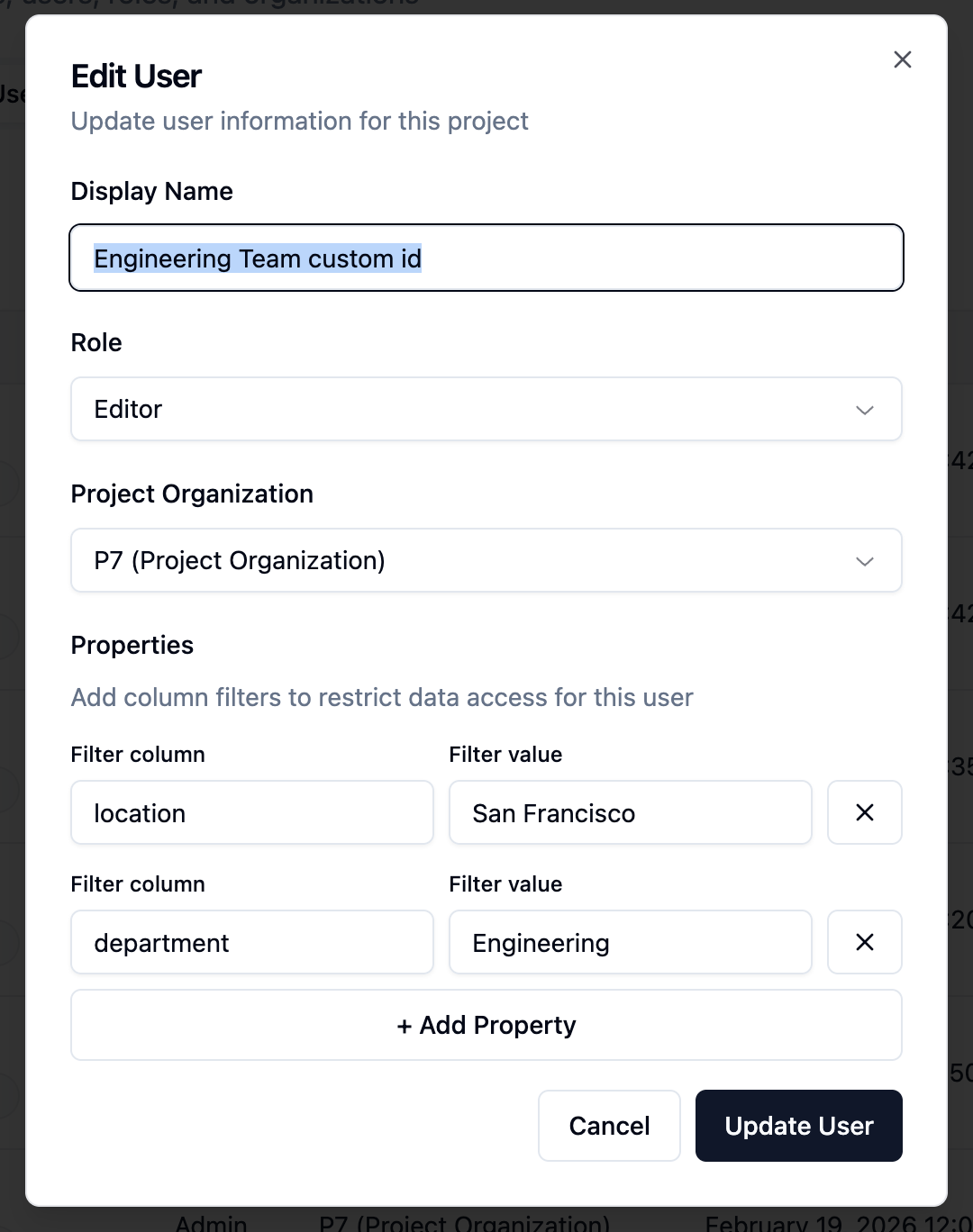
Global security rules
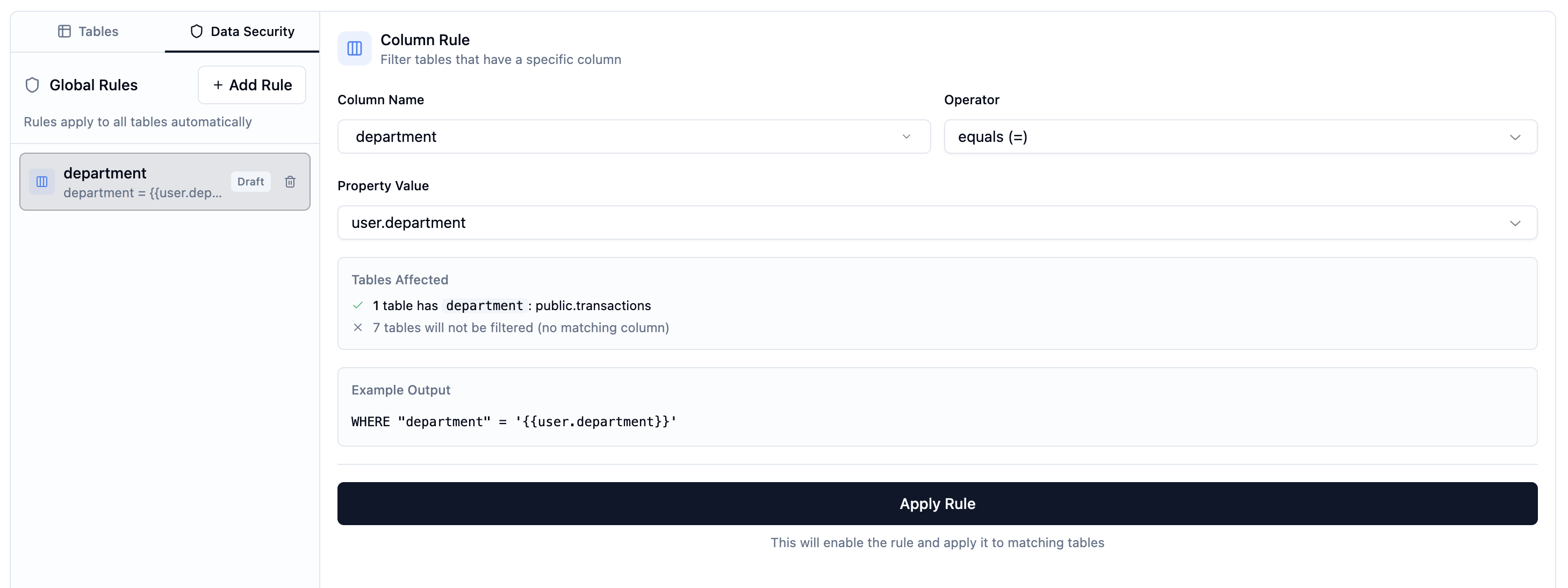
Most products filter every table the same way, by a tenant or owner column. Global security rules let you write that once and apply it to every table it fits.- Open the workspace’s Data Model page and click the Global Data Security tab, beside Tables.
- Click Add Rule and choose a type:
- Column Rule: filters every table that has a given column, for example
tenant_id, by a property. Tables without the column are left alone. - Schema Rule: points queries at a per-tenant schema (above).
- Column Rule: filters every table that has a given column, for example
- Configure it. The rule is enabled straight away.

user_id gives each matching table a filter like:
- Several rules are combined with AND.
- Rules apply in priority order, lowest number first.
- A table with a manual rule (below) is skipped.

Per-table rules
Select a table on the Data Model page and open its Data Security tab to see how the global rules apply to it.

Test what a user sees
Before you ship a rule, check it with real data:- On the Data Model page, pick a project user with Test RLS as at the top.
- Run the test.
- Review the query with the user’s values filled in, and the rows it returned.

Control how much data reaches the AI
Workspace settings → Data access shows the Restrict data from agent setting. When it’s on, the agent works without seeing the underlying values in your data, which is stricter but can make its answers less accurate. It’s set for your whole organization by Upsolve; contact Upsolve support to change it.Best practices
- Isolate tenants at the organization level. Filter by an organization property such as
{{organization.tenant_id}}, so every user in a customer’s organization is covered at once. - Layer user properties on top for finer access within a tenant, such as
"owner_id" = {{user.user_id}}. - Test with several users: from different organizations, with different properties, and with a property missing.
- Handle missing properties. A rule can fall back to a default, for example
COALESCE({{user.department}}, 'all'), or be marked Optional so it’s skipped when the property isn’t set.
Troubleshooting
A user sees no data. Check that the user has the properties the rule uses, that the names match exactly (they’re case-sensitive), and that data exists for those values. A user sees too much data. Check that the table has a rule, that the placeholders are written{{user.prop}}, and that the version with the rules is saved and promoted to production.
Next steps
Data Model
Choose the tables and columns the agent can see.
Embed Upsolve in your product
Sign your users in with the properties your rules use.
Playground
Chat as any user to check what they can see.
Tests
Check row-level security on every saved version.