

- Any version. Chat with the draft you’re editing, the version your users are served, or any saved version.
- Any user. Chat as yourself, or as one of your project users with their row-level security applied.
- Observability. Open the trace of every answer: the context the agent read, the tools it called and the SQL it ran.
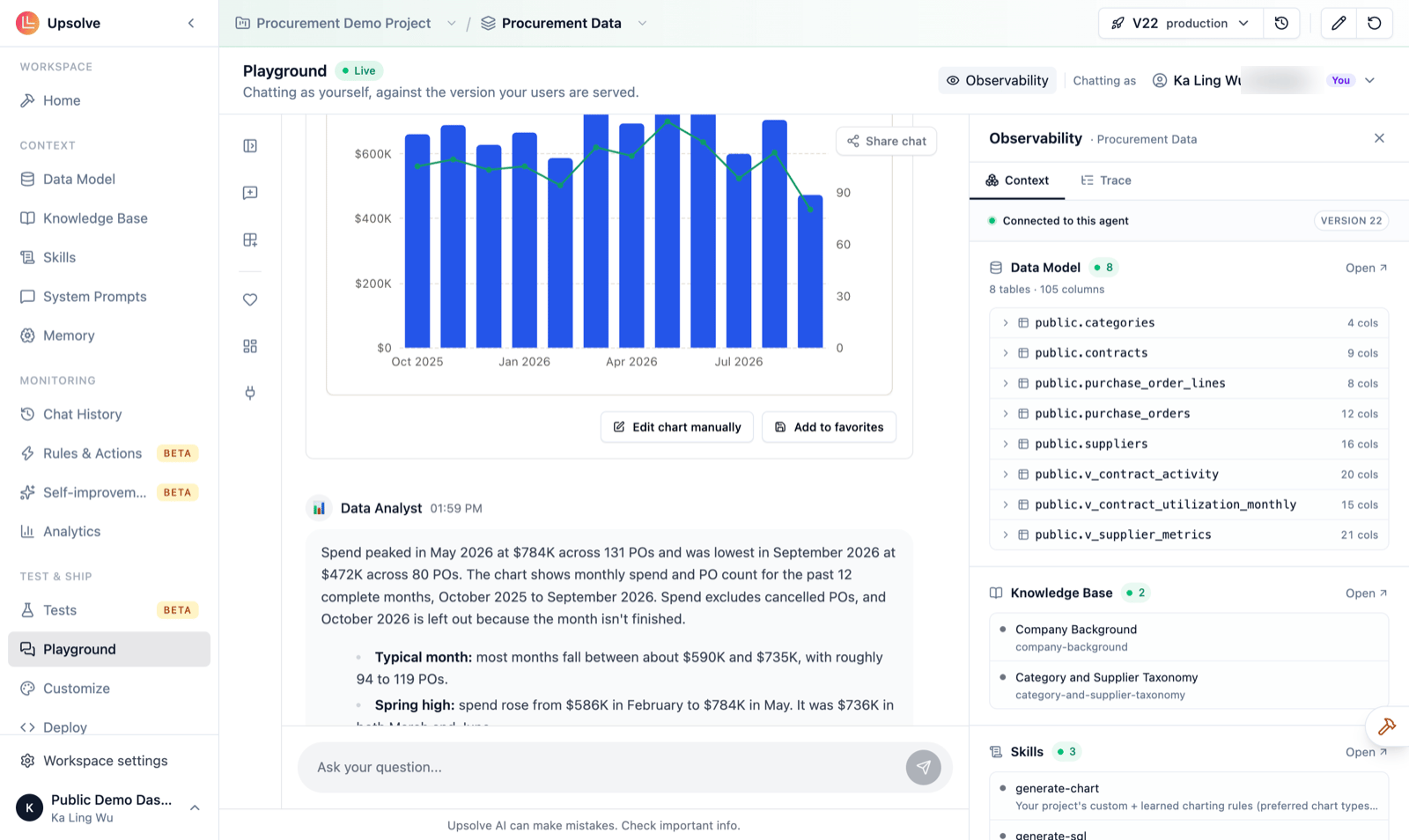
Home in User mode is the same chat, always as yourself on the version your environment serves. To change version, impersonate a user or open Observability, Home offers Go to the Playground, which opens the Playground on the version Home was showing.
Choose a version
The version bar at the top of the workspace sets which version the Playground answers with. Unlike the other workspace pages, the Playground opens on the version your users are served, so what you see is what they get. Pick Draft to try changes you haven’t saved yet. The first time you chat with the draft as a given user, the Playground asks you to Prepare Agent: it readies the draft’s data for that user. It does this once per user, and again after you change the draft’s schema. If the draft changes after that, an Update draft agent strip appears. Prompts, skills and the knowledge base are always current without it; only filter values can fall behind. Pick a saved version to check how an older or newer version answers before you promote it.Choose who you chat as
Use Chatting as to pick who the agent answers as:- Yourself (the default). The header shows a green Live badge while you chat as yourself on the version your users are served.
- One of your project users. The agent answers under that user’s row-level security, exactly as it would in their embedded chat, so you can check what each customer can and can’t see. A Scratchpad strip reminds you whose access you’re previewing. Chat as yourself switches back.
See how an answer was made
Turn on Observability in the header to open a panel beside the chat. It has two tabs:- Context: the data model, knowledge base and skills this version carries.
- Trace: every step of the answer, including the tools the agent called and the SQL it ran.
Turn a good answer into a test
When the agent gets a question right, keep it right. Click Save as test case in the answer’s trace (or the ★ on a tool result) to open the test-case editor with the question, the SQL and any chart filled in. See Tests.What is recorded
Every Playground conversation appears in Chat History with the platform Playground, along with the version that answered.- Chatting as yourself: the conversation is yours, and it appears in your own chat list. You can rate answers, save charts to Favorites and build canvases, as your users can.
- Chatting as a project user: the conversation is recorded as a builder’s chat on the workspace’s Chat History page. It never appears in that user’s own history.
Who can use it
Owners, admins and members can use everything above. Read-only members can open the Playground and Home in User mode, and nothing else in the workspace.Next steps
Tests
Turn the questions you check by hand into tests that run on every change.
Agent Observability
Read a trace step by step.
Builder Agent
Fix what the Playground shows you by describing the change.
Data Governance
Control what each project user can see.