

Self-improvement is a Beta feature.
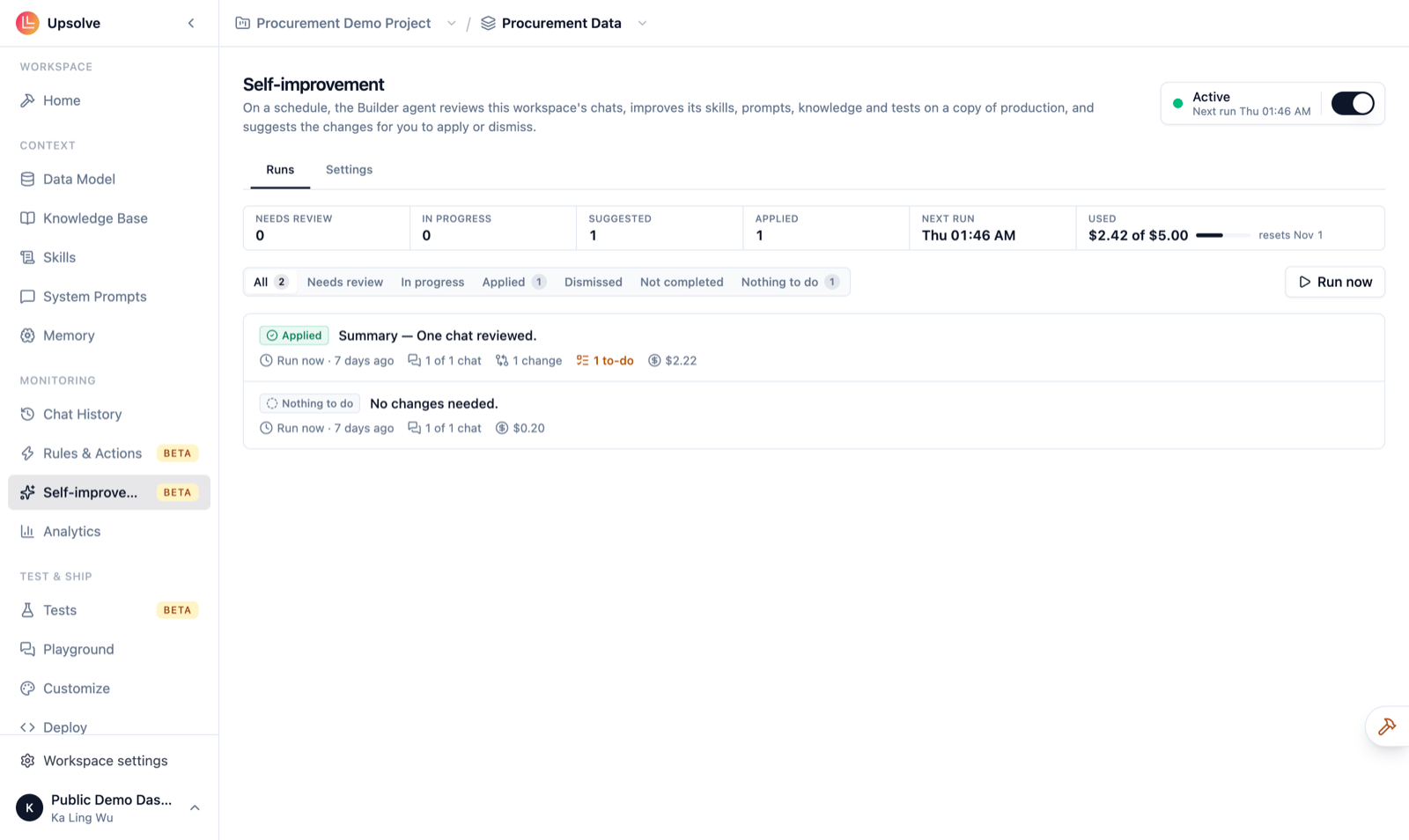
Turn it on
- Open your workspace and click Self-improvement in the Monitoring section of the sidebar.
- Switch the toggle at the top right to Active. It shows when the next run starts.
- Review the Settings tab (below) and adjust the schedule, the chats it reviews and the budget.
Self-improvement settings and runs need workspace admin access. Settings are saved as you change them; they aren’t part of a workspace version.
Settings
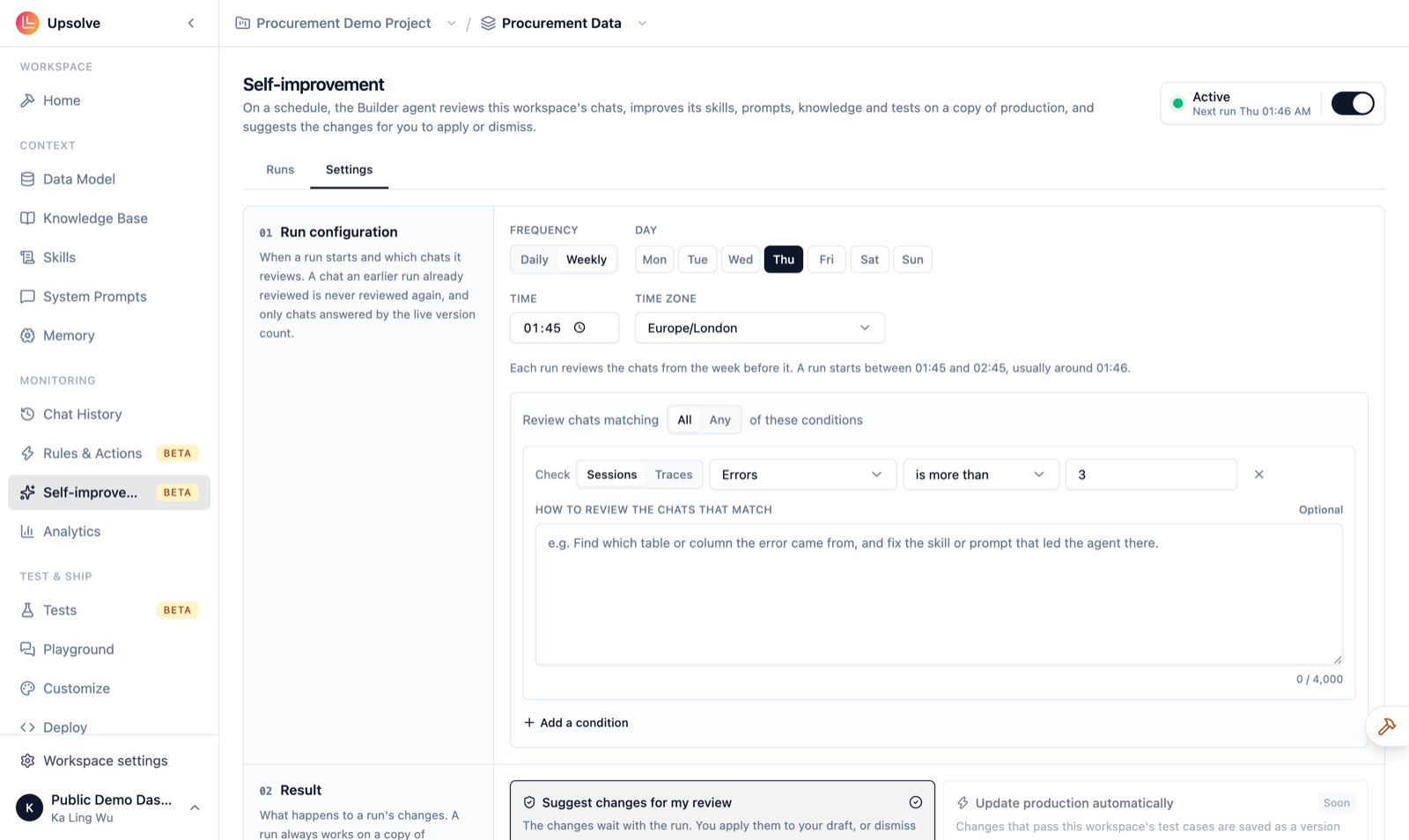
The Settings tab has four sections.1. Run configuration
Choose when a run starts and which chats it reviews.- Frequency: Daily or Weekly, with the Day, Time and Time zone. A daily run reviews the previous 24 hours of chats; a weekly run reviews the previous week. A run starts within an hour of the time you choose, and the page tells you roughly when.
- Review chats matching All / Any of these conditions: narrow the chats it looks at. Each condition checks Sessions (whole conversations) or Traces (individual answers) against a subset of the filters in Chat History, for example Errors is more than 3, or only chats with negative feedback. Eval filters aren’t available here. You can add up to 10.
- How to review the chats that match (optional, per condition): extra instructions for those chats, such as “find which table or column the error came from, and fix the skill or prompt that led the agent there.”
- A chat is never reviewed twice. Once a run has read a chat, later runs skip it, whether you applied that run or dismissed it.
- Only chats answered by the live version count. Playground chats and chats from older versions are skipped, so a run never “fixes” something you’ve already changed.
2. Result
What happens to the changes a run makes. Today that is Suggest changes for my review: changes wait with the run until you apply them to your draft or dismiss them. A run always works on a copy of production; your draft and production are untouched until you decide.3. Budget
One monthly spending limit, in US dollars, covering every run in this workspace, scheduled or manual. Pick a preset ($5, $10, $25, $50), type your own, or choose No limit. The default is $10. A run that would go past the limit doesn’t start, and unused budget doesn’t roll over. Your organization’s AI credit balance applies either way.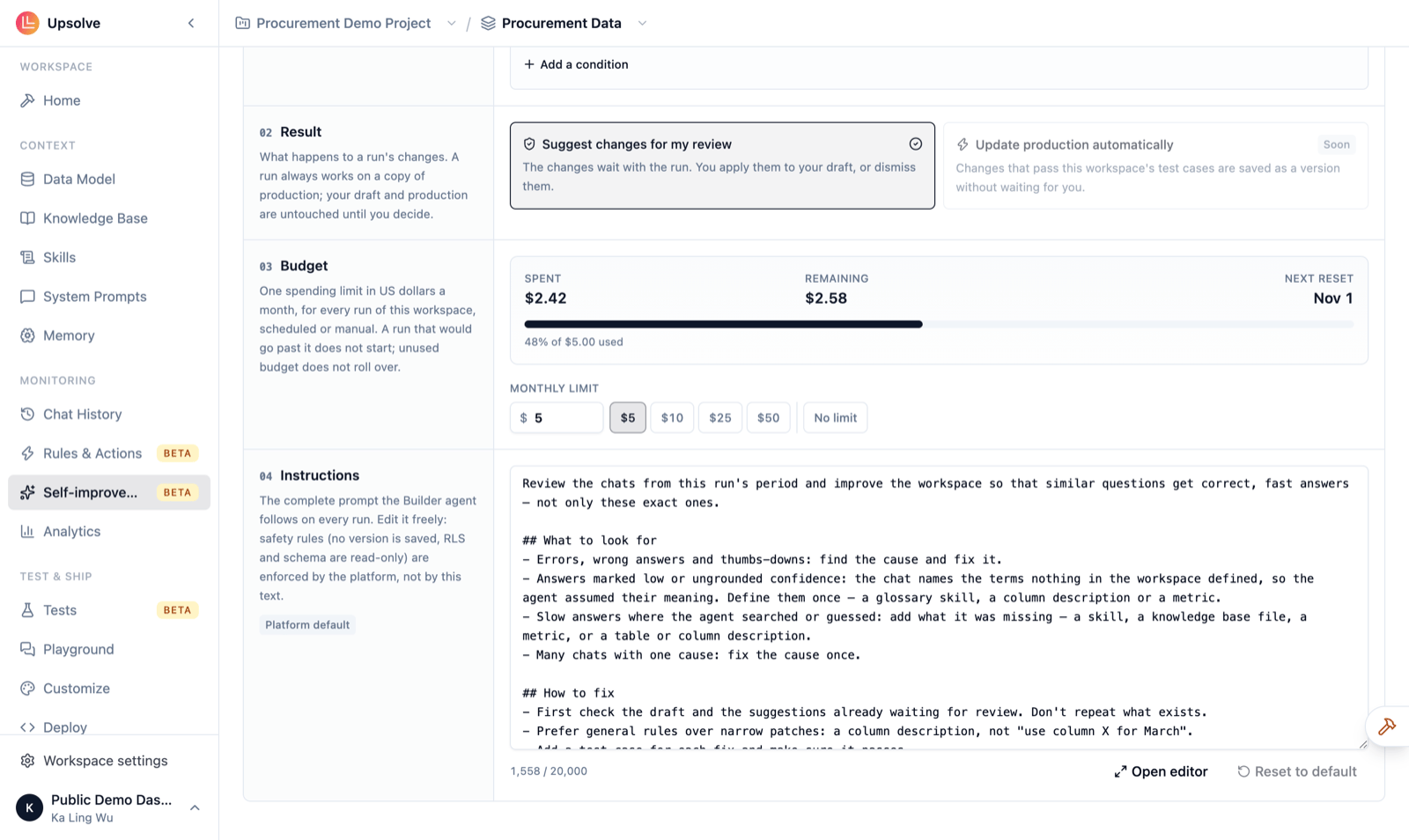
4. Instructions
The complete prompt the Builder agent follows on every run: what to look for (errors, wrong answers, thumbs-downs, low-confidence answers, slow answers where the agent searched or guessed), how to fix the cause rather than the single question, and how to report back. Edit it freely, for example to tell it what matters most in your business. Reset to default restores Upsolve’s version. The safety rules (never saving a version, never changing row-level security or the schema) are enforced by the platform, not by this text, so editing the instructions can’t remove them.What a run does
Every run follows the same four steps, shown as progress on the run:- Copied production. The run takes a copy of the version your users are on. Your draft is set aside and restored afterwards exactly as it was.
- Picked the chats. It selects up to 20 chats from the period that match your conditions and haven’t been reviewed before. Chats with errors or a thumbs-down come first, then the newest. If there are none, the run ends as Nothing to do and costs nothing.
- Agent reviewed and edited. The Builder agent reads the chats, finds the causes, and edits the copy. It can change skills, system prompts, knowledge base files and metrics, and it can add test cases. The data model and row-level security are read-only to it. To check its work, it can run your test cases against the copy (up to twice per run).
- Wrapped up. It writes a report and a list of to-dos for you, and saves its changes with the run.
Review a run
The Runs tab opens with an overview: how many runs Need review, are In progress, were Suggested and Applied, how much of the budget is Used, and when the Next run is. Filter the list by status, and click a run to open it.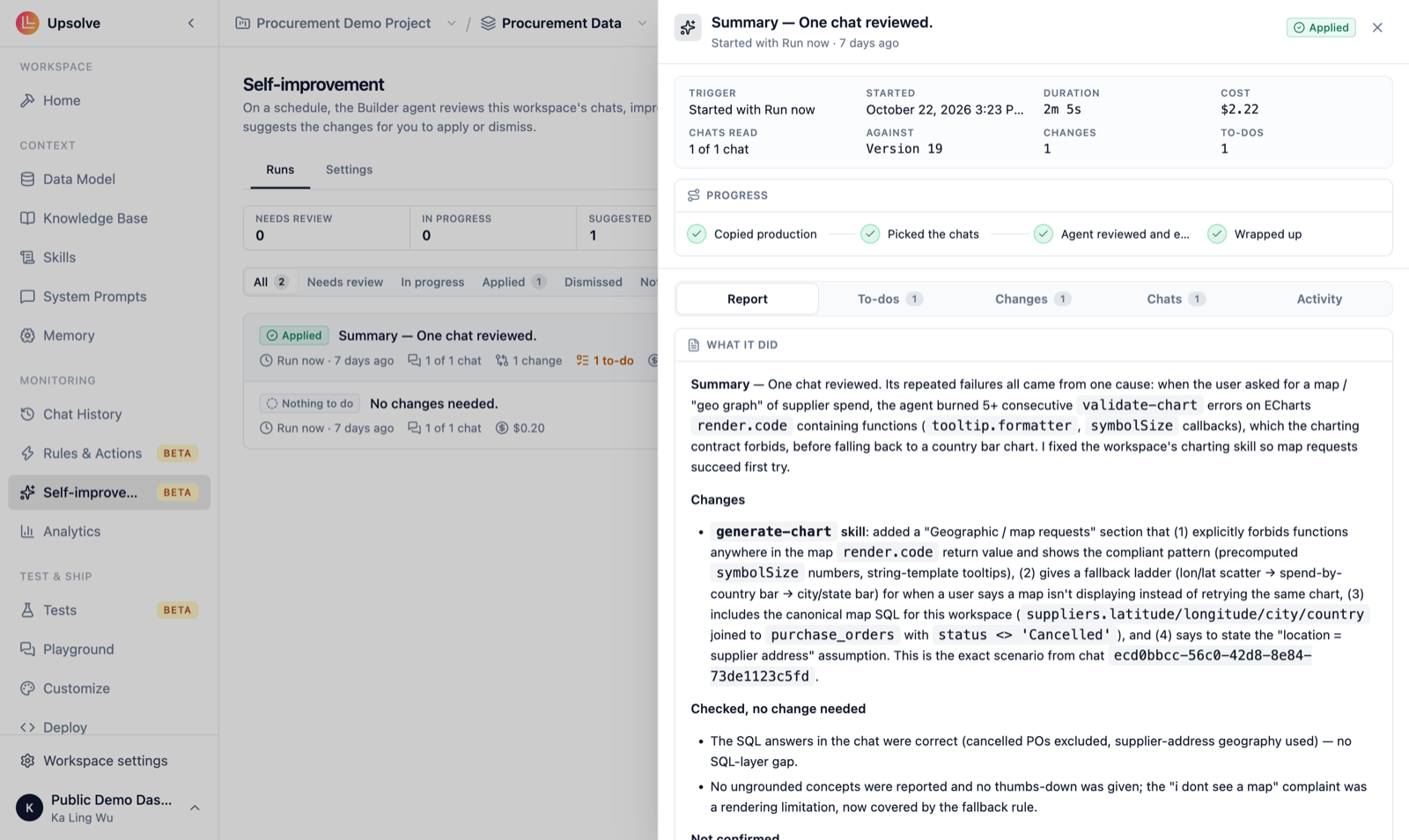
- Report: what it found, what it changed and why, and what it checked and decided not to change.
- To-dos: things only you can do, such as fixing the data, adding a table to the data model, or confirming a business rule the agent shouldn’t guess.
- Changes: every change, marked added, modified or removed, with the Before and After of each.
- Chats: the conversations it read.
- Activity: the run’s step-by-step log, including any test results.
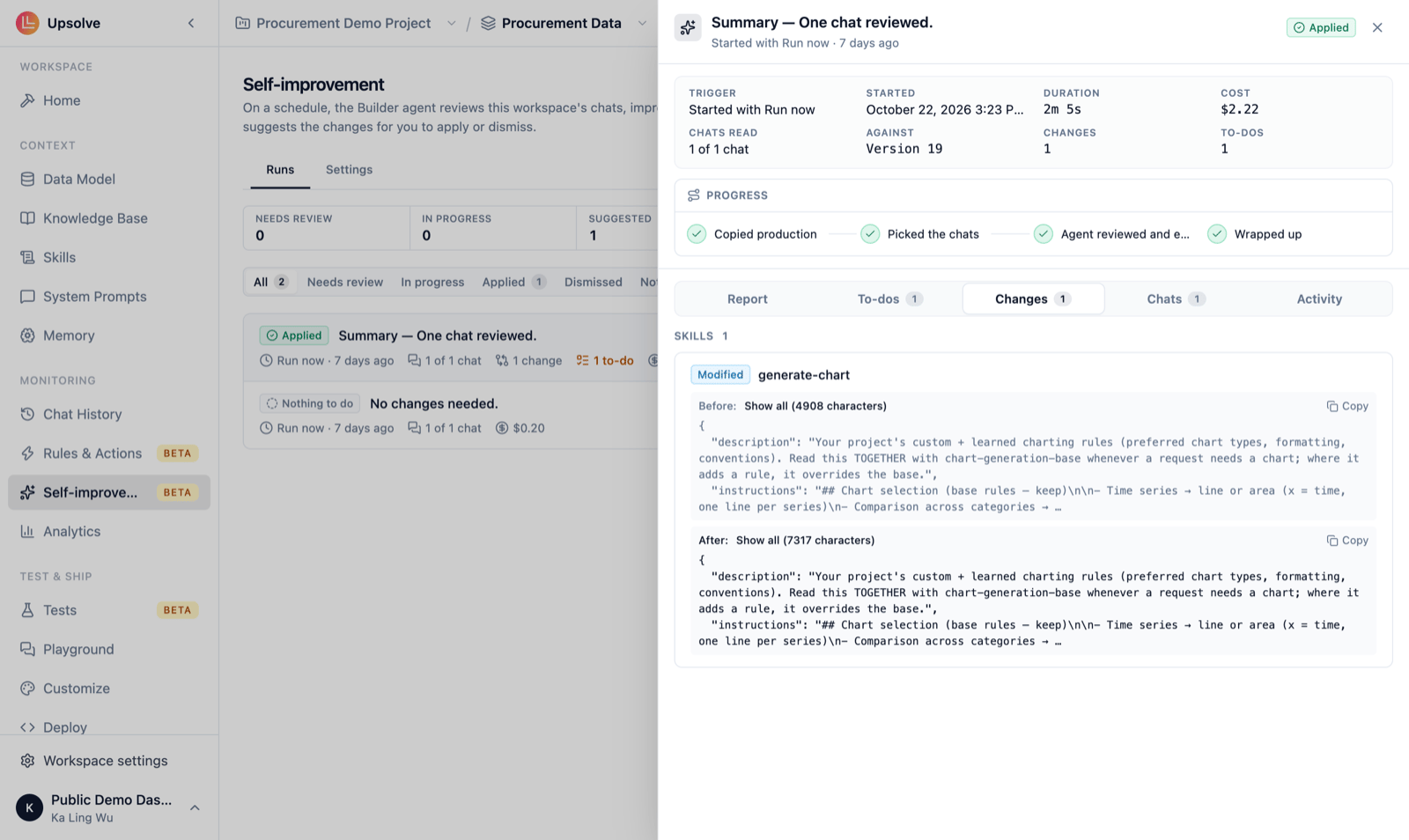
- Apply to my draft: the run’s changes are merged into your draft. Where you have changed the same thing differently since the run started, your version is kept and the difference is shown as a conflict for you to resolve. Applying doesn’t publish anything: review the draft, run your tests, and save a version as usual.
- Dismiss: throw the changes away. The chats it read stay marked as reviewed.
- Stop: cancel a run that’s still in progress. Your draft is restored.
Run it now
Run now starts a run immediately. It reviews the last 24 hours of chats and ignores your chat conditions, which makes it a quick way to see what Self-improvement would do before you rely on the schedule. Manual runs count towards the monthly budget.Status reference
Who a run acts as
A run acts as the person who switched Self-improvement on, while they are still an owner or admin. Otherwise it acts as the longest-standing owner, then admin. A run can take up to 30 minutes.Next steps
Builder Agent
The agent that does the work, available to chat with any time.
Tests
The checks each run makes against its own changes.
Chat History
The conversations, evals and feedback a run reviews.
Skills
The context runs most often improve.