

staging or qa, to run your workspaces against other databases for the users you put there. A typical use: your customers’ staging build signs its users in to Upsolve’s staging environment, which queries your staging warehouse and serves the version you’re testing, while production keeps serving the version your customers rely on.
Environments are available in Upsolve Cloud and are turned on per organization. If Project settings has no Environments tab, contact Upsolve support. Upsolve Local has none.
How environments work
An environment changes three things, and nothing else:
The workspace itself is shared: one draft, one list of versions, one set of data security rules. You build once and deploy the same version to each environment when it’s ready.
A user decides the environment. Every project organization and its users belong to exactly one environment, and every question they ask runs there. A URL or a token can’t switch it.
There is no fallback to production. If a connection has no database in a user’s environment, their questions fail with an error rather than reading production data. A staging user only ever sees production data if someone deliberately mapped staging to the production database.
Set up an environment
1. Add it
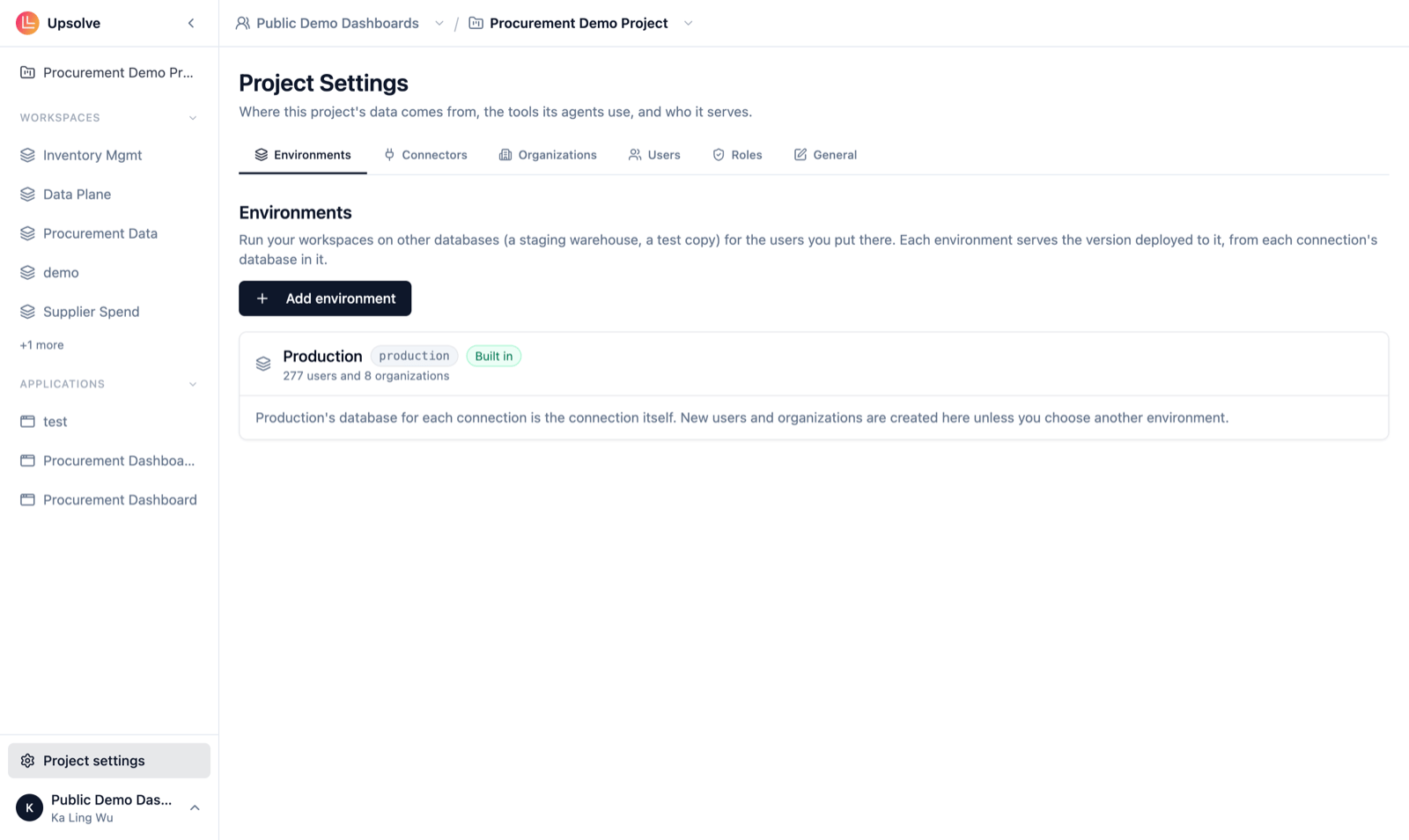
- Open Project settings → Environments.
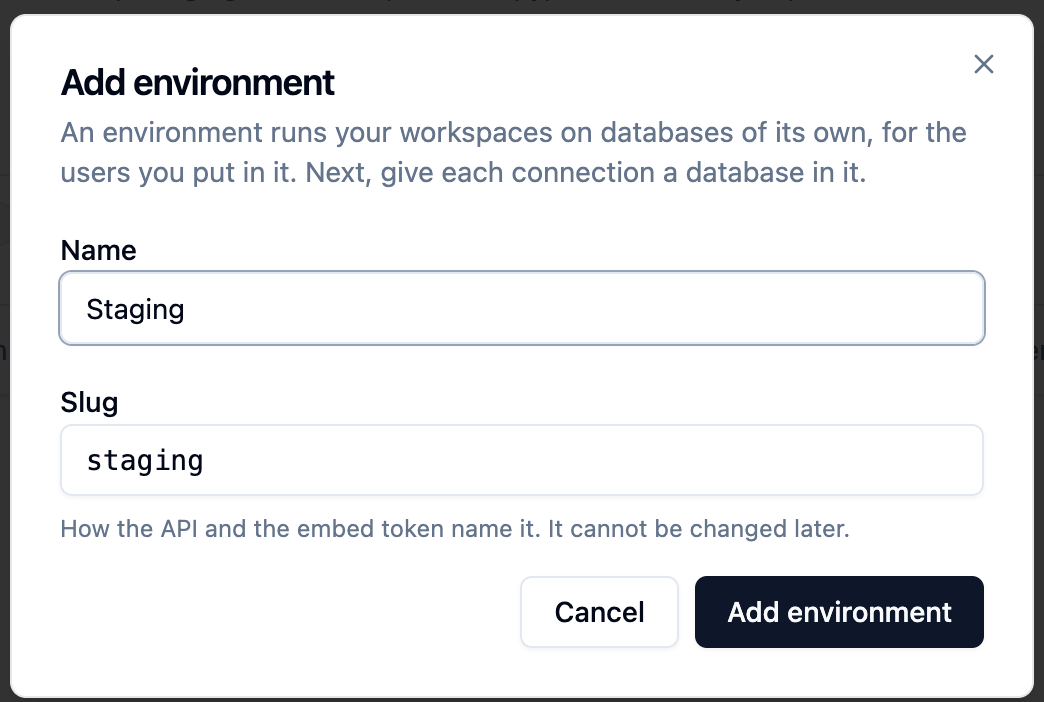
- Click Add environment and give it a Name (for example, Staging).
- Check the Slug it suggests (
staging). The slug is how the API and the embed token name the environment: lowercase letters, numbers and dashes, starting with a letter. It can’t be changed later.
2. Give each connection a database in it
On Project settings → Connectors, each connection is listed with its databases, one per environment. For each connection your workspaces use, add the database it should use in the new environment: a new connection to your staging warehouse, or the same database as production if that’s what you want. The tables and columns your workspace versions use must exist there. Upsolve checks this when you deploy (see below).3. Put users in it
- From your backend, send
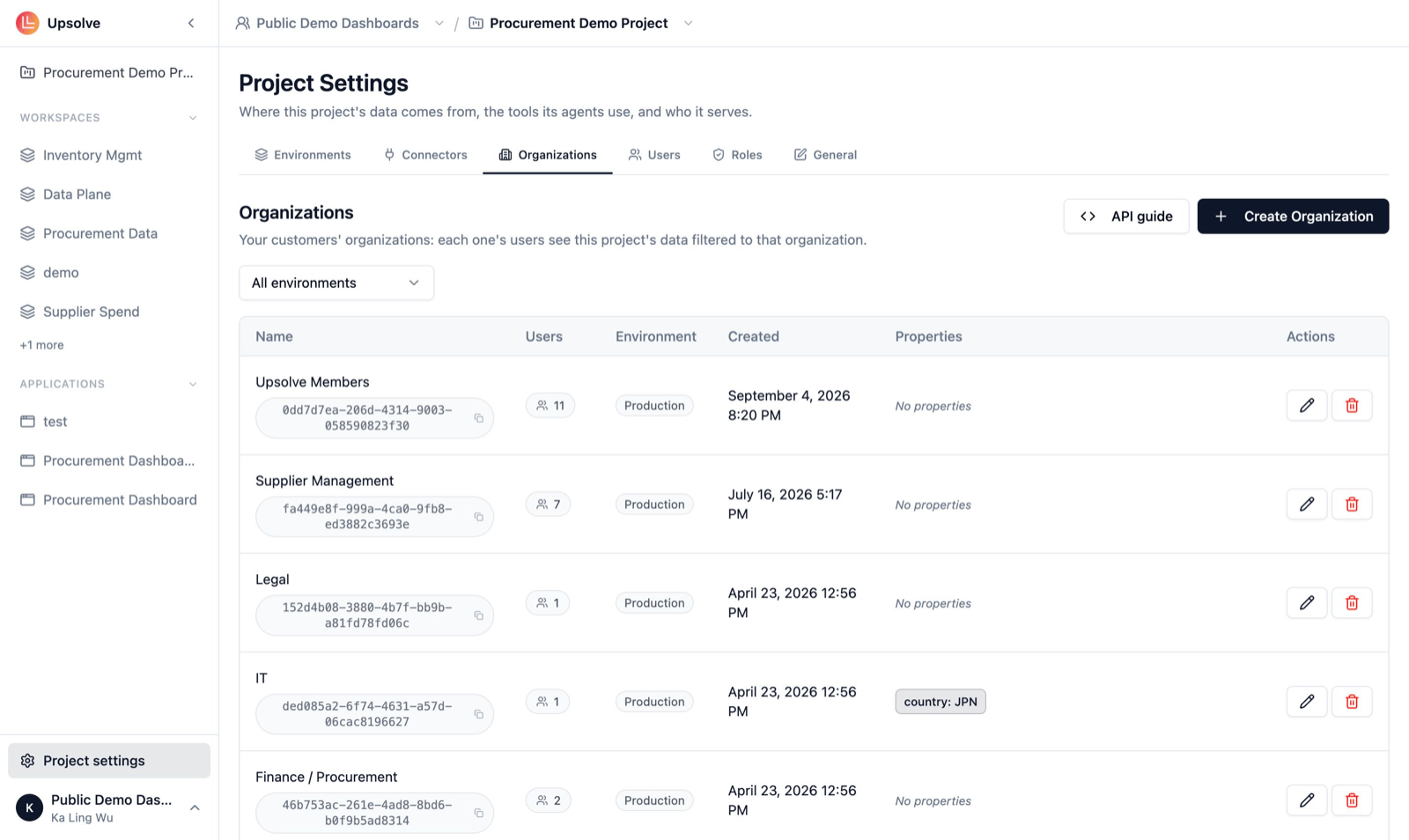
environmentin theembed-tokencall. The organization is created in that environment the first time, and stays there. The sameexternalIdin another environment is a separate organization, so your staging build can reuse production’s tenant ids. - By hand, add a test organization and user in Project settings → Organizations and Users and pick the environment, or use Move to environment on an existing organization. Moving an organization moves all its users with it.
Save, then deploy
With environments on, saving a version only freezes it. Nobody is served it until you deploy it.- Save the draft as a version from the version bar, as usual.
- Choose Deploy to… and pick an environment.
- Add an optional deployment note, shown in the deployment history, and start.
You can cancel a deployment while it runs. A deployment that fails, or that you cancel, leaves the environment on its previous version. To roll back, deploy an older version.
Promote to production is still there for production. Where production requires tests, owners and admins can skip them; everyone else deploys.
Tests per environment
Each environment has its own Require tests switch and Test as user, in Workspace settings → CI. Choose a test user who belongs to that environment, so the tests answer against that environment’s database, as a real user there would. See Tests: with environments.Build and test against an environment
When a project has more than one environment, an environment picker sits beside the version switcher in every workspace. It’s your own view, and changes nothing anyone else is served. It decides:- which users the Playground offers, and so which database your test chats run on,
- what Home in User mode shows: the version deployed to that environment,
- what the Data Model page compares the draft with, and where test case SQL runs.
Keep environments healthy
- Nightly checks. After Upsolve reads each database’s tables overnight, it checks every version deployed outside production against its environment’s database and flags one that no longer matches. It reports and never blocks.
- API connectors can call a different base URL with a different key in each environment. See Connect your API.
- Deleting an environment is possible only once no customer organizations or users belong to it. Its deployment history goes with it. Nothing in production changes.
Related
Embed: Environments
Sign users in to an environment from your backend.
Tests
Check each deployment against the questions your agent must get right.
Roles & Permissions
Who can deploy, and who can skip a deployment’s checks.
Workspaces
Draft, versions and production.