

API connectors are a Beta feature.
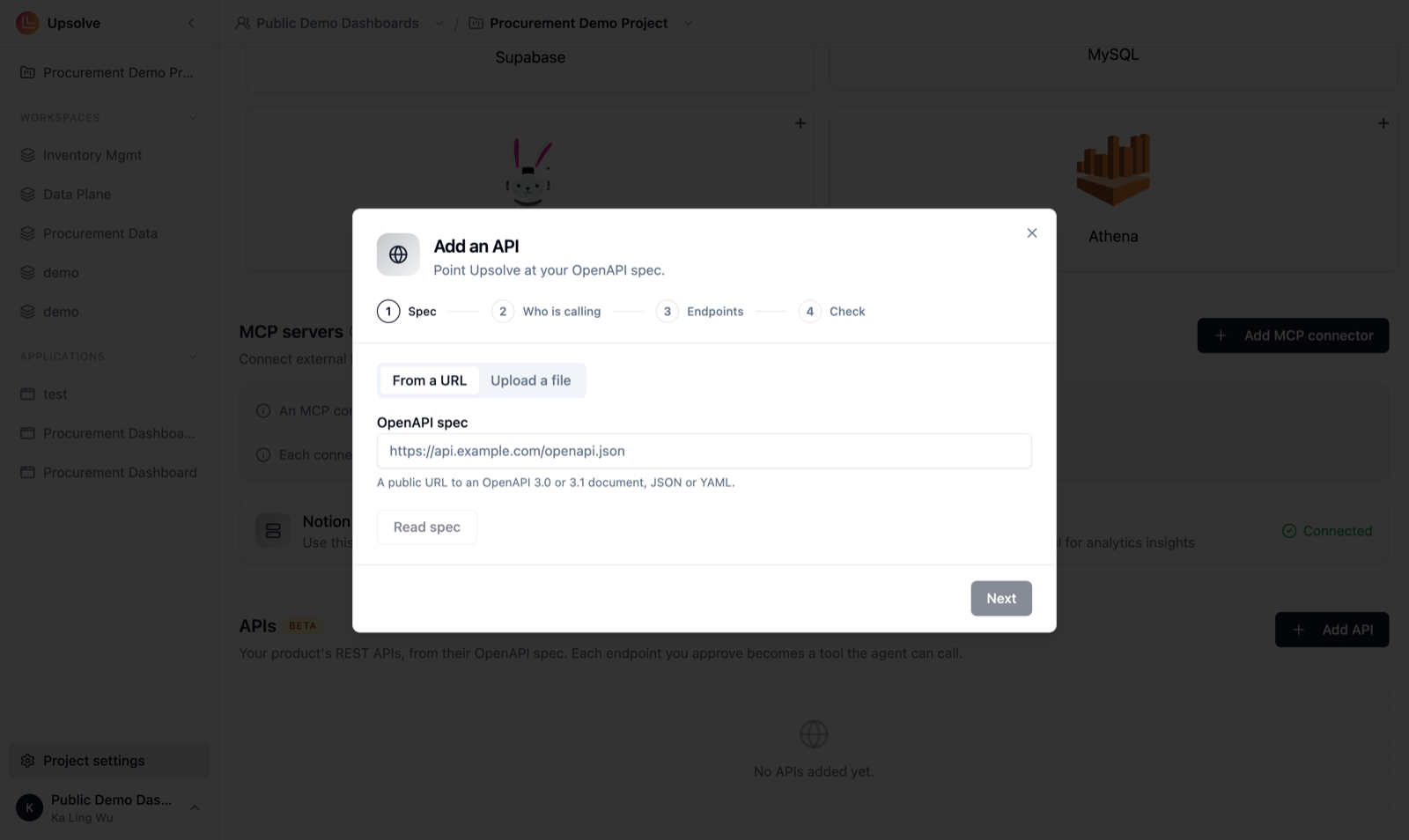
Add an API
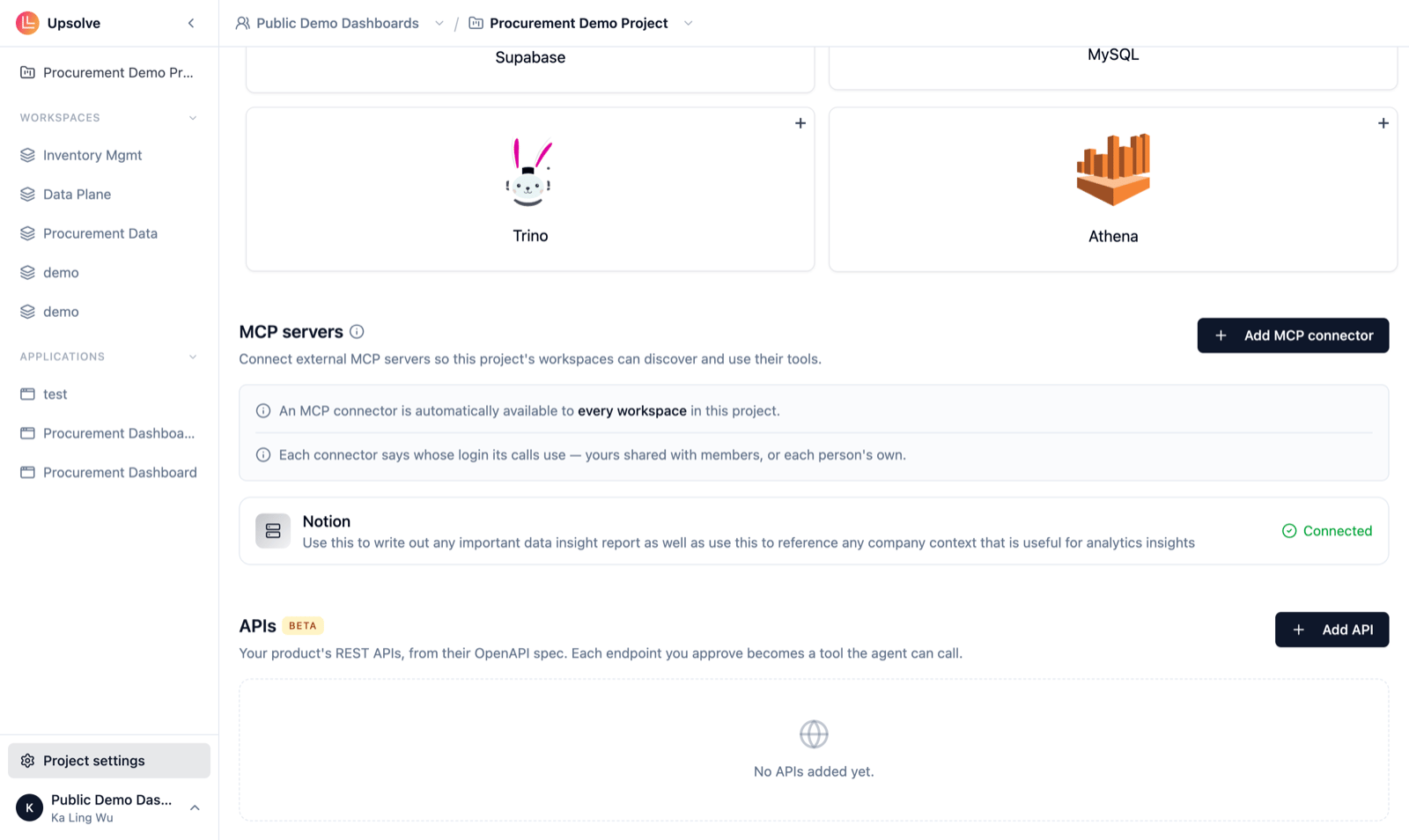
API connectors belong to the project, so every workspace in it can use them.- Open Project settings → Connectors and, in the APIs section, click Add API.
- Spec: choose From a URL or Upload a file (.json, .yaml or .yml, up to 2 MB), then click Read spec. Upsolve shows the spec’s title, its version and how many endpoints it found. It reads OpenAPI 3.0 and 3.1; a Swagger 2.0 spec is refused with a message saying so.
- Who is calling: give the API a Name, check the Base URL, and optionally say When should the agent use this? Then choose how Upsolve calls the API for each user (below).
- Endpoints: approve the endpoints the agent may call (below), then Save connection.
How Upsolve calls your API for each user
A binding fills a header, query or path parameter from one of the user’s or organization’s properties, the ones you send when you sign a user in. The model can never set it, so each user only ever reaches their own account. Let Upsolve act as your users explains each option and binding in detail.
Approve endpoints
Every endpoint starts unapproved, and the agent can only call the ones you approve (up to 200).- Each endpoint is marked Read or Write. GET and HEAD start as reads; everything else starts as a write. Change the marking if your API differs.
- Select all reads approves every read at once. Writes are never approved for you: approve a write only if you’d let the agent and your rules make that change.
- With bindings, an endpoint that doesn’t take the bound parameter is hidden from end users unless you mark it Global (available to everyone).
- Endpoints Upsolve can’t call (for example, one whose request body isn’t JSON) say why and can’t be approved.
Test the connection
Open the API from the list and use the test panel: pick a read Endpoint to call, who to Test as, and any Arguments. It calls the endpoint once and shows the status and time (for example Connected · 200 in 182 ms). Nothing is saved.Keep it up to date
Click the API in the list to open it. From there:- Re-import spec when your API changes. Compare with current shows what was Added, Removed and Changed; Apply takes it. Your approvals and Read/Write markings are kept, and an approved tool is never renamed, so the prompts and rules that use it keep working.
- Replace key to rotate a server key.
- Delete to remove the API from the project.
How the agent uses it
In a conversation, the agent calls approved reads as it needs them, to look things up in your product. A write is never sent by the agent on its own. The agent prepares the request and shows it as a card, and nothing happens until the person clicks Confirm. Cancel drops it. A request that isn’t confirmed within 30 minutes expires, and if anything about it changed since it was shown, nothing is sent.How rules use it
A rule’s action can be any approved write, and its condition can look things up with approved reads. A scheduled rule or an alert calls the API as the rule’s owner; a button calls it as the person who pressed it, with their own credentials. A write someone sends by hand (a button press, a test or a retry) waits for them to confirm it. A scheduled rule or an alert sends its writes without asking, once its owner switches it on, so approve a write only for rules you’d trust to run on their own. Writes are never retried automatically. See Rules & Actions.Next steps
Let Upsolve act as your users
Each way of authenticating, and how bindings work.
API activity
Every write the agent and your rules sent.