

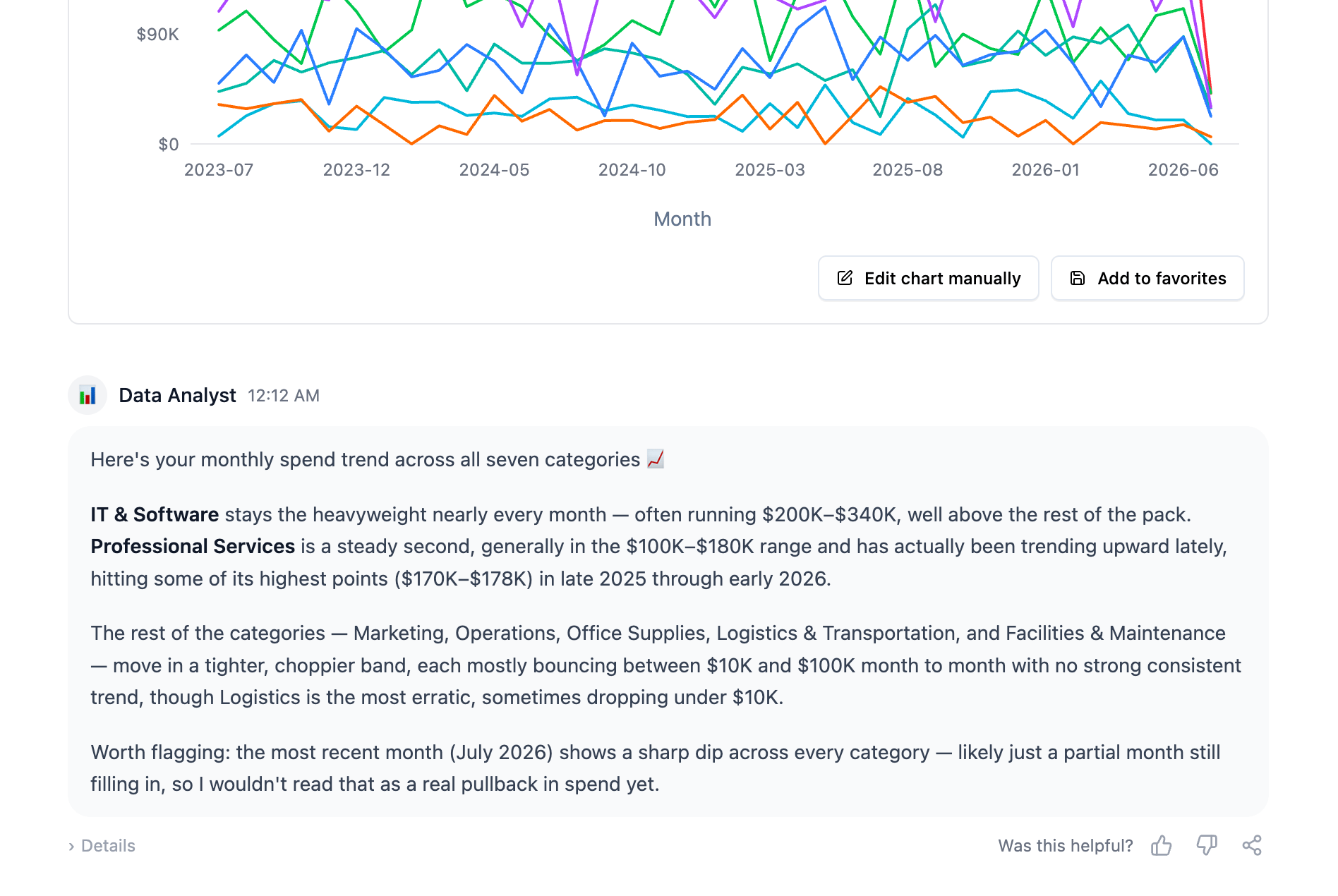
Thumbs up
Clicking thumbs up records the rating immediately — no dialog, no extra step. Clicking it again clears the rating, so a mis-click costs nothing.Thumbs down
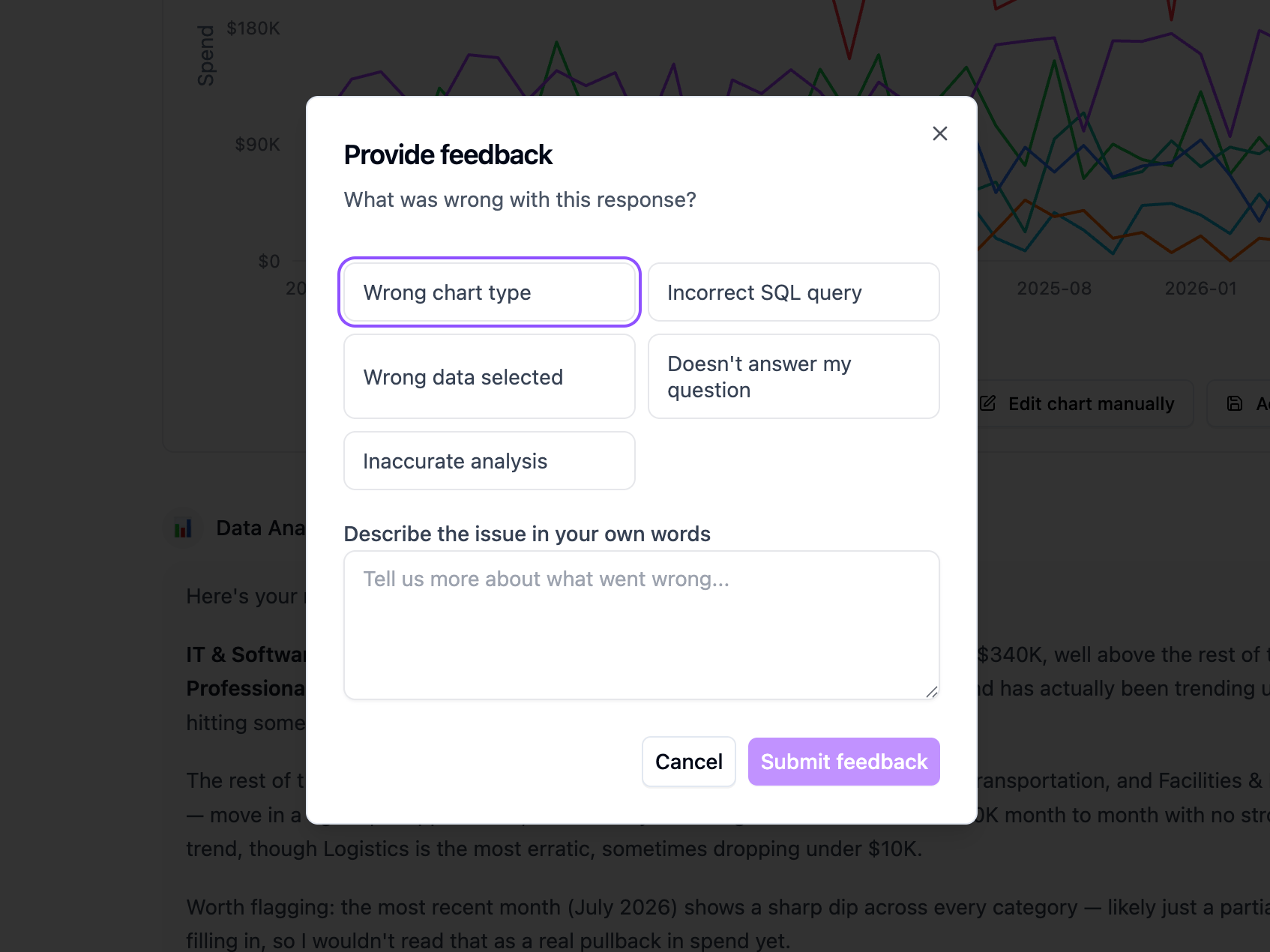
Thumbs down opens a short Provide feedback dialog asking “What was wrong with this response?”. The user can pick one of five common causes:- Wrong chart type
- Incorrect SQL query
- Wrong data selected
- Doesn’t answer my question
- Inaccurate analysis
Feedback is per answer, not per conversation
The rating attaches to the specific exchange the user was looking at. A conversation where the third answer went wrong keeps that precision:- In the Traces view of Chat History, the thumbs down sits on the row for that exchange.
- In the Sessions view, the session’s Feedback column reflects the feedback given in that conversation, and the detail sidebar shows the rating and comment.
Where it shows up for you
Chat History — the Feedback column in both the Sessions and Traces views. Hover a badge to read the written comment. You can filter the table on feedback to pull up every negative answer in a time range.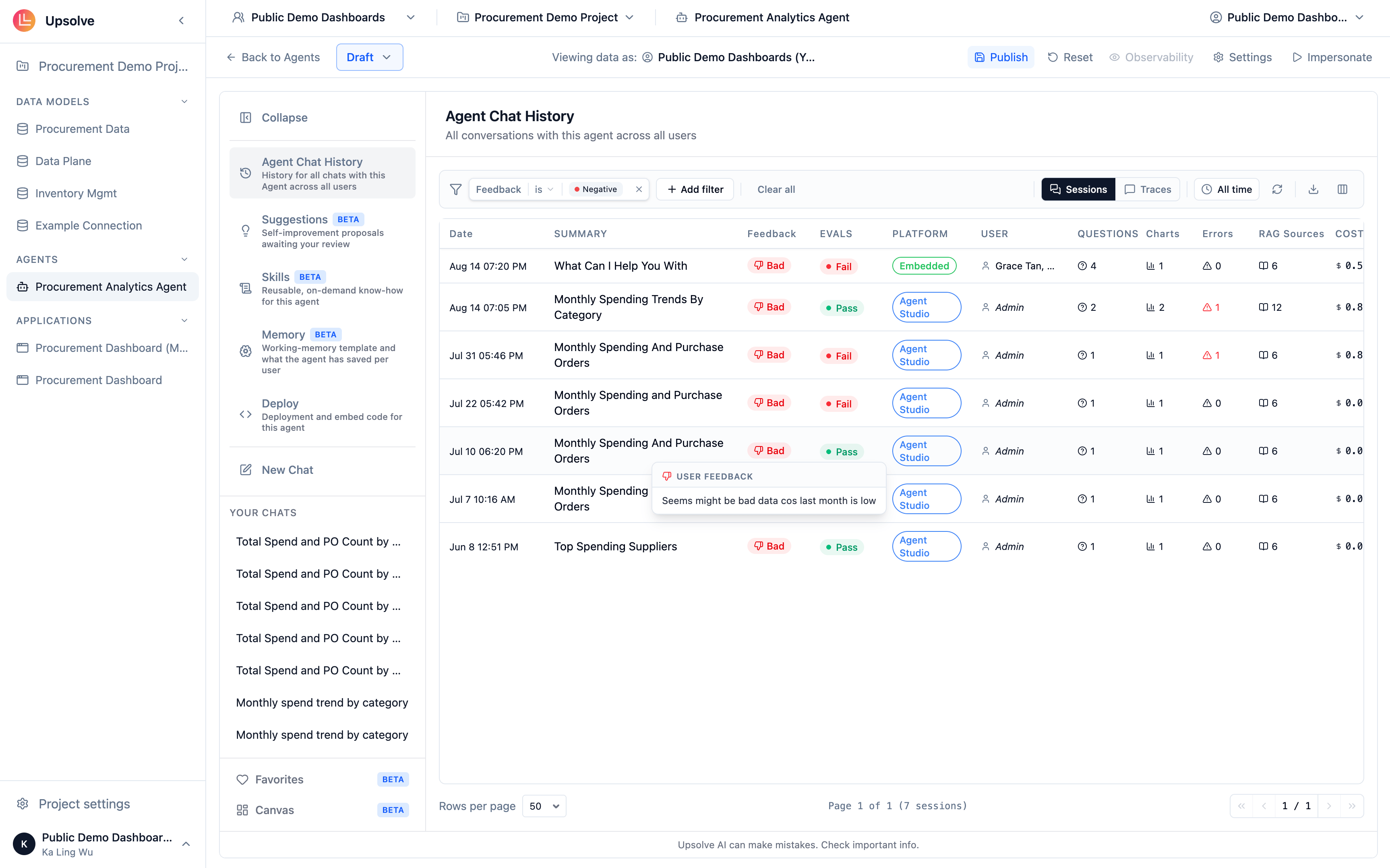
Turning feedback into a fix
The workflow that works:- Filter Chat History’s Traces view to thumbs-down answers over the last week.
- Open each one and read the user’s comment, then switch to the Observability tab.
- Find the step that went wrong — usually SQL Generation or Chart Generation.
- Fix it at the source: a System Prompt rule if it should always apply, a Golden Query or Chart if it’s a recurring question with one right answer.
Next steps
Sharing an Analysis
Let users send a single answer or a whole conversation to a colleague.
Agent Observability
Trace the answer behind a thumbs down, step by step.