

Prerequisites
Before you start, you will need the following information from Oracle.- Host (Endpoint without the port or database name)
- Port (The port used to connect to your database)
- User (The username of the service account)
- Password (The password for the service account user)
- Database Name (The database name of your service)
- SSL, if active (Toggle “Connect Through TLS” switch)
Connecting Oracle to Upsolve
- Navigate to your project in Upsolve and open Project settings → Connections.
- Select your data source from the Connect data cards to begin.
- The Oracle connection form opens with Oracle preselected.
-
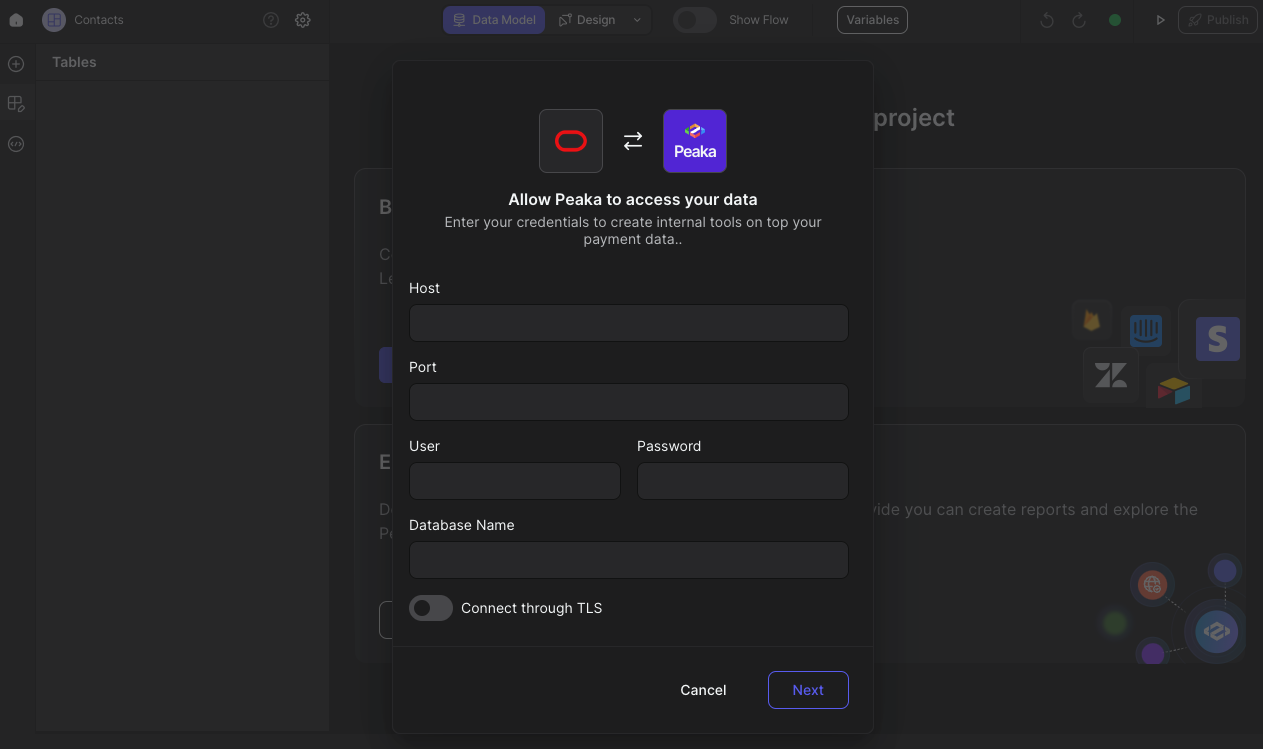
Fill out the data source details form as shown in the image below, including:
- Host (Endpoint without the port or database name)
- Port (The port used to connect to your database)
- User (The username of the service account)
- Password (The password for the service account user)
- Database Name (The database name of your service)
- Connect Through TLS (Toggle switch if SSL is active)
- Click “Test & Create Connection” to establish the data source.
 Congratulations! You’ve successfully created a data source between Oracle and Upsolve. You can now access and manage your Oracle data seamlessly within the Upsolve platform.