

Prerequisites
Before you start, you will need Admin API Access Token and Subdomain from Shopify. Follow the steps below to obtain it:- Go to this link and log in to your Shopify account.
- Click the settings icon located in the lower-left corner of the website.
- If you already have a Shopify app, select it. If not, create a new app.
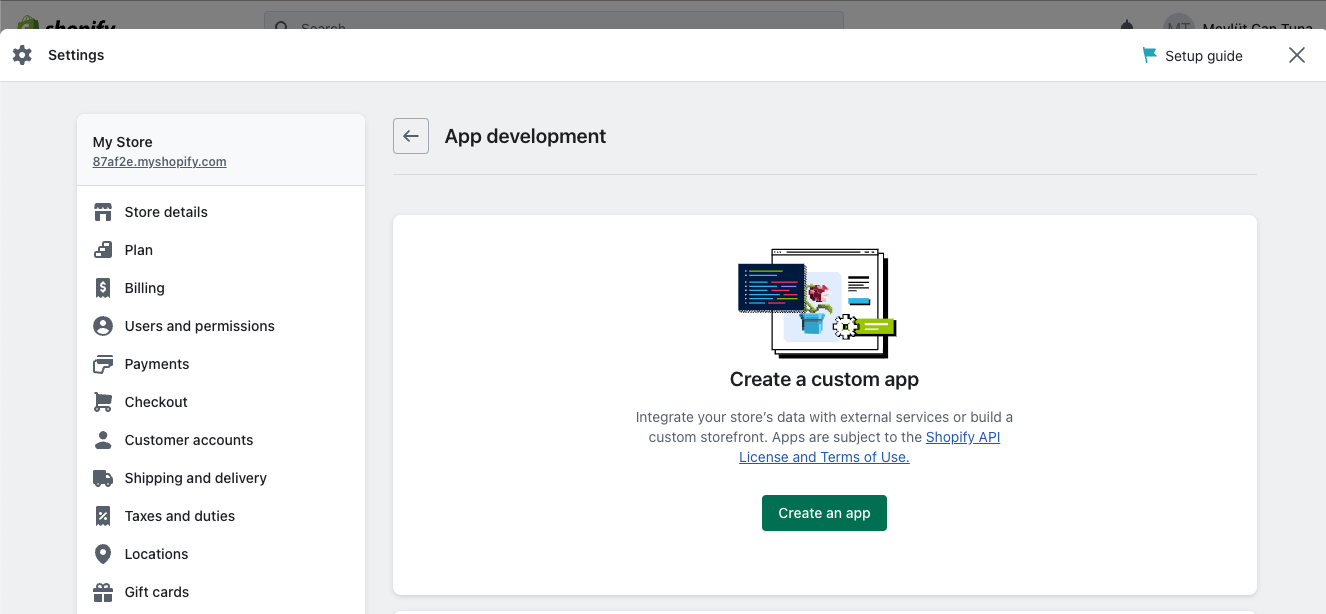
- Click the “Develop apps” button, as shown in the image below.

- Configure your Admin API scopes and Storefront API scopes as needed for your integration.
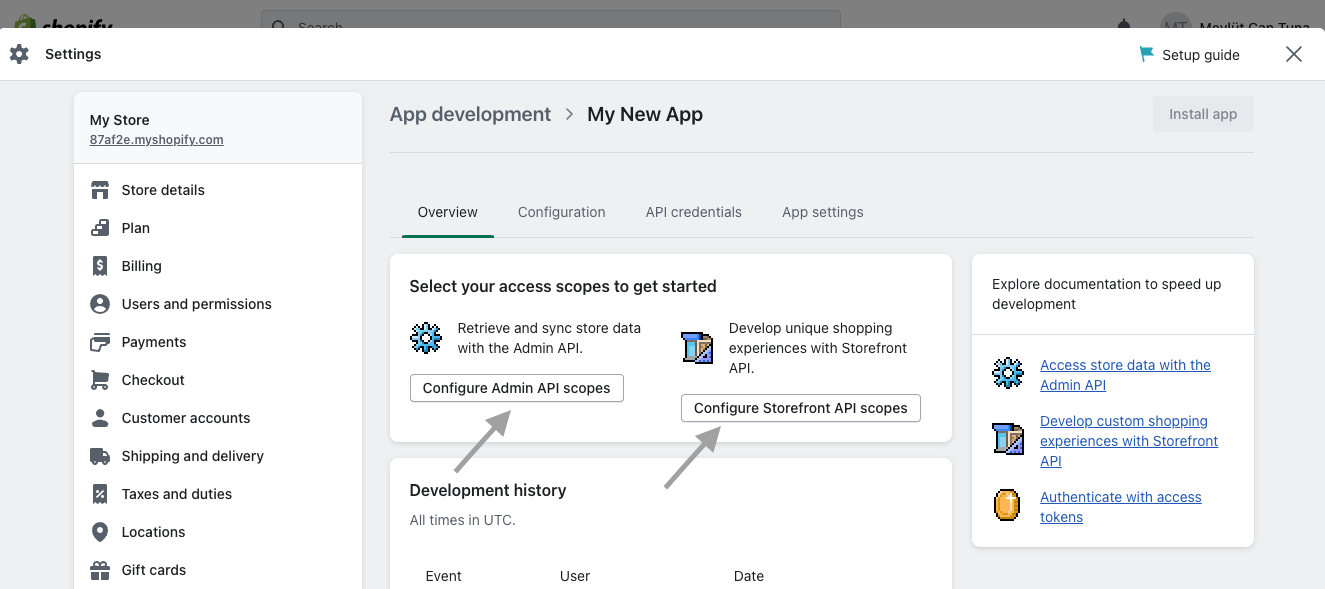
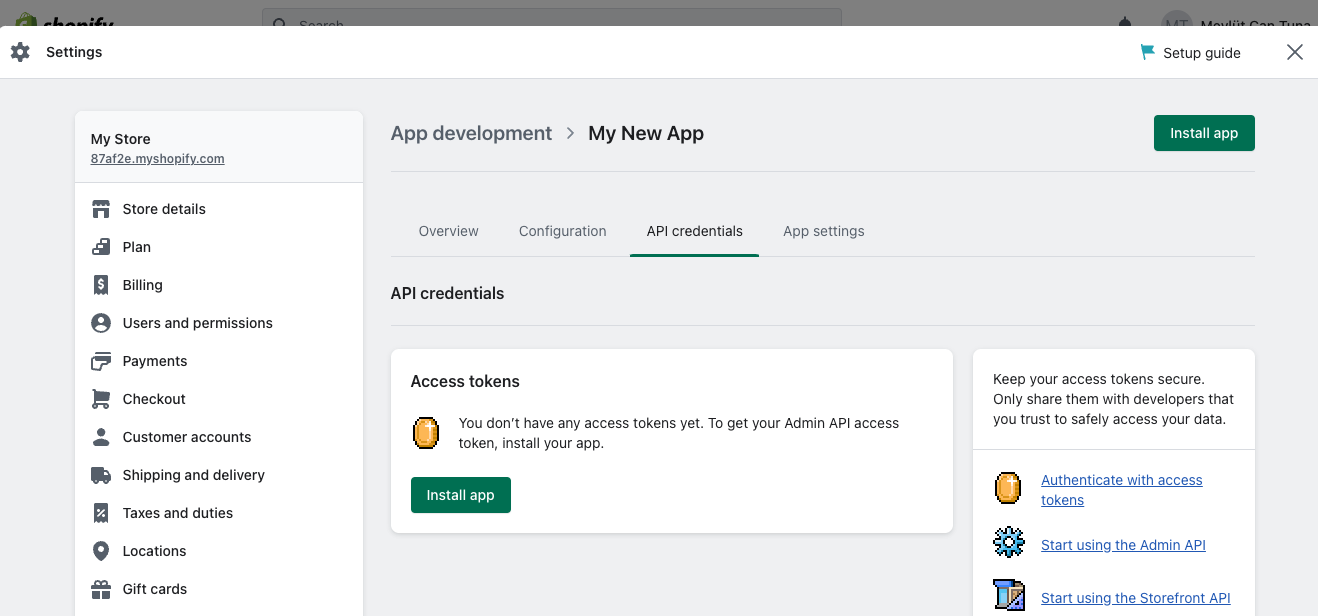
- After configuring your API scopes, click “Install app” button to generate Admin API Access Token.
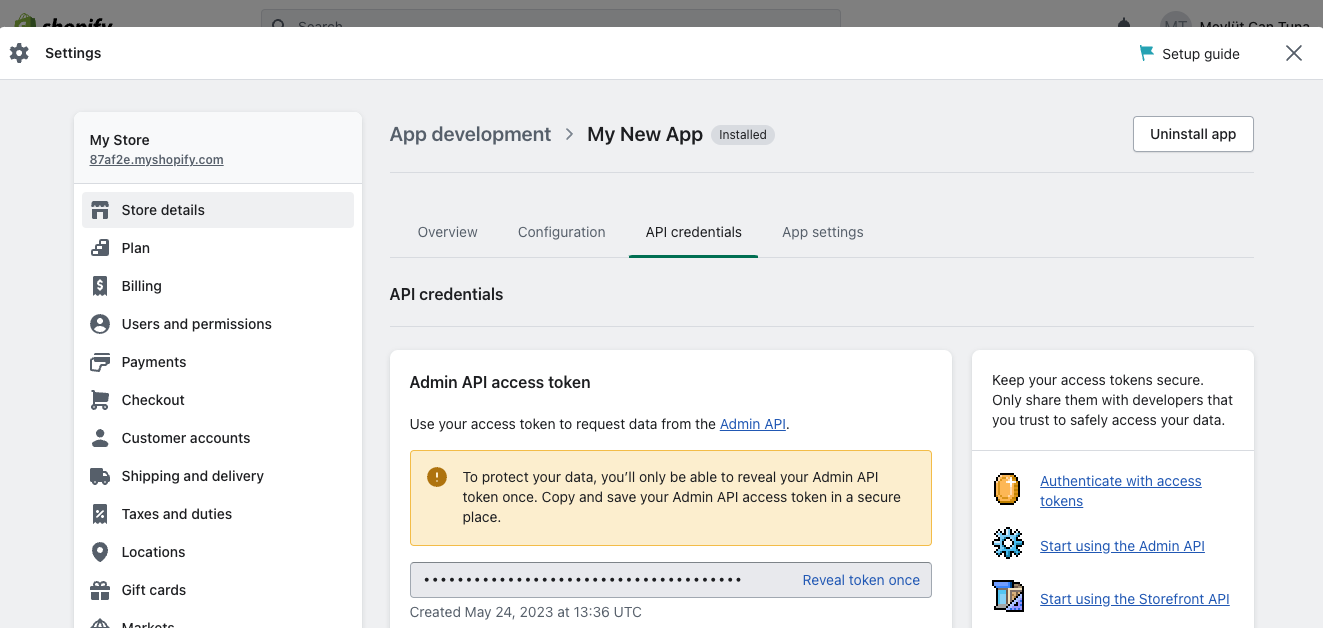
- Copy the Access Token generated for your app.
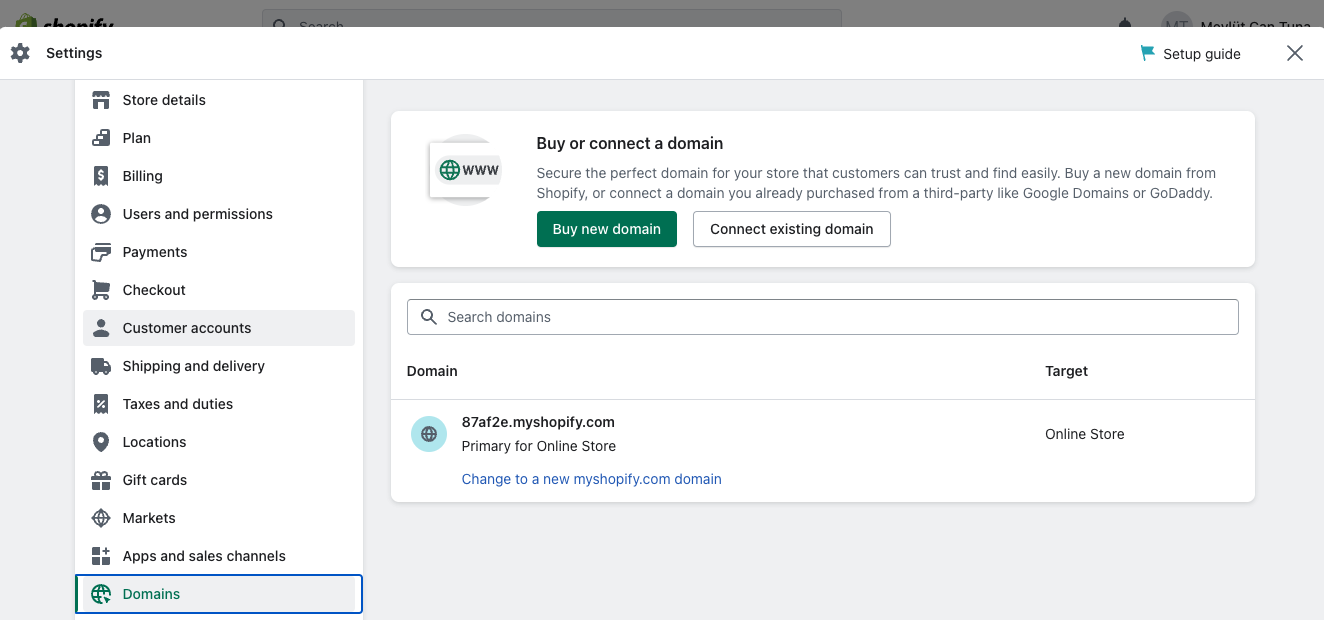
- Go to the “Domains” section on the side panel of the website to obtain or connect your Shopify subdomain.
Connecting Shopify to Upsolve
Now that you have your requirements, you can connect it to Upsolve using the following steps:- Navigate to your project in Upsolve and open Project settings → Connections.
- Select your data source from the Connect data cards to begin.
- The Shopify connection form opens with Shopify preselected.
- Enter your data source name, Admin API Access Token and Subdomain.\
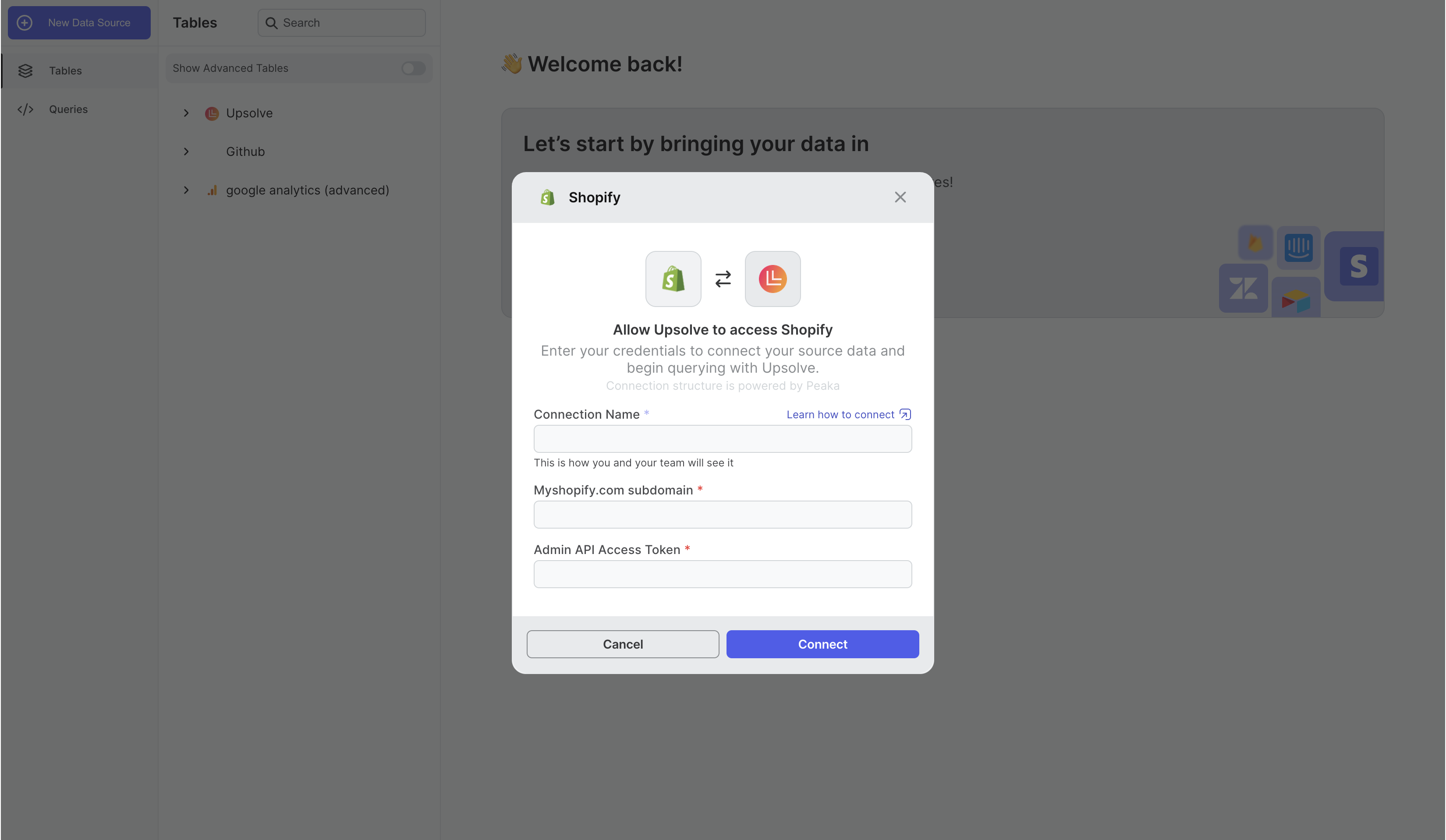
- Click “Test & Create Connection” to create your Shopify data source.