

Prerequisites
Before you start, you will need the following information from Quickbooks Online.- Client ID (required for advanced authentication)
- Client Secret (required for advanced authentication)
- To obtain the Client ID and Client Secret, go to the article.
Connecting Quickbooks Online to Upsolve
- Navigate to your project in Upsolve and open Project settings → Connections.
- Select your data source from the Connect data cards to begin.
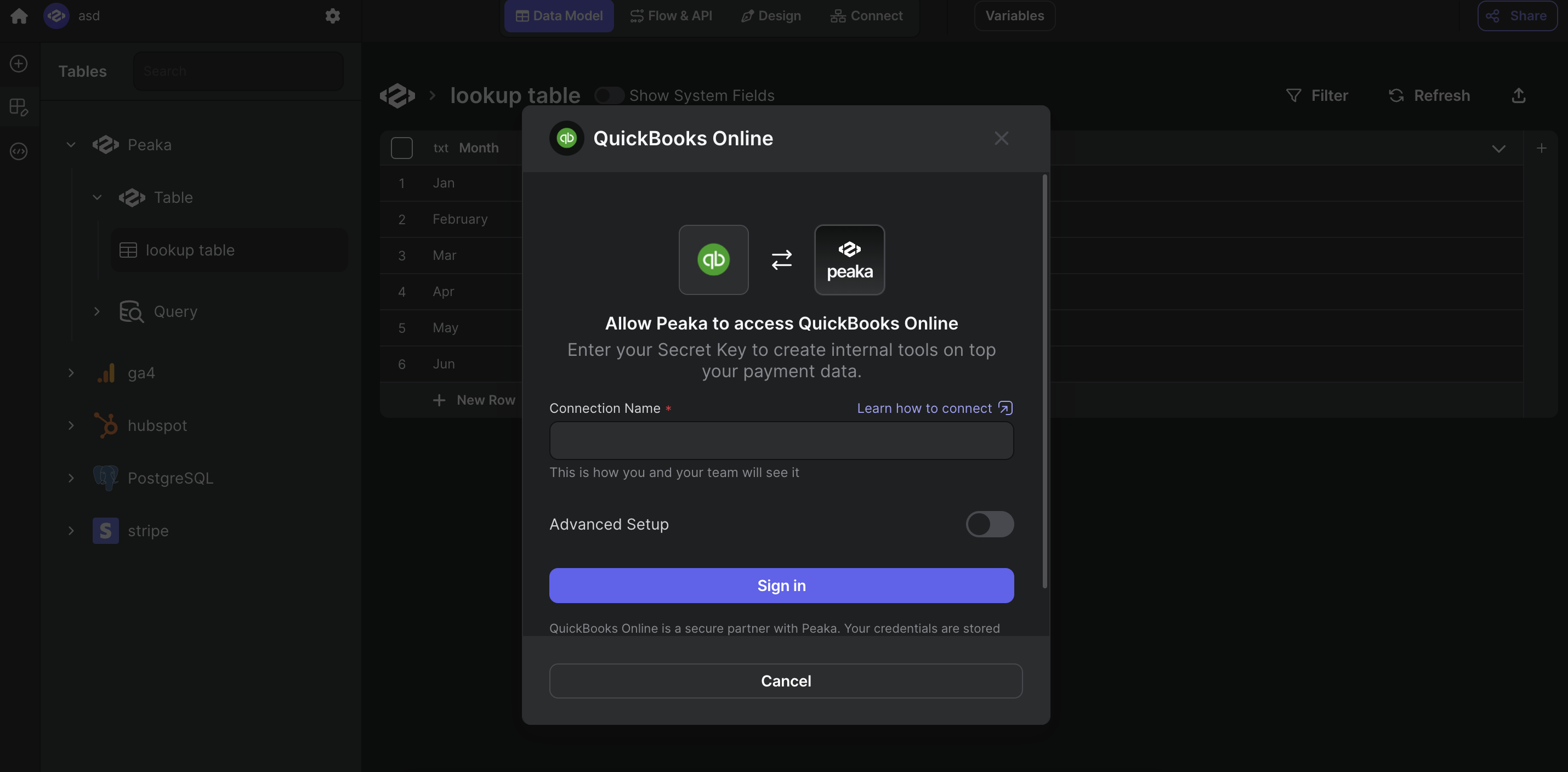
- The Quickbooks Online connection form opens with Quickbooks Online preselected.
- Enter a name for your data source and input credentials you obtained in the previous step.
- Click “Sign in” to create your Quickbooks Online data source and allow Upsolve access to your Quickbooks Online account.
 Congratulations! You’ve successfully connected Quickbooks Online to Upsolve. You can now access and manage your Quickbooks Online data seamlessly within the Upsolve platform.